Enable Delegated Grading
Enable delegated grading for an assignment or test
From the Gradebook, select Edit for an assignment or test.
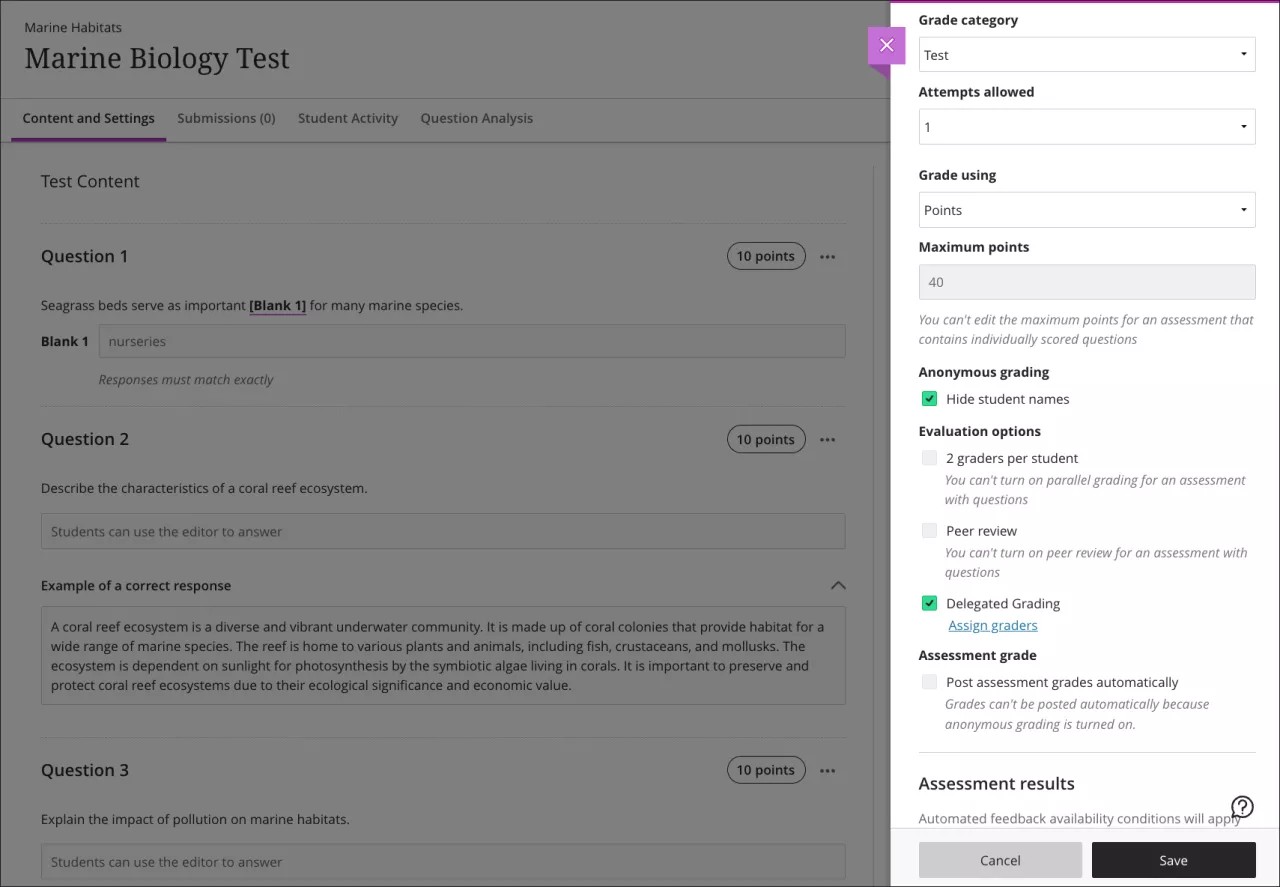
Select Assignment Settings or Test Settings to open the panel.
Under Evaluation options, select Delegated Grading.
Select Assign graders.
From the Delegated Grading page, select a group set.
Note
You can select only one group set for delegated grading. If you select a different group set later, the system removes any previously assigned graders and replaces them with the new selection.
For each group in the set, select the graders.
A group set can include one or more graders in each group. If multiple graders are assigned to the same group, they will share the grading responsibility.
Graders assigned to a group of students can only view submissions for those students on the assessment’s submission page. They can only post grades for their assigned group members.
Unassigned instructors enrolled on the course can view all student submissions on the assessment’s submission page. They can post grades for all students.
If you'd like to delegate randomly to course graders, first set up a randomized Group Set.
Select Save. You return to the settings panel.
Select Save to save your settings.
Important
If you select Hide student names under Anonymous grading, student names are hidden from assigned graders.