Learning Activities
Note
System administrators can find information for settings and configuration on the Learning Activities page for Administrators.
Learning Activities are interactive course content that students work through at their own pace. They give students a low-stakes way to check their understanding before a graded assessment, and they give you a view of which concepts students find difficult.
Learning Activities groups interactive activity types together so you find and create all of them the same way. Flashcards is the first activity type available.
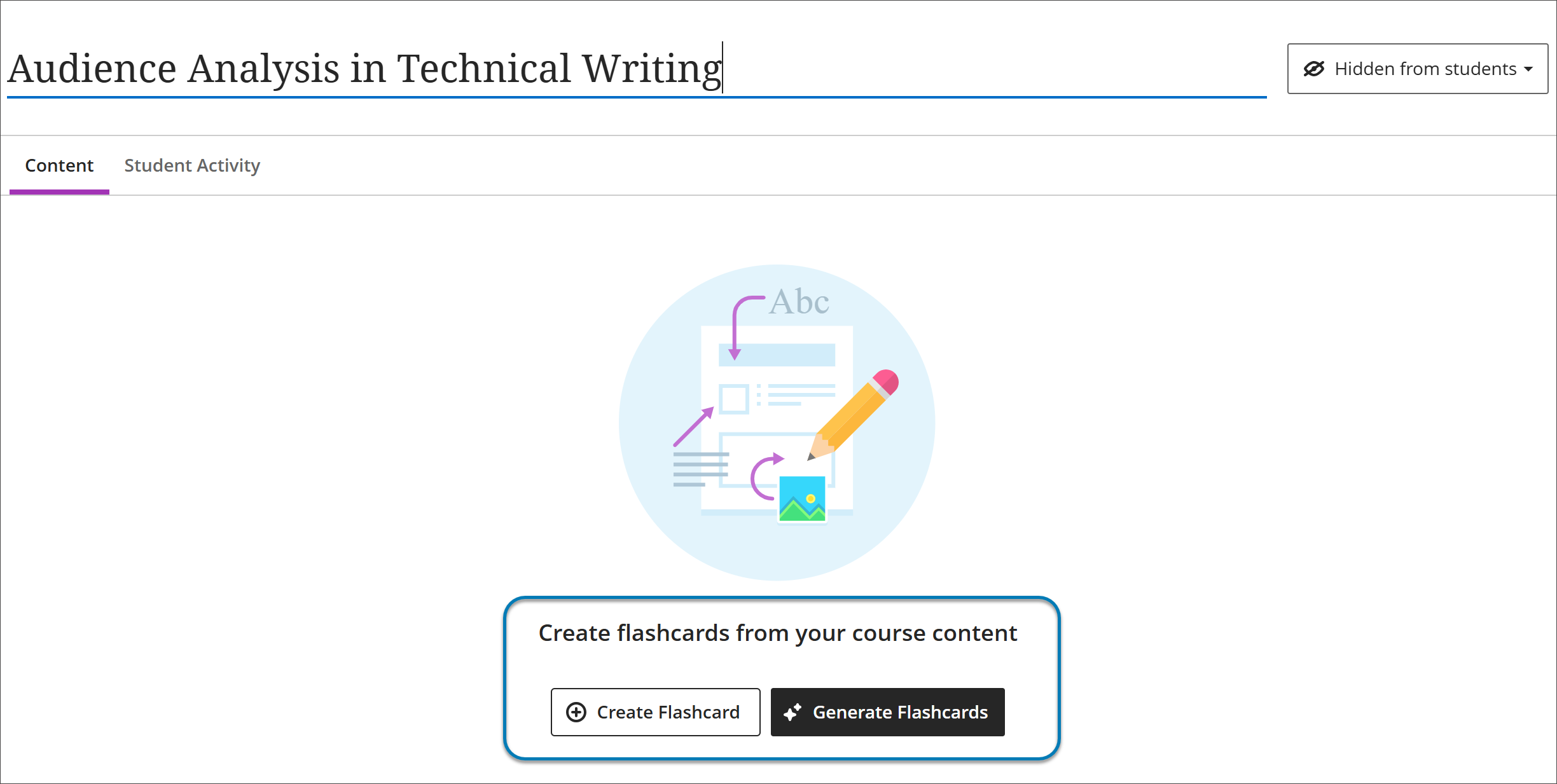
Go to Create Flashcards to start building a flashcard activity for your course.
Create a learning activity
On the Course Content page, select the plus sign where you want to add the activity. Select Create, then select Learning activity.
Give the activity a name, then choose how you want to build it.
A learning activity behaves like any other content item in your course. You can move it in the course outline and control when students see it.
Availability
Learning Activities is turned on by default. If Learning activity doesn’t appear in the Create menu, your institution turned it off.
Generating flashcards with AI is controlled separately. If you can create flashcards manually but not generate them, ask your Blackboard LMS administrator to turn on AI generation for learning activities.