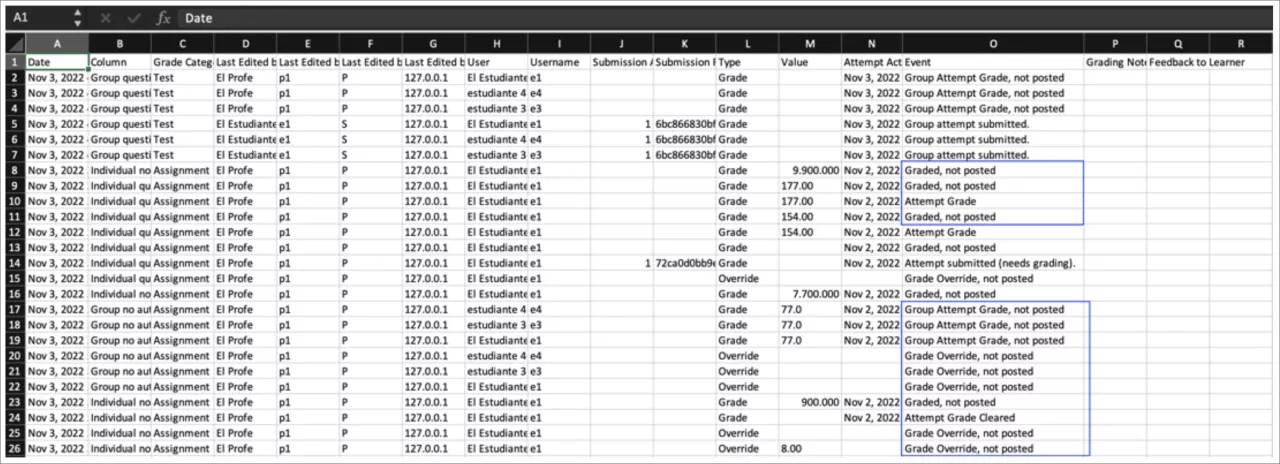
Download Grade History
It’s important for instructors and administrators to be able to track any changes made to grades in a course for audit purposes. The grade history records provide a useful audit trail helpful for addressing, for example, student questions and grade challenges. You can download them from the gradebook.
Download grade history from the gradebook
From the gradebook, select the settings icon to open the Gradebook Settings panel.
Under Upload and download gradebook, select Download grades.
The Download Grades panel opens.
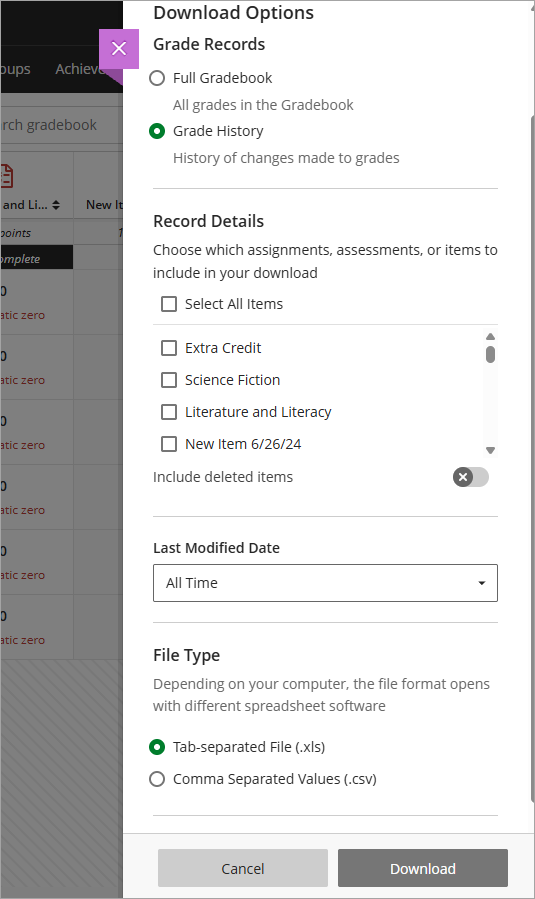
Select Grade History.
Select the file type for the downloaded file. Data files are comma-delimited (CSV) or tab-delimited (XLS).
Select the location for the download. You can save the file to your device or select a folder in the Content Collection.
Select Download.
The downloaded grade history file includes this information:
Date
Type of assessment and grade category
Last edition user’s details
Student username
Submission receipt: The submission receipt number
Submission attempt: The number of the submitted attempt
Type: If it was a regular or an override grade
Obtained value
Event: Additional details such as if was a group attempt, if it’s not posted or if it needs grading
Non-posted grades are also included in the file as they provide greater insight into grade changes in the course.