Access Submissions to Grade
You can find and grade student work in whichever way matches how you like to work: across all your courses at once, one assessment at a time, one student at a time, or by course content area.
Gradable items across all of your courses
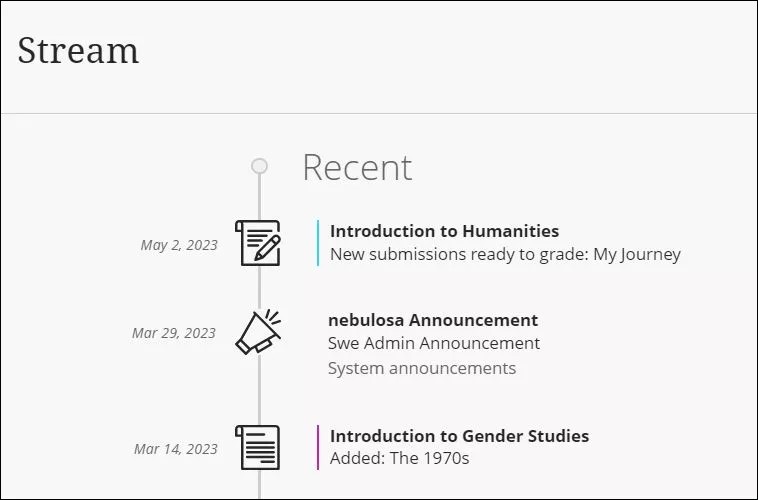
Access grading from the Activity Stream
When student submissions are ready for grading, you’re alerted in the Activity Stream. Select New submissions ready to grade in the Activity Stream to go to the course’s Gradebook and start grading.
Access grading from the navigation bar
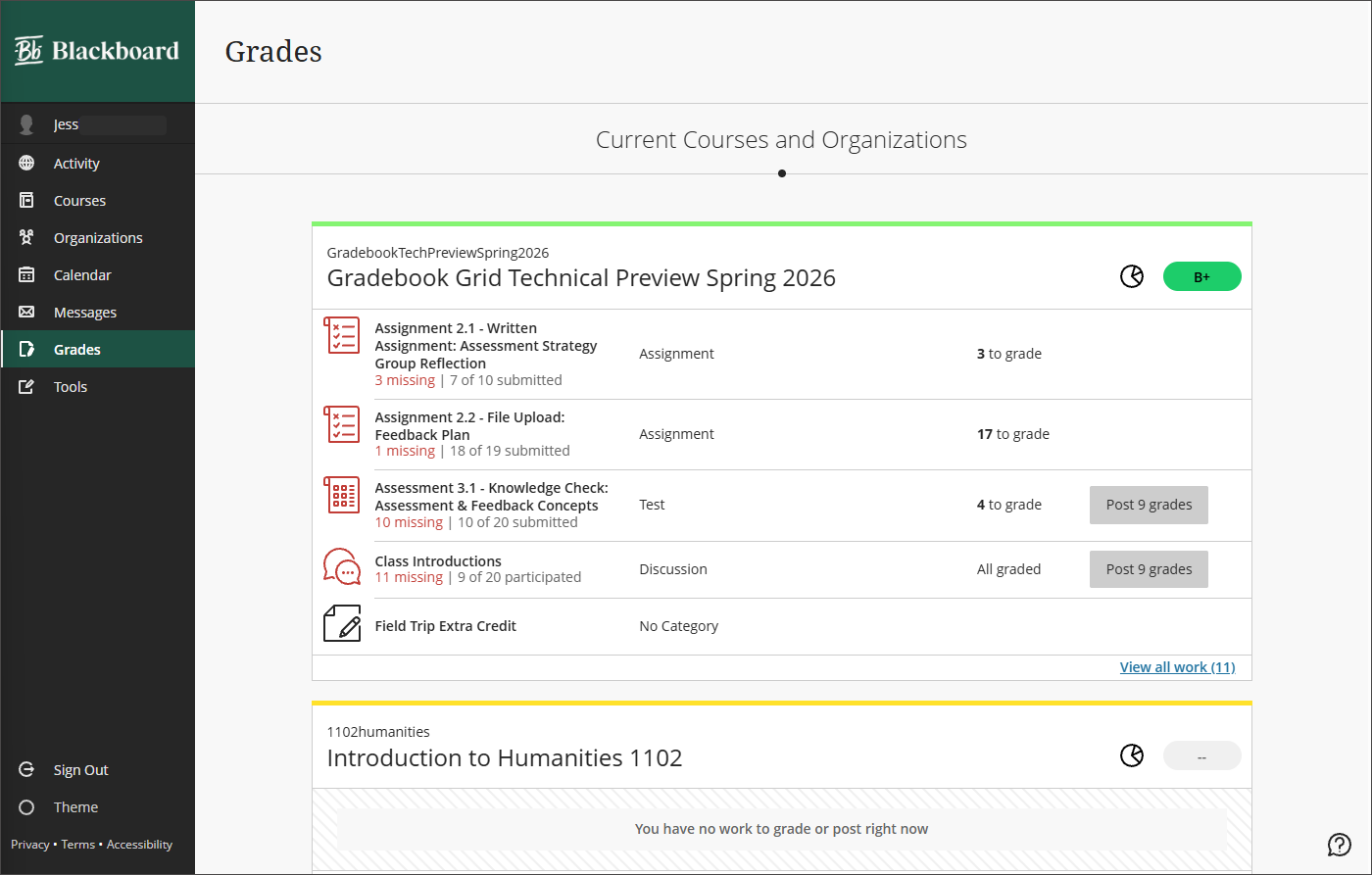
To view how many assignments are ready to be graded in all your courses and access grading options, select Grades from the left-hand navigation menu. All your grading tasks are listed by course. You see assignments that are ready to be graded, or assignments that are overdue for one or more students.
Grade multiple assessments for a single student
You can view and grade all submissions for a single student. In the grid view of the gradebook, select a student.
Grade an assessment, student by student
The submissions page displays all enrolled students and allows you to keep track of all submissions on one page.
You can access the submissions page from the course content area or from the gradebook. In the course content area, select the assessment, then select any student's name. In the grid view of the gradebook, select the assessment name (column header) to open the Assessment Details panel. Select View submissions.
Submissions overview page
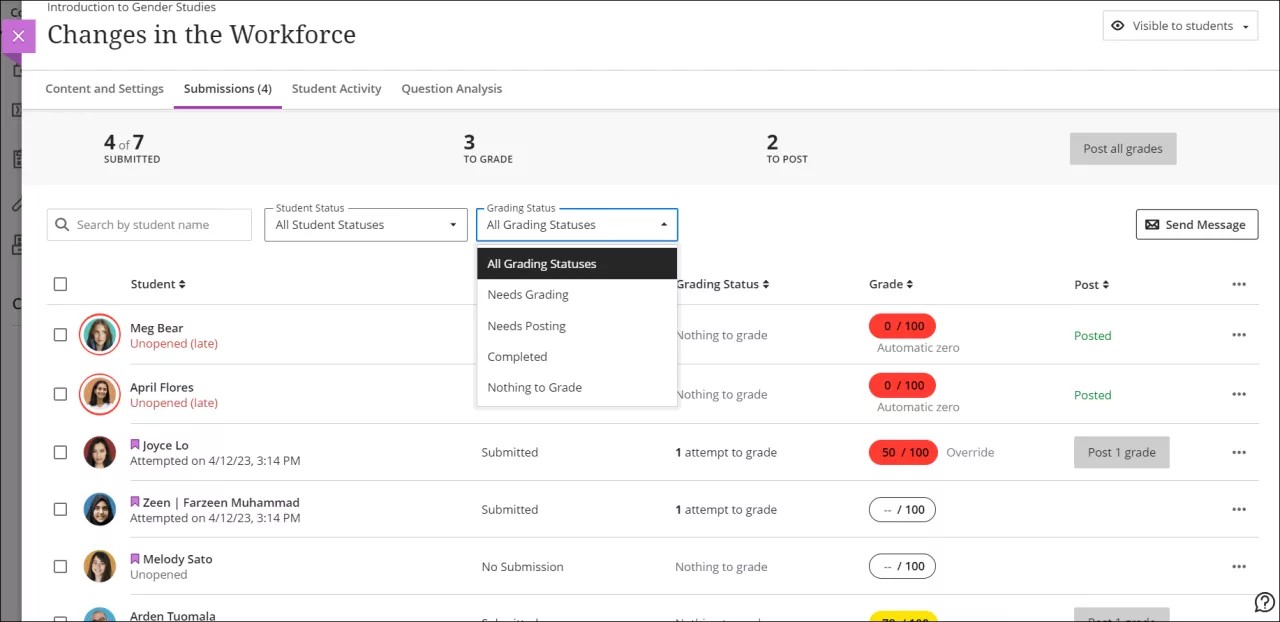
When you open an assessment from the course content area, you can view the submissions overview page, which has details such as how many students submitted, what your action items are, and the status of each submission.
Details in the Student column
Student profile pictures appear with a red circle when they have late submissions or the due date has passed with no attempt submitted.
Unopened indicates that the student has not accessed the assessment.
Opened followed by a date with a Student Status of No Submission indicates that the student opened the assessment and viewed the peek panel with instructions but did not view the assessment content. Nothing is recorded in the attempt log, and the Grading Status is Nothing to grade.
Opened followed by a date with a Student Status of Draft Saved indicates that the student started the attempt but has not completed the assessment. If the assessment is timed, the timer started when the student selected start attempt. The attempt log has details of the student activity, but the Grading Status is Nothing to grade.
You can submit the draft attempt on the student’s behalf. On the Submissions page for the assignment or test, select the ellipsis menu then select Submit draft attempt.
Attempted on [date and time] with a Student Status of Submitted indicates that the student submitted the assessment. The Grading Status is set according to the properties of the assessment.
View submission timestamps
When you start or review grading, you can point to a submission timestamp to view more information. Timestamps appear on students' submission pages and on their attempts panels when you've allowed multiple attempts for an assessment.
For example, on a student's submission page, you can view when the student made the submission and when you posted the grade. The timestamp appears in red with a "late" label after the due date passes.
Submit a draft attempt on behalf of a student
If a student saved a draft but didn’t submit it, or had trouble submitting, you can submit the draft attempt for them.
On the Submissions page for the assignment or test, select the ellipsis menu for a student whose status is Draft saved.
Select Submit draft attempt.
Enter the reason for submitting the attempt.
Select Submit.
For anonymously graded assessments, open the student overview in the gradebook, select the ellipsis menu for the assessment, then select Submit draft attempt.
The submission receipt and the student’s submission review show your name, the reason you provided, and the date you submitted the attempt. Students also see this information in their emailed submission receipt.