Fill in the Blank Questions
A Fill in the Blank question consists of a phrase, sentence, or paragraph with a blank space where a student provides the missing word or words. You can also create a question with multiple blanks.
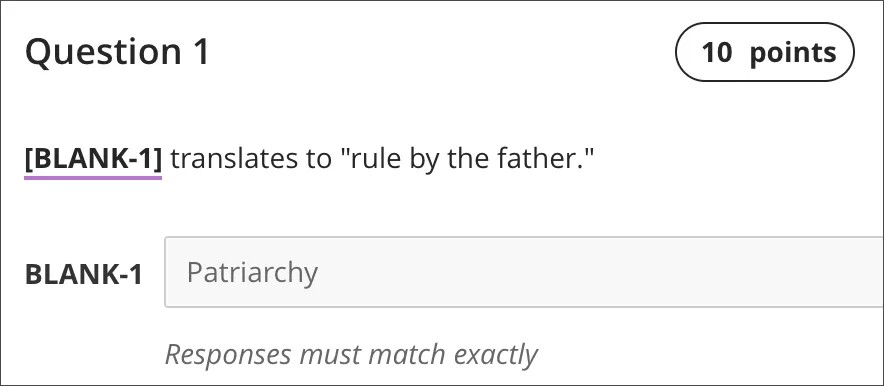
[Patriarchy] translates to "rule by the father."
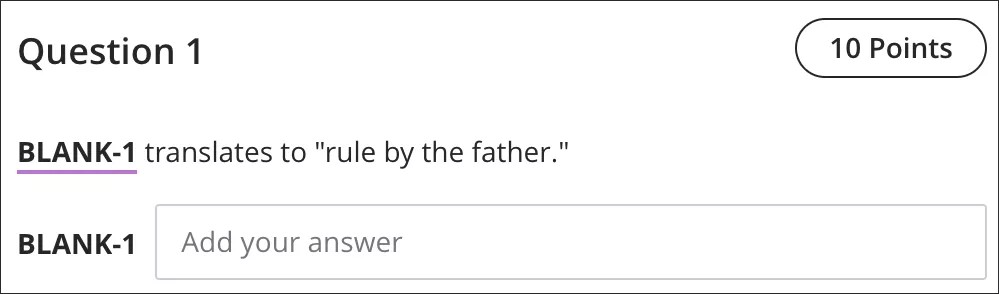
Fill in the Blank questions are graded automatically. Answers are scored based on if student answers match the correct answers you provide. You choose the evaluation method for answers:
Exact match
Contains part of the correct answer
Matches a pattern that you specify
You choose whether or not the answers are case-sensitive.
Important
Answers need to be accurate (exact match) or chosen to match a pattern and be defined accordingly.
Video: Creating a Fill in the Blank question
The following narrated video provides a visual and auditory representation of some of the information included on this page. For a detailed description of what is portrayed in the video, open the video on Vimeo, navigate to More actions, and select Open transcript.
Create a Fill in the Blank question
In an existing test, select the plus sign wherever you want to add a question.
Select Add Fill in the Blank question.
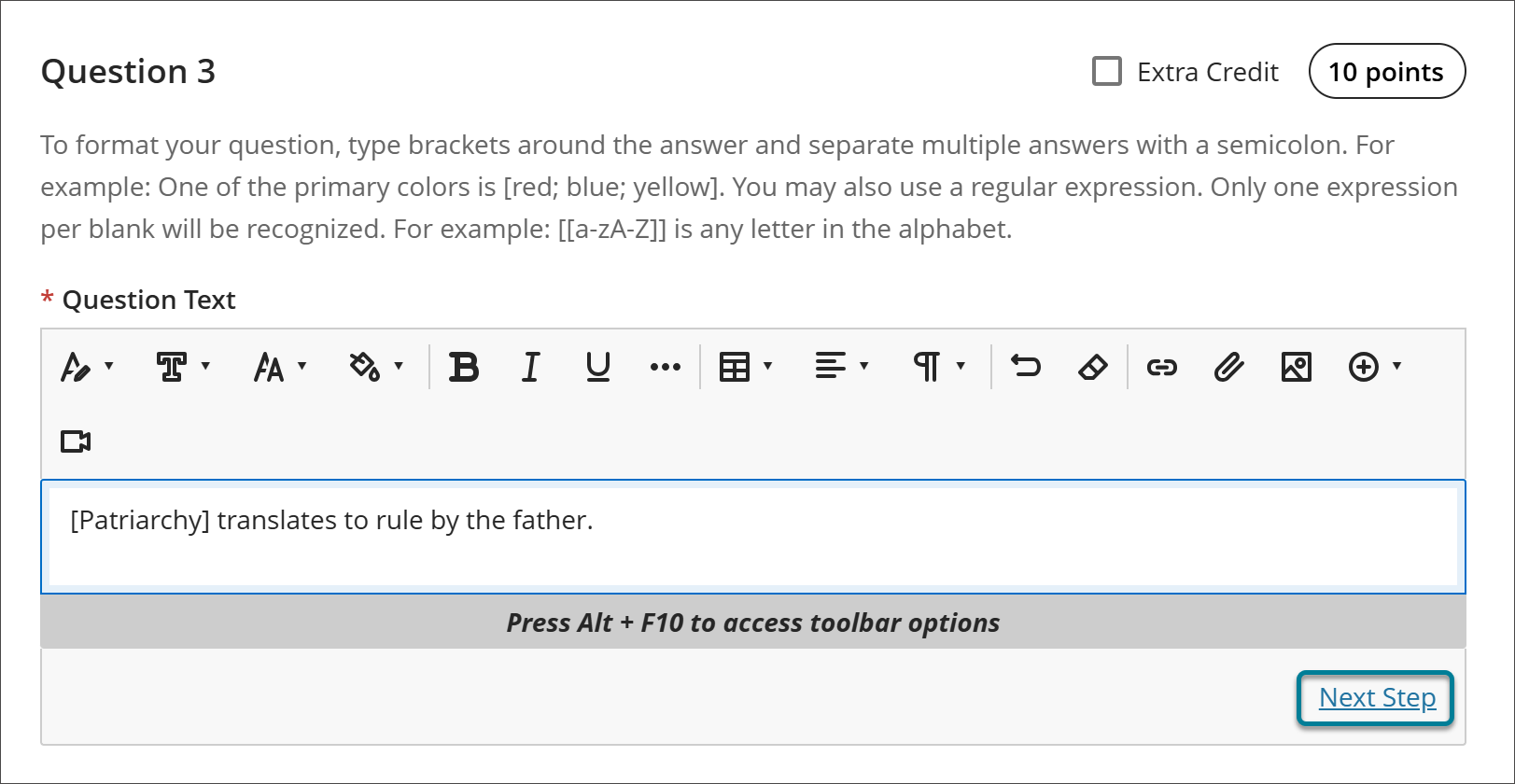
Type your question and add brackets around the answer. Separate multiple correct answers with a semicolon.
Example: One of the primary colors is [red;blue;yellow].
For a blank to include a semicolon, define the blank with a double semicolon (;;). If the desired blank is red;, then define the blank as [red;;].
Example: [[a-zA-Z]] is a letter in the alphabet.
You may also use a regular expression. Only one expression per blank will be recognized. Note that you add brackets around the regular expression and around the answer.
You can use the options in the editor to format the text or add formulas, files, images, and links.
Questions have a default value of 1 point. Select the Points box to type a new value.
Note that Save is disabled because you need to make settings in the next step. Select Next Step to continue.
In the Response type menu, choose how the answer is evaluated against a student's answer:
Exact match
Contain match
Match a pattern
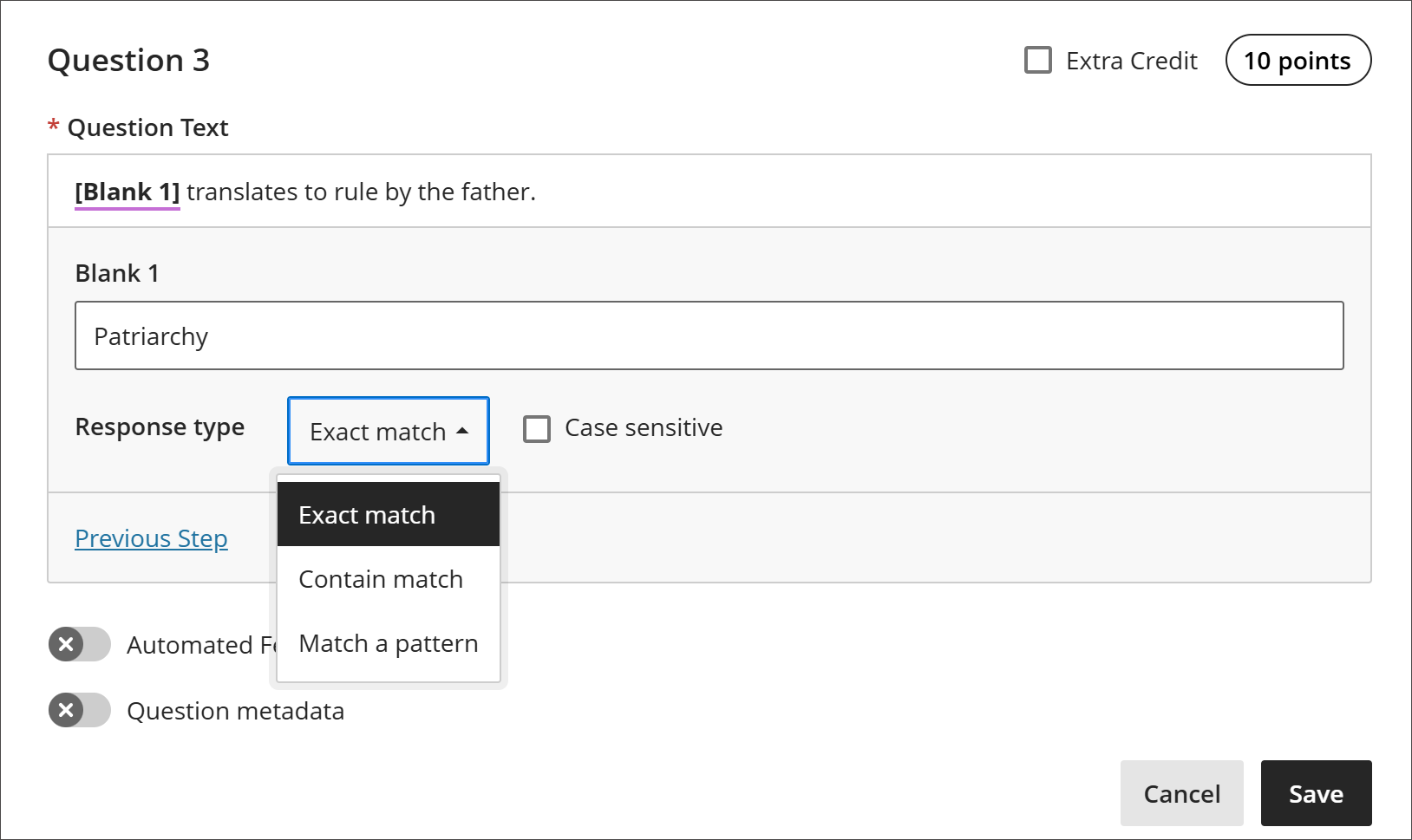
Select the Case sensitive check box if you want to take capitalization into account.
Select Previous Step if you need to make edits. Select Save when you're finished.
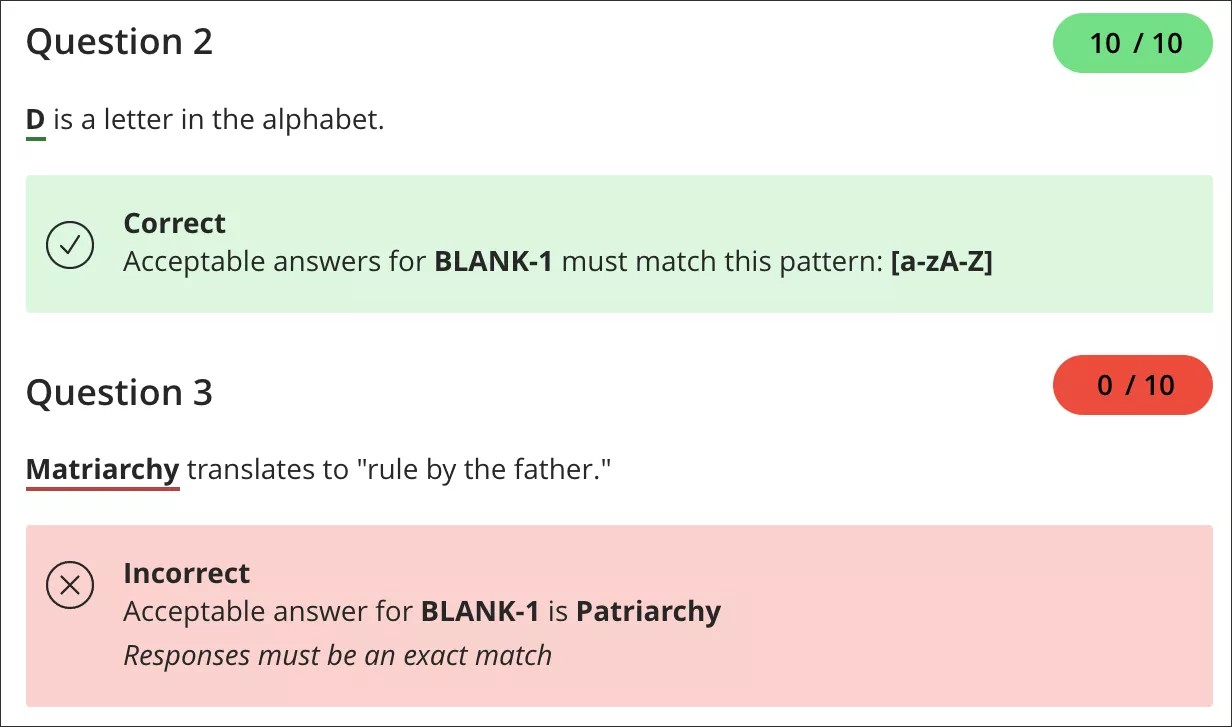
The question displays which response type you chose, such as Responses must match exactly.
Creating answers
Keep answers for the blanks simple and brief. To avoid difficulties with auto-grading, you can limit answers to one word. One-word answers prevent issues such as extra spaces or word order causing a correct answer to be scored as incorrect.
Select Contain match from the Response type menu to allow for abbreviations or partial answers. This option counts a student's answer as correct if it includes the word or words you specify. For example, set up a single answer that contains Franklin so that Benjamin Franklin, Franklin, B Franklin, B. Franklin, and Ben Franklin are all counted as correct answers. Then, you don't have to list all the acceptable possibilities for the answer Benjamin Franklin.
Select Match a Pattern from the Response type menu and create a regular expression that allows for spelling, spacing, or capitalization variations.
Match a pattern
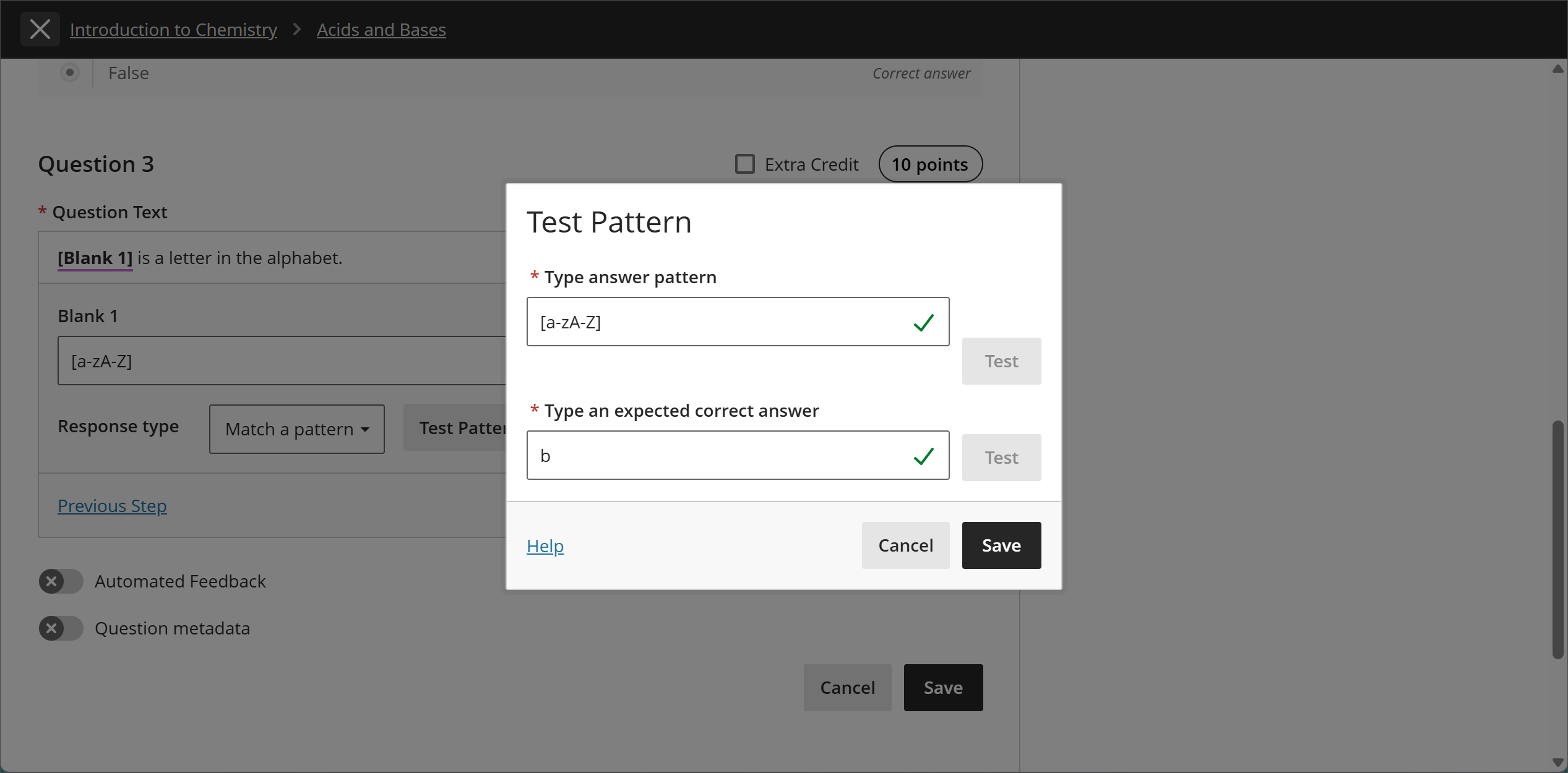
When you choose to match a pattern for an answer, you can test the pattern and a new window opens. A check mark appears for a pattern that works. You can also type an expected correct answer and test your pattern.
Regular Expressions for Matching
You can create a regular expression that allows for spelling, spacing, or capitalization variations in an answer.
A regular expression is a search pattern used for matching one or more characters within a string. With regular expressions, you can count certain patterns as correct, rather than an exact text match. For example, regular expressions enable grading of the wide range of possible answers that are typical of scientific data.
In a regular expression, most characters in the string match only themselves and are called literals. Some characters have special meaning and are called metacharacters.
Tip
For a comprehensive list, see Pattern (Java SE 11 & JDK 11 ) (oracle.com) .
Character examples:
A dot (.) matches any single character except newline characters.
Brackets [ ] match anything inside the square brackets for one character.
A dash (-) inside square brackets allows you to define a range. For example, [0123456789] can be rewritten as [0-9].
A question mark (?) makes the preceding item in the regular expression optional. For example, Dec(ember)? will match Dec and December.
Simple string examples:
b.t - matches with bat, bet, but, bit, b9t because any character can take the place of the dot (.).
b[aeui]t matches bat, bet, but, bit.
b[a-z]t will accept any three-letter combination that begins with b and ends with t. A number won't be accepted as the second character.
[A-Z] matches any uppercase letter.
[12] matches the target character to 1 or 2.
[0-9] matches the target character to any number in the range 0 to 9.
When you choose to match a pattern for an answer, you can test the pattern and a new window opens.
Add files to a Fill in the Blank question
To help keep your assessment content organized, you can add files within individual questions. Make a selection from the editor's Insert Content menu, such as Insert from Cloud Storage.
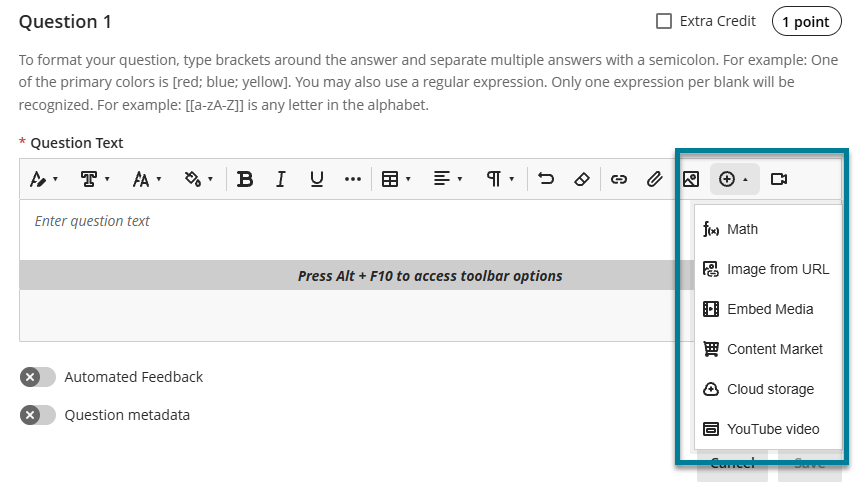
You can edit settings for the files you've added to questions. Select the file in the editor and then select the Edit Attachment icon in the row of editor options. You can add a Display Name and Alternative Text. Alternative text describes the image for people who use screen readers or visit web pages with images turned off.
You can also choose whether to insert the file as a link in the editor or to embed the file directly so it appears inline with other content you've added.
Edit or delete a Fill in the Blank question
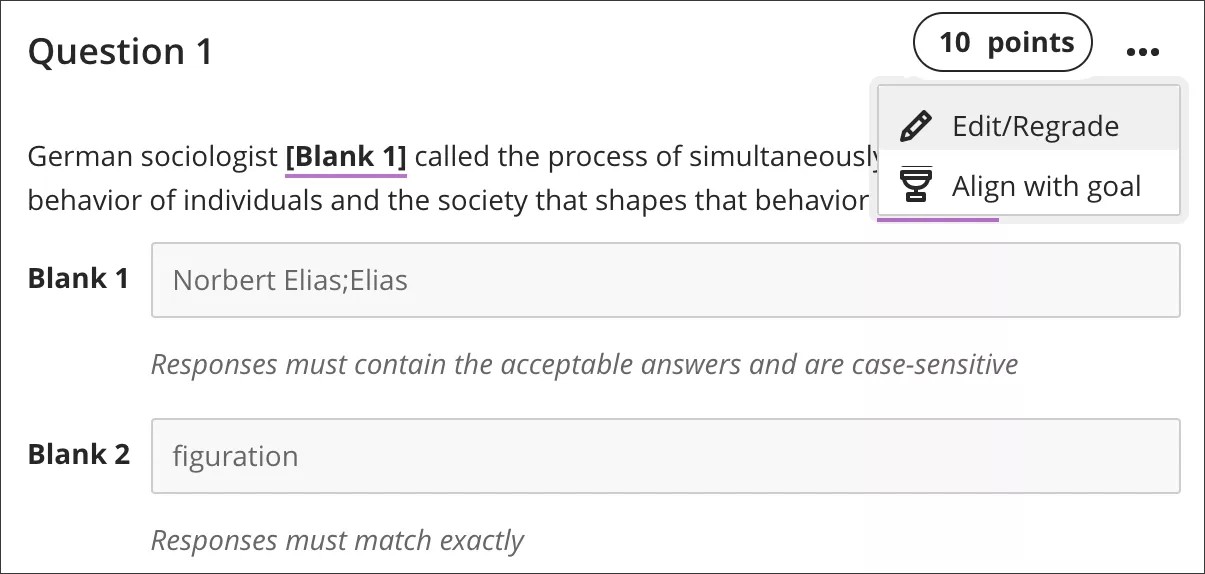
Before students open the assessment, access the ellipsis (...) menu to select Edit or Delete. To change the points, select the score pill and type a new value.
Select Align with goal from the menu to align goals with individual assessment questions to help your institution measure achievement. After you make the assessment available, students can view information for the goals you align with assessments and questions so they know your expectations.
After submissions exist
You can edit the text of most questions and answers, even after students have made submissions. For example, you may have chosen the wrong answer, found a typo, or want to adjust points or scoring options. You can make a change for all students to see and automatically update all grades.
After students open the test, you can't add new questions and blanks, delete a question or blank, or move the content.
In a test or a student's submission, open a question's menu and select Edit/Regrade to make changes. You receive a warning after you save your changes if student submissions exist and regrading will occur.
Grade Fill in the Blank questions
Fill in the Blank questions are graded automatically. Answers are scored based on if student answers match the correct answers you provided. Each Fill in the Blank question displays Correct or Incorrect and which response type you chose, such as Responses must be an exact match.
Note
You can't change the points an individual student earned for an automatically graded question.
Give partial credit on fill in the blank questions
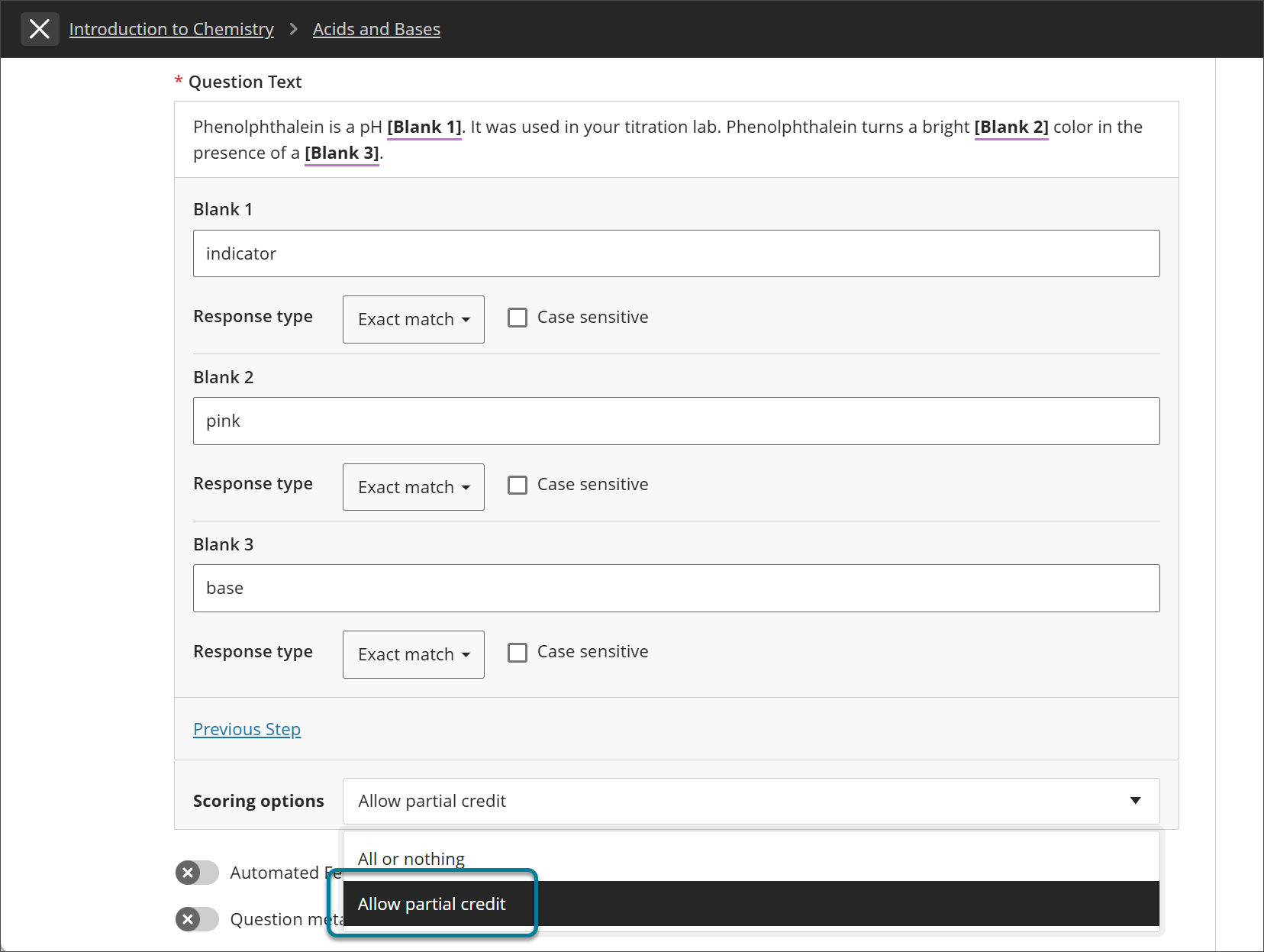
Partial credit can be given on fill in the blank questions. This is great for those instructors who wish to grade student attempts at a more granular level. It will also benefit students based on their associated effort on these complex questions, and provide them with a more accurate representation of their proficiency.
Edit a fill in the blank question and in Scoring options select Allow partial credit.