Copy Individual Course Items
You can copy only the items you need from another course. Copied items are set to Hidden from students, and their release conditions and visibility settings aren't kept.
Important
Course links inside of learning modules with forced sequencing can’t be copied. This prevents users from navigating outside of the forced sequencing option. When a course link is copied, all associated content is also copied. LTI items also can’t be copied through individual course item copy. If you want to copy an LTI item, use full course copy instead.
Copy individual course items
Go to the Course Content page of the course you want to copy items into.
Open the list of courses you want to copy items from in one of these ways:
To add items at the bottom of the page,on the Course Content page, select the More options menu. Select Copy Items.
To add items at a specific location, select the plus (+) button in that location, then select Copy Content.
Find the course you want to copy items from. If it isn’t on the first page, use the arrows to navigate or use the search bar. You can also search for organizations by selecting the Organizations tab. Please note that selecting the check box next to the course copies the entire course.
Select the arrow next to the course to open its items. Don't select the check box next to the course; that copies the entire course
Select the category and then select the checkbox next to each itemsyou want to copy from your course. The following categories are available:
Content: Items that are listed on the Content page for that course.
Discussions: Items that are listed on the Discussions page for that course.
Question Banks: All available question banks for that course.
Rubrics: All available rubrics for that course.
Grade Schemes: All available grade schemes for that course.
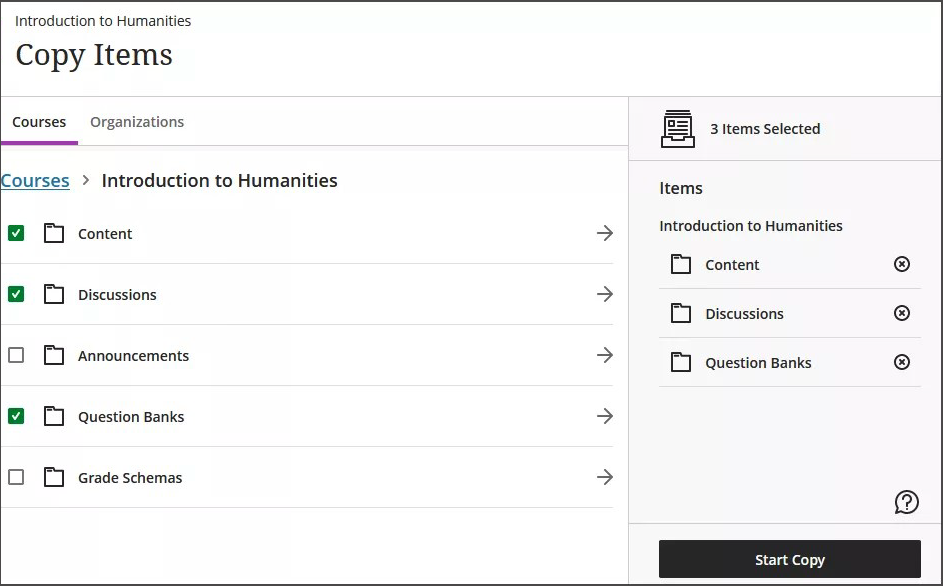
Important
Even if you select everything, this is still an individual item copy. Copying individual items doesn’t preserve release conditions and visibility states. If you want to preserve those settings, go back to the list of courses and select the name of the course, and then Start Copy to do a full course copy.
Select Start Copy.
Review all copied items to be sure students can access only the content that you want and that due dates are correct. You can use the batch edit feature to update visibility and due dates all at once.
Copies are a queued process. The spinner that displays at the bottom of the Course Content page is a validation check. You don't need to stay on the Course Content page for the copy to be processed. If you want to check if a copy has been completed, go to the More options menu from the Course Content page and select Course Tasks and Logs.