Copy from the Original Course View
You can copy from an Original Course View course into an Ultra Course View course. The steps are the same as when you copy from an Ultra course. For the steps, see Copy an Entire Course or Copy Individual Course Items.
When the copy runs, Blackboard LMS converts each Original content type into it's Ultra equivalent. Some content types aren't converted.
Supported content types
The Copy Content option isn't available for courses in Ultra preview mode. If you want to copy a course in Ultra preview mode, roll the conversion back to Original View or finalize the conversion to Ultra View.
Participation data isn't included when you copy a course into a new or existing course.
The following table outlines how content types are converted from Original Course View into Ultra Course View. Items labeled N/A, for Not Available, are not converted. These items can’t be selected for copying or will be flagged as exceptions.
ORIGINAL COURSE VIEW CONTENT TYPE | CONVERTS INTO | FULL COURSE COPY | INDIVIDUAL ITEM COPY |
|---|---|---|---|
Course Banner | Course Image | YES | NO |
Course Menu Content Area | Folder | YES | YES |
Course Menu Blank Page | Document | YES | YES |
Course Menu Module Page | N/A | N/A | N/A |
Course Menu Tool Link | N/A | N/A | N/A |
Course Menu Course Link | N/A | N/A | N/A |
Course Menu Subhead | N/A | N/A | N/A |
Course Menu Divider | N/A | N/A | N/A |
Item | Document | YES | YES |
File | File | YES | YES |
Audio | File | YES | YES |
Image | File | YES | YES |
Video | File | YES | YES |
Web Link | Web Link | YES | YES |
Learning Module | Learning Module | YES | YES |
Lesson Plan | Folder | YES | YES |
Syllabus | N/A | N/A | N/A |
Content Package (SCORM) | SCORM package | YES | YES |
Content Folder | Folder | YES | YES |
Blank Page | Document | YES | YES |
Flickr Mashup | Web Link | YES | YES |
Test | Test | YES | YES |
Question Pool | Question Bank | YES | YES |
Survey | Form | YES | YES |
Assignment | Assignment | YES | YES |
Self and Peer Review | N/A | N/A | N/A |
Blog | N/A | N/A | N/A |
Journal | Journal | YES | YES |
Wikis | N/A | N/A | N/A |
Discussion Forum with "allow members to create new threads" selected. | Discussion | YES | NO |
Discussion Forum with "allow members to create new threads" not selected. | Folder | YES | NO |
Discussion Threads within a Forum with "allow members to create new threads" not selected. | Discussion | YES | NO |
Announcements | Announcements | YES | YES |
Goals | Goals | YES | NO |
Rubrics | Rubrics | YES | YES |
Categories | Categories | YES | NO |
Grading Schemas | Grading Schemas | YES | YES |
Content nesting and flattening logic in Ultra
Content nesting refers to how content items can be contained within other content items on the Course Content page. By default, courses in Ultra Course View support up to three levels of hierarchy on the Course Content page. For example, a folder within a folder is two levels. A folder within a folder within a learning module is an example of three levels. This is different from the Original Course View, which had no restrictions on the number of levels that could be used. This change simplifies course structures to enhance student experience. Your institution can choose to add an additional level of content nesting. Ask your administrator whether your institution uses this option.
The flattening process refers to how items can move when copied, imported, or converted into Ultra courses. The process moves items with a depth greater than two to the lowest supported level in Ultra courses.
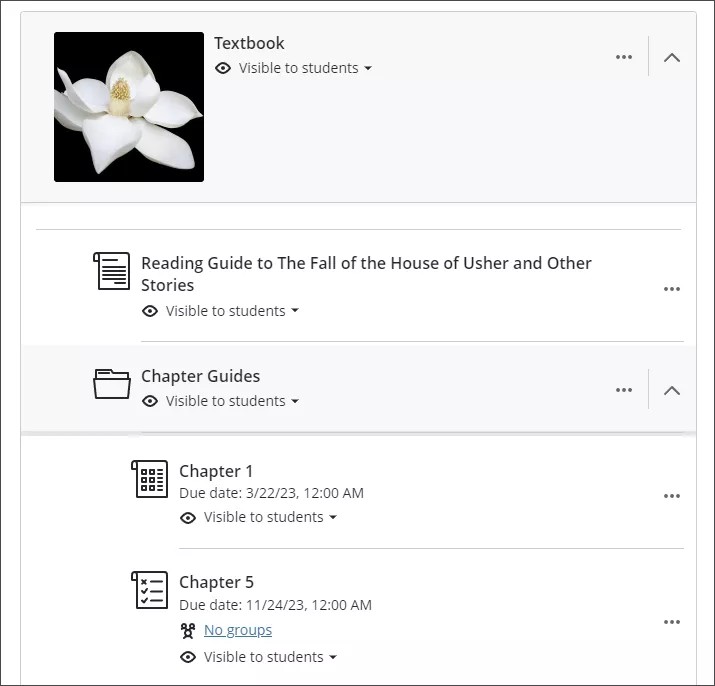
For institutions that have opted in to a fourth level of depth, items with a depth greater than four move to the lowest supported level.
When converting a course from the Original Course View to the Ultra Course View, content at deeper levels gets moved to the lowest level supported in Ultra Course View. Folders are brought to the highest level necessary to ensure that child items don't move.