Create and Assign Group Assignments
Create and assign a group assignment
On the New Assignment page, select the Settings icon to open the Assignment Settings panel.
Provide a due date and select the settings you want to apply to the group assignment:
You can allow class conversations for a group assignment. Students can choose between a conversation with the class as a whole or among only their group members.
You can also choose to collect submissions offline that don't require groups to upload submissions. You can add instructions, files, a rubric, and goals so the groups can prepare for the offline work. You can also enable conversations for offline work.
You can issue an access code to control when groups may submit a group assignment. At this time, access codes are generated randomly by the system. You can't customize the access codes.
Important
At this time, you can't create a group assignment with multiple attempts, a time limit, hidden names, or with parallel grading.
Select Assign groups. How you assign groups is based on which version of Groups your institution has configured.
How you assign groups is based on which version of Groups your institution has configured. Read more in next section.
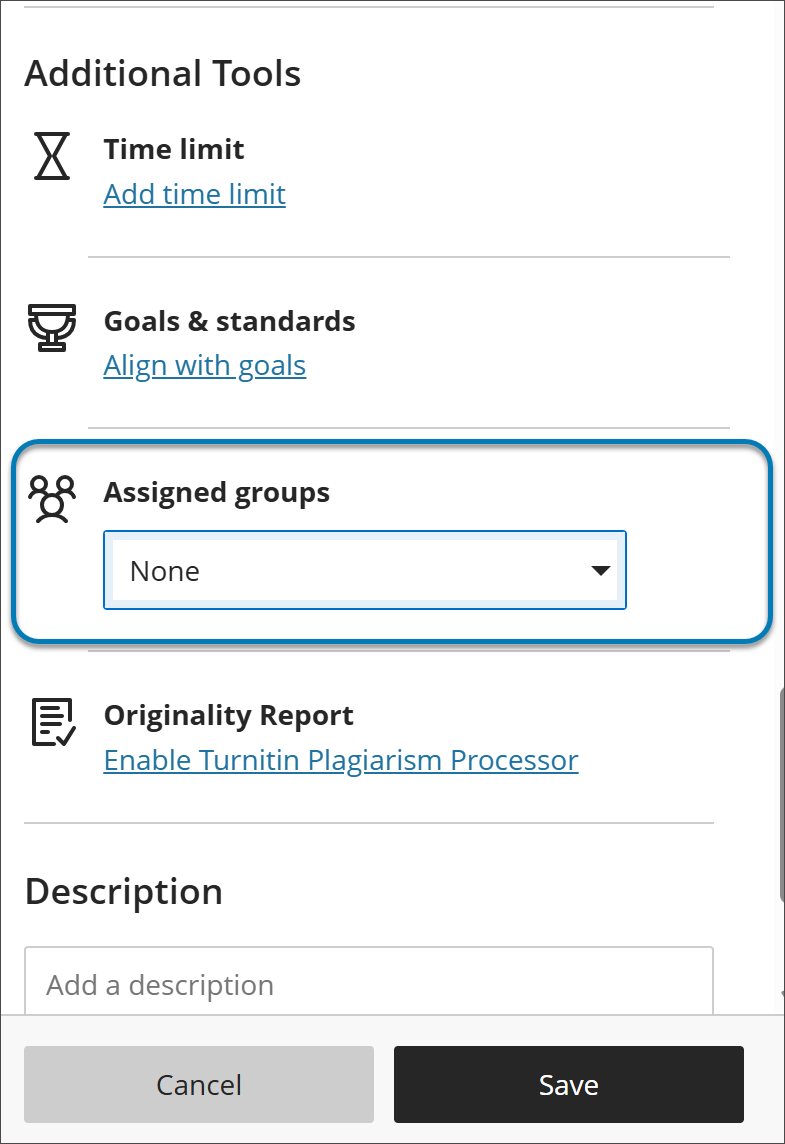
Assign groups to an assignment
Important
The reimagined Groups experience is available if your institution's Blackboard LMS administrators have turned it on. It becomes the default experience for all courses in January 2027. Until then, what you see after you select Assign to groups depends on which experience your course uses.
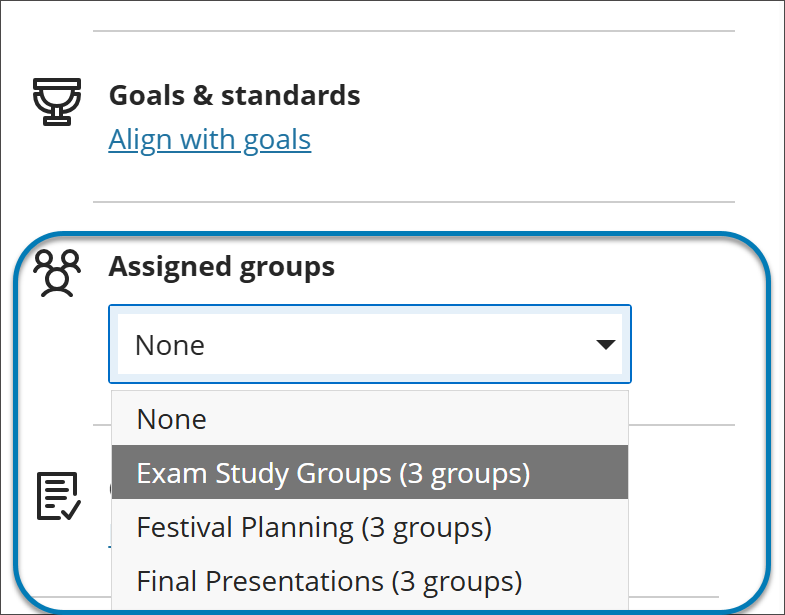
Assign groups in the new Groups experience
Select a group set that already exists in your course. You can't create groups from the assignment settings.
To use a new group set, create it first on the Groups tab of the Course Content page, then return to the assignment and select it.
Assign groups in the previous Groups experience
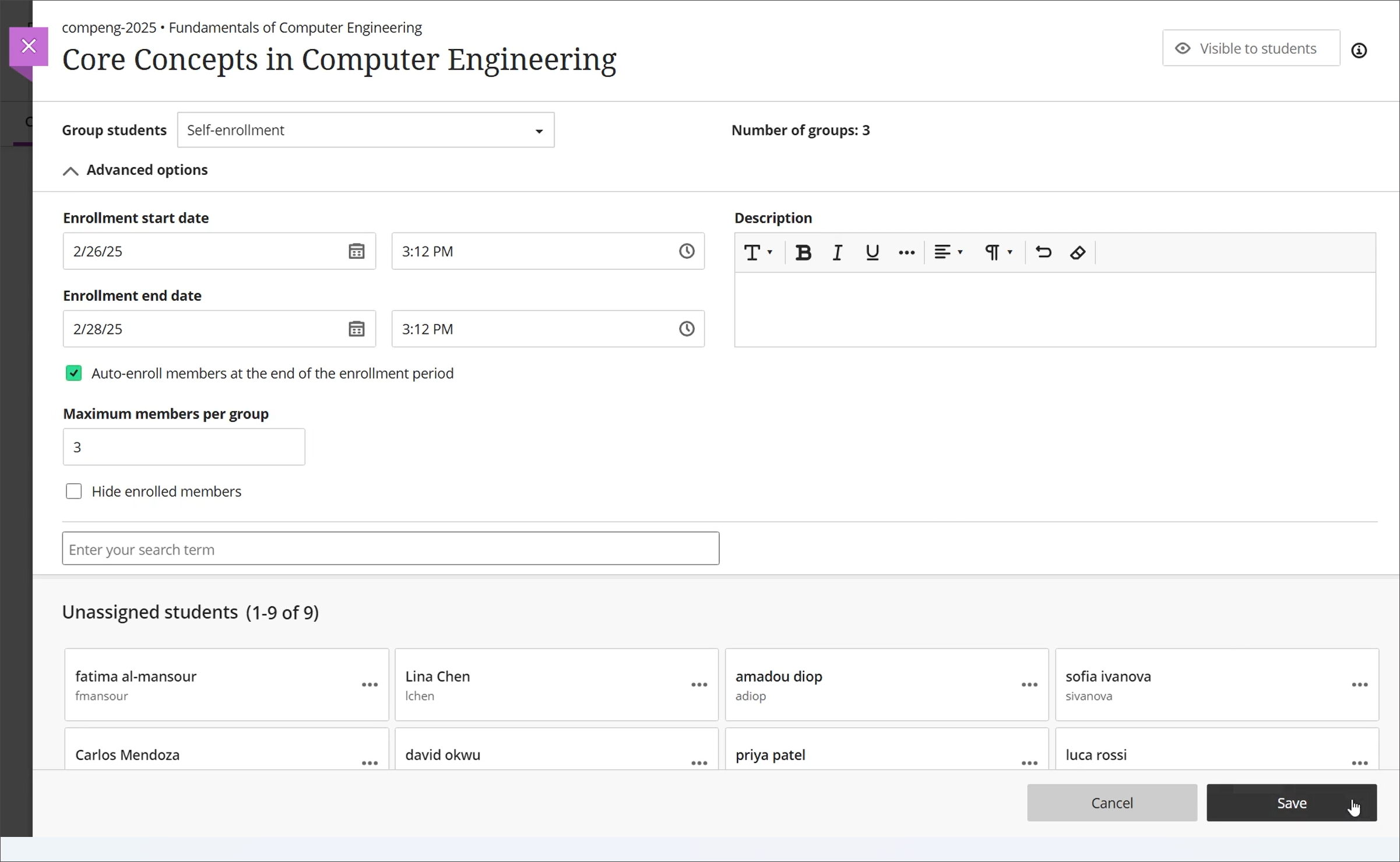
Select Assign groups, which sends you to a page to create a new group set or assign existing groups.
In the Group students menu, choose Custom, Randomly assign, Self-enrollment, or Reuse groups.