Course Banner
Instructors and administrators can upload an image to be the course banner inside courses. The course banner also appears in the grid view of the Courses page of Blackboard LMS's base navigation.
The course banner spans the full width of the screen with the course ID and title. If a course doesn’t have a selected banner, a placeholder image appears at the top. When using brands, this image adopts a hue of the brand color you set, ensuring visual consistency across all courses.
Course banners have many uses:
Improve the way your Course View landing pages appear
Provide a visual identity for your course for students who are visual learners
Bring consistency between what the base navigation displays and the actual course
Help your students to identify your course and locate course details
Important
Your institution can choose to restrict instructors from editing the course banner.
Access course banner options
There are three ways to access the course banner options panel.
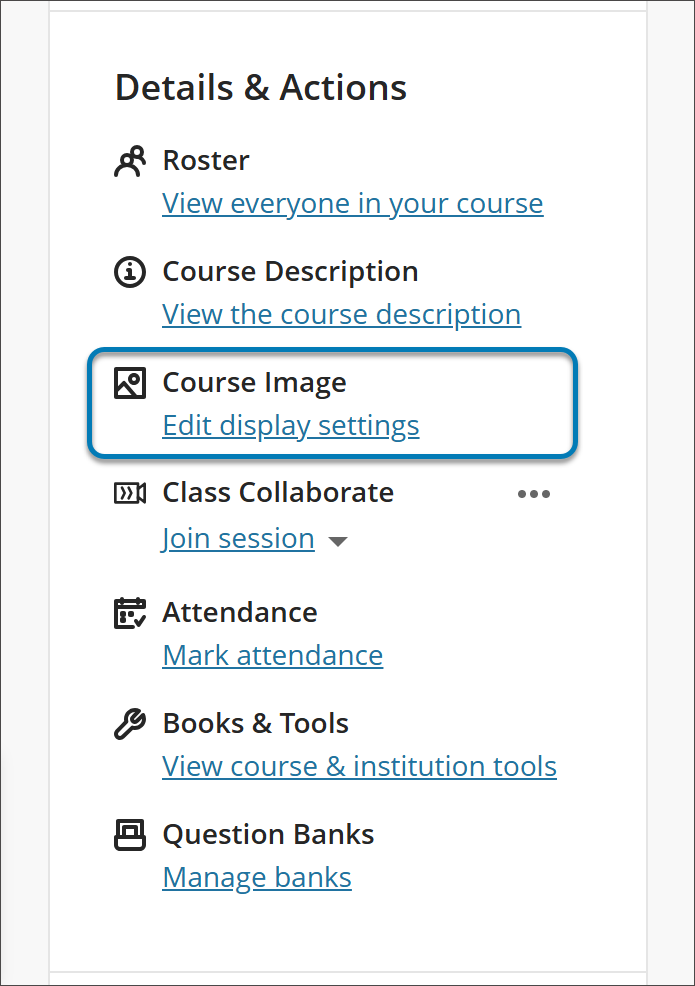
In your course’s main page, go to Course Image in the Details & Actions menu.
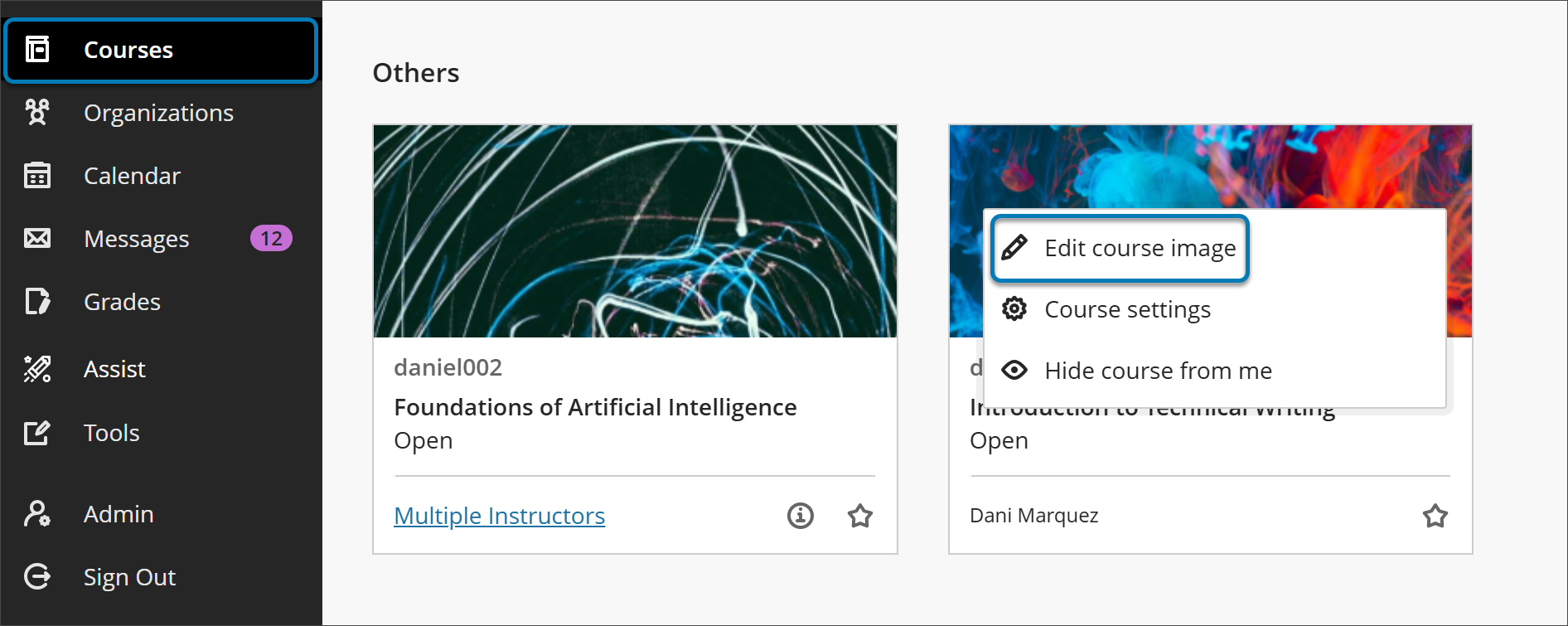
In the grid view of Blackboard LMS’s base navigation, hover over the image and select the three dots that appear. You can now select Edit image from the menu.
In the main page of your course, select the pencil icon on the banner.

Set up a banner for your course
Choose an appealing and meaningful image for your course.
The minimum size for the banner image is 1200 x 240 pixels.
Maximum size for images is 10.24 MB.
Add ideal image ratios should be 5:1
To improve accessibility, we recommend that your banner image not include text, but if banners do contain text, then alt text can be added in the Display settings.
Images with text don't scale well.
Abstract images or an image with a focus at the center work better for a banner, due to cropping variability.
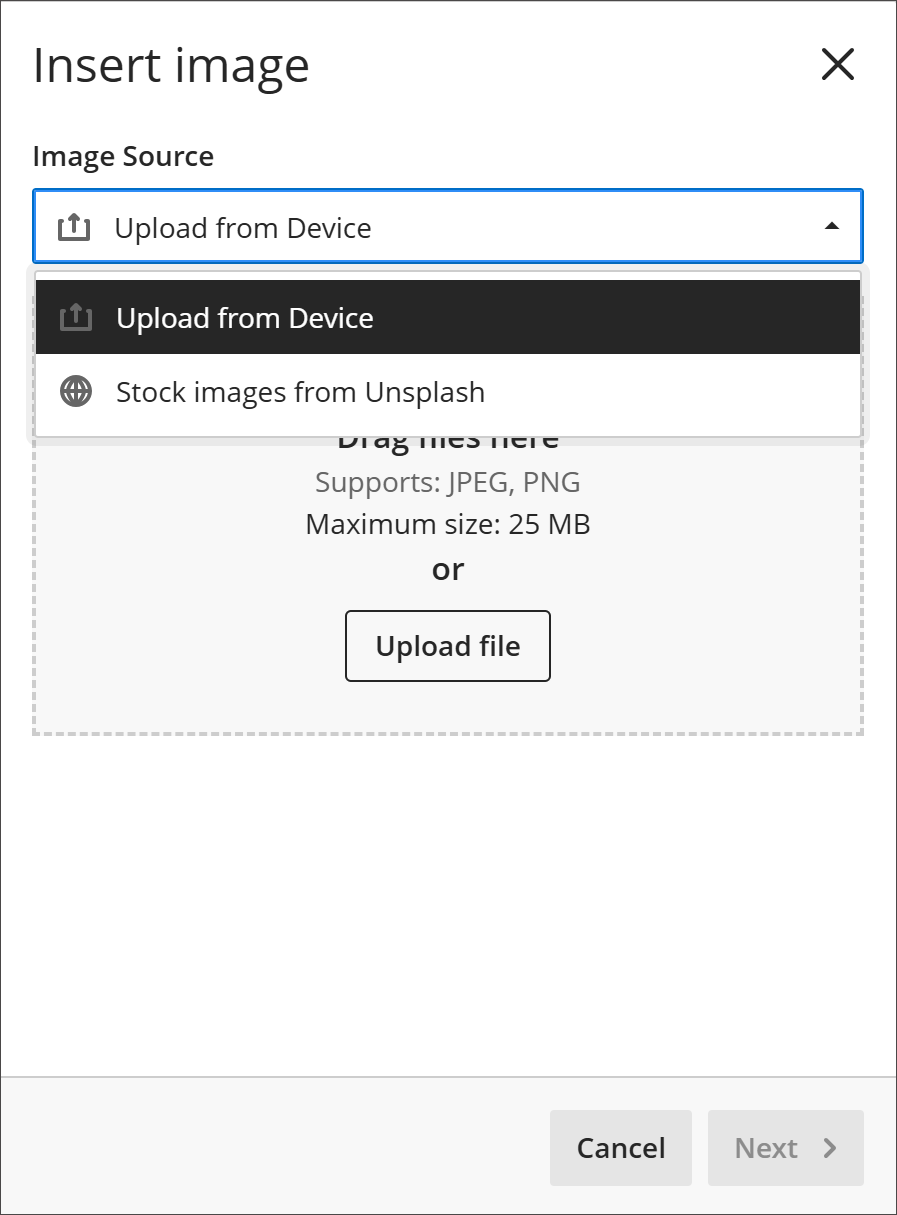
Select the image button at the top of the course banner options panel. You can now upload an image. JPEG and PNG formats are supported.
Tip
If your institution has turned the feature on, you can also search for stock images from Unsplash. Enter keywords to search Unsplash’s catalog.
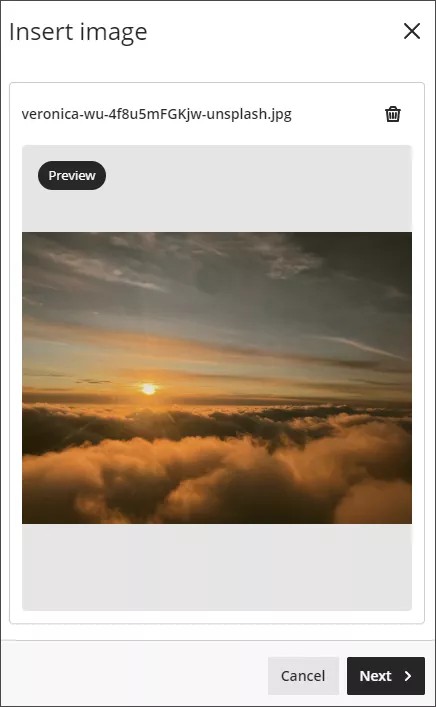
A preview of the image appears. Select Next to continue. You can select the trash icon if you want to cancel the upload instead.
Position the image. You can adjust the zoom of the image using a slider and select and drag what parts of the image become the course banner. Select Save to continue.
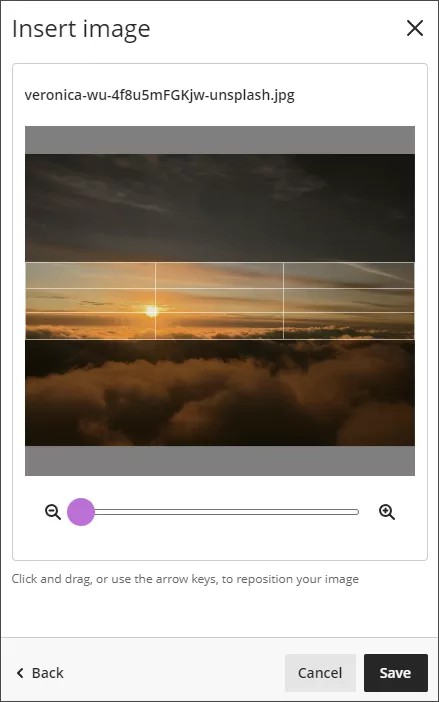
The image is uploaded to your course. The image might take a few seconds to load, depending on your internet connection.
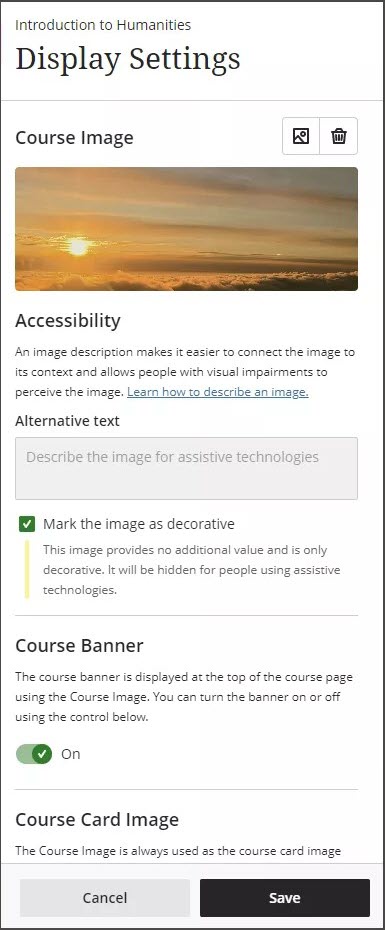
The course banner is automatically turned on for your course. If you want to turn off the course banner, select the Course Banner slider to turn it off.
Course banners are automatically marked as decorative, which hides the banner for students using assistive technologies. If you want all students to know the content of the image, deselect Mark the image as decorative. Enter a description of the image in the Alternative text field.
Select Save to turn the course banner on for your course.
Remove a course banner image
If you want to remove the course banner, you have two options:
Select the slider beneath Course Banner in the panel for course banner options. The image will still be available to use for your course.
You can also select the trash icon to remove the image. When you remove the image, your course banner settings return to the default.