Post to Discussions
In discussions, threads grow as users post responses to the initial and subsequent posts. Replies build on one another to construct a conversation. As the number of posts grows, users can filter, sort, and collect posts.
Post to a discussion
From your mobile device or desktop, jump into discussions at any time.
From the Activity page: The Activity page is your key to access new course content quickly in Blackboard LMS. You can participate in any discussion for any of your courses instantly. Select a discussion in the list and a layer opens. New posts and replies are highlighted so you can see what's changed since you last visited the discussion. Close the layer to return to the Activity page.
In a course: You can access a discussion from the Course Content page or from the Discussions page.
Replies are indented from posts. All course members can access who created the discussion.
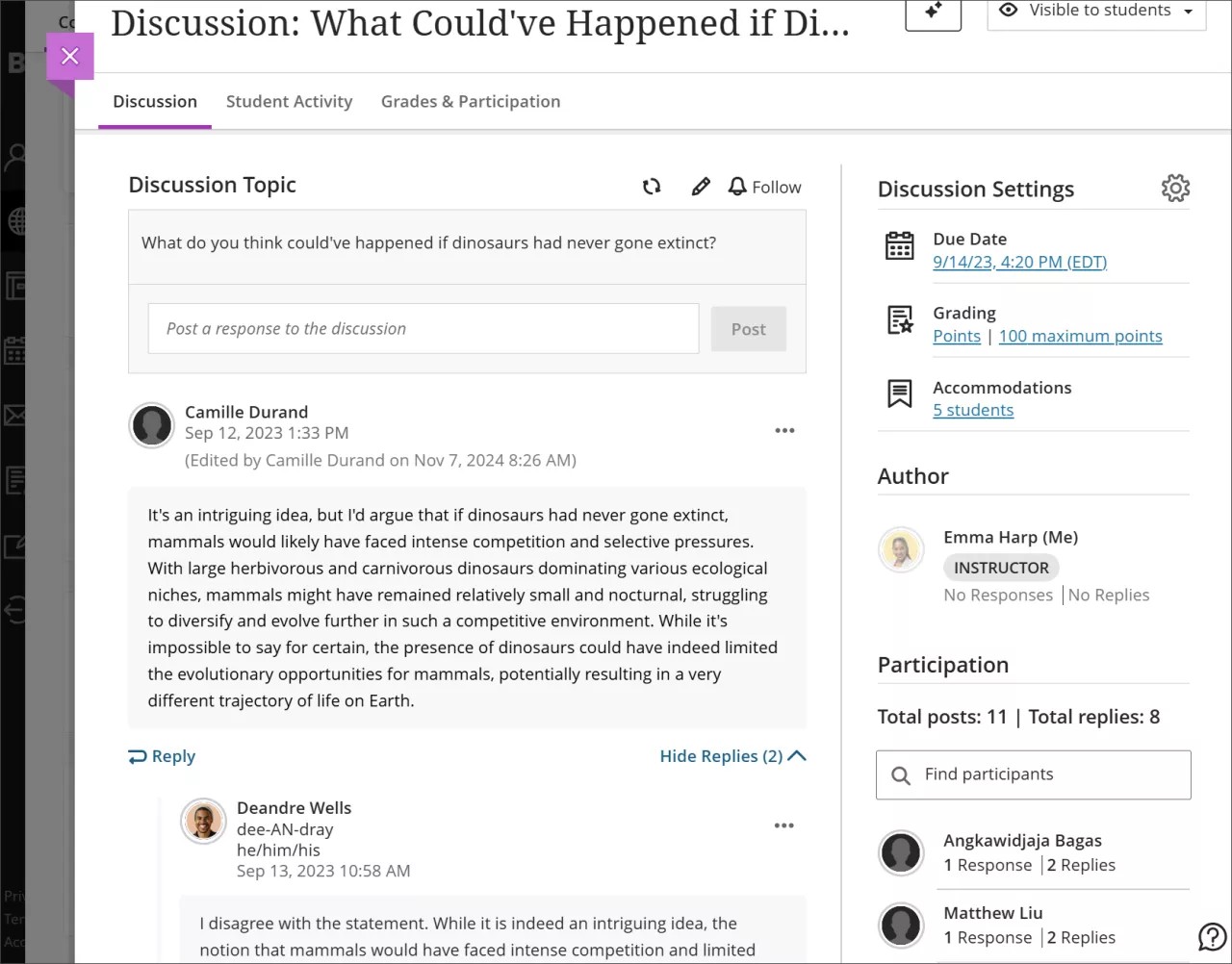
You can use the options in the editor to format text, attach files, and embed multimedia.
Tip
To use your keyboard to jump to the editor toolbar, press ALT + F10. On a Mac, press Fn + ALT + F10. Use the arrow keys to select an option, such as a numbered list.
Word count for discussion posts
As you and your students create discussion posts, the word count is updated in the editor. After you save your post, the word count no longer appears.
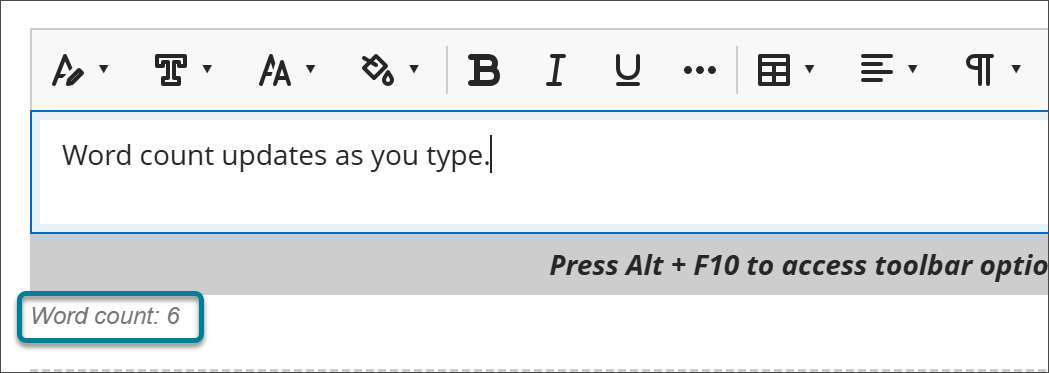
These items are included in the word count:
Individual words
Web links
Text in bulleted or numbered lists, but the bullets or numbers themselves aren't included
Superscript and subscript text not part of another word
These items and formatting elements don't affect the word count:
Images, videos, and file attachments
Math formulas
Blank spaces and lines
Alternative text
When you use punctuation to attach words or numbers, the count is affected. For example, "We went...without you" is counted as three words. The words or numbers on either side of the punctuation are counted as one word.
Follow a discussion
You can follow a discussion to get notifications on your Activity page every time there is new activity from instructors or students in a specific discussion. Select Follow to follow a discussion.
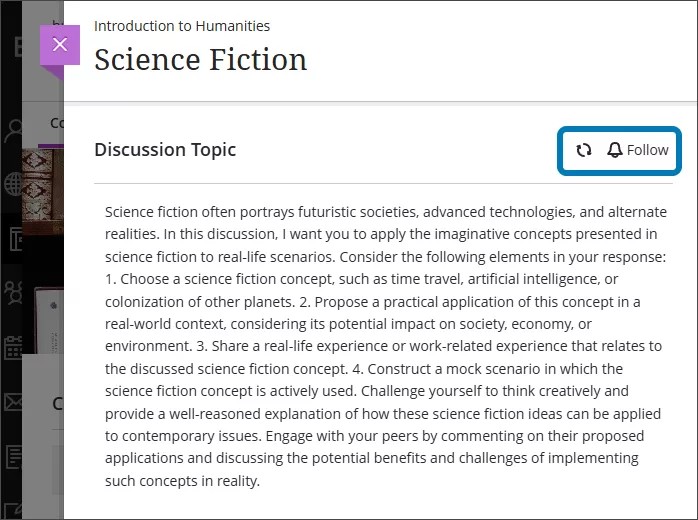
If you no longer want to receive notifications for a discussion, select Unfollow. You can also refresh a discussion to see if there were any updates by selecting the arrows beside Follow or Unfollow.
You can control what sorts of notifications you get for discussions you follow by going to Settings on your Activity page.
You can select or deselect receiving notifications for:
Activity on my posts
Activity on posts I have replied to
Posts from instructors
Posts for followed discussions
Replies for followed discussions
You can also receive emails for followed discussions by going to your Email me right away settings from the same Settings menu on your Activity page. The notifications available are:
Activity on my posts
Activity on posts I have replied to
Posts from instructors
Posts for followed discussions
Replies for followed discussions
Delete posts and replies
Instructors can edit or delete anyone's posts and replies. Students can delete only their own posts and replies.
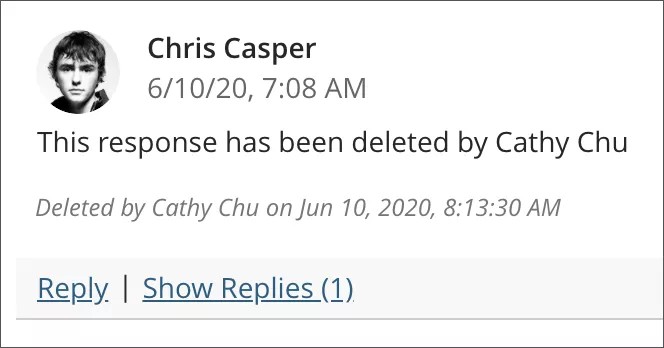
Open the menu for a post or reply to access the Edit and Delete functions. If you delete an initial post, all replies remain. The system displays a message about your deletion so others know what happened.