Peer Review for Qualitative Peer Assessments
Peer assessment is a common resource that allows students to review their peers’ work through criteria-based evaluation. It’s simple for instructors and students to use.
Why use Qualitative Peer Assessments?
Allows students to give and receive constructive feedback.
Reinforces and puts in practice the comprehension of the subject material.
Fosters analytical and learning comprehension skills of students.
Encourages the development of students’ critical thinking.
Gives students practice in critique others in a professional manner.
Allows to measure students’ analysis and communication skills.
Helps to distribute the workload.
Ensures that students receive feedback from several individuals, several points of view.
Video: Peer Assessments
The following narrated video provides a visual and auditory representation of some of the information included on this page. For a detailed description of what is portrayed in the video, open the video on Vimeo.
Question and criteria examples
Questions provide structure and content to the assessment. They can be simple ("What is 2 plus 2?") or complex ("Describe the main reason for the fall of the Roman Empire.").
The criteria that accompany each question provide the means to evaluate the responses to the questions. The number or criteria can also range from one ("Did the answer = 4?") to many:
Does the response place the issue within the broader context of the subject?
Is the response well-organized and clearly laid out?
Was the response proofread carefully? Was it free of significant grammatical, spelling, or typographical errors?
Rubrics are also available to facilitate students in the evaluation process and help you, as an instructor, to better track students’ accomplishments. You can grade using a rubric and your students can see that rubric you may use for grading.
Tip
Peer reviewers can view rubrics to guide their feedback, but only you, as an instructor, can use rubrics for scoring.
Create a Peer Review Assessment
On the Course Content page, select the plus sign wherever you want to add an assignment.
In the menu, select Create to open the Create Item panel then select Assignment.The New Assignment page opens.
From the Assignment Settings panel, select Peer review. The selection will affect other fields automatically, such as the number of attempts allowed, in order to comply with the settings required to guarantee a successful peer review process.
Select Select peer settings below Peer review. In the expanded panel you can set the number of Reviews per student, the Assessment due date (for assignment submission) and the Peer review due date (for peer review completion).
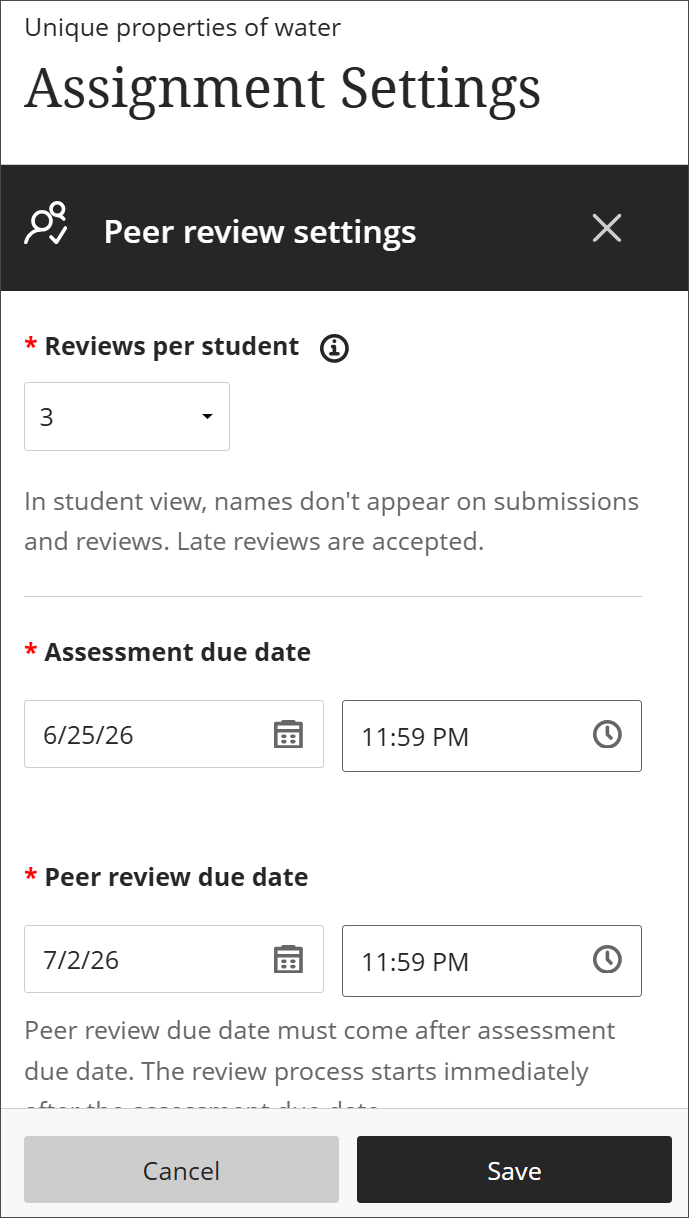
Select Save.
The Peer review section within the Assignment settings will be updated to show your selections for number of reviewers and due date for peer revisions.
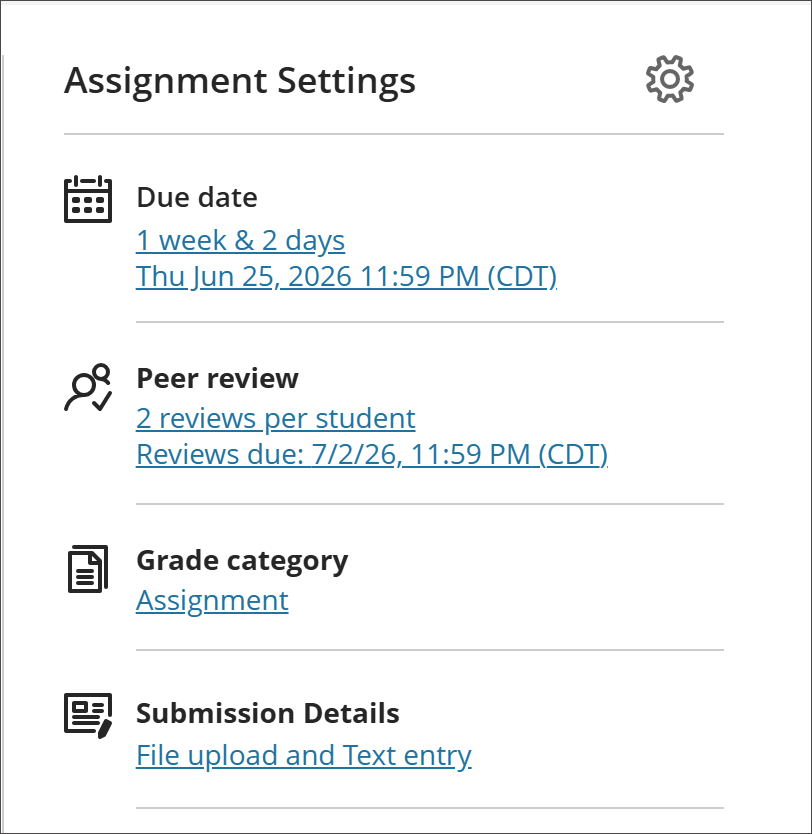
You can add other settings to your assignment, such as a rubric, to complete the assessment.
Close the Assignment Settings panel and continue to add content to your assignment and instructions for your students.
Make the assignment available for your students when ready.
Tip
To assign peer reviews within a group, you can set up multiple assignments with Peer Review enabled and set Conditional Availability by group membership. This way, assigned peer reviewers will always be within a student’s group.
Tip
Assignments with Peer Review have a single text prompt. Be sure to include all topics and questions to which students must respond and receive feedback on in one prompt.
Qualitative Peer Assessment timeline
Create and deploy: Set the submission and review due dates, the number of required reviews, and make the assignment visible to students
Submission period: The time before the submission due date during which students are expected to submit the assignment.
Peer Review: After the submission due date and before the peer review due date during which students are expected to review peers’ work and give them feedback.
Track tasks: Instructors can track submissions and review progress in the gradebook.
Grading: After the peer review due date, instructors grade the activity considering both the students’ submissions and their reviews of their peers.
Submission period
During the submission period, your students are able to:
See the assignment instructions.
Review any rubric optionally associated with the assignment.
Start a draft submission, and
Complete an attempt submission.
As with any other assignment, students can author directly in the assignment and attach files.
Only a single completed attempt can be submitted. This is to prevent a student from seeing what other students wrote and then submitting the Assignment again. If a student has an issue with an attempt submission, you can delete her attempt so the student can submit again.
Distribution and randomization of submissions to peers
Submissions are distributed to students automatically and randomly. Students are not pre-assigned to peers but remain in a pool of potential peer assignments. As a student chooses to begin a new peer review, another student’s submission is drawn randomly from the pool. This method allows greater flexibility for accepting and handling late submissions and peer reviews.
The identities of peers is not visible to students but it's visible to you, as an instructor.
The start of the peer review period
The review period starts automatically once the submission due date has passed. At that time, students can return to the assignment and start their reviews. Before the review period begins, students who have submitted their assignments will be informed when they can begin their peer reviews.
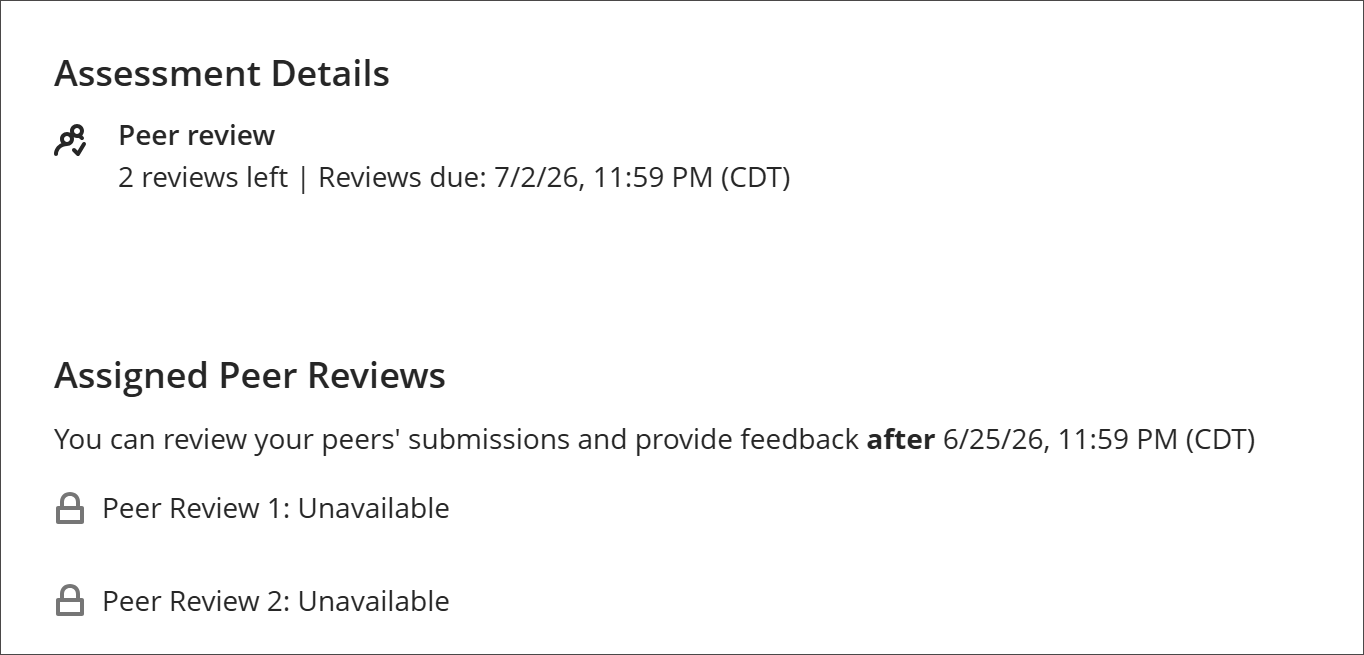
Because of the way that reviews are assigned and distributed, the review period cannot begin until there is a minimum number of submissions.
By the due date, the minimum number of submissions for the review period to begin is the assigned number of reviews set by you plus one. For example, if you set 3 reviews are required per student, 4 submissions must be turned in before the review period can start. This ensures there are enough submissions for the students who start their reviews first, in order to complete all of their required reviews at once if they choose to do so.
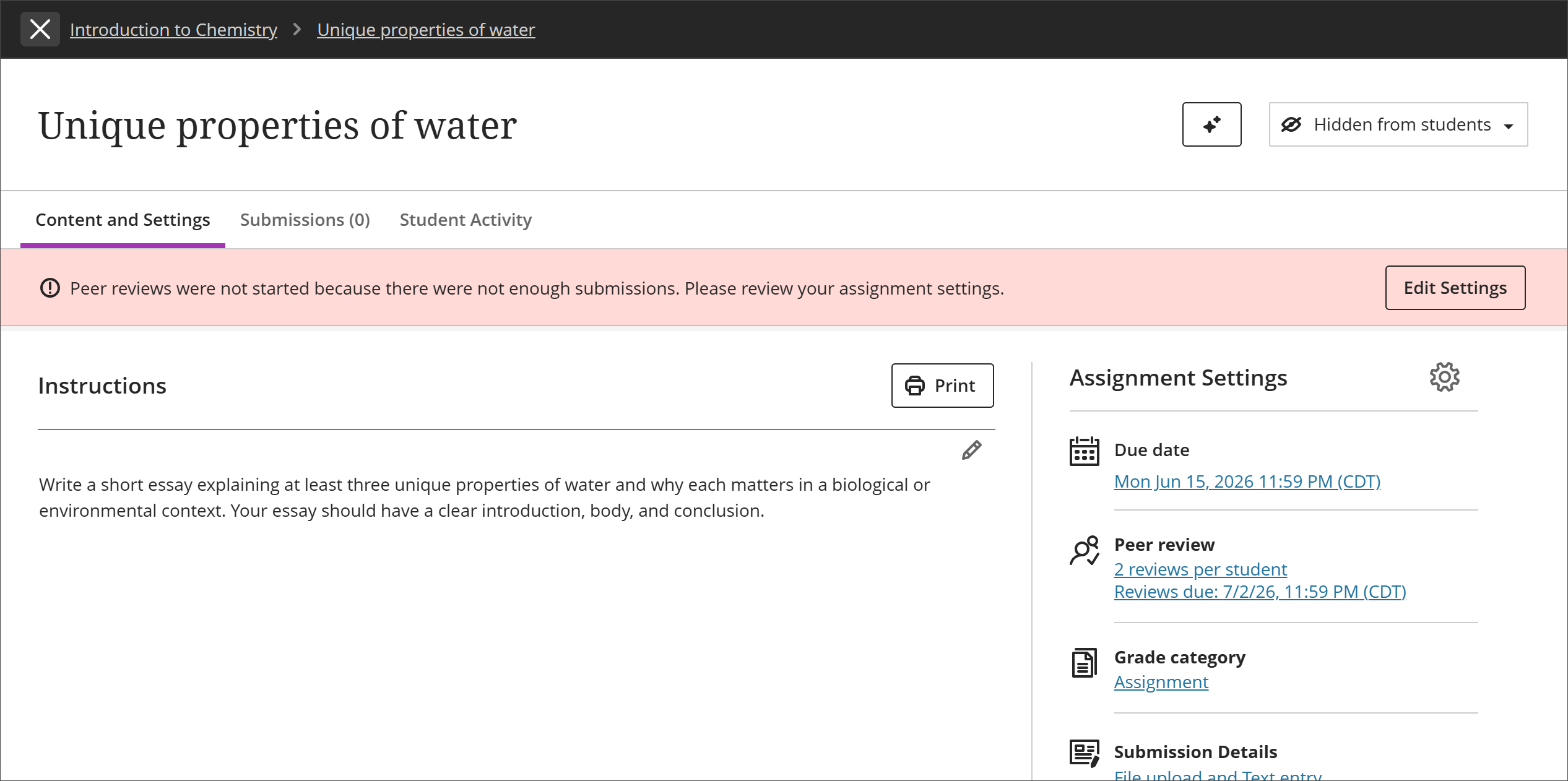
If the submission due date has passed and there aren’t enough submissions for the review period to start, you'll be alerted in the Assignment Settings page.
Optionally, you can change the original settings and reduce the number of required reviews or adjust the submission due date.
Tip
Names of peers are always hidden from each other. If you want your students to know who they’re evaluating, you can request them to add their names to their corresponding submissions. Student names can’t be hidden from you.
Important
Reviews won't be shown to the student until the grade for the peer review assignment is posted.
Important
You can’t use originality checking with SafeAssign on assignments when Peer Review is enabled.
Late submissions and reviews
Just like with other assignments, students can submit work late. Their lateness is indicated in the gradebook and grading workflows unless a due date accommodation applies to them.
A late student’s submission goes into the available pool at time of submission, and peers who start reviews after the submission can pick it up to evaluate. While due date accommodations are handled, at this time due date exceptions for individual students aren’t allowed for assignments with peer review enabled because of the potential impact it would have on the review period for other students.
Late submitters and reviewers remain part of the process as active participants, and you as an instructor can always see who is late, tracking students' progress towards completion.
In the case when a student submits very late and all other students have completed their peer reviews, it’s possible this very late student won’t receive any reviews from her peers but she can still conduct peer reviews for other students.
If there are no more submissions available in the pool when this late student starts her reviews, other student submissions will be assigned to her, thus leading to some students to receive extra peer reviews above the assigned number of reviews. These additional reviews will be hidden from view from the recipient peers by default, so they won’t be confused and wont’t feel they’ve been “over-evaluated.”
There can be circumstances where a student who submitted and completed reviews on time doesn’t receive the full count of peer reviews by the review due date. This means there are pending reviews not completed by other students.
Submission tracking and status review
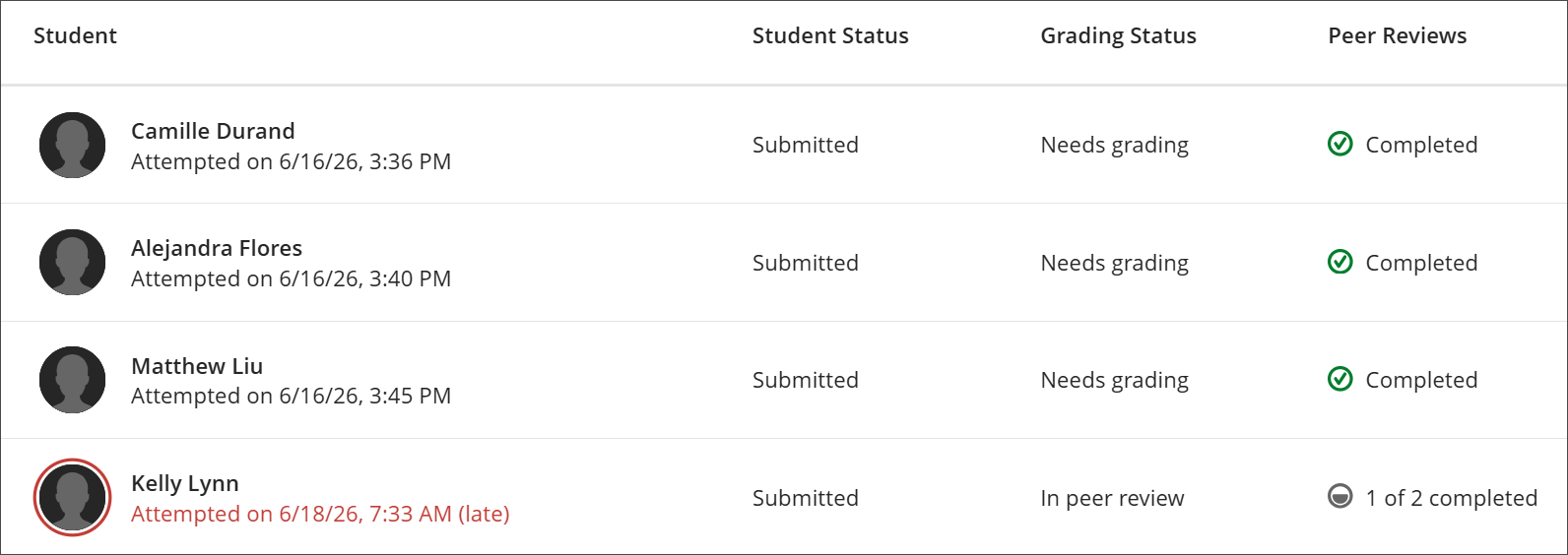
On the Submission page for the assignment, it’s possible to review all students’ statuses, whether they’ve submitted, how many peer reviews they’ve completed, and whether they were late with either the submission or their reviews.
Important
Reviews won't be shown to the student until the grade for the peer review assignment is posted.
Important
Your students and you can learn about relevant changes in submissions via the Activity Stream. You'll get notifications when new reviews arrive, and your students will get them when their reviews are graded.
Grading
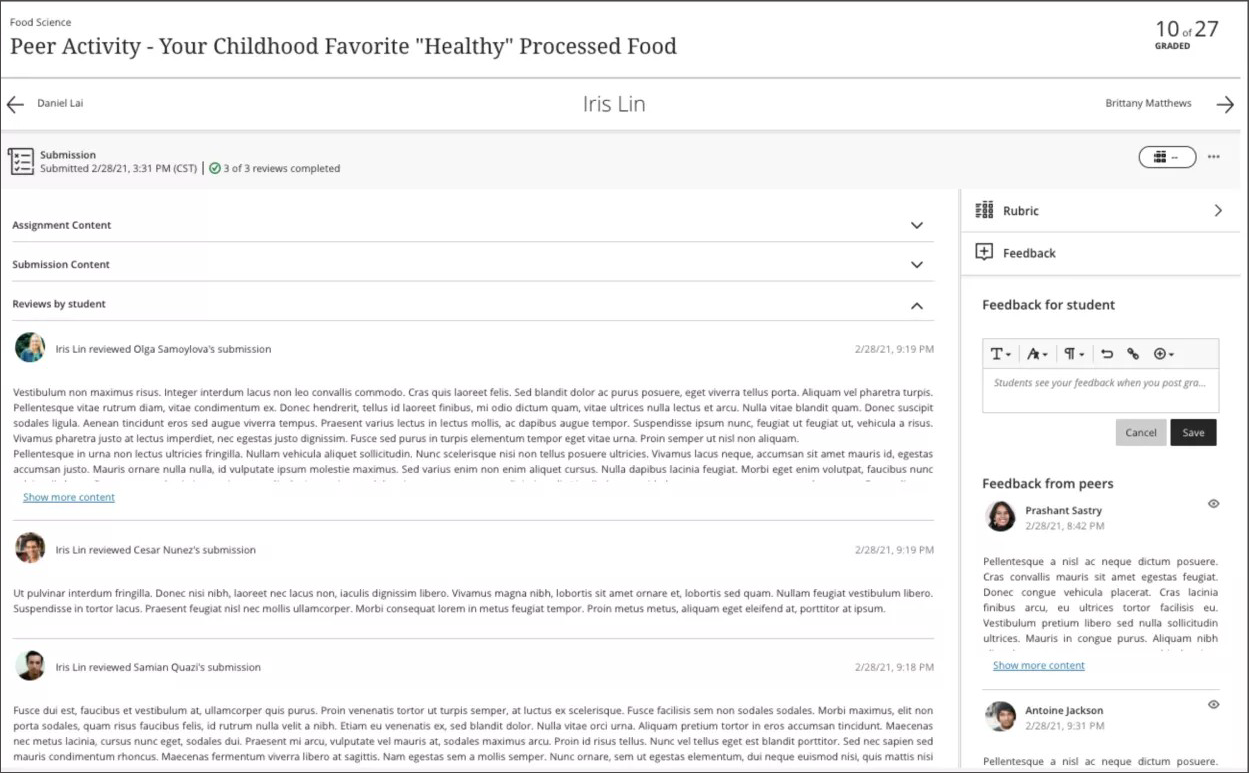
In the grading workflow, you or any assigned grader can view the original assignment instructions, a student’s submission, the reviews this student gave to her peers, and the feedback this student received from her peers. Here you can provide feedback to the student and provide a score or use a rubric to grade. As with any other assignment, you can view and annotate the document submitted inline.
You can censor any peer review you deem inappropriate by clicking the Show/Hide icon next to it. You and any other approved grader always see all feedback provided. If a student received extra feedback from late reviewers on top of the assigned task of reviews, those reviews are hidden by default. You can choose to show them to the reviewed student using the Show/Hide toggle.
Tip
Assignments with Peer Review support a single grade and rubric for a student’s submission and peer reviews. If you choose so, you can communicate different scores for each part of the process in their feedback.
Important
Reviews won't be shown to the student until the grade for the peer review assignment is posted.
Useful functionalities
Submission linking
You can access the submissions reviewed by your students right from a given student's grading panel. You can easily select a specific submission and grade a student’s review in context.

Calendar links
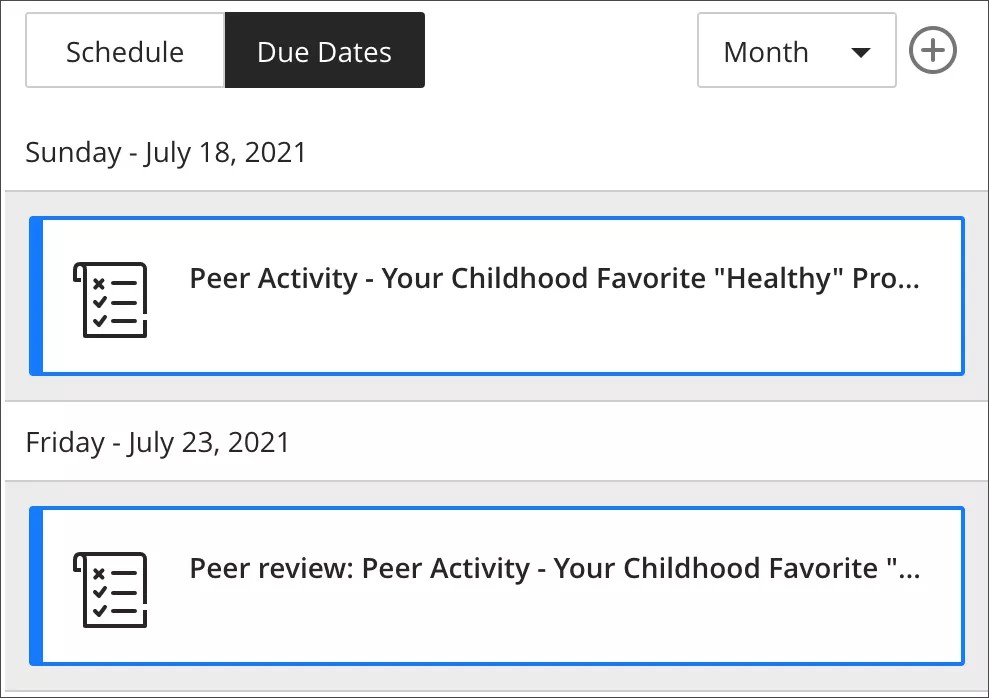
Your students have direct access to the submissions available for their review from either the Due Date or the Calendar views. This makes it easier for them to act when reviewing their pending tasks.