Manage Gradebook Items
Once an item is in your gradebook, you can send a reminder, edit it, view statistics, delete it, or reorder it.
Send a reminder
Send a reminder to students or groups who haven't submitted an item yet. The item must be visible with no release conditions, and this can't be used for manually created columns.
Reminders are sent as a blind carbon copy (BCC) course message, and you receive a copy too. If course messages are turned off, reminders send as email. For anonymous grading, reminders always send by email to preserve anonymity.
In the grid view, select the item title (the column header).
In the Assessment Details panel, select the bell icon. The bell icon won't display if there aren't students who need to submit a submission.
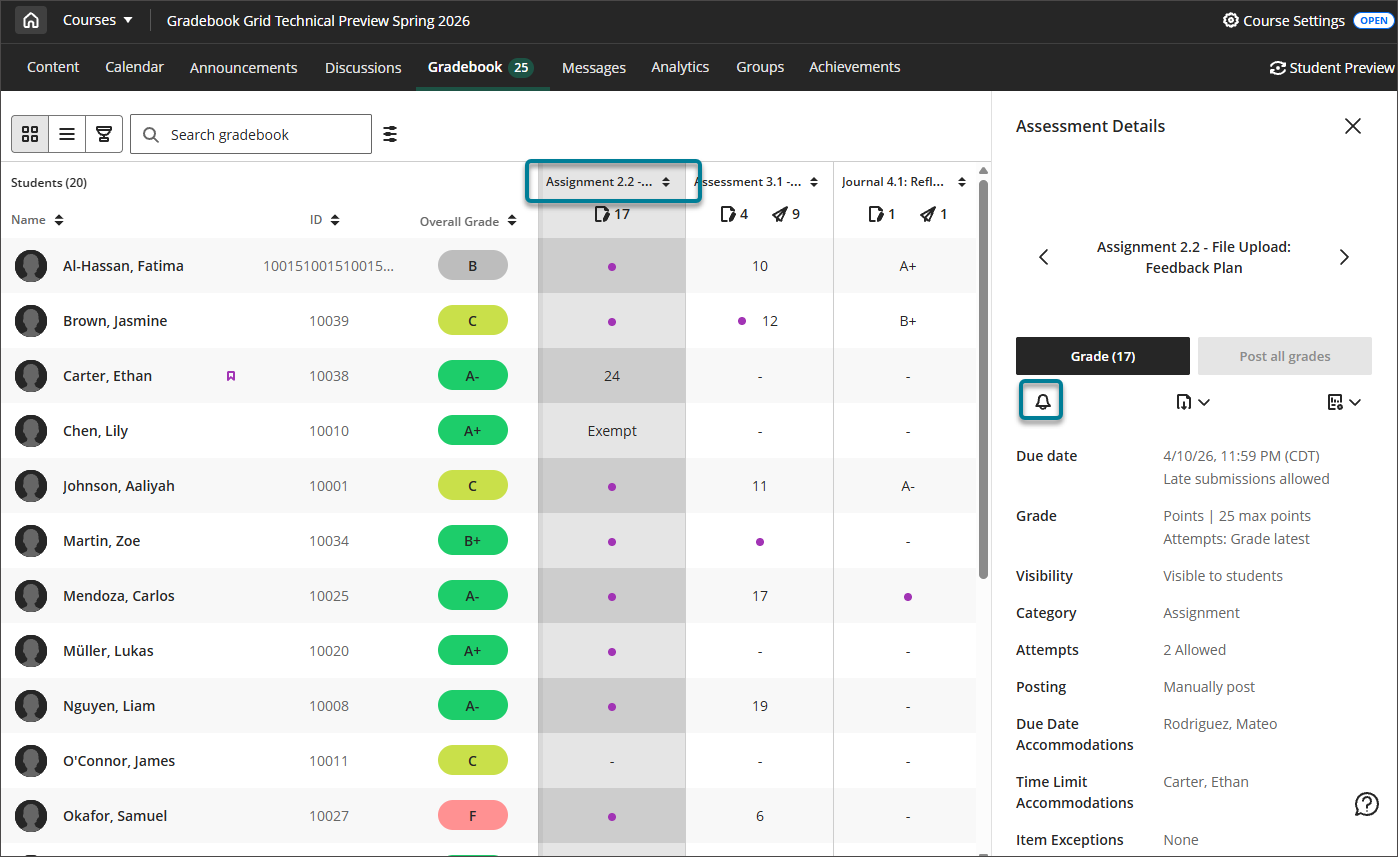
In the confirmation dialog, select Send.
View statistics and question analysis
In the grid view, select the item title (the column header).
In the Assessment Details panel, select the statistics icon. The statistics icon won't display if statistics and question analysis are not available for that item.
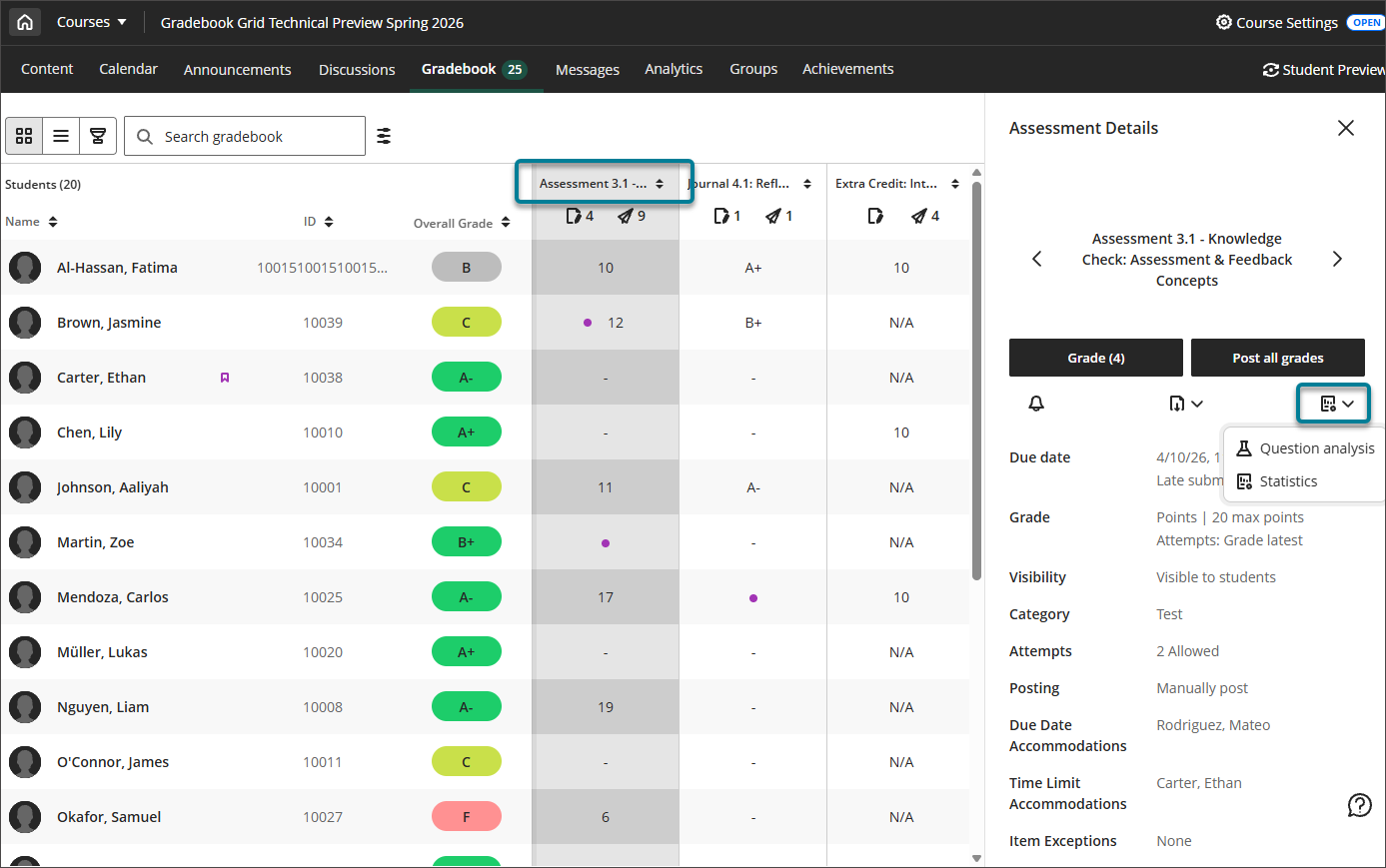
Select Statistics to view summary metrics for the item: minimum and maximum, range, average, median, standard deviation, variance.
Select Question analysis to view details and data for each question in the assessment.
Reorder items
When you reorder items in the list view, this order is reflected in the grid view.
In the list view, decide the order you would like your items to be in.
One item at a time, click the reorder icon, then drag and drop the row between existing rows.