알림 설정 구성
알림은 프로비저닝 및 추출 과정의 일부로 보낼 수 있습니다.
알림 설정을 통해 성적 내보내기 알림 구성
Blackboard에 시스템 관리자 권한을 가진 사용자 계정으로 로그인하세요.
관리자 패널에 접속합니다.
클라우드 관리에서 플랫폼 확장을 선택하세요.
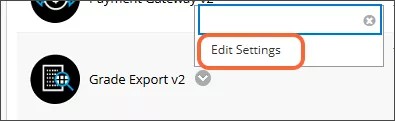
Grade Export v2의 컨텍스트 메뉴에서 설정 편집을 선택하세요.
Grade 내보내기 가용성 토글이 선택되었는지 확인하세요. 성적 여정 기능 토글은 선택할 수 없습니다. 텍스트에는 유료 계약을 통해 사용 가능한 성적 여정 확장 기능에 대한 추가 정보가 포함되어 있습니다. 성적 여정에서 사용 가능한 추가 기능에 대한 자세한 내용은 계정 담당자에게 문의하십시오.
알림 설정 탭을 선택하세요.
알림 유형별로 필드를 작성하세요.

참고
/n은 새 줄을 설정하는 데 필요하지 않다. 템플릿에 반품이나 새 줄을 추가할 수 있습니다.
Assignment & Grade Columns
These email notifications are sent when the grade column and assignment provisioning process has been completed.
Enter the email addresses that should receive the email in the To Address field. This is often an admin email or a distribution list.
Enter the email address that the email will appear to be coming from (for example, noreply@domain) in the From Address field.
Enter the subject line for the email in the Subject field.
Enter the template for the text of the email in the Body Template field.
Grade Extract
These email notifications are sent when the grade extract process has been completed.
Enter the email addresses that should receive the email in the To Address field. This is often an admin email, a distribution list, or the $INSTRUCTORS$ token. People in this field will receive an email for each course that is included in an extract. Instructors will only receive emails for their own courses.
Enter administrator email addresses in the Admin To Address field. Admins listed in this field will receive one email when the grade extract process is complete with a text file attached that includes the course IDs of all courses included in the extract.
Enter the email address that the email will appear to be coming from (for example, noreply@domain) in the From Address field.
Enter the subject line for the email in the Subject field.
Enter the template for the text of the email in the Body Template field.
Grade Event Notification
These notifications are sent when changes are made to the grades columns that were added by the Grades Journey integration. For example, if an instructor accidentally deleted a provisioned grade column, a notification would be sent to the specified email address informing the administrator of this situation so it could be corrected.
Choose the Type of notification from the menu.
None: no notifications are sent
Email: notifications are sent by email
Enter the email addresses that should receive the email in the To Address field. This is often an admin email or a distribution list.
Enter the email address that the email will appear to be coming from (for example, noreply@domain) in the From Address field.
Enter the subject line for the email in the Subject field.
Enter the template for the text of the email in the Body Template field.
Select Submit to save your settings.