Blackboard에 대한 피드백 및 지원
You can use Blackboard's self-service resources to find answers or contact technical support directly. The Blackboard Support panel connects you to Anthology Support Center and our documentation site, Blackboard Help.
Select the help button to open the Blackboard Support panel.
작은 정보
Only the system administrator role can access the support panel. The help button opens the help site for all other roles.
If your institution uses a customized, external site for documentation, the help button contains a menu. You can choose the support panel or your external site.
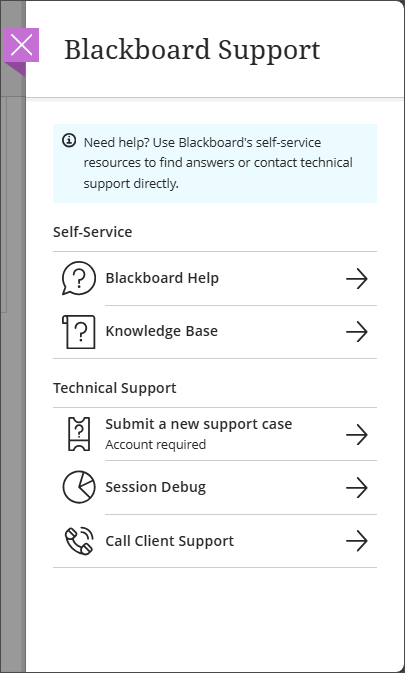
Under Self-Service, you can access:
Blackboard Help: Access contextual in-product help.
Knowledgebase: Access the Anthology Support Search page.
Under Technical Support, you can access:
Submit a new support case: Log a support case directly from the product. An Anthology Support account is required to log in.
Session debug: 세션 로그 확인 that represents the last 30 actions taken during a session. This code helps Blackboard Support or your institution’s IT team diagnose problems without requiring full manual logs.
Call Client Support: View client support phone numbers for each country. No login required.
을 설정하는 중입니다.
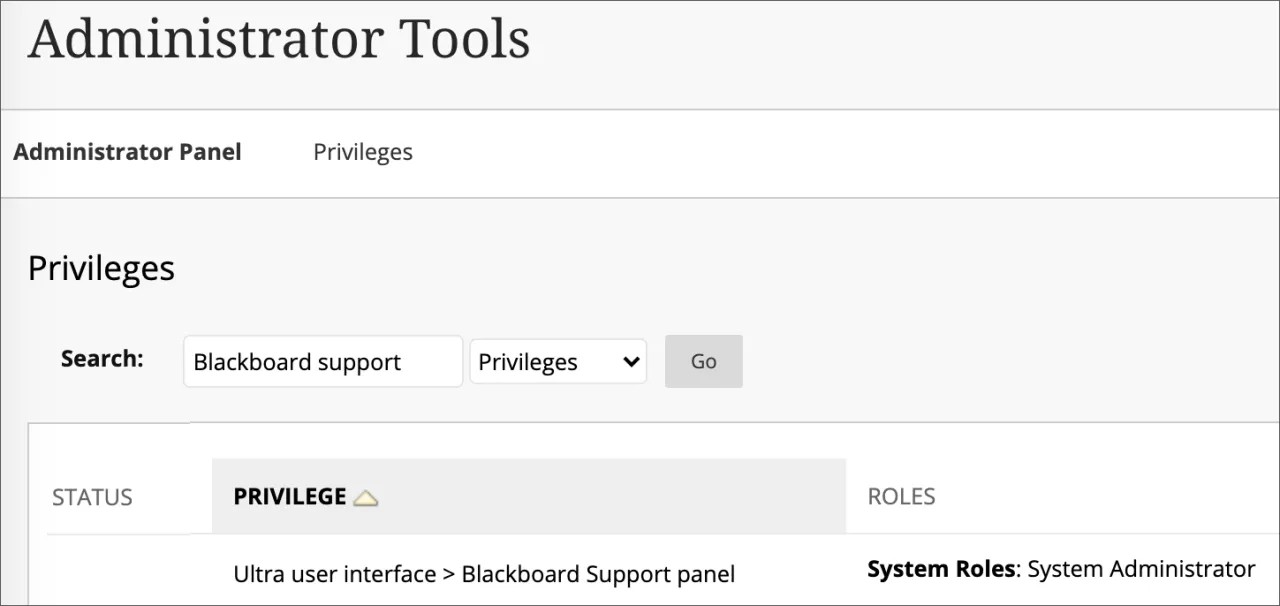
전체 시스템 관리자만 Blackboard 지원 패널에 접근 가능합니다. Ultra사용자 인터페이스 및 Blackboard지원 패널 권한을 다른 관리자 역할에 추가할 수 있습니다.
Blackboard 커뮤니티 사이트
연결하고 협업하세요!
블랙보드 커뮤니티 사이트에서 토론에 참여하려면 로그인하세요. 조직이 글로벌 교육 커뮤니티의 진화하는 학업 및 전문성 개발 과제를 해결하는 데 도움이 되는 전략을 알아보세요. 질문하고 답변을 주고받으며, 경험과 모범 사례를 공유하고 제품 피드백을 제출할 수 있습니다.
세션 로그 확인
전체 시스템 관리자만 Blackboard 지원 패널에 접근할 수 있지만, 이제 관리자, 교수, 학생은 문제가 발생하여 보고하고 도움을 받기 위해 추가 정보를 제공해야 할 때 자신의 세션 디버그 코드 사본을 받을 수 있습니다.
관리자가 세션 디버그 코드를 가져오려면 오른쪽 하단 모서리에 있는 도움말 아이콘을 선택하고 그 다음에 세션 디버그를 선택해야 합니다. 그런 다음 Blackboard 지원 패널에서 '로그 코드 요청' 버튼을 선택하고 텍스트 필드 오른쪽에 있는 복사 아이콘을 사용하여 제공된 코드를 복사하세요. 클립보드에 코드가 복사되면 아이콘이 녹색 확인 표시로 바뀌며, 세션 코드를 Help Desk와 공유해 추가 수정을 진행할 수 있습니다.
In the Blackboard Support panel, select the Request log code button and use the Copy button to copy the code provided.
When the code is copied to the clipboard, the button's icon changes to a green checkmark, and the session code can be shared with the help desk for further troubleshooting.
관리자는 관리 도구와 유틸리티를 통해 특정 세션의 로그 내용에 접근할 수 있습니다. 그런 다음 로그를 선택하고 세션 디버그 로그를 선택합니다. 그런 다음 사용자가 제공한 로그 코드를 세션 세부 정보를 확인하는 데 삽입해야 합니다.
From the Administrator panel, under Tools and Utilities select Logs.
Select Session Debug Logs.
In the Log Code field, paste the log code provided by the user and select Retrieve Log.