July 2026 Release Notes (4000.19)
Release information
Tip
For maintenance release build numbers and bug fixes, visit Maintenance Releases.
For release status and delays, visit Blackboard Status.
Instructional Design
Add supplemental content to Learning Object Repository folders and learning modules
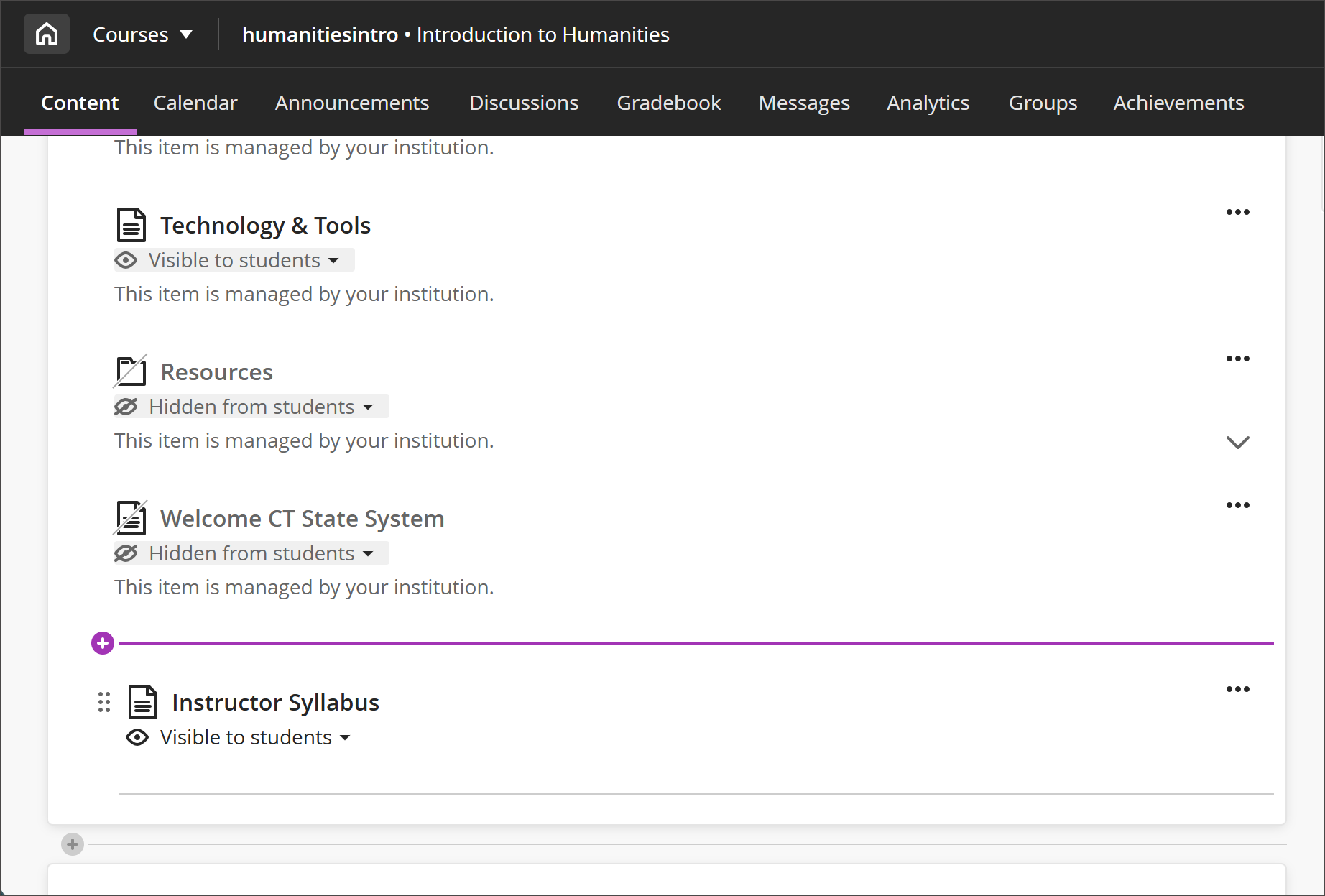
Instructors can now add their own content to folders and learning modules that originate from the Learning Object Repository (LOR). Previously, all content within LOR folders and learning modules was locked; instructors could view it but not add to it. Instructors can now supplement centrally managed content with course-specific materials while the LOR-owned content remains protected and continues to sync updates across associated courses. This gives instructors the flexibility to personalize and enhance the learning experience without compromising institutional consistency.
Instructors
Instructors can add, edit, and remove their own items inside any folder or learning module inserted from the LOR. Instructor-added items are fully editable and behave like standard course content — instructors can update titles, descriptions, body content, visibility, release conditions, and other settings at any time. Changes to instructor-added items apply only to that course and do not affect the LOR source or any other associated course.
To preserve the integrity of centrally managed content, instructor-added items always appear below LOR-owned items within the container. Instructor-added items cannot be repositioned among or interwoven with LOR-owned items, and the order of LOR-owned items remains locked.
Image 1: The Course Content page displays a learning module added from the LOR, with an instructor document at the bottom. LOR-owned items are identified by the label "This item is managed by your institution."
Administrators
Availability: Available to all Ultra courses.
Activation: None needed.
Configuration: None needed.
Add descriptions to Discussions and Journals
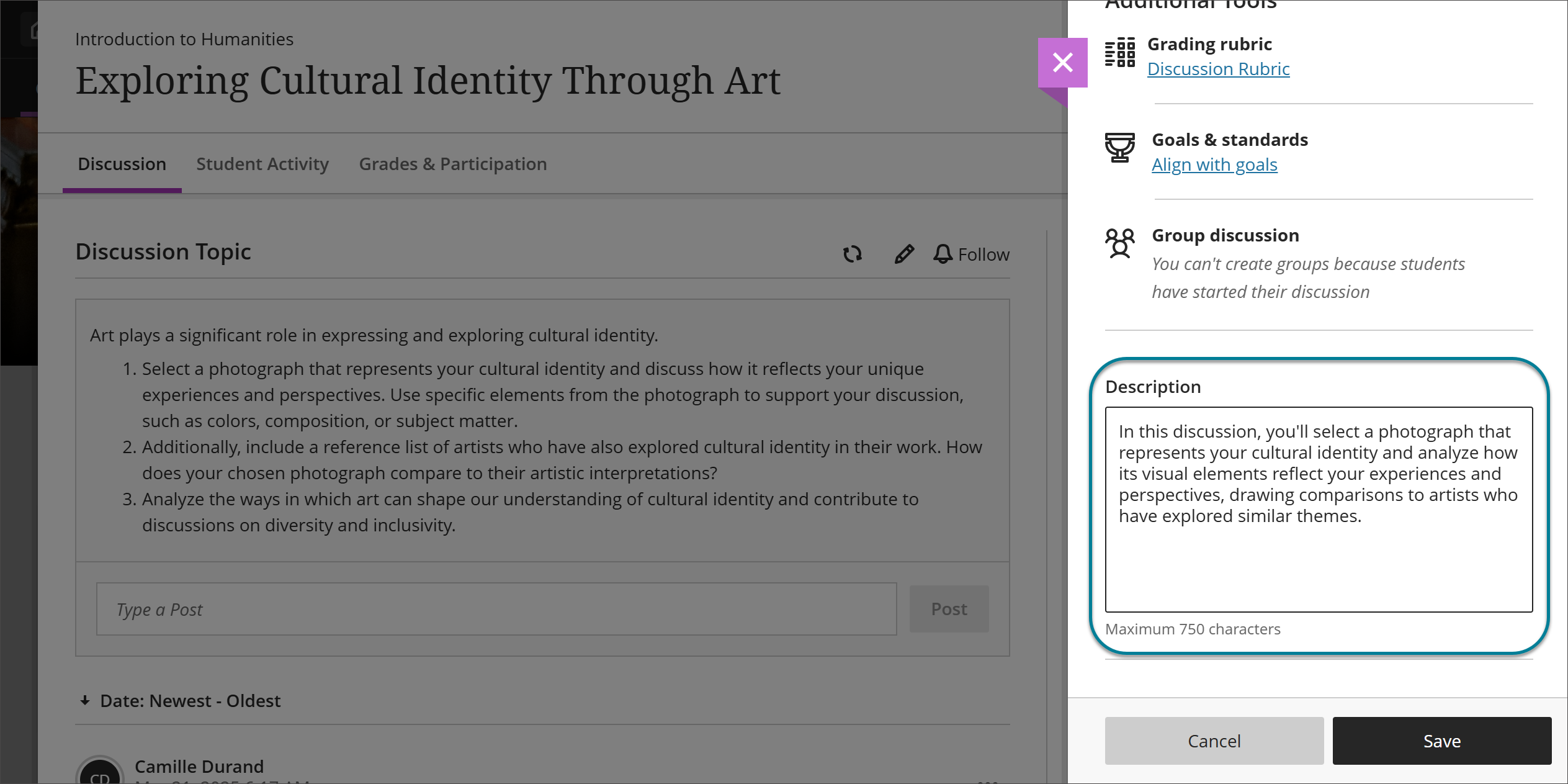
Discussions and Journals now include a dedicated Description field, bringing them in line with other course content items such as folders, learning modules, and Documents. The Description field creates a more consistent, scannable Course Content page and gives instructors a clearer way to communicate context before students engage with an activity.
Instructors
When creating or editing a Discussion or Journal, instructors can add an optional description to give students brief context before they engage with the activity. The Description field is separate from the prompt. The prompt no longer appears on the Course Content page. Instructors can use the description to set expectations and reserve the prompt for the engagement question or task itself.
Image 1: Instructors can enter a description in the Description field for a Discussion.
Students
Students find the description on the Course Content page before opening a Discussion or Journal. This gives them a clear sense of what to expect from the activity and a consistent Course Content page experience.
Administrators
Availability: Available to all Ultra courses.
Activation: None needed.
Configuration: None needed.
Assignments and Tests
Run a Rubric Evaluation Report for graded activities
Instructors can now run a Rubric Evaluation Report directly from the gradebook for any graded activity that has a rubric associated with it. This report aggregates rubric data across all student submissions, giving instructors a clear picture of how students are performing against each rubric criterion. The report supports ongoing course improvement by helping instructors identify areas where students are excelling or struggling.
Download a sample rubric evaluation report as a PDF.
Instructors
To access the Rubric Evaluation Report, open the gradebook and locate a column associated with a rubric. The report option is available in the contextual column menu in both the Grid view and the Gradable Items view. When selected, instructors are taken to a configuration page where they can select PDF or CSV as the output format before generating the report:
If there is not enough grading data available to generate the report, a message is displayed on the configuration page to inform the instructor. To be included in the report, grades must be posted. Information is refreshed overnight, every twenty-four hours.
Once generated, the report provides the following sections:
Overview: Displays the assignment name, rubric name, rubric type, and the total number of student evaluations included in the report.
Rubric Overall Performance: Shows the average score students achieved against the total points possible, displayed as a summary value (for example, Average achieved score: 79.57 / 100).
Rubric Analysis: A bar graph comparing the points possible for each rubric criterion to the average points students earned.
Frequency Distribution: A table showing the percentage of students who achieved each level of performance for every criterion, along with statistical values including average, median, mode, and standard deviation.
Administrators
Availability: Available to all Ultra courses.
Activation: None needed.
Configuration: None needed.
Communication and Collaboration
Control AI Conversation duration with time limits
Instructors can now manage the duration of AI Conversations by setting a time limit. They can choose between two time-limit options, depending on whether they want to time the whole assessment or only the conversation itself.
Time limits provide additional structure for open-ended interactions, helping students understand when to complete their work and preventing conversations from running longer than intended. This also gives instructors more flexibility to design AI-supported activities that align with their learning objectives.
Instructors
An AI Conversation is made up of two parts: the conversation itself and the reflection question that follows. Instructors can now apply a time limit in either of two places, depending on which part of the activity they want to time:
Assessment-level time limit (existing): Set in the AI Conversation assessment settings, this applies to the entire assessment — both the conversation and the reflection question. When time expires, the activity behaves according to the instructor’s setting: it either automatically saves and submits, or the student is given additional time to finish (with the amount of extra time set by the instructor).
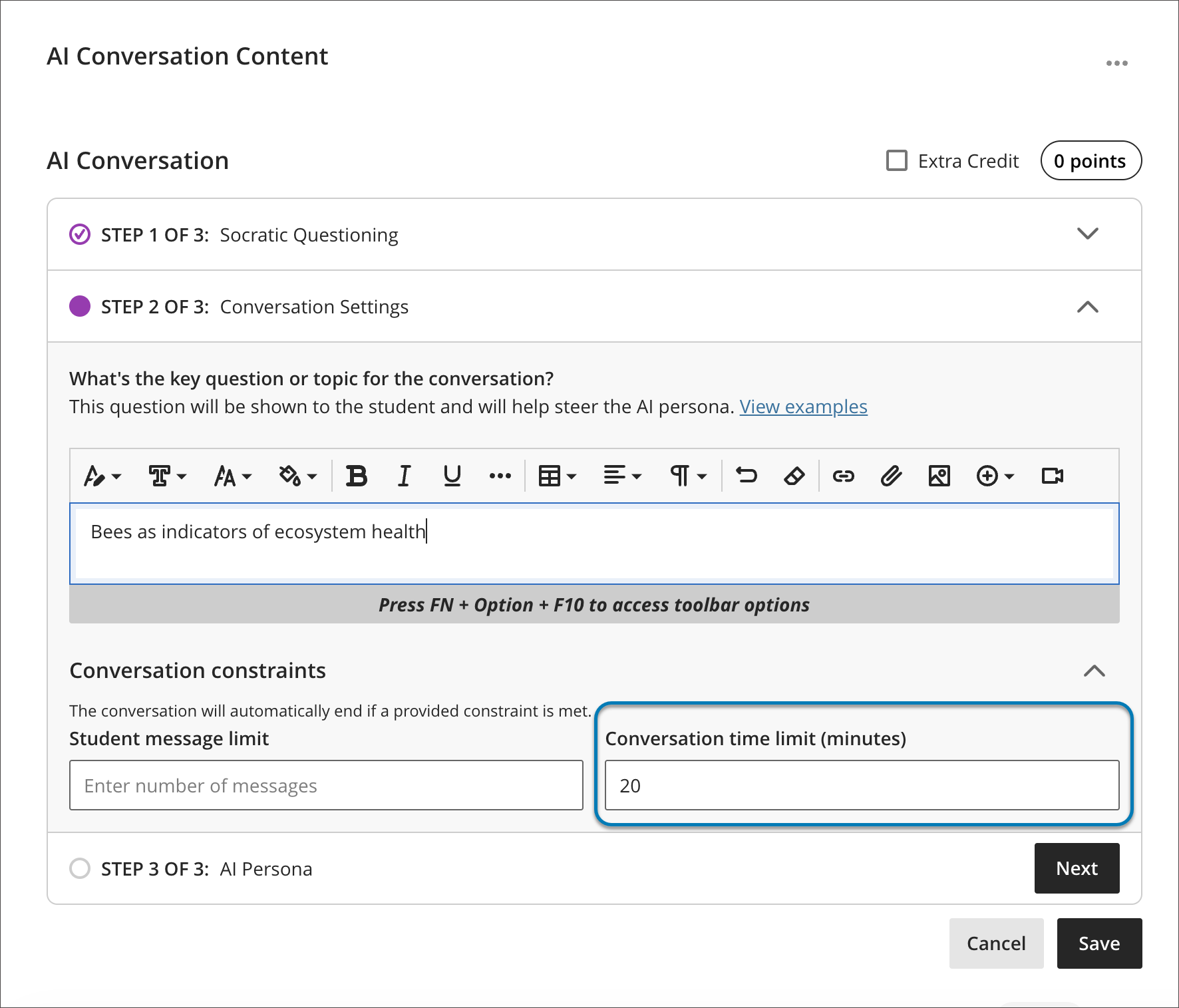
Conversation-level time limit (new): Set within the conversation setup, in the conversation constraints. This time limit applies only to the conversation itself and does not limit the time students spend on the reflection question afterward.
The two options are mutually exclusive: instructors can use one or the other, but not both at the same time. Setting a time limit in one location automatically blocks it in the other, so two timers can never run simultaneously.
Within the conversation constraints, the limits are now split into a message limit and a time limit. The message limit — capping how many times a student can reply — is already available; the time limit is the new addition. Instructors can set either limit, both, or neither for the conversation.
Instructors can modify the time limit before any student begins the activity.
Once a student starts their submission, the time limit becomes locked and cannot be changed.
Both the assessment-level and conversation-level time limits remain fully supported; instructors choose the one that best fits the activity.
If a student has an accommodation, the system automatically adjusts the timer for that student, ensuring fairness and compliance with accommodation policies.
Image 1: You can now set a time limit for either a student's AI conversation, or their written reflection after the chat.
Students
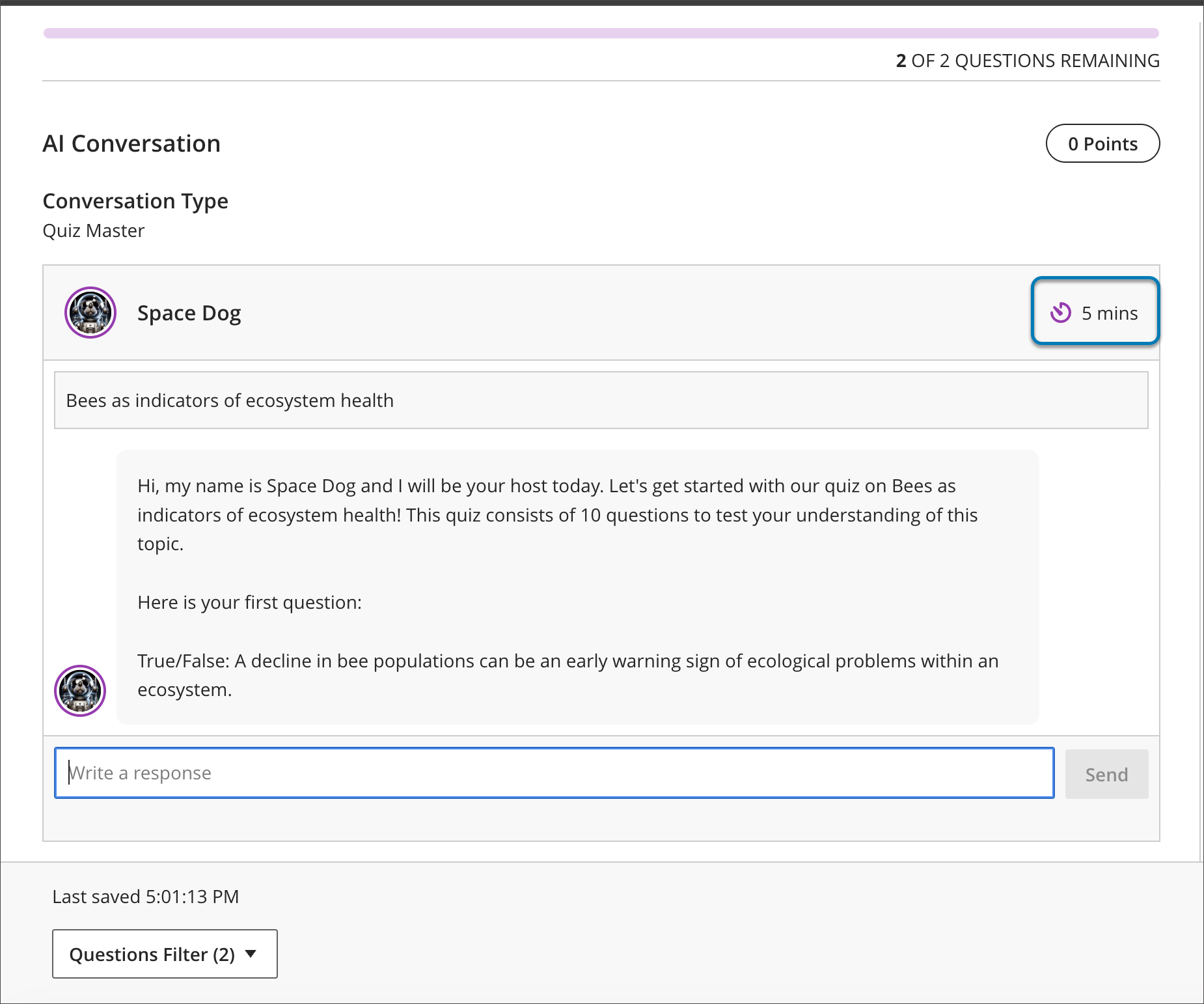
Students see the time remaining during an active AI Conversation, helping them pace their responses and complete the interaction within the expected timeframe. Where the countdown appears depends on which time limit the instructor set:
Conversation-level time limit: The countdown appears within the conversation, next to the messages-remaining indicator, in the response area where students type. Because only the conversation is timed, students can still complete the reflection question without time pressure once the conversation ends.
Assessment-level time limit: The countdown appears at the top of the assessment, and the configured expiry behavior (auto-submit or additional time) applies to the activity as a whole.
For students with accommodations, the system adjusts the time limit to ensure equitable access.
Image 2: The timer is displayed when students are completing their chat or during their reflection based on the instructor's settings.
This update provides clearer expectations for participation, supports accessibility requirements, and helps instructors guide AI-based learning activities more effectively — while protecting reflection time when only the conversation needs to be timed.
Administrators
Availability: Available for all Ultra courses.
Activation: None needed.
Configuration: None needed.
Preview existing message thread in Course Messages
Note
This feature is in production environments as of 5 June 2026.
Course Messages continues to evolve into a more modern messaging application. Now when a user starts a message and adds recipients, the existing conversation with those participants loads automatically, so the user can quickly verify the recipient and context of past messages with that recipient. Longer conversations are accessible by scrolling or a See previous messages link that loads the full history.
These changes make conversations easier to find and bring Course Messages closer to the messaging experiences users already know from other applications, such as Microsoft Teams or Slack.
This update builds on the earlier release Enhanced threading experience in Course Messages (4000.10; March 2026) that consolidated dispersed messages —automatically attributing each new message to an existing conversation between the same participants.
Instructors and students
Instructors and students using Course Messages will find:
Conversations load as you add recipients. When a user starts a new message and selects recipients, the system loads the existing conversation with that set of participants, so the user can continue it in place. If no conversation exists with those participants, a new one begins.
A single thread conversation view. Messages with the same participants appear together in one continuous conversation, similar to a messaging thread, instead of separate messages opened individually.
See previous messages. In longer conversations, earlier messages may be collapsed behind a See previous messages link. Selecting it loads the earlier history within the same conversation.
Fewer separate items to manage. Because messages with the same participants are grouped into one conversation, users no longer open multiple individual messages from the same person to follow a discussion.
Image 1: Selecting a recipient loads the existing conversation, displayed as a continuous thread.
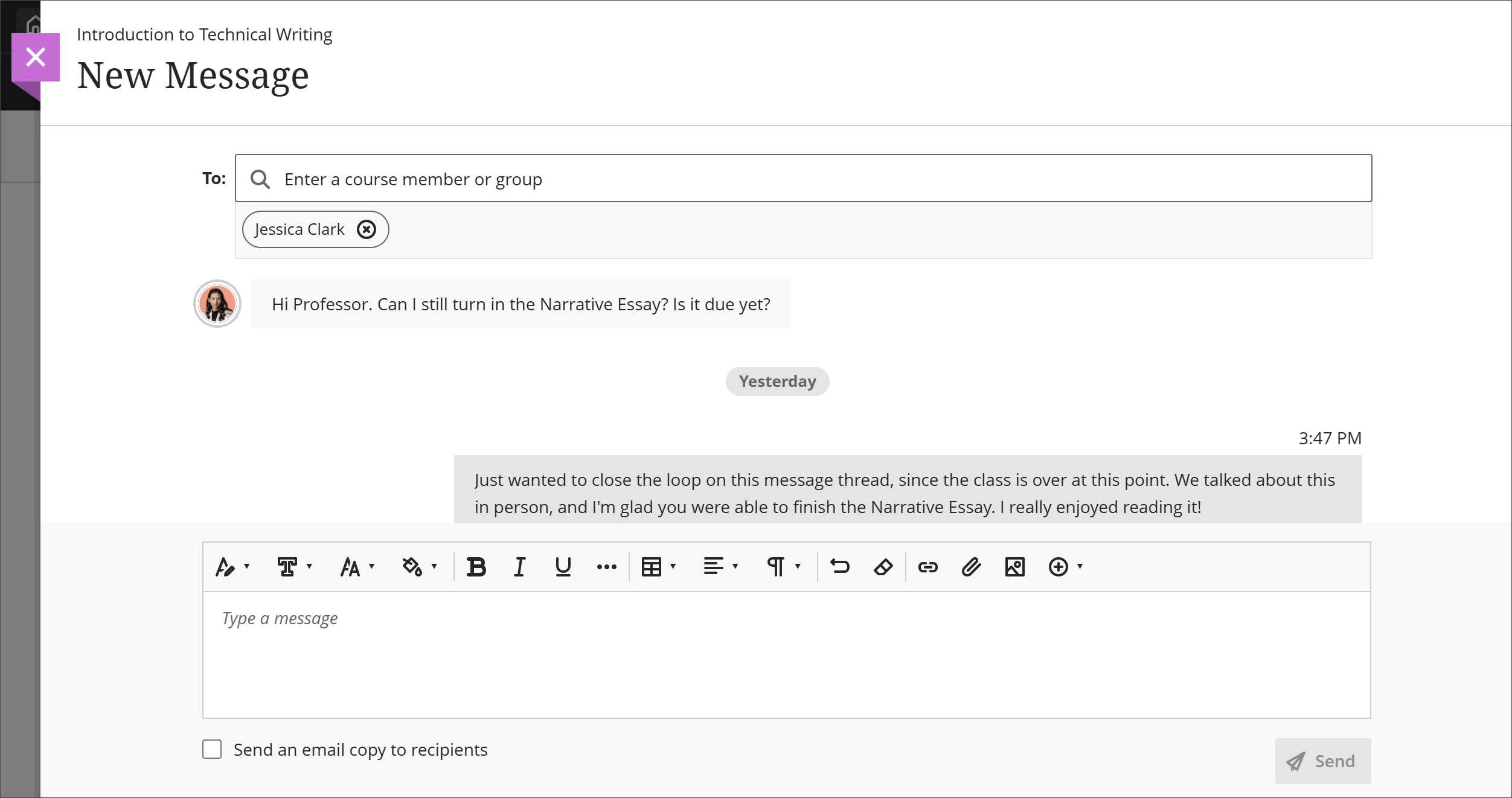
A Course Messages conversation shown in a single message thread, with a See previous messages link above the most recent messages.
Administrators
Availability: Available for all Ultra Courses.
Activation: None needed.
Configuration: None needed.
Blackboard Core
Find your favorite courses faster with Course Switcher
We’ve enhanced the Course Switcher to make it easier to access the courses you use most frequently. Users can now view their favorite courses directly within the Course Switcher, reducing the need to return to the Courses page.
This update builds on recent improvements to Course Switcher, including search and recent course access, to further streamline navigation between courses.
Instructors and Students
The Course Switcher now includes a Favorites tab that surfaces courses marked as favorites on the Courses page.
Favorites automatically mirror selections from the main Courses page
Users can quickly access frequently used courses without additional navigation
Favorites appear alongside existing Recent and Search options
By adding Favorites to the Course Switcher, users have faster, more flexible ways to move between courses. This centralized experience helps reduce navigation friction and keeps users focused on their work.
Image 1: The Course Switcher now has a Favorites tab, allowing you to add a personalized list of frequently used courses..
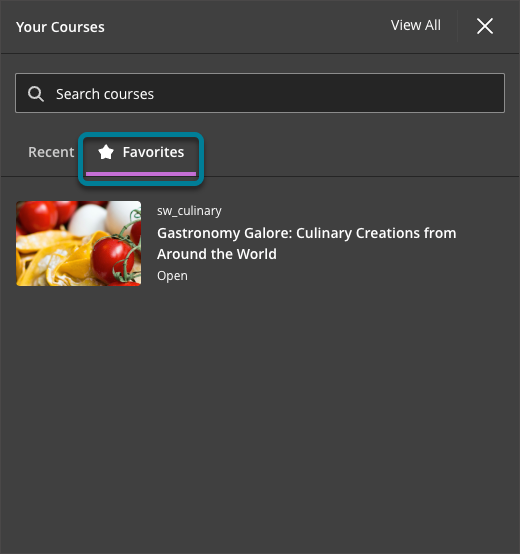
The Course Switcher dropdown displaying tabs for Favorites, Recent, and Search, with a list of favorited courses visible under the Favorites tab.
This enhancement provides a more seamless navigation experience by keeping frequently used courses within easy reach.
Administrators
Availability: Available to all Ultra courses.
Activation: None needed.
Configuration: None needed.
Blackboard Admin
Restrict content edits in completed Original courses
Content in completed Original Course View courses is now read-only. Once a course is marked complete, instructors can no longer create, modify, or delete course content. This helps ensure that completed courses remain consistent and that course materials are preserved as part of the official record.
Previously, instructors could still make changes to course content in some scenarios after a course was marked complete. This created the potential for inconsistencies between delivered content and finalized course records.
This change builds on earlier updates that restricted student attempt activity and instructor grading actions in completed Original courses. It represents the next phase in an incremental effort to strengthen completed course enforcement. Additional improvements may follow as this work continues.
Instructors
When an Original Course View course is marked complete, instructors can no longer:
Create new content items
Edit existing content
Delete content from the course
Instructors can still view all course content and access course materials as needed. The system prevents any action that would modify course content data after completion.
No action is required—these restrictions apply automatically when a course is marked complete.
Administrators
Availability: Available to all Original Course View courses.
Activation: None needed.
Configuration: None needed.
Learner Progression and Personalized Experiences
Access course announcements as an observer
Observers can now access course announcements in a dedicated Announcements tab in the observer view. Each announcement displays the title, content, posted date and time, and the date and time the student read the announcement. Observers can sort and page through announcements and expand each one to read the full content. This access gives observers clear visibility into course communications and how students are engaging with them.
Observers have read-only access to announcements. Opening an announcement as an observer does not mark it as read for the student.
Image 1: The Announcements tab appears in the observer view of a course.
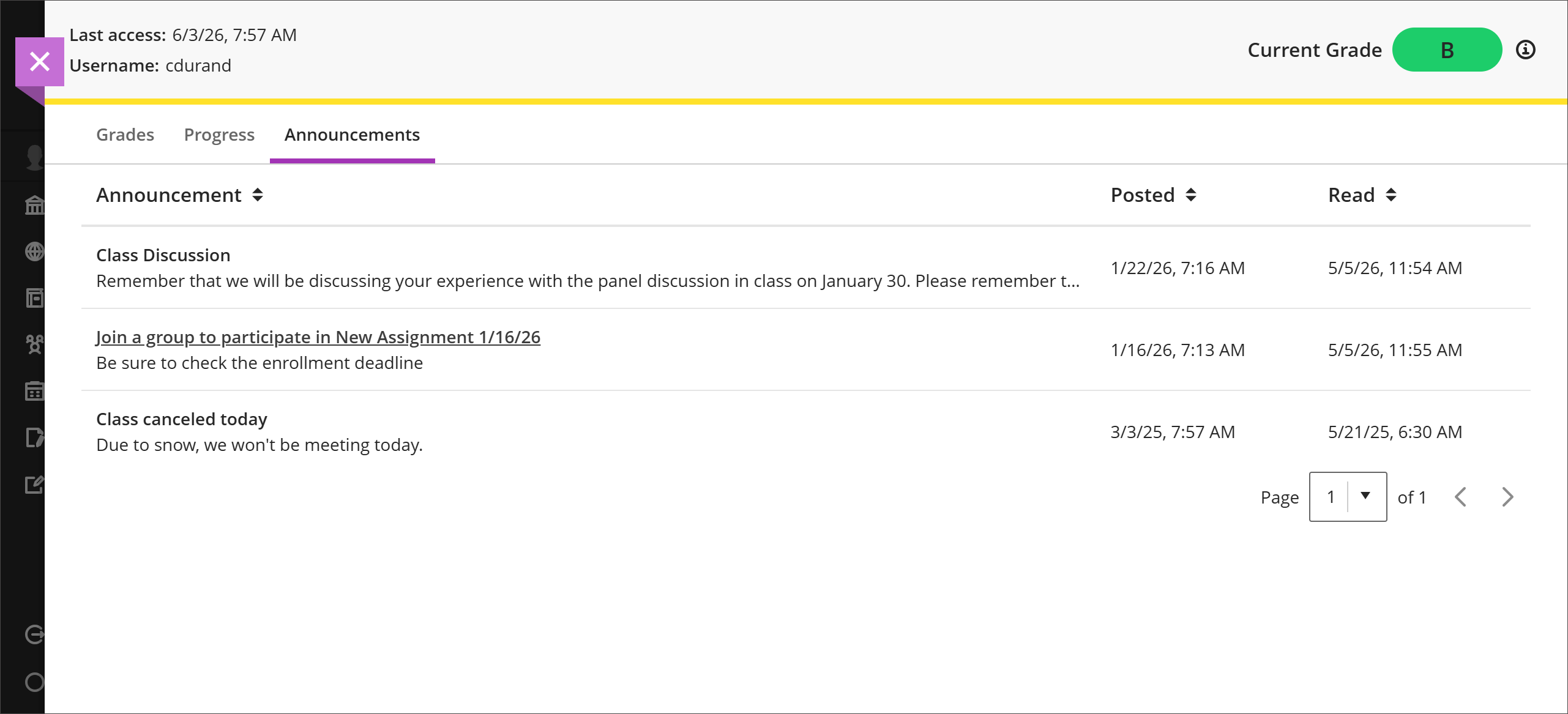
Administrators
Availability: Available to all Ultra courses.
Activation: None needed.
Configuration: None needed.
Premium
Video Studio: Record longer videos with extended recording time
Video Studio now supports longer recording times, giving students and instructors greater flexibility when creating video content. This enhancement increases the maximum recording duration to better support presentations, case studies, speeches, and other assessment scenarios that require more time.
With this update, short recordings remain effective for quick interactions such as discussions, while longer recordings enable more meaningful, in-depth video submissions for assignments and assessments.
Instructors and Students
Recording time limits have been extended as follows:
Premium (Video Studio): Students and instructors can record videos up to 30 minutes
Core (Blackboard LMS): Instructors can record videos up to 10 minutes
Students can now complete longer recordings in a single session without needing to split content or rush their delivery. This provides a more natural experience for activities such as presentations, demonstrations, and explanatory responses.
Instructors benefit from increased flexibility when designing assessments, allowing them to incorporate richer video-based assignments that better reflect real-world learning scenarios.
This enhancement supports broader adoption of Video Studio for assessment use cases by aligning recording capabilities with common instructional needs.
Administrators
Availability: Feature included in Video Studio placements in Blackboard LMS and premium Video Studio offering.
Activation: None needed.
Configuration: None needed.
Video Studio: Record videos in more areas on Blackboard App
Building on last month’s release, instructors can now record Video Studio videos directly from the Blackboard LMS App in additional content areas. This enhancement expands mobile recording beyond Course Content pages and Documents to include scenarios using the Content Editor, such as Discussions, Tests, Assignments, and other areas where the content editor is available.
With this update, instructors have greater flexibility to create and embed video content wherever they engage with students—without switching to a desktop device.
Instructors and Students
In addition to Course Content pages and Documents, instructors can now record Video Studio videos from the Blackboard LMS App in the following areas:
Discussions
Assignments
Tests
Other areas that use the Content Editor
Image 1: You can now access the Record Audio/Video option from the content editor in supported Blackboard LMS App workflows.
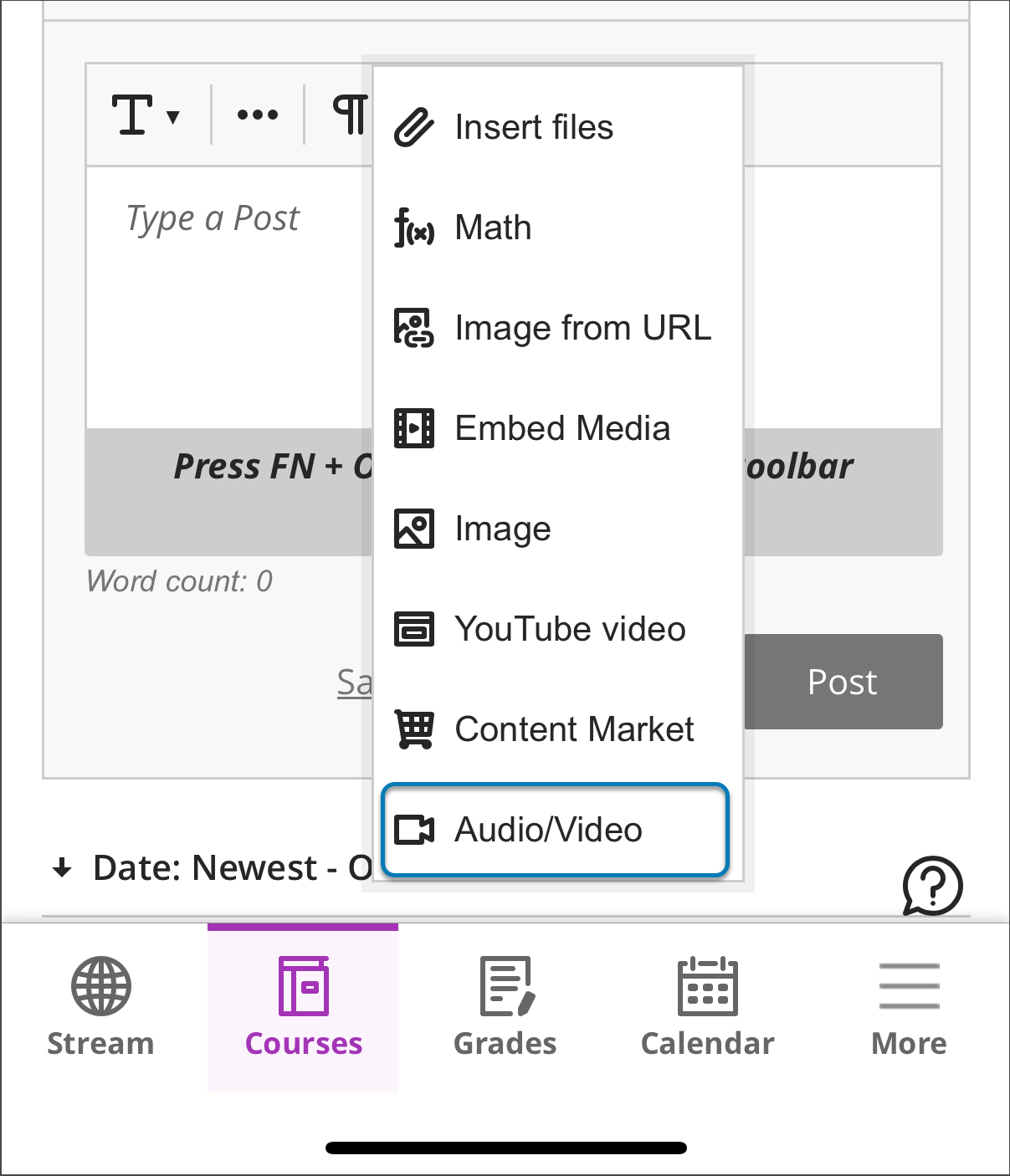
Once recorded, videos are saved to Video Studio and behave like any other Video Studio recording. Instructors can access and reuse recordings across supported locations, including course content and Documents.
Note
Screen recording is not supported on mobile devices at this time.
Administrators
Availability: Feature included in Video Studio placements in Blackboard LMS Core and premium Video Studio offering.
Activation: None needed.
Configuration: None needed.
Video Studio: Optimize player layout by moving transcript control to Settings
The Video Studio player layout has been updated to improve usability and make better use of space in the control bar. The transcript option has been moved into the Settings menu, freeing up space for key playback controls and improving visibility of the video timeline.
This change enhances the viewing experience by giving users clearer access to the video scrubber and interactive elements such as Knowledge Check indicators, while maintaining full access to transcript functionality.
Instructors and Students
Users can now access transcripts from within the player Settings menu:
Select the Settings option in the video player
Choose the transcript option to view or hide the transcript
The transcript experience remains unchanged aside from its new location. Users can continue to read along with video content and navigate through timestamps as before.
Image 1: Transcript option relocated to the Settings menu in the Video Studio player.
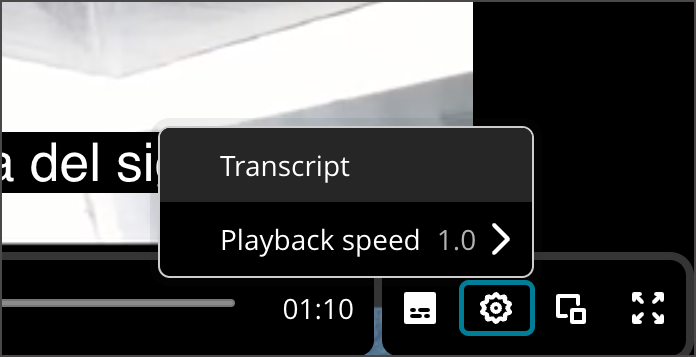
This update improves the overall layout of the player while preserving accessibility features and existing workflows.
Administrators
Availability: Feature included in Video Studio placements in Blackboard LMS and premium Video Studio offering.
Activation: None needed.
Configuration: None needed.
Milestone: Identify micro and macro badge hierarchy from new Relationships column
The badges page now includes a new Relationships column that helps administrators quickly identify relationships between badges. This addition makes it easier to understand how badges are connected within micro and macro badge structures.
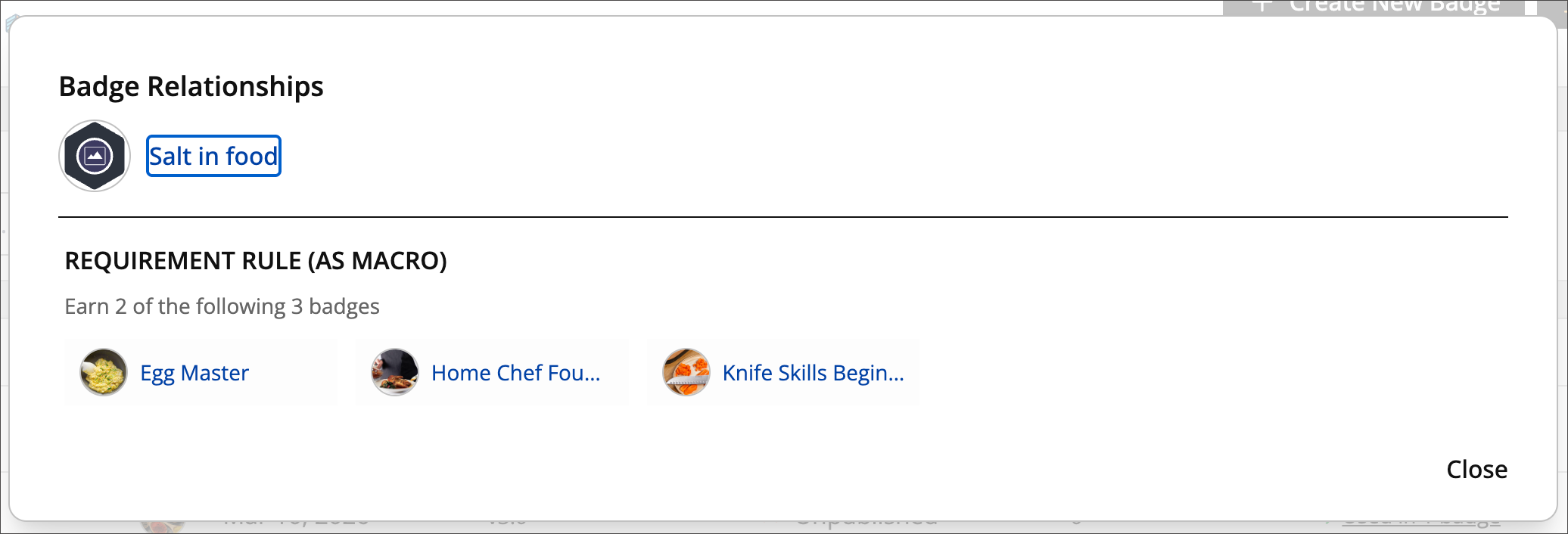
Selecting the Relationships column displays related badges one level above or below the selected badge. Administrators gain a clear picture of badge dependencies and hierarchy, helping them better manage and validate badge relationships.
Image 1: The new Relationships column appears on the Badges page.
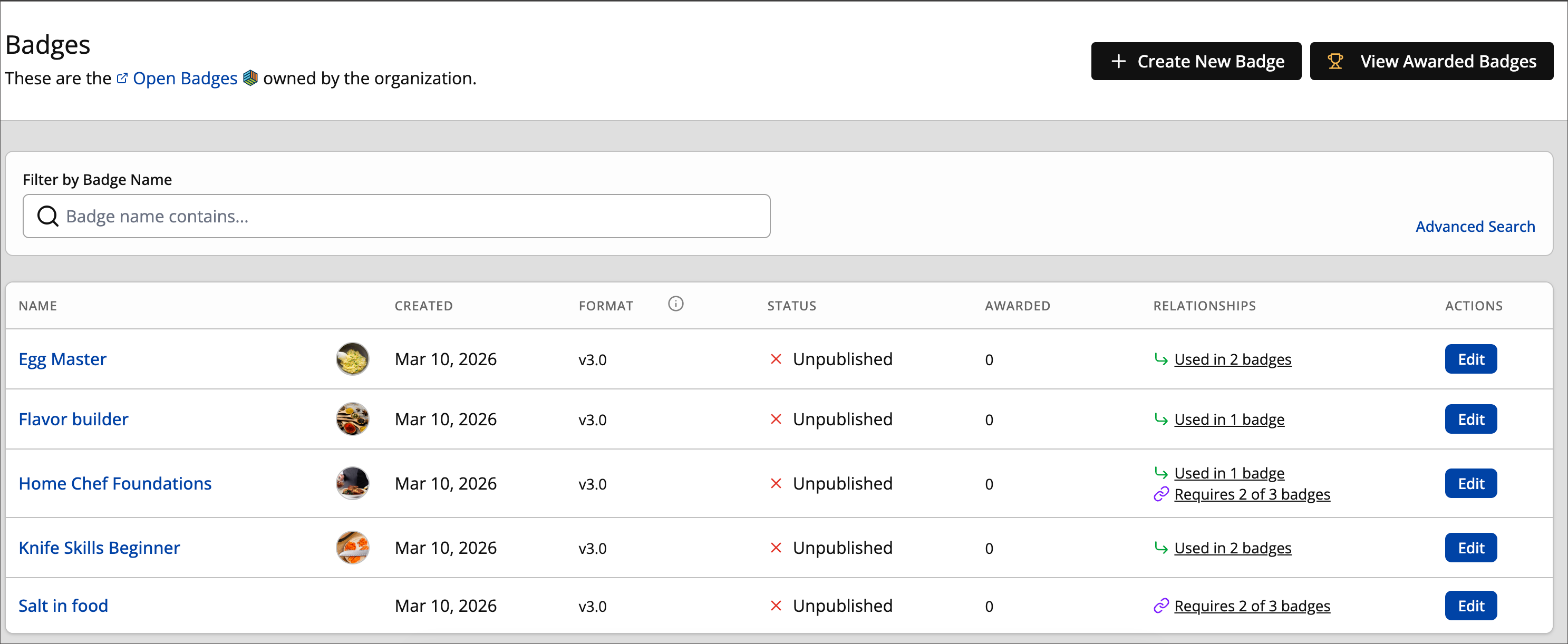
Image 2: The expanded badge relationships view displays related micro and macro badges one level up and down.
Administrators
Availability: Requires Blackboard Milestone license.
Activation: None required.
Configuration: None required.
Milestone: Explore badge relationships with new Tree View
Administrators can now access a complete hierarchy view for badges that are part of complex badge structures. When a badge belongs to a hierarchy, a new Tree View provides a visual representation of the full badge relationship structure. This makes dependencies and progression paths across multiple levels easier to understand.
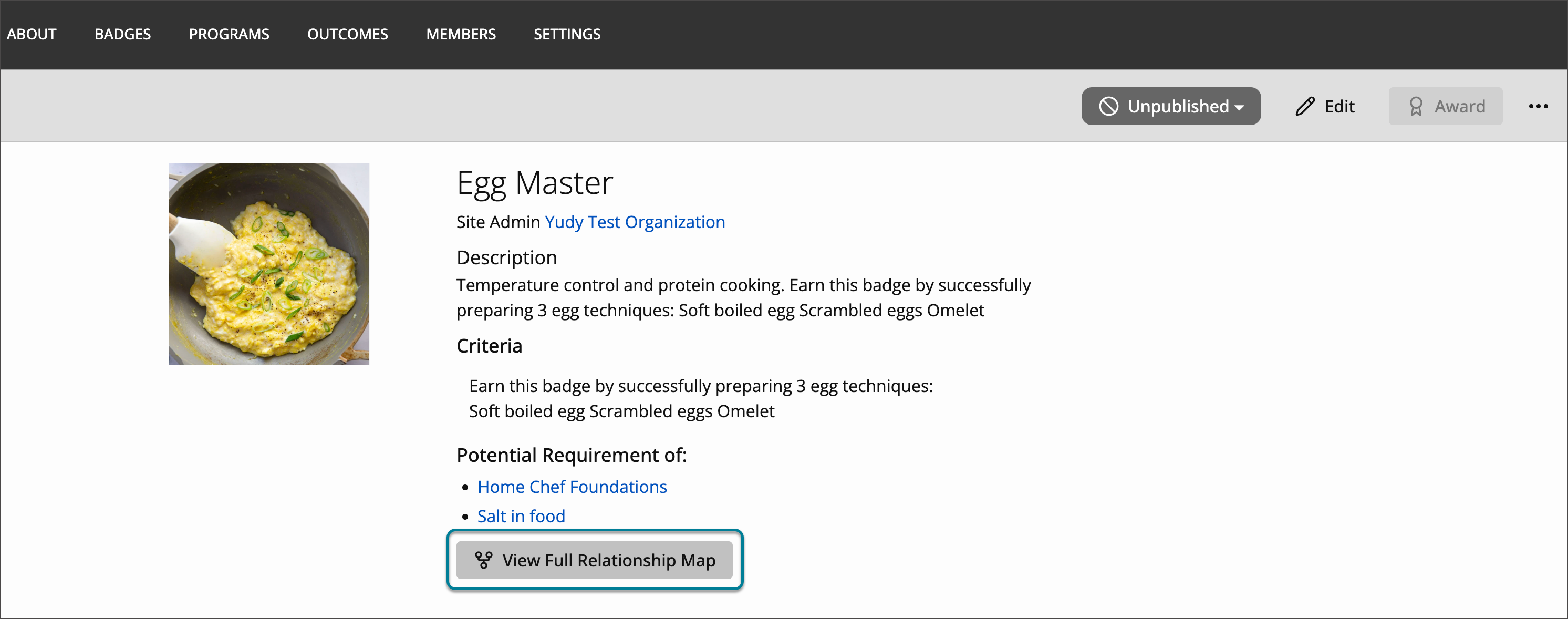
Administrators access the Tree View from the expanded Relationships view or directly from the badge details page. They get greater visibility into badge ecosystems and can more effectively manage and validate multi-level micro and macro badge relationships.
Image 1: The new Tree View displays the full badge hierarchy and relationships.
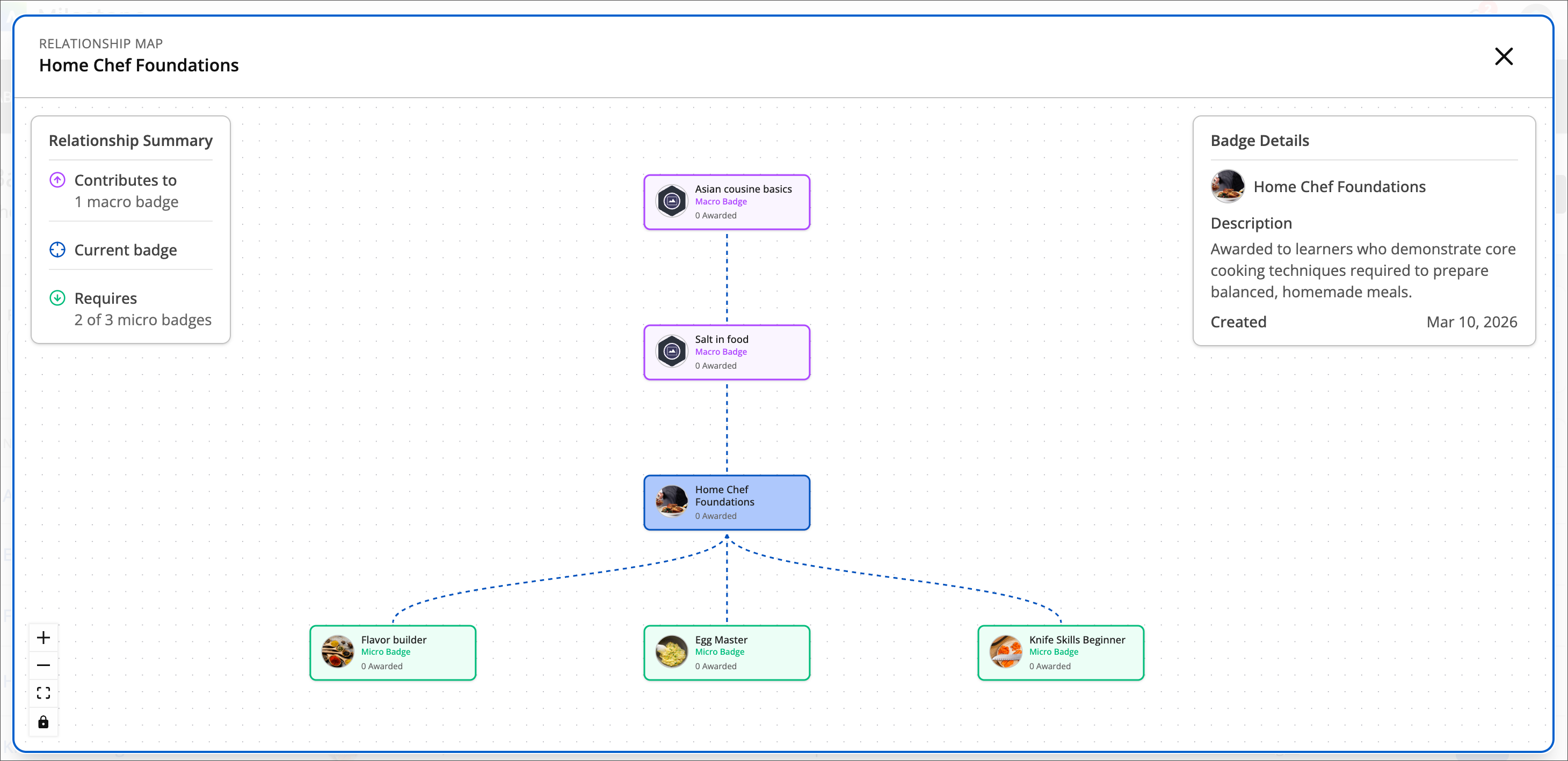
Image 2: Administrators access the Tree View from the badge details page by selecting View Full Relationship Map.
Administrators
Availability: Requires Blackboard Milestone license.
Activation: None needed.
Configuration: None needed.