Activity
After users log in, the Activity page is the first page students, instructors, and administrators see by default.
Users can see what's due and what needs their attention in their courses. Items are sorted into Important, Upcoming, Today, and Recent categories. Users can jump directly into course activities from the list.
You can change the page users visit first after they log in. Activity from both the Ultra and Original Course Views appear in the stream.
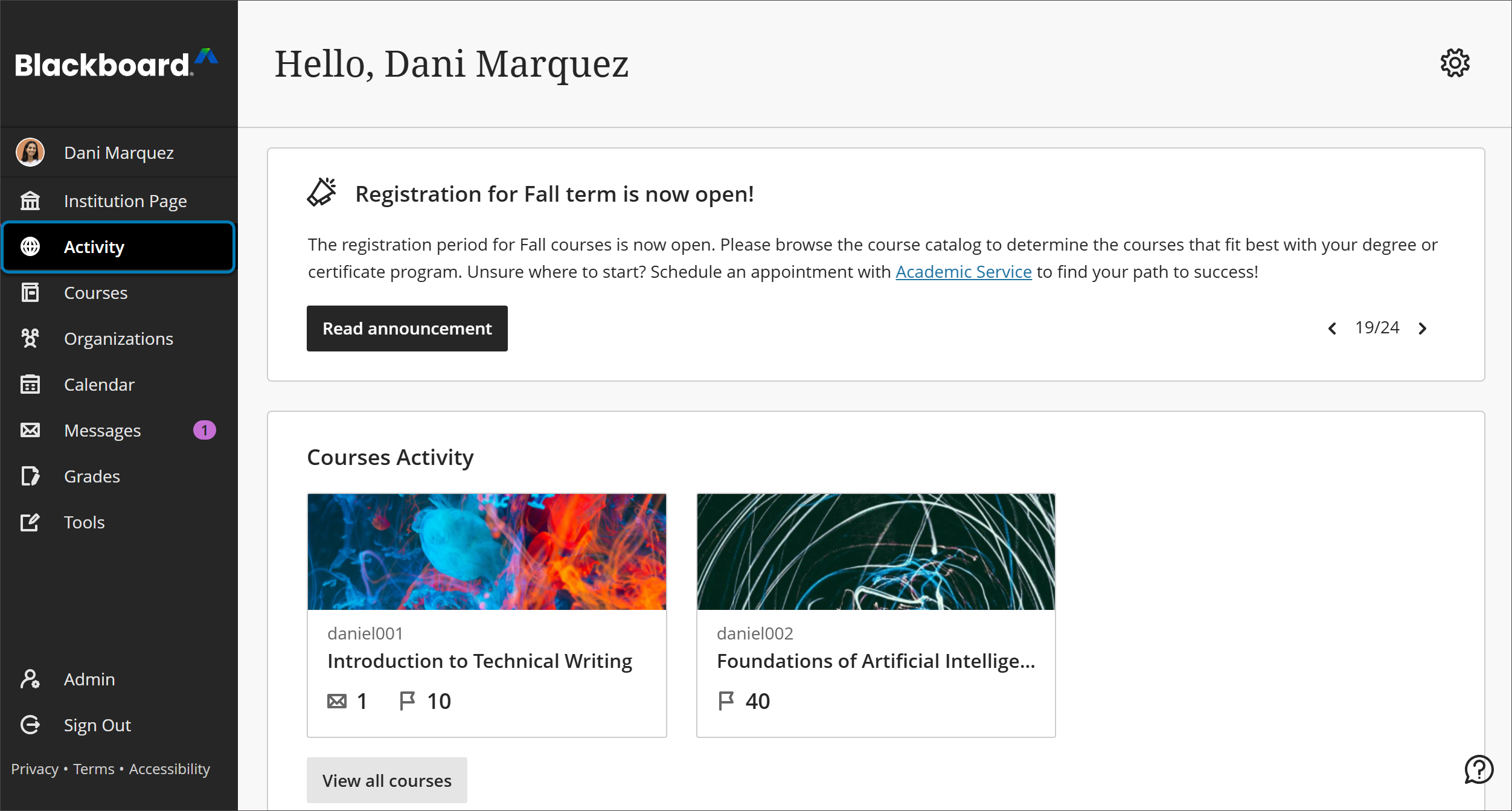
Configure the Activity page
You don't need to maintain the Activity page or manage settings. The system populates the page with information from all courses that users are enrolled in. The tool is always on in the base navigation in the Ultra experience. You can't turn it off.
Users can configure their own activity streams on a limited basis. Due dates always show in the activity stream, but users can show or hide some activity types. All users can select the Activity page's Settings icon to open the Notifications Settings panel.
Institution notifications
You can create institution announcements right from the Activity page. Institution announcements show in the Today section of the Activity page.
Personal notifications
Notifications are always on. Users can choose which notifications they receive in the activity stream, by email, and push notification.