DirectSubmit
DirectSubmit allows instructors to add quickly add resources to the institutional database that aren't already available in SafeAssign.
What is DirectSubmit Tools?
Direct Submit Tools is a utility that allows institutions to enable direct submission of content in courses and organizations through SafeAssign for subsequent evaluation. It allows you to:
Enable the SafeAssign DirectSubmit switch to display the direct submit tool within the Books and Tools panel for courses and organizations in Blackboard LMS.
Disable the SafeAssign DirectSubmit switch to hide the Direct Submit tool within the Books and Tools panel for courses and organizations in Blackboard LMS.
Display or hide the DirectSubmit tool for courses or organizations within a node hierarchy.
Display the SafeAssign DirectSubmit switch when the course-level SafeAssign toggle is enabled.
Enable and configure DirectSubmit
Prerequisites
Before you begin, make sure you have:
Access to the learning platform with instructor or administrator permissions.
Basic knowledge of navigating the platform.
Ultra courses or organizations already created.
Step 1: Access SafeAssign Tools
In Blackboard LMS, select Admin from the navigation menu.
In the Tools and Utilities section, select Tools.
Find the SafeAssign tool.
Step 2: Enable/Disable DirectSubmit for new courses and organizations or existing courses and organizations
Set the SafeAssign Course Tool toggle or Organization Tool toggle to On.
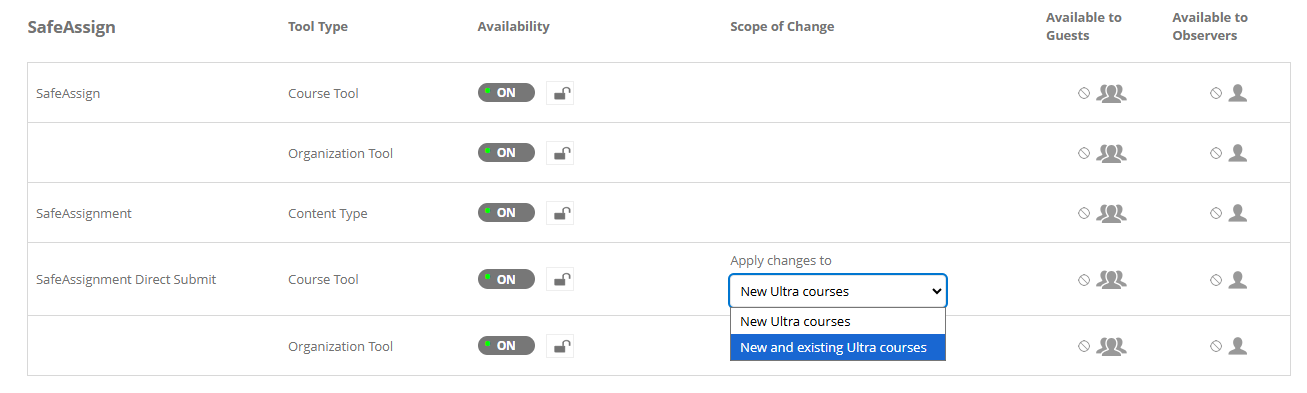
Set the SafeAssignment Direct Submit Course Tool toggle or Organization Tool toggle to On.
From the Apply changes to dropdown menu, select which courses or organizations to enable DirectSubmit for.
New Ultra courses
New Ultra organizations
New and existing Ultra courses
New and existing Ultra organizations
Select Save.
Log out of your current session.
Log back in and enter the desired course or organization.
Select Books and Tools.
Verify that SafeAssign DirectSubmit is available.
Set the SafeAssign course toggle to Off.
Set the SafeAssignment Direct Submit Course Tool toggle or Organization Tool toggle to Off.
From the Apply changes to dropdown menu, select which courses or organizations to disable DirectSubmit for.
Select Save.
Log out of your current session.
Log back in and enter the desired course or organization.
Select Books and Tools.
Verify that SafeAssign DirectSubmit is not available.
Step 3: Configure DirectSubmit for courses and organizations within nodes
Verify that the SafeAssign and Safeassignment DirectSubmit toggles are enabled according to the previous steps.
In Blackboard LMS, select Tools from the navigation menu.
Select Institutional Hierarchy.
Find the node for which you need to configure DirectSubmit.
Select the courses or organizations for which you want to make changes.
Navigate to the Tools option.
Enable SafeAssign.
Troubleshooting and FAQs
I have the SafeAssign option enabled, but DirectSubmit is not showing up.
Verify that the Safeassignment DirectSubmit toggle is also enabled for courses or organizations.
Confirm that the changes have been saved for new courses, existing courses, or both.
Log out and log back in with your username.
I have SafeAssign and Safeassignment DirectSubmit enabled, but DirectSubmit is not showing up.
Verify that the changes have been made for courses or organizations.
If the course is in a node hierarchy, verify that the SafeAssign and Safeassignment Direct submit toggles are enabled for a particular node.
The DirectSubmit Tools option does not appear.
Check your permissions with the administrator.
Make sure you are in the correct course.
Try refreshing the page or logging out and logging back in.