Subjects
Using subjects in Blackboard creates a consistent way to group and analyze courses across your curriculum. By organizing courses within subjects, institutions can more easily track performance trends, measure learning outcomes, and compare results across disciplines or areas of study. This structure enables richer analytics—supporting curriculum evaluation, accreditation reporting, and data-driven decisions that improve teaching and learning at scale. Subjects can also be assigned Institutional Hierarchy nodes or multiple programs within Blackboard curricular structure for further analytics.
Understanding Subject vs. Course
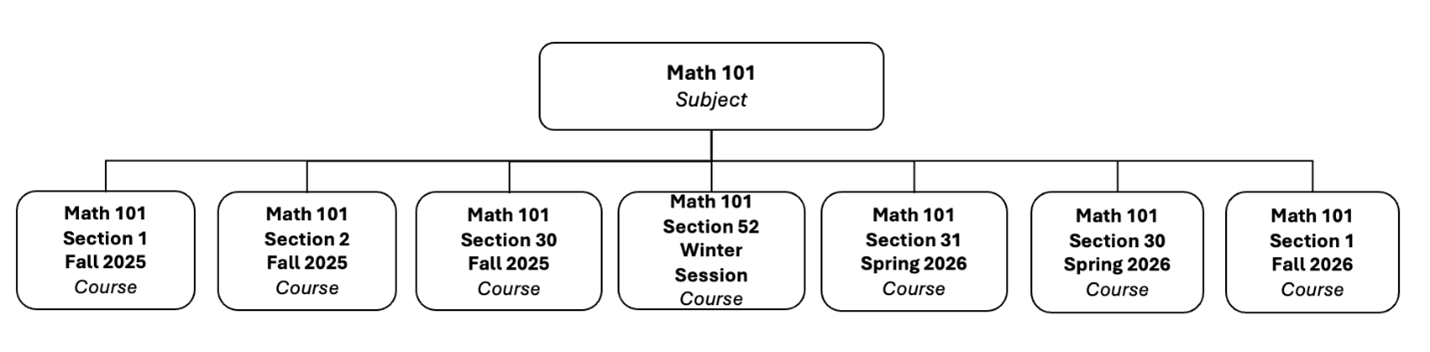
A subject is the parent entity that represents the overarching subject, curriculum, or area of study. It is not limited to one term or academic year—it exists across time and can be offered repeatedly. For example, MATH 101: Introduction to Mathematics is a subject.
A course, or often considered a course section, is a specific offering of that subject within a particular term. A course occurs one time in one term and has its own schedule, instructor(s), enrolled students, and learning activities. For example, MATH 101 – Section 01, Fall 2025 is a course.
In short:
Subject is the ongoing academic entity (a template or parent record).
Course is the specific, one-time instance of that course in a given term.
Creating Subjects and Assigning Subjects to a Course
On the Administrator Panel in the Communities section, select Subjects.
To create a new subject, select Create Subject. To edit an existing subject, open the subject's menu and select Edit.
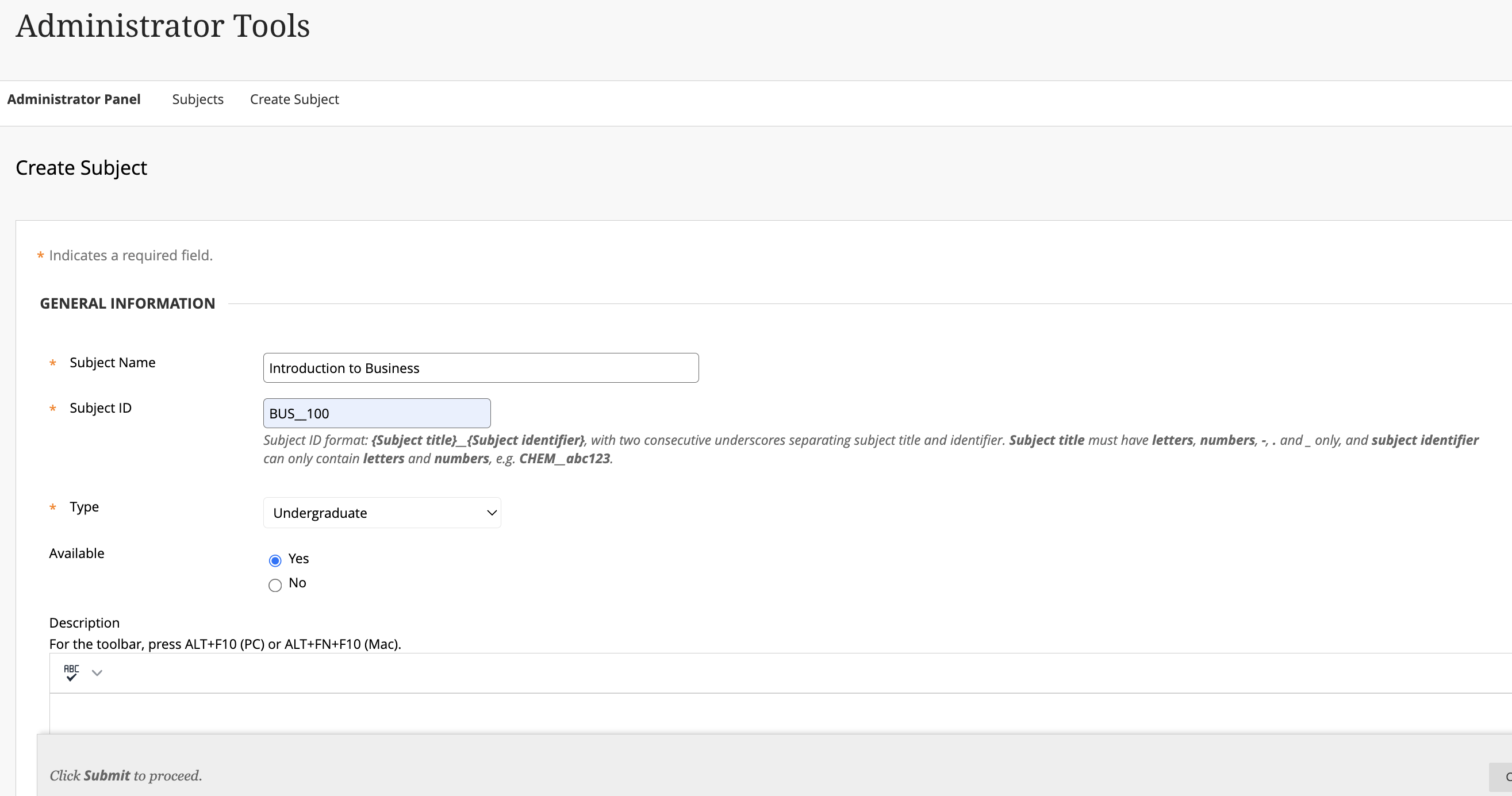
Enter a Subject Name.
Enter Subject ID.
Subject ID format: {Subject title}__{Subject identifier}, with two consecutive underscores separating subject title and identifier. Subject title must have letters, numbers, -, . and _ only, and subject identifier can only contain letters and numbers, such as CHEM__abc123.
Choose Type.
Under Availability, select Yes to make the subject available to courses throughout Blackboard. Select No to make the subject unavailable.
Optionally, add a Description.
Optionally, associate Subject with Program IDs.
See more about Programs.
Add Node. This associates your subject, and therefore courses of that subject to the institutional hierarchy.
Note
This is required for Outcomes functionality.
Select Submit.
Go to Administrator Panel > Courses.
To edit an existing course, open the course’s menu and select Edit.
Enter or Browse Subject ID of existing subject.
Subject ID format: {Subject title}__{Subject identifier}, with two consecutive underscores separating subject title and identifier. Subject title must have letters, numbers, -, . and _ only, and subject identifier can only contain letters and numbers, such as CHEM__abc123.
Tip
Learn more about creating subjects and associating courses to subjects using integrations.