Manage Learning Object Repository Objects
Use the Learning Object Repository (LOR) management view to organize, edit, move, and delete repository objects. You can also track where each object is used across courses and organizations.
The LOR supports the following object types:
Documents
Learning modules
Folders
Files
Manage objects
Select Tools and choose Learning Object Repository.
Select the ellipsis (...) button for the LOR.
After you open the menu, the following options are available:
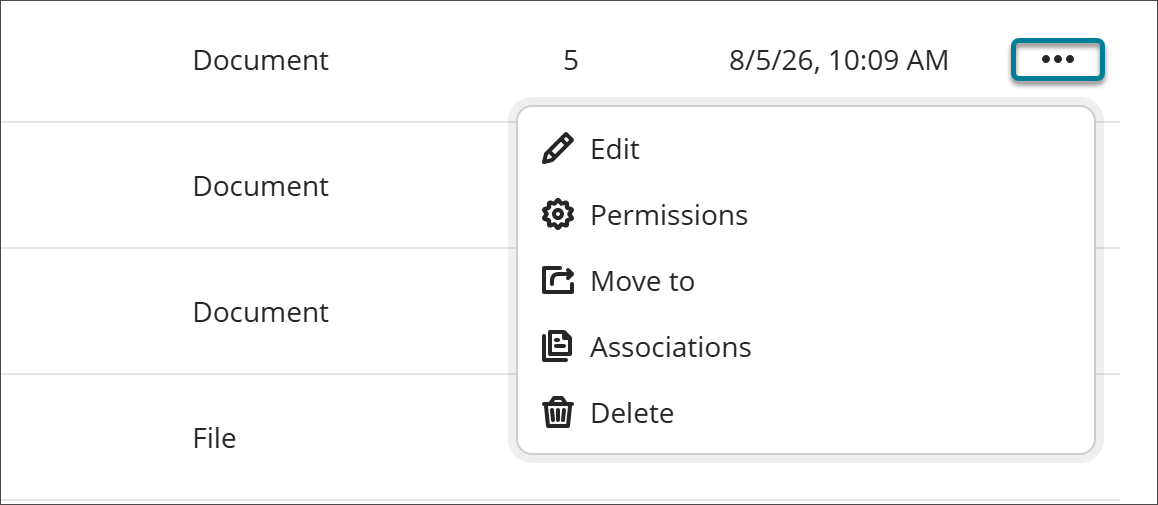
Edit
Select Edit to make changes to the object. Edits made to objects in the LOR are applied to all associated objects in courses and organizations.
Note
Changes are not applied if a course is marked completed or has an end date in the past.
Permissions
You can control which attribute of an object instructors can edit after it's added to a course or organization. When an attribute is open for editing, users with editing privileges can update it directly in the course or organization, and the change persists through future syncs.
Select Permissions.
Turn on the toggle for any attribute you want to allow editing for.
Select Save.
If you turn off the permission to edit an attribute after the object already has associations, any changes that users have made to individual objects will be reverted to the version that is in the LOR.
Move to
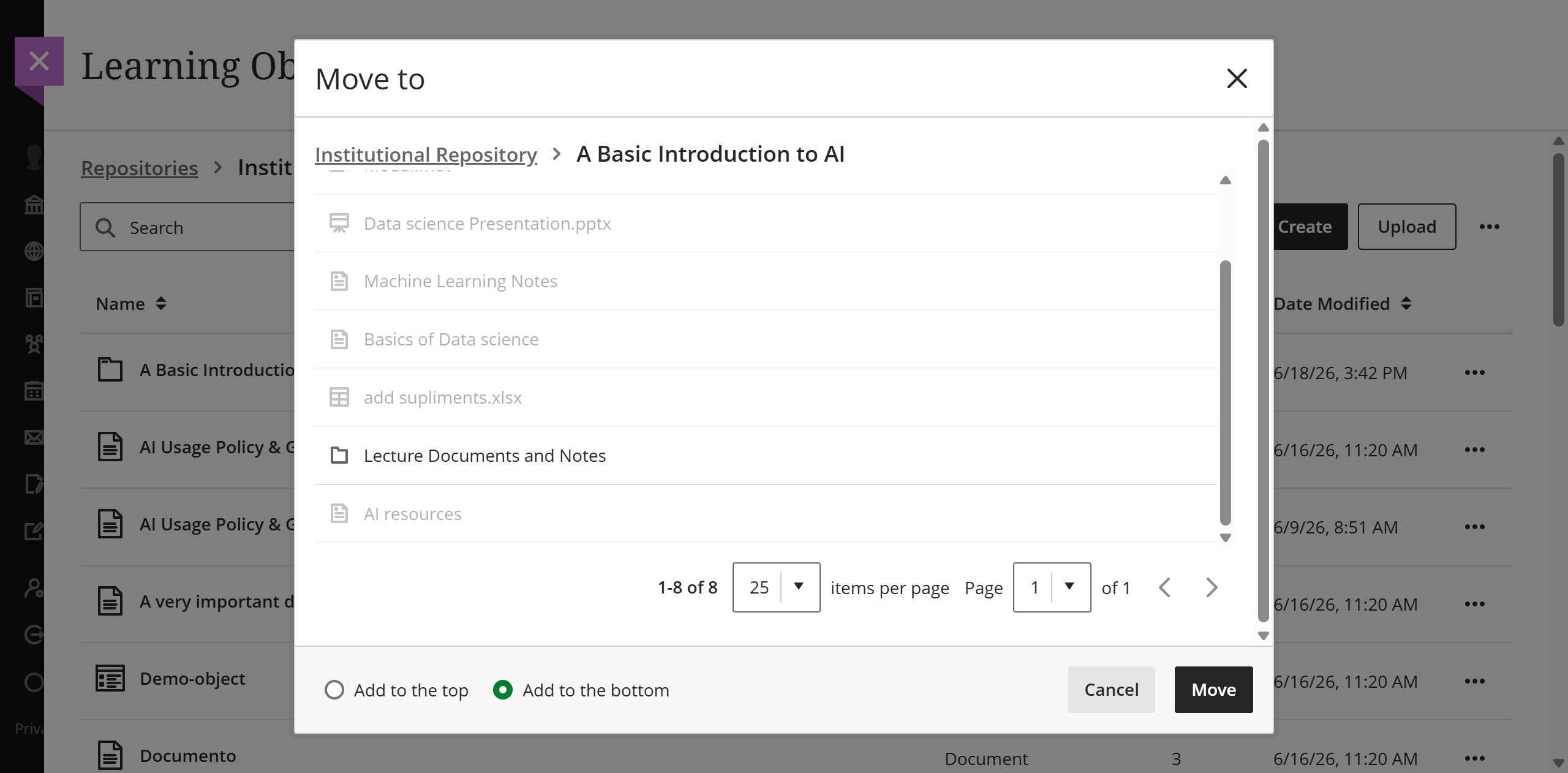
You can move objects, including Documents, files, and folders, between learning modules and folders.
Select Move to.
Navigate to the learning module or folder where you want to place the object.
Select the radio button to place the object at the top or the bottom of the destination learning module or folder.
Select the Move button.
Note
If moving a folder with nested items into another folder would violate the depth restrictions for courses and organizations, the folder can't be moved. In this case, a banner displays stating this is not possible in the LOR and the Move feature is disabled.
Associations
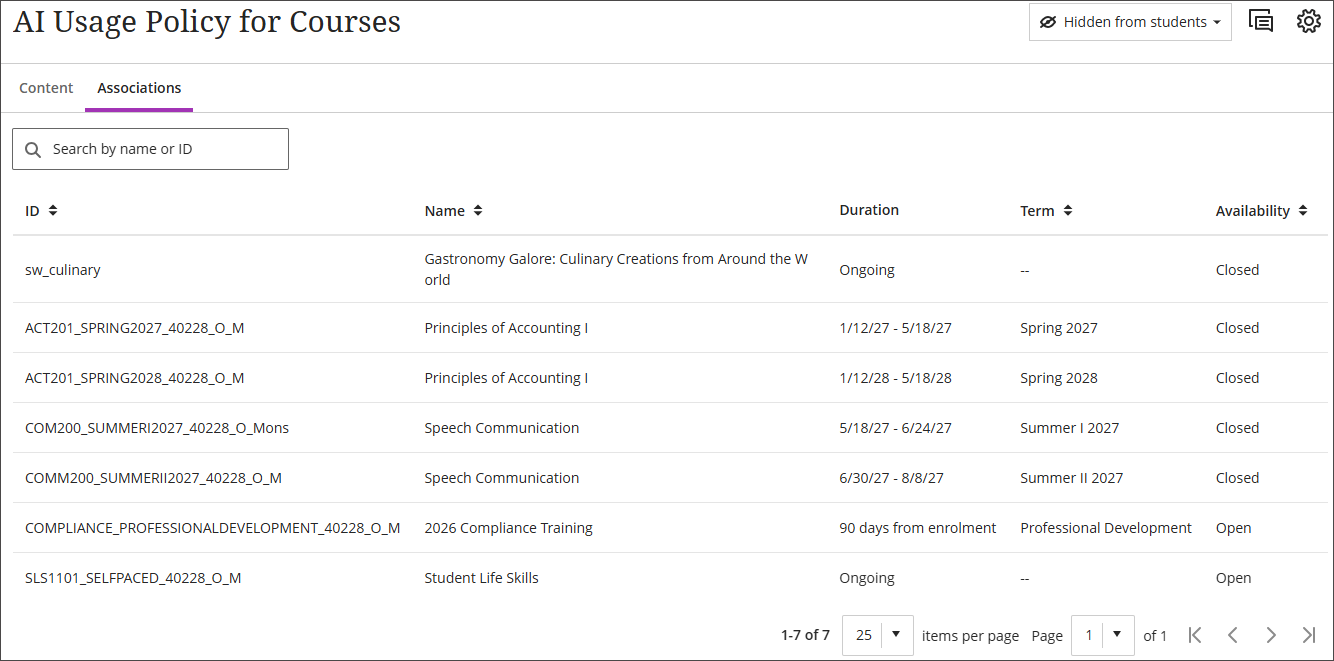
Select Associations to access a list of the associations for an object. You can search for an association by course or organization name or ID. You can sort the list by ID, name, term, or availability.
Delete
When you select Delete, you have two options.
Delete this object: Select this option to delete the object from the LOR, but it will remain in all associated courses and organizations. The object remaining in the course or organization loses its link to the LOR and becomes fully editable.
Delete this object and all associated objects: Select this option to delete the object from the LOR and from all active courses and organizations it is associated with. Objects are not deleted from courses that have been marked complete or whose end date has passed.
View object source information
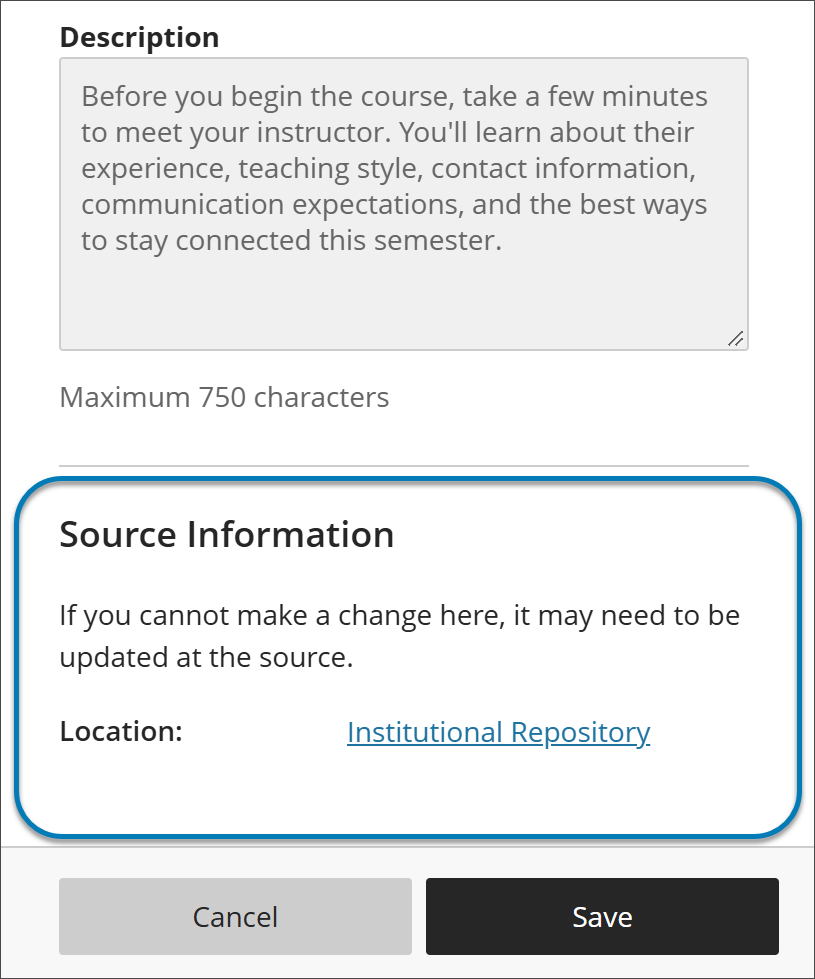
When an LOR object is used in a course or organization, its settings panel includes a Source Information section at the bottom. Use it to identify where the object is stored in the institutional hierarchy without leaving the course or organization.
Source Information lists the object’s location as a selectable link. It also notes that if you can’t change something about the object where you are, the change may need to be made at the source in the LOR.
Find objects
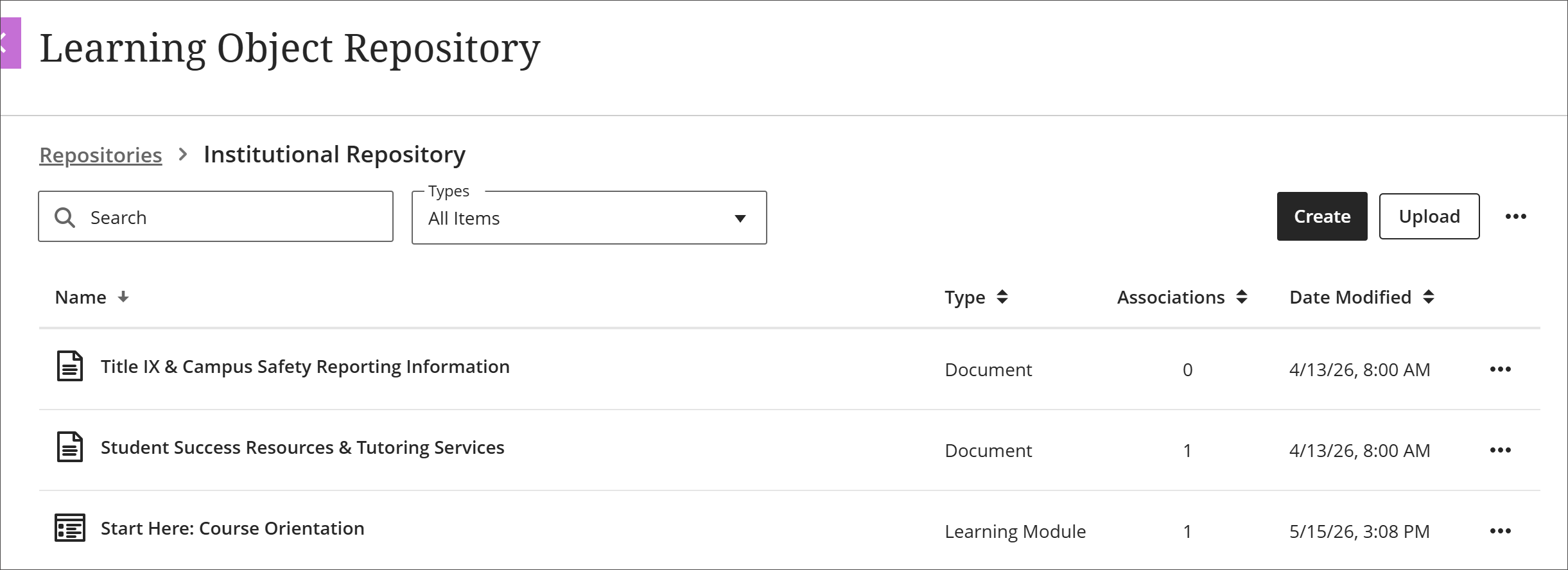
In the LOR management view, you can sort objects by name, type, number of associations, or date modified. You can also filter by object type or search by name.
Edit object order in learning modules and folders
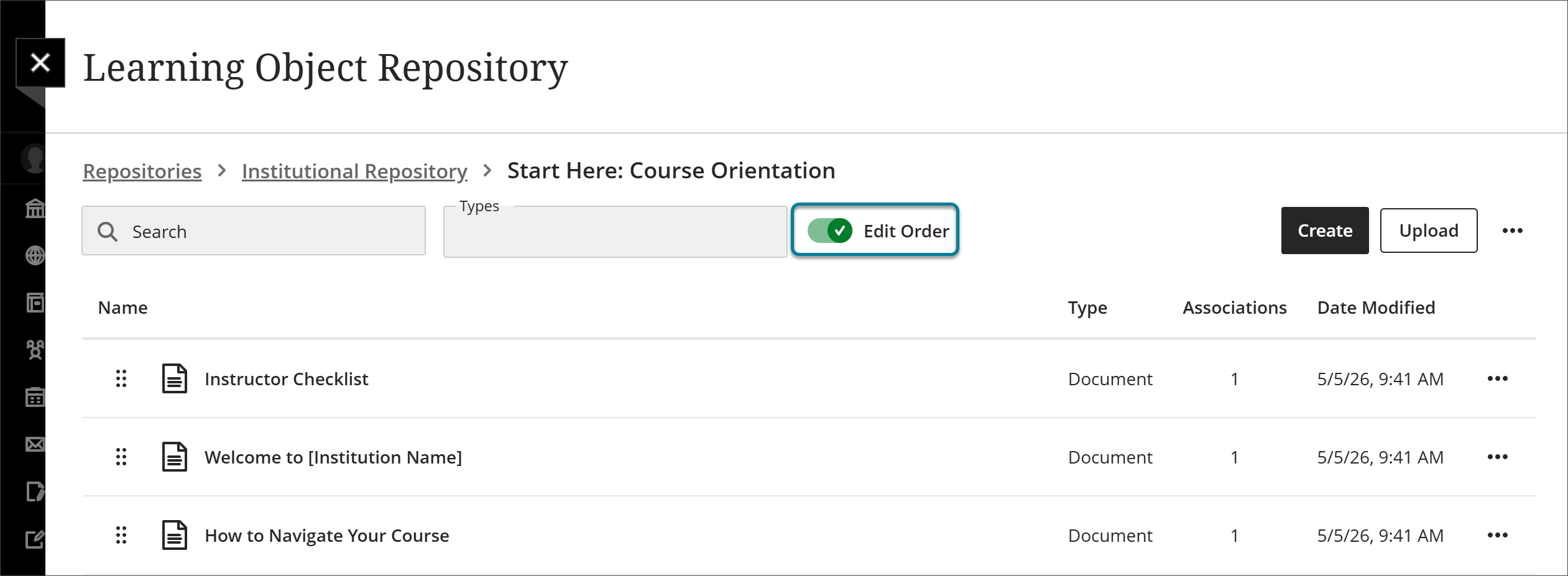
When you are accessing objects in the LOR management view, you can sort, search, and filter them to customize your view. When a learning module or folder is inserted into a course or organization, however, you want the items in it to be in a particular order.
Select Tools and choose Learning Object Repository.
Navigate to the learning module or folder.
Turn on the Edit Order toggle.
Arrange the objects in your desired order. You can do this in two ways:
Use the reorder button to drag and drop objects.
Select the reorder button to open a menu with options to Move to top of page, Move up, Move down, or Move to bottom of page.
Turn off the Edit Order toggle.
The objects are now locked in the order you set. When the learning module or folder is inserted into a course or organization, items appear in that order. This is true regardless of how you sort, search, or filter them in the management view.