Configure the Notification Settings
Notifications can be sent out as a part of the column provisioning and extract processes.
Configure the Notification Settings for Grade Export
Sign in to Blackboard with a user account with system admin privileges.
Access the Admin Panel.
Select Platform Extensions under Cloud Management.
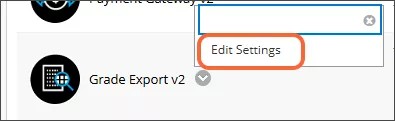
Choose Edit Settings from the context menu for Grade Export v2.
Be sure the Grade Export Availability toggle is selected. A Grades Journey Features toggle will appear that you cannot select; the text contains more information about the Grades Journey extension that is available with a paid engagement. For more information about the additional features available with Grades Journey, please contact your account representative.
Select the Notification Settings tab.
Fill out the fields for each type of notification.

Note
/n is not required to establish a new line. You can add returns or new lines in the template.
Assignment & Grade Columns
These email notifications are sent when the grade column and assignment provisioning process has been completed.
Enter the email addresses that should receive the email in the To Address field. This is often an admin email or a distribution list.
Enter the email address that the email will appear to be coming from (for example, noreply@domain) in the From Address field.
Enter the subject line for the email in the Subject field.
Enter the template for the text of the email in the Body Template field.
Grade Extract
These email notifications are sent when the grade extract process has been completed.
Enter the email addresses that should receive the email in the To Address field. This is often an admin email, a distribution list, or the $INSTRUCTORS$ token. People in this field will receive an email for each course that is included in an extract. Instructors will only receive emails for their own courses.
Enter administrator email addresses in the Admin To Address field. Admins listed in this field will receive one email when the grade extract process is complete with a text file attached that includes the course IDs of all courses included in the extract.
Enter the email address that the email will appear to be coming from (for example, noreply@domain) in the From Address field.
Enter the subject line for the email in the Subject field.
Enter the template for the text of the email in the Body Template field.
Grade Event Notification
These notifications are sent when changes are made to the grades columns that were added by the Grades Journey integration. For example, if an instructor accidentally deleted a provisioned grade column, a notification would be sent to the specified email address informing the administrator of this situation so it could be corrected.
Choose the Type of notification from the menu.
None: no notifications are sent
Email: notifications are sent by email
Enter the email addresses that should receive the email in the To Address field. This is often an admin email or a distribution list.
Enter the email address that the email will appear to be coming from (for example, noreply@domain) in the From Address field.
Enter the subject line for the email in the Subject field.
Enter the template for the text of the email in the Body Template field.
Select Submit to save your settings.