Configure Blackboard
You can customize Blackboard LMS to better to align with your institution's brand, governance policies, and pedagogical goals, while offering flexibility for instructors and students.
Configure
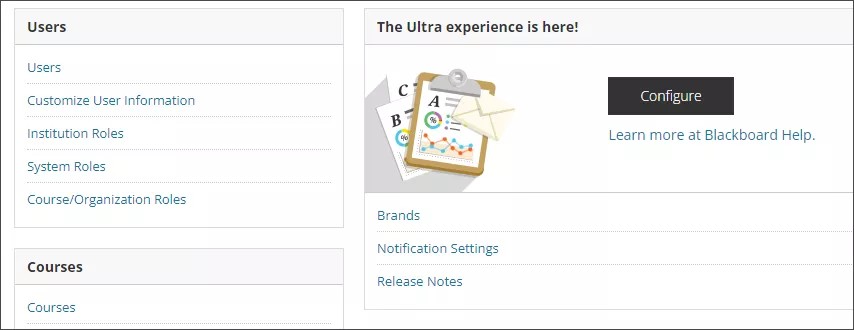
From the Administrator Panel, select Configure under The Ultra Experience is here! You can change the default course settings to use the Ultra Course View for all new courses. Or you can allow instructors to choose a course view for each of their courses. To choose the default course view option, go to Course Settings on the Administrator Panel and then select Default Course Properties.
Add your branding
There are several ways you can customize Blackboard LMS to use your institution's branding, including:
General Settings:
To access general configuration settings for Blackboard LMS, from the Administrator Panel, select Configure.
On the Ultra Experience Management page, you have these options:
Change the landing page
By default, users start on the Activity Stream after they log in to Blackboard LMS. You may want to display another area more prominently for users, especially if you've taken time to build the Institution Page with important and time-sensitive content. You can change the landing page to highlight more relevant information for your institution's users.
From the Administrator Panel, in The Ultra Experience is Here! section, select Configure.
Under Default Landing Page, choose which page users will visit first when they log in to Ultra: Activity Stream, Course List, or Institution page. Select Save.
Link to course catalog
Users can use the course catalog to browse the available or upcoming courses at your institution.
To enable users to open and browse the course catalog in the Ultra experience, toggle on Link to Course Catalog. Available courses in the Original course view and the Ultra course view appear in the course catalog. Users can open the courses and view contents, but they can't interact with the content.
Note
If the guest option is enabled for a course in Original course view, guests can access those courses in the catalog.
Link to organization catalog
If your institution has access to the community engagement features, the organization catalog lists all organizations in categories, such as organization type or semester availability.
To enable users to open and browse the course catalog in the Ultra experience, toggle on Link to Organization Catalog.
Activate an additional level of nested items
If most of your courses/organizations have deeply nested content, you may want to enable additional nesting levels. The additional folder depth will reduce the "flattening" of course/organization content during the conversion process for these types of courses.
To enable additional levels, toggle on Activate an Additional Level of Nested Items and then complete the confirmation screen. For more information, visit Activate an additional level of nested items.
Convert content areas to learning modules
Content areas in Original courses and organizations become learning modules when converting to Ultra. If you leave Convert content areas to learning modules toggled off, content areas become folders.
Learning modules provide improved student and participant navigation, allowing them to quickly move to the next or previous item while keeping track of their progress by seeing the number of completed items. Instructors and Leaders can personalize learning modules with thumbnail images and have the option to force students and participants to work through materials sequentially. For more information, visit Create learning modules.
Convert folder and module descriptions to documents
Folder and learning module descriptions in Original courses and organizations can be more than 750 characters long and support rich text formatting, embedded multimedia, and file attachments. In Ultra, folder and learning module descriptions only support plain text and have a 750 character limit.
Toggle on Convert Folder and Module Descriptions to Documents to convert these descriptions to documents that are placed inside their respective folder or learning module. This preserves the content in the description. If you leave it toggled off, descriptions are converted as plain text that is truncated after 750 characters.
Convert undeployed tests to question banks
When Convert Undeployed Test to Question Banks is toggled on, all undeployed tests in Original courses and organizations are converted to question banks in Ultra. Random blocks, question sets, and linked questions included in undeployed tests are removed. This process helps declutter the course content page and the gradebook.
If this is left toggled off, undeployed test are converted into deployed tests within Ultra and set to hidden. This option preserves random blocks, question sets, and linked questions.
User engagement surveys and product updates
In-product updates help users understand changes and effectively use new features. Product updates are brief mentions of what is new in Blackboard LMS. User engagement surveys are brief polls launched to a small sample of users. Each survey has its own purpose. For example, a survey might ask users to rate their overall experience of a feature or workflow. For more information, visit In-product updates and user engagement surveys.
To enable these features for your institution's Blackboard users, toggle on User Engagement Surveys and Product Updates .
Enable available features for early adoption
As certain new features are released, you can decide when to enable them for testing at your institution. You can give early access to your users to try out when it's least disruptive to courses and schedules.
Once a feature is ready for general availability, we'll remove its toggle from the Available Features list, and it'll be available to all users. We'll announce in future release notes when each feature toggle will be removed. For more information, visit Feature Toggles.
Configure course views
If your institution is converting from Original to Ultra course view, you can change the default course settings to use the Ultra Course View for all new courses. Or you can allow instructors to choose a course view for each of their courses. To learn more about configuring course views, visit Course View Options.
Note
Instructors can use the Ultra Course Preview before converting their courses permanently. To enable this option, in the Administrator Panel, select Course Settings, then Default Course Properties.