August 2026 Release Notes (4000.21)
Release Information
Tip
For maintenance release build numbers and bug fixes, visit Maintenance Releases.
For release status and delays, visit Blackboard Status.
Instructional Design
Early Access: New Content Editor for Blackboard Documents
A modernized Content Editor is available in Blackboard LMS through an Early Access program beginning with the August release. The new editor improves content authoring consistency and efficiency with these enhancements:
A simplified authoring experience—reorganized menus and a streamlined toolbar make it easier to find and use editing tools.
More powerful content formatting—enhanced list and table capabilities provide greater control and a more familiar authoring experience.
Improved accessibility and future-ready foundation— better keyboard navigation and modern shortcuts make content easier to create, and a new architecture supports continued innovation.
Administrators can enable the new editor for Blackboard Documents through a feature flag, available shortly after the August release.
The new editor will continue to be improved and will receive updates through the beta period from August through November. In December, the new editor will be rolled out to everyone throughout the product and will be available wherever the editor is used, not just in Documents.
Instructors
When working with content blocks in Documents, instructors can choose between the new editor and the current editor. The current editor remains fully supported during the Early Access period.
Image 1: The new Content Editor appears alongside the classic editor when adding Document blocks.
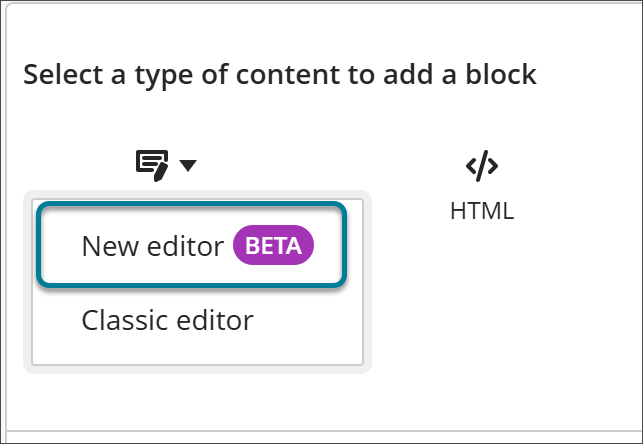
Image 2: The new Content Editor has a redesigned toolbar and menu structure.
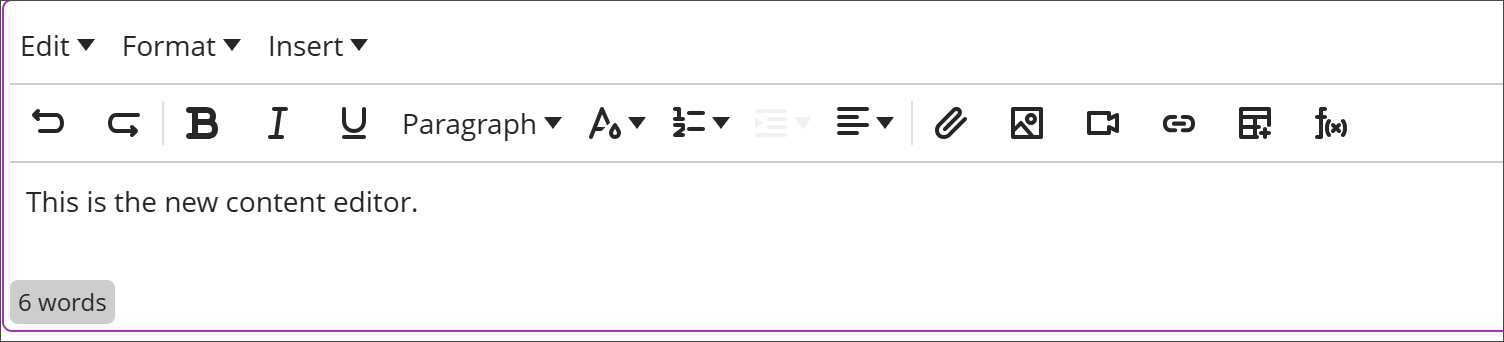
A First-Time User Experience guide introduces the new editor and highlights some of the changes on first open. Instructors can submit feedback on bugs or usability concerns directly from within the editor. Input from participating institutions will shape the editor's development before broader adoption.
Because this is an Early Access release, instructors may encounter bugs, missing functionality, or workflows still in development. Refer to the Content Editor Comparison Table for a side-by-side view comparing the features of the two editors.
Administrators
Availability: Available to all Ultra courses.
Activation: Disabled by default. The feature flag to opt in to Early Access will be available shortly after the August release.
Configuration: In the Admin Panel, select Configure in the The Ultra Experience is Here module. Turn on the New Content Editor for Blackboard Documents (Beta) feature flag.
Display nested items in the Learning Object Repository Move to view
The Move to view now displays folder and learning module contents alongside the containers when administrators move items in the Learning Object Repository (LOR). Administrators get greater visibility into each destination's contents before completing a move. This reduces the risk of misplaced content and makes repository structure easier to understand.
Image 1: The contents of the folder “A Basic Introduction to AI” appear in the Move to view in the LOR.
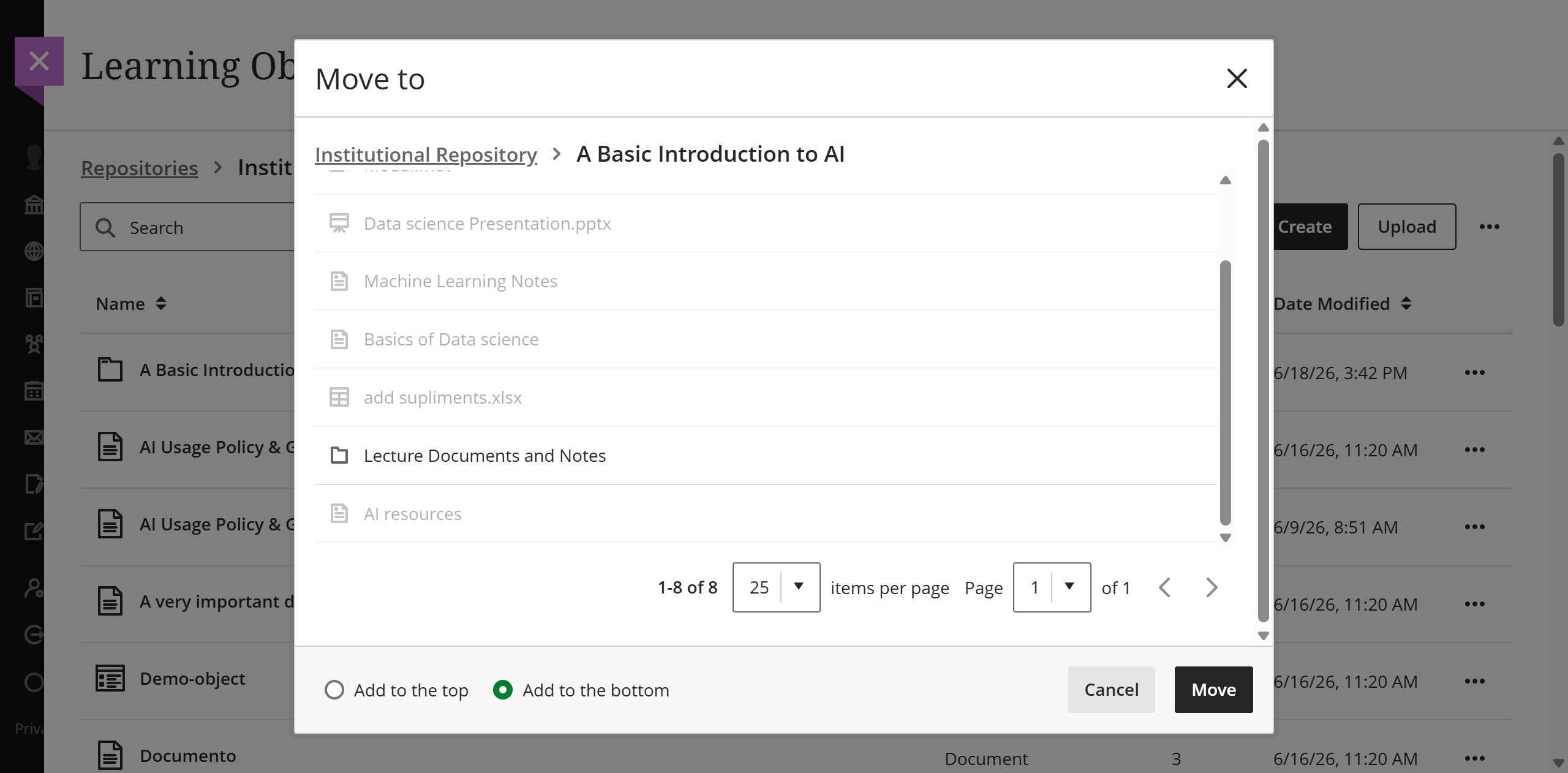
Administrators
Availability: Available to all Ultra courses.
Activation: None needed.
Configuration: None needed.
Communication and Collaboration
Manage group membership with drag and drop
Instructors can now use drag and drop to manage group membership in the Groups management experience. This makes it faster and more intuitive to assign and remove students from groups without relying on menus and selection lists.
Managing group membership with drag and drop builds on our effort to redesign the Groups management experience.
Instructors
From the Groups management screen, instructors can:
Drag students from the unassigned list directly into a group
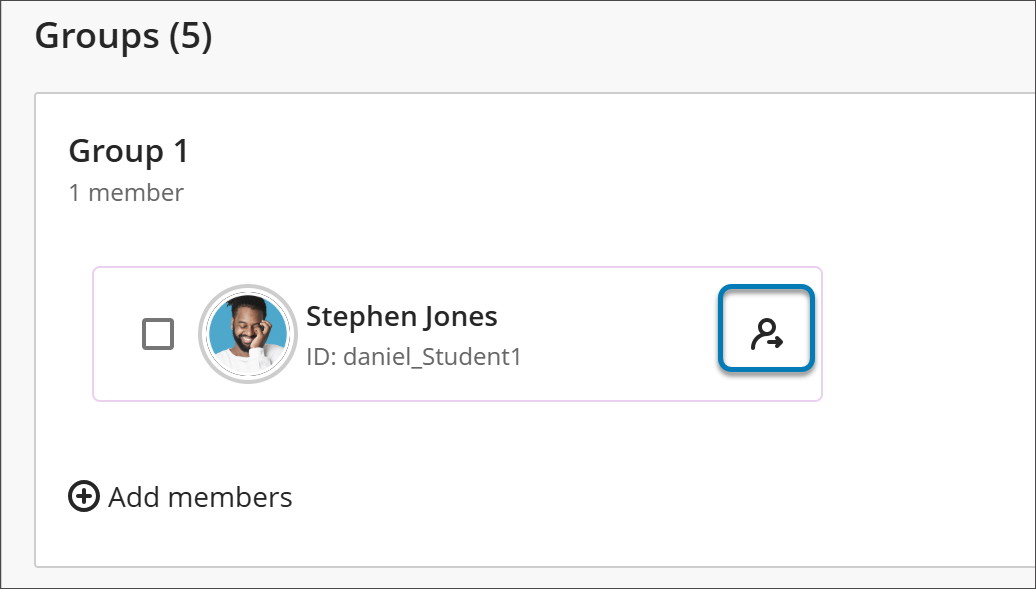
Remove individual students from a group instead of removing them all at once
Drag and drop works alongside the existing assignment options, so instructors can choose whichever method is fastest for the task at hand—populating one group at a time, clearing a group, or fine-tuning membership across several groups.
Image 1: Instructors can drag and drop students to assign them to a group.
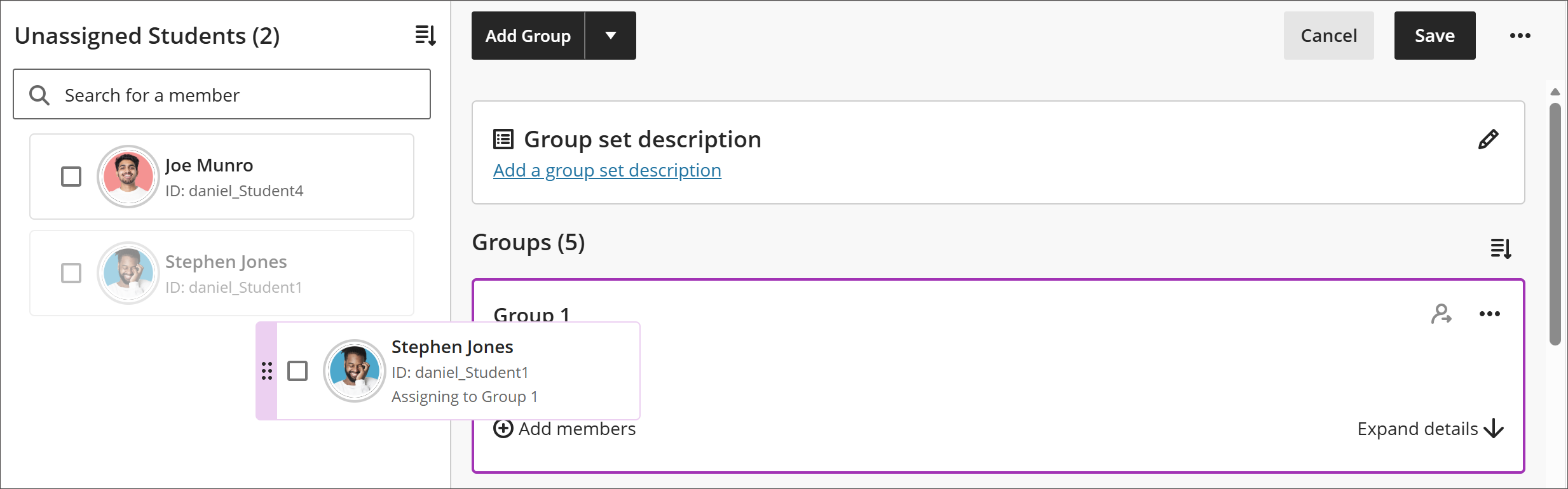
Image 2: Instructors can remove individual students from a group instead of removing them all at once.
Administrators
Availability: Available for all Ultra courses.
Activation: None needed.
Configuration: None needed.
Create multiple groups at once
Instructors can now create multiple groups at once in the Groups management experience. Instead of adding groups one at a time, instructors can create several groups in a single action, saving time when setting up group work—especially in large courses.
Bulk group creation builds on our effort to redesign the Groups management experience.
Instructor
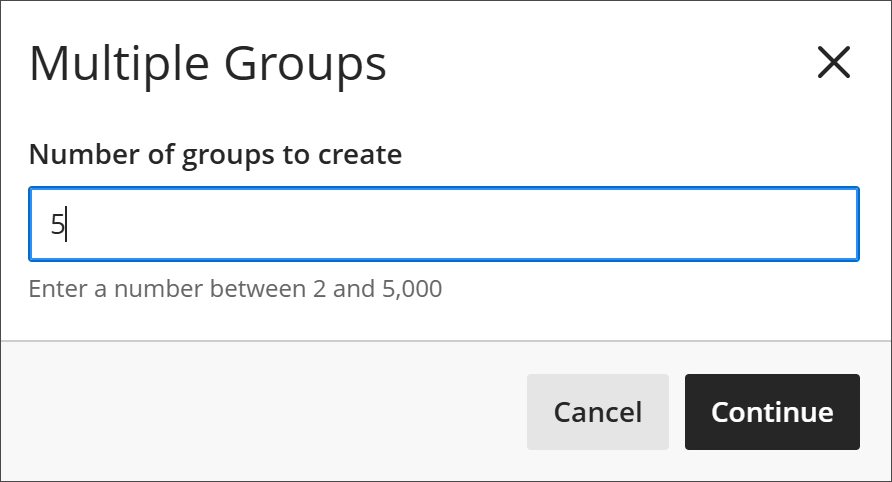
From the Groups management screen, instructors can create between two and 5,000 groups in one step rather than creating each group individually. This reduces repetitive setup and makes it faster to establish a group structure before assigning members.
Once the groups are created, instructors can populate them using manual assignment and import.
If using Automatically assign, the correct number of groups will be created and populated through the Automatically assign workflow when you specify the number of members per group.
If using Self-enroll, three groups are automatically created. If Create Multiple Groups is then selected, the number of groups you create is added to the three existing groups. You can either delete the original three groups or adjust the amount of groups you ask for when entering Number of groups to create.
Image 1: Instructors can now create multiple groups at once instead of adding them one at a time.
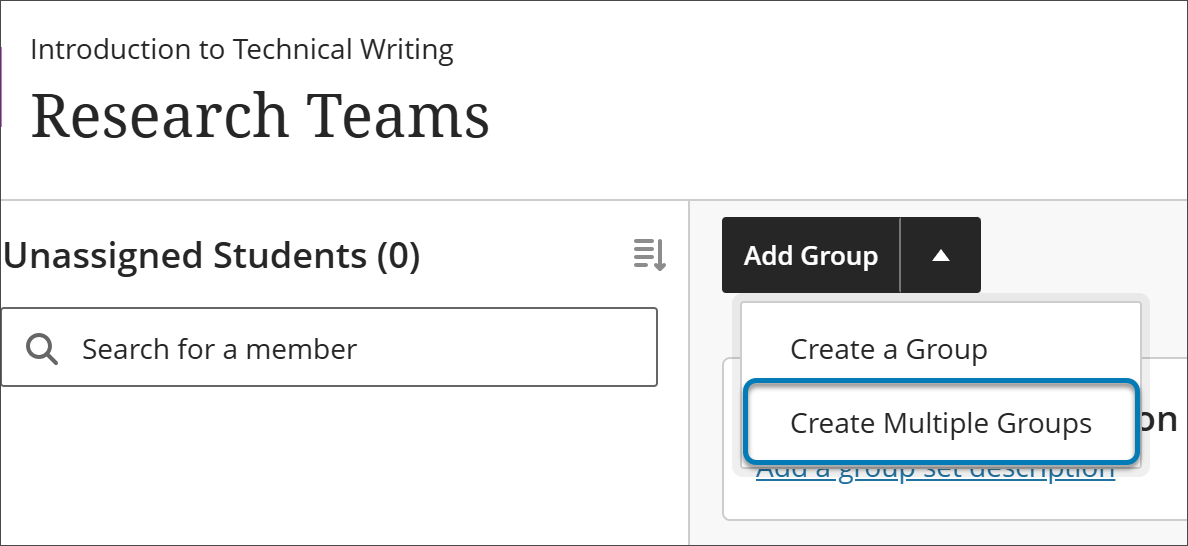
Image 2: Instructors can indicate how many groups to create at once, with the minimum 2 and the maximum 5,000.
Administrators
Availability: Available for all Ultra courses.
Activation: None needed.
Configuration: None needed.
Make notifications more accurate and reliable
We're improving the reliability and accuracy of Blackboard notifications. This update resolves a set of issues that caused notifications to be duplicated, missing, or sent at the wrong time. The changes reduce notification noise and help users trust that the alerts they receive reflect what happens in their courses.
This is an ongoing effort to modernize notifications and address delivery problems.
Instructors and Students
This release includes the following notification improvements:
Correct notifications for assigned groups. Students now receive DUE and OVERDUE notifications relevant to their assigned group instead of for all assigned groups in the course.
No duplicate notifications for copied Group Discussions. Students no longer receive duplicate DUE and OVERDUE notifications for Group Discussions in Original courses when content is copied between courses.
Reliable notifications after content is exchanged. Gradable discussions, blogs, journals, and wikis in Original courses now correctly generate DUE and OVERDUE notifications after content is exchanged between courses during course copy.
Grade updates and changes in digest emails. Digest emails now include notifications when a grade is updated or cleared.
Reliable digest email delivery. When a digest email fails to send, the sender won’t inaccurately receive a notification marked as delivered.
Correctly timed announcement emails. Announcement emails are now sent only after the announcement's start date is reached and not before the content is visible to students.
Administrators
Availability: Available for all Ultra and Original Course View courses.
Activation: None needed.
Configuration: None needed.
Add sorting controls for users in Discussions
Instructors and students can now sort discussion posts by newest first or oldest first, making it easier to navigate long discussions—whether grading, moderating, or catching up after a period of activity. Sorting improves the ability to quickly scan items and reduces time spent searching, without changing the discussion's structure.
Instructors and Students
From within a discussion, instructors and students can:
Sort posts by Newest first or Oldest first
Return to a discussion later and find it still sorted the way they last chose—the selected order is remembered for each discussion
Sorting applies throughout the discussion, including nested replies, and works the same way on mobile.
Administrators
Availability: Available for all Ultra courses.
Activation: None needed.
Configuration: None needed.
Gradebook
Restructured Gradebook grid view
The Gradebook Grid View has been restructured, giving instructors a reorganized layout and a new way to manage grading tasks.
Tip
For a detailed look at what's changing, including an FAQ, a side-by-side comparison of the current and new Grid View, and video demos, visit Community. Updates to the help site for this feature will be made at the time of production release.
When this feature is released to production, all non-student users will experience an in-app guide, directing users to Community to view resources.
Instructors
The Grid View introduces a new Grade Details panel and reorganizes how instructors enter grades, post grades, and manage exceptions and exemptions. The List View is unchanged.
The following are changing in the Grid View:
Layout and navigation, including a new Grade Details panel that brings grading information and actions into one place
Grade entry workflow
How grades are posted
How exceptions and exemptions are managed, now grouped under Accommodations
The following are not changing:
Grades, calculations, and overall grade configuration
Grade schemas and grading settings
Course-level accommodations
The List View
All existing grades and submission history
Administrators
Availability: Available to all Ultra courses.
Activation: None needed.
Configuration: None needed.
Delete unwanted third-party columns in the Gradebook
When an instructor converts an Original course with third-party content to Ultra, all columns are brought into the Ultra Gradebook. Instructors can now delete unwanted third-party columns.
Administrators
Availability: Available to all Ultra courses.
Activation: None needed.
Configuration: None needed.
Assignments and Tests
Export question banks
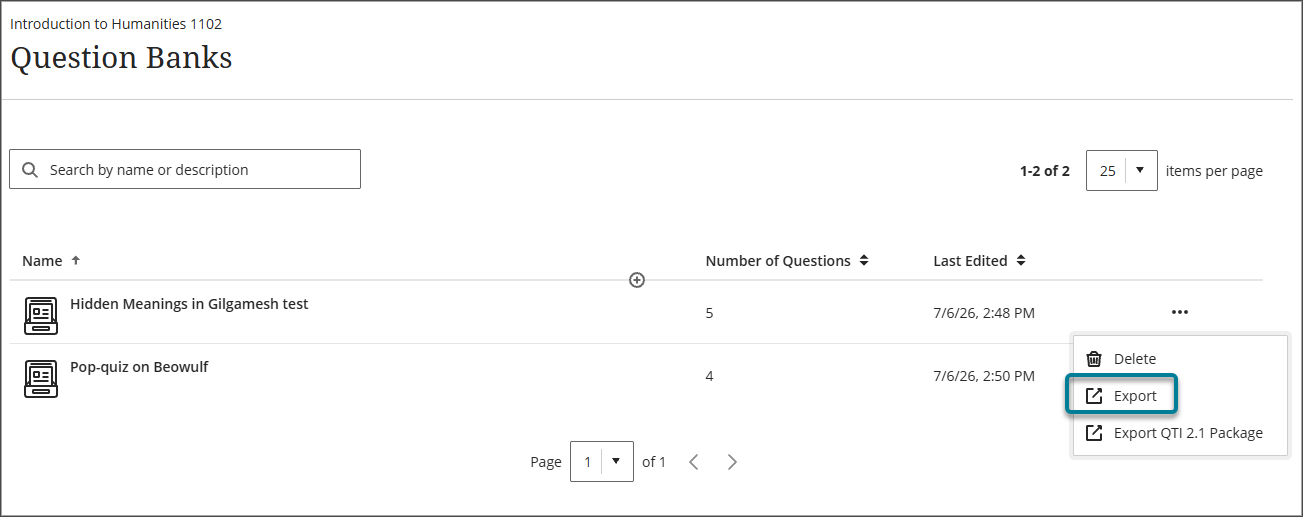
Instructors can now export a question bank as a file to their local device. This makes it easier to back up assessment content or share with other instructors for reuse across courses.
Instructors
From the question bank management page, instructors can select an export option to download the question bank to their local file system. The exported file can be backed up, shared with other instructors, or reused in other courses.
Administrators
Availability: Available to all Ultra courses.
Activation: None needed.
Configuration: None needed.
Display answer-level feedback for selected options only
Students now receive answer-level feedback only for the options they chose in multiple choice questions. This gives students more targeted insight into their responses without revealing feedback for options they did not select.
Instructors
Instructors continue to enter feedback for answer options when creating or editing a multiple choice question, using the same Option Feedback workflow.
Students
After submitting an attempt, students receive feedback only for the answer option or options they selected, rather than feedback for every option.
Administrators
Availability: Available to all Ultra courses.
Activation: None needed.
Configuration: None needed.
Blackboard Core
Navigate courses faster with an improved user interface
We're continuing to improve the Blackboard interface to make navigation clearer, more stable, and easier to follow. This update builds on the refreshed interface introduced in the earlier release, extending full-page navigation deeper into course content and delivering several newer enhancements—including breadcrumbs and a clearer way to exit content.
These changes reflect ongoing feedback from instructors and students and aim to:
Improve orientation so users are less likely to feel lost in a course
Reduce accidental exits and other navigation errors
Improve performance, consistency, and predictability
Help students focus during assessments
Course content and structure remain exactly the same. Instructors do not need to redesign or reconfigure anything.
Instructors and Students
Navigational changes include the following.
Full-page content navigation
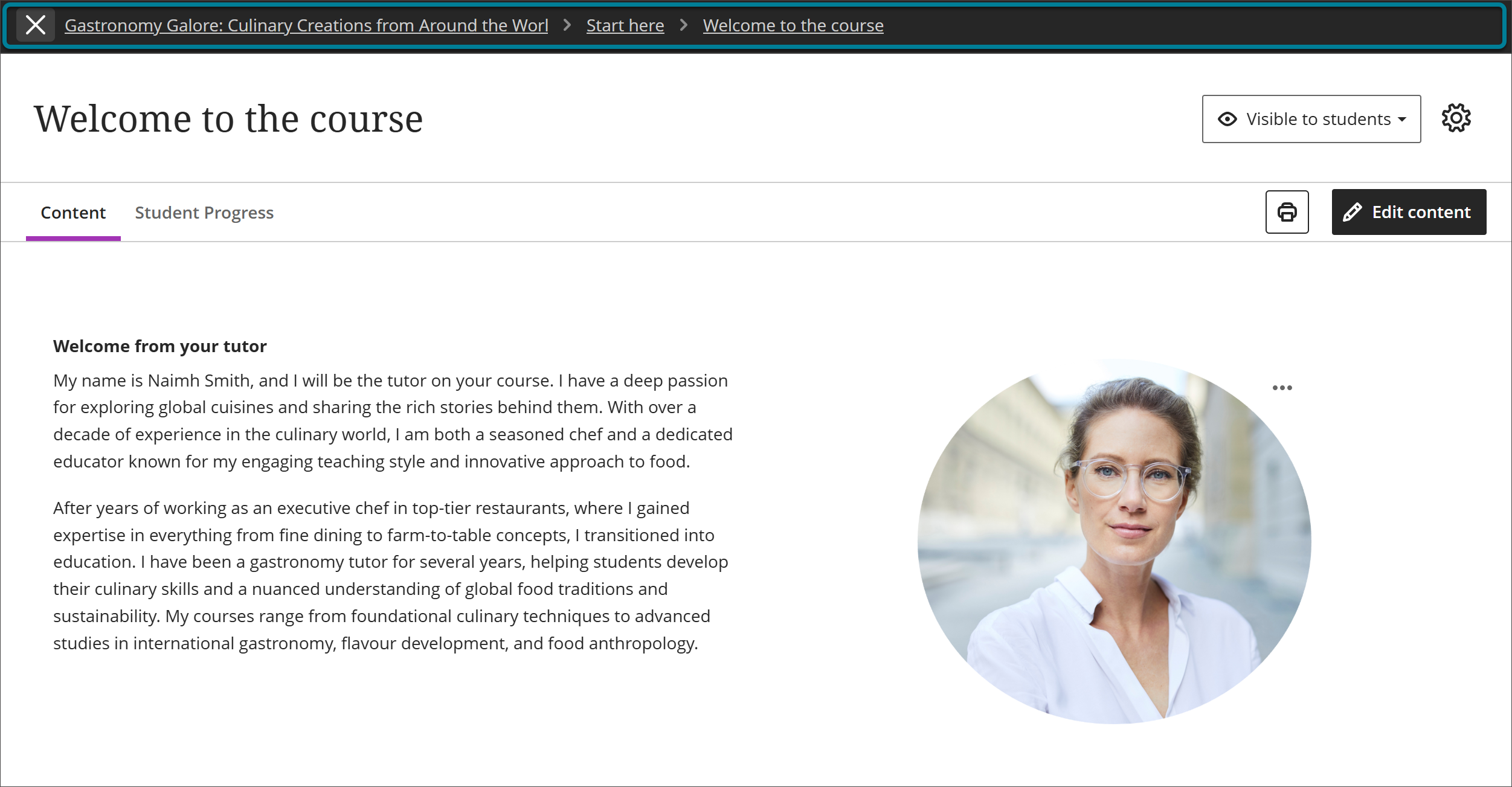
Learning modules, folders, and individual content items—such as documents, assessments, links, and media—now open as full pages instead of sliding panels layered over the course outline. This extends the earlier move to full-screen course pages so that content inside a course opens the same way. Opening content on its own page improves orientation, performance, and predictability, and makes it easy to navigate back to the module without losing your place.
Image 1: Content now opens as a full page with consistent headers and navigation, rather than as stacked overlay panels.
Breadcrumbs for contextual clarity
Breadcrumbs now appear on content pages, showing where you are within a course's module and folder structure to add contextual clarity. Breadcrumbs reflect course structure automatically, require no instructor setup, and complement existing navigation rather than replacing it.
Image 2: Breadcrumbs on a content page show the user's location and allow quick movement back through modules and folders.

Clearer, intentional exit from content
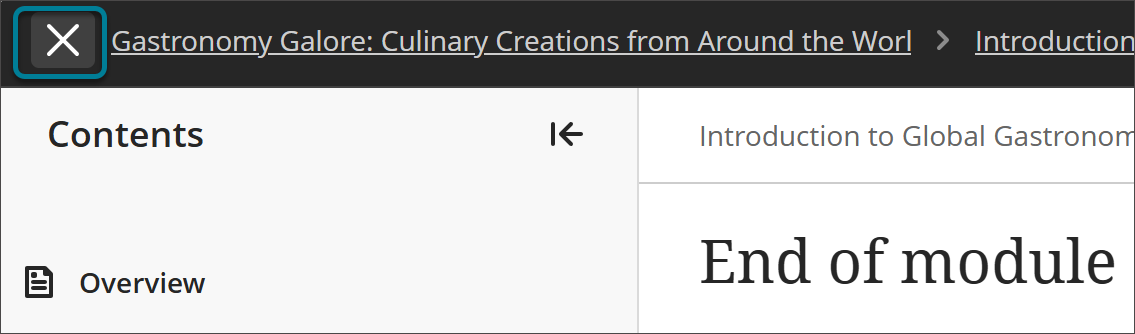
The purple "X" button previously used to exit content is replaced with a clearly labeled exit option in the navigation banner. Because the exit action is now more deliberate and separated from other controls, instructors and students are less likely to close a page or lose their place by accident.
Image 3: The exit option now sits within the navigation banner, reducing accidental exits.
Focus state for tests and assignments (Students)
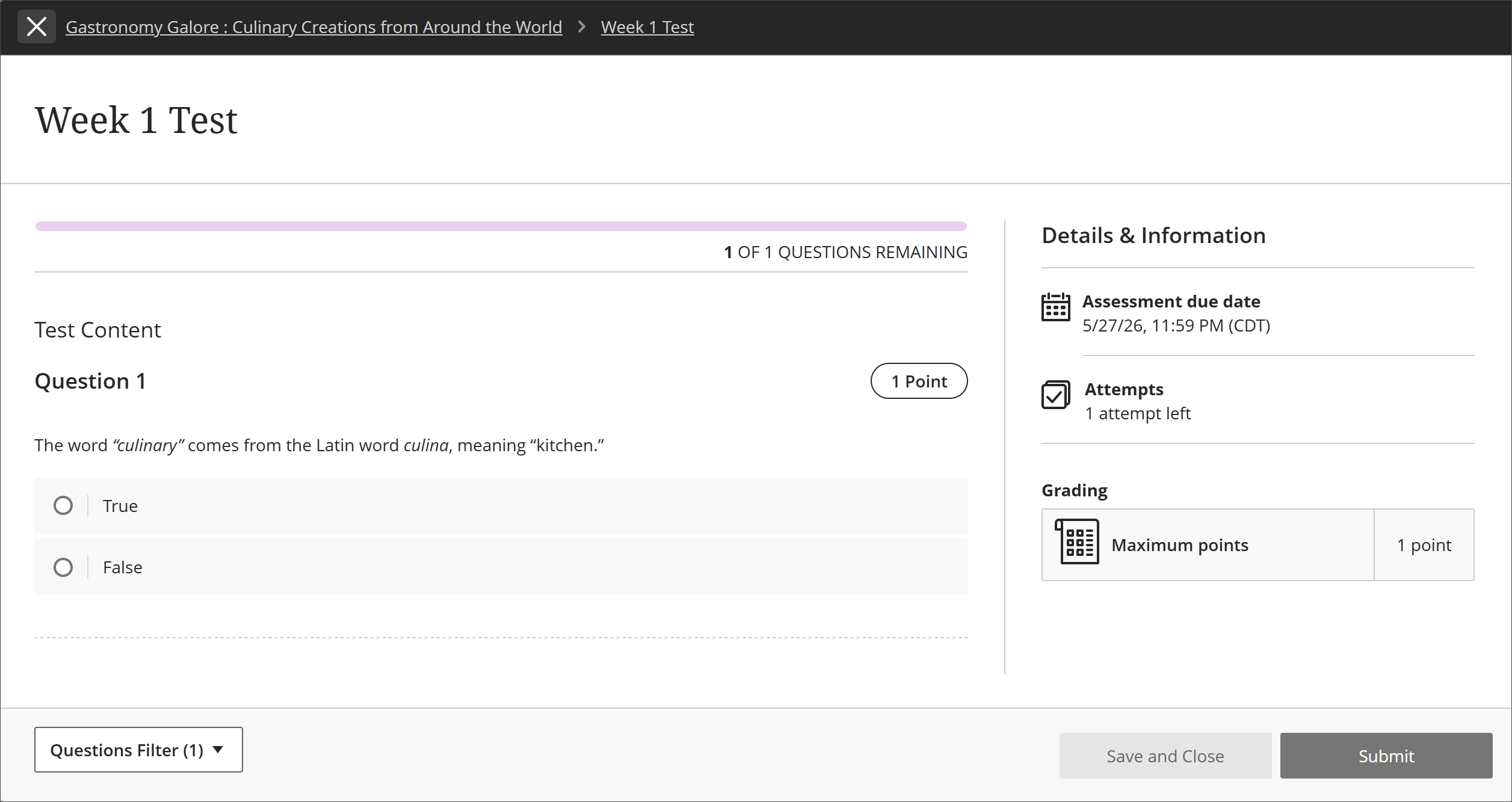
When students begin a test or assignment, they automatically enter a new focus state that minimizes navigation elements and visual distractions, presenting a streamlined interface for completing assessments. Focus state does not change how assessments function or are graded, and students can still navigate away if needed—it reduces distractions without trapping them. No action is required from instructors. Focus state cannot be turned off.
Image 4: In focus state, nonessential navigation is minimized so students can concentrate on completing an assessment.
Administrators
Availability: Available for all Ultra courses.
Activation: None needed.
Configuration: None needed.
Stay on top of deadlines with Your Top To Dos
Note
This feature is available behind an administrator-managed feature flag from the August release until the January 2027 production release, when the flag is removed and the updates apply to all courses automatically. Please share your feedback during this period—your input will help us improve the feature before the flag is removed.
We've added a new Your Top To Dos component to the Courses page to help students stay on top of time-sensitive work. As part of the refreshed Courses page, the list surfaces up to five of your most urgent, deadline-driven tasks across your active courses, so you can see what needs attention and go straight to it.
Responding to student concern about keeping track of important tasks and due dates, Your Top To Dos is designed to address exactly that. Drawing its due dates from the Gradebook, the feature gives a single, reliable view of what's due and when. Each item links directly to the place where you complete it—reducing the steps between seeing a task and finishing it.
Students
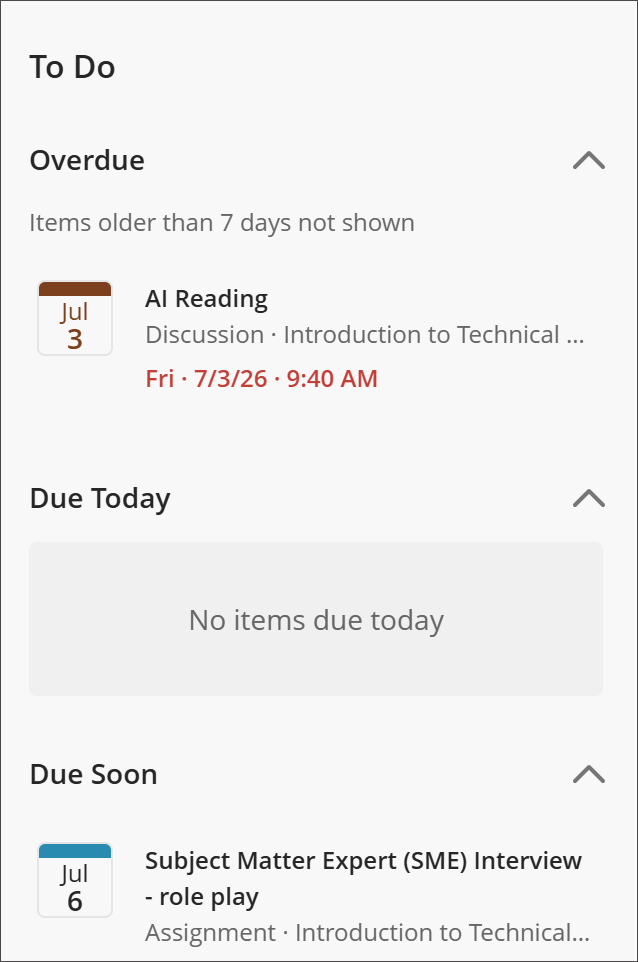
Your Top To Dos list shows a user’s most pressing tasks—such as assignments, quizzes, and exams, plus feedback to review once it's posted—ordered by urgency.
Overdue items appear first, with the closest due date at the top, followed by items due soon
Each item shows the task title, course name, localized due date and time, and a status chip (Overdue or Due soon)
Selecting an item takes users directly to the page where you submit work or review feedback
Completed, unavailable, and duplicate items are filtered out, so the list stays focused on what matters
Items older than seven days will not show in the overdue section.
By bringing the most urgent tasks into one focused list with direct links to action, Your Top to Dos helps you avoid late or missed submissions and spend less time hunting for what's due.
Image 1: The Your Top To Dos list on the Courses page shows a student's most urgent tasks, ordered by due date, each linking directly to the task.
Administrators
Availability: Available for all Ultra courses.
Activation: None needed.
Configuration: This feature is available behind an administrator-managed feature flag from the August release until the January 2027 production release, when the flag is removed and the updates apply to all courses automatically.
Navigate between courses faster with the updated Home button
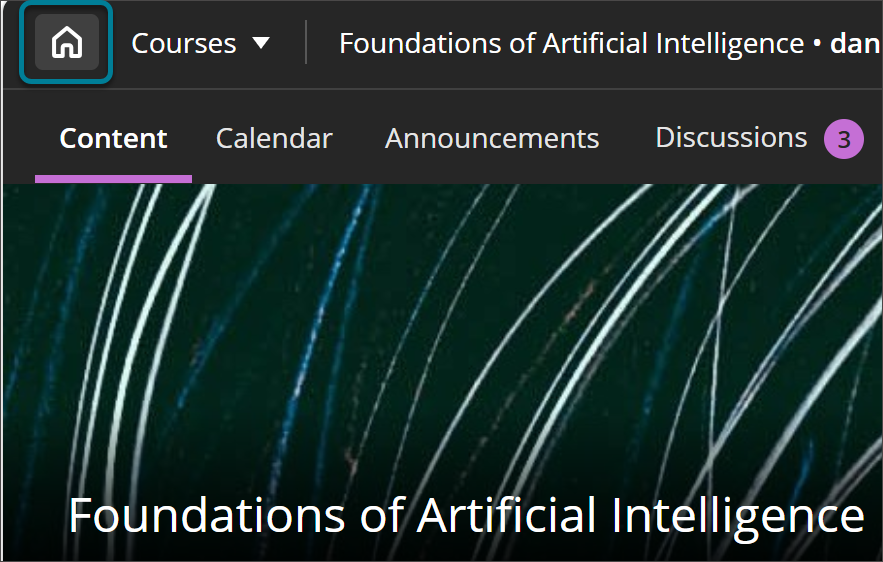
Based on user feedback about navigating between courses, we've updated how the Home button behaves when you leave a course. Previously, selecting Home from within a course returned you to the institution-defined landing page. Now, selecting Home from a course takes you directly to the Courses page in the base navigation, so you can move from one course to the next more quickly.
This change complements recent Course Switcher improvements that reduce navigation friction between courses.
This update applies specifically to course exit. Blackboard LMS’s landing page at login is unchanged — whether that's the Institution Page, Courses, or the Activity Stream. Selecting Home while in a course now returns you to the Courses page, regardless of the institution's landing page setting.
Instructors and Students
When users select the Home button to leave a course, they now return to the Courses page in the base navigation instead of the institution-defined landing page.
Selecting Home from a course opens the Courses page directly
The landing page shown when logging in to the environment (Institution Page, Courses, or Activity Stream) is unchanged
Course exit behaves the same for everyone, independent of the institution's landing page setting
By returning users straight to the Courses page, this update makes course-to-course navigation faster and more predictable.
Image 1: Selecting the Home button while in a course now returns you to the Courses page.
Administrators
Availability: Available to all Ultra courses.
Activation: None needed.
Configuration: None needed.
Mastery and Learning Pathways
Set release conditions based on journal submissions
Instructors can now set release conditions based on the submission status of journals. This gives instructors more flexibility to build personalized learning pathways and ensures students complete prerequisite activities before accessing new content.
Instructors
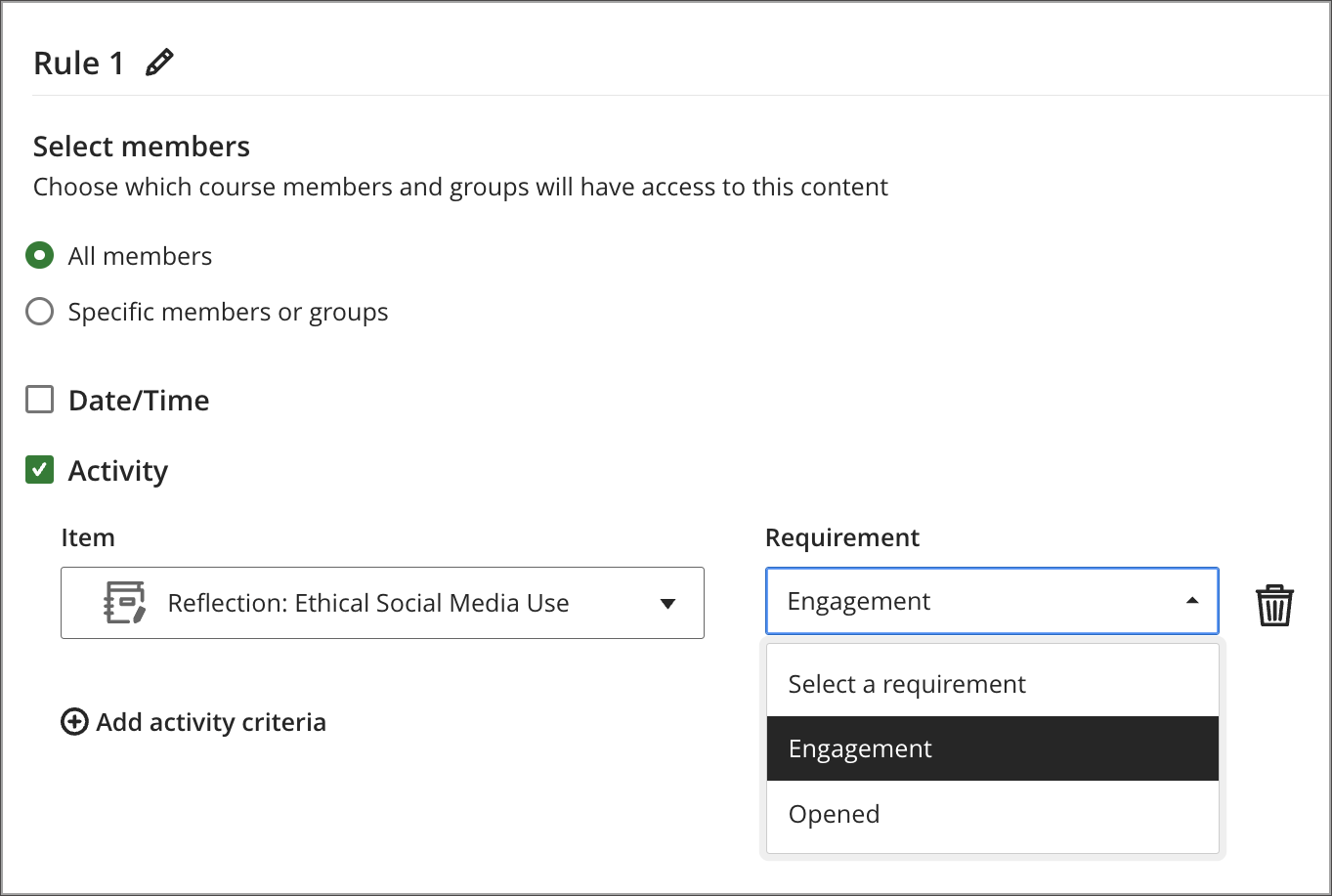
When setting release conditions for course content, instructors can now choose journal submission status as a condition. Content releases automatically once a student submits, without requiring the instructor to grade the submission first. Submission status is recorded as complete in progress tracking.
Image 1: Instructors select Engagement as the activity requirement for a journal.
Students
New course content becomes available automatically once a student submits a journal entry that a release condition depends on. Students do not need to wait for the instructor to grade or mark the submission before progressing to additional materials.
Administrators
Availability: Available to all Ultra courses.
Activation: None needed.
Configuration: None needed.
Learner Progression and Personalized Experience
Configure the “From” name for automation messages
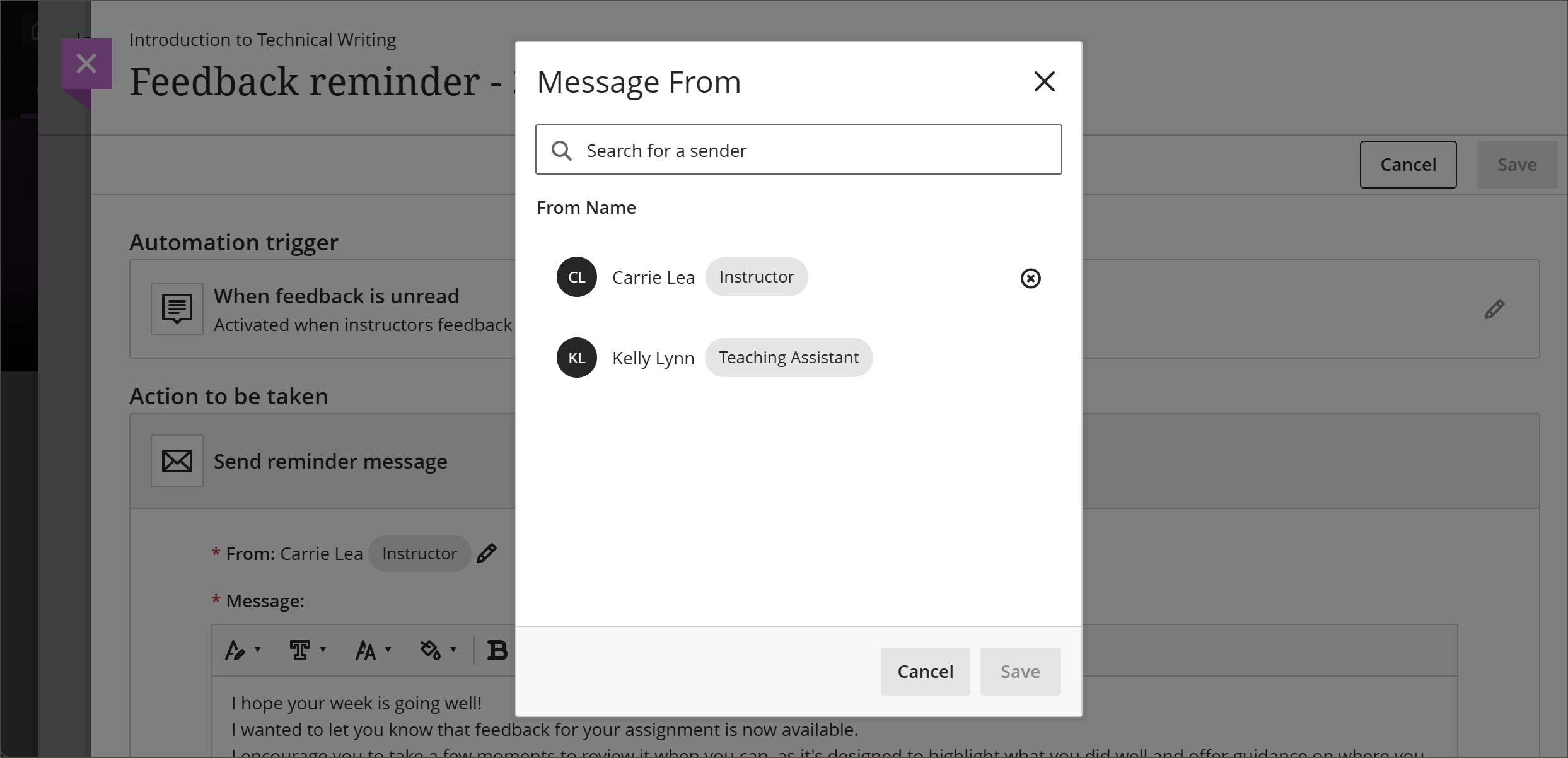
Instructors, or any user with automation editing permissions, can now configure who automation-generated messages appear to come from. Each automation has an author, who created it, and a sender, whose identity appears on all messages the automation generates. The author and sender can be different people. This matters when a course builder or administrator creates an automation on an instructor's behalf. The sender can be set to an instructor enrolled in the course so that messages reach students from a recognizable, trustworthy source. Students are more likely to engage with messages when they can clearly identify the sender.
By default, the sender is the automation's author. Any user with editing permissions can update the sender to another eligible user in the course. Each automation supports one sender at a time. If the assigned sender loses course access or is removed from the course, the automation pauses until a new sender is assigned. Blackboard LMS displays a notification when an automation becomes inactive due to a missing or invalid sender, so instructors can quickly identify and resolve the issue.
Instructors
Image 1: Instructors select a user for the From name for an automation message.
Administrators
Availability: Available to all Ultra courses.
Activation: None needed.
Configuration: None needed.
Blackboard Admin
Restrict discussion, journal, and blog activity in completed Original courses
Discussion, journal, and blog participation in completed Original Course View courses is now read-only. Once a course is marked complete, users can no longer create new discussion forums, threads, or replies; journal entries or comments; or blog entries or comments. This helps keep completed courses consistent and preserves their contents as part of the official record.
Previously, these contributions could still be created in some scenarios after a course was marked complete, which created the potential for changes to courses that were meant to be finalized.
This change builds on earlier restrictions to student attempt activity, instructor grading actions, and content edits in completed Original courses. It represents the next phase of an ongoing, incremental effort to strengthen completed course enforcement in preparation for the end of life of Original Course View. Additional restrictions may follow as this work continues.
Instructors and Students
When an Original Course View course is marked complete, users can no longer:
Create discussion forums, threads, or replies
Add journal entries or comments
Add blog entries or comments
Users can still view existing discussions, journals, and blogs in completed courses, but the system prevents any attempt to add new contributions. No action is required—these restrictions apply automatically when a course is marked complete.
Administrators
Availability: Available to all Original Course View courses.
Activation: None needed.
Configuration: None needed.
Integrations
Improved Microsoft Cloud Document Experience
To improve clarity and align with Microsoft's unified Microsoft 365 LTI experience, Blackboard LMS has updated the names of the Microsoft cloud document tools available when creating course content items.
The following names have changed:
Embedded Cloud Document is now Microsoft Embedded Cloud Document.
Cloud Collaboration is now Microsoft Cloud Collaboration.
These are naming updates only. Existing workflows for embedding, creating, and collaborating on Microsoft documents remain unchanged and are supported with the Microsoft 365 LTI tool.
This update also helps reduce confusion when selecting the right tool and provides a more consistent, streamlined experience when adding Microsoft content to courses.
Administrators
Availability: Available for Ultra courses.
Activation: None required.
Configuration: None required.
Upgrade to Ultra
Duplicate items on the Course Content page
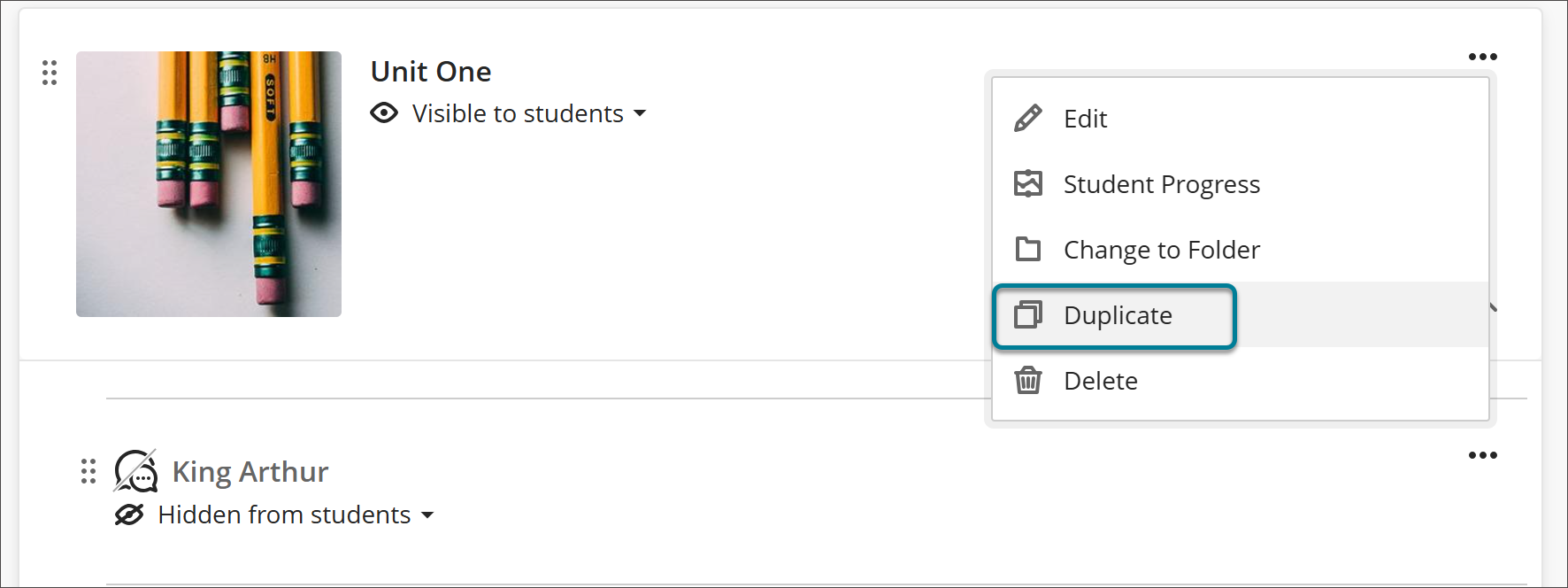
Instructors can now duplicate items on the Course Content page. The duplicate retains all content and settings from the original. LTI items are not supported for duplication. This feature saves time when building consistent, repeating course structures.
Instructors
A new Duplicate option appears in the More options (…) menu for every item. Selecting Duplicate creates a copy of the item with "Copy" appended to the name. The copy is hidden from students by default. Instructors can rename and edit the copy before making it visible to students.
Image 1: Instructors select the Duplicate option from the More options (...) menu.
Administrators
Availability: Available to all Ultra courses.
Activation: None needed.
Configuration: None needed.
Display warning banner in Original courses
Blackboard LMS now displays a warning banner in Original courses for all non-student roles. The banner notifies instructors, administrators, and other staff that support for Original Course View ends after December 31, 2026. It will not be available for teaching and learning as of January 1, 2027.
Image 1: A warning banner appears in all Original courses for all non-student roles.

Administrators
Availability: Available to all Original courses.
Activation: None needed.
Configuration: None needed.
Import external course packages as Ultra courses
When administrators import course packages from Canvas LMS, D2L Brightspace, or Moodle using the Administrator Panel or Bulk Import, Blackboard LMS now delivers those courses directly in Ultra Course View. Imported courses are ready to use immediately, with no additional conversion steps required. Administrators save time and reduce manual work by skipping the post-import conversion process entirely.
Administrators
Availability: Available to all Ultra courses.
Activation: None needed.
Configuration: None needed.
Restrict copy into completed courses
Blackboard LMS now prevents content from being copied into any course marked as completed. Completed courses are read-only and intended for retrieval, reference, accreditation review, and grade verification. Content can still be copied from completed courses into active courses. This protection keeps institutional records accurate and guards against unintended modification.
Instructors
Instructors can’t copy materials into completed courses through the standard course copy workflow. When they attempt to do so, Blackboard LMS displays a message indicating the course is read-only. Instructors can still copy content from a completed course into an active course to support course development and reuse.
Administrators
Administrators can’t copy materials into completed courses through bulk copy tools, administrative copy tools, SIS-initiated copy processes, or REST API endpoints. When any of these methods is attempted, Blackboard LMS blocks the action and returns an appropriate message. Administrators can still copy content from completed courses into active courses.
Availability: Available to all Original and Ultra courses.
Activation: None needed.
Configuration: None needed.
Premium
Video Studio: Customize Your Recording Background
Users can now customize their background when recording in Video Studio. Before recording, presenters can blur their background or replace it with an image of their choice, helping them protect their privacy, reduce visual distractions, and keep the focus on themselves and their content.
Recordings are often made in homes, shared spaces, or public areas. Blurring the background or using a background image gives instructors and students a simple way to keep personal or sensitive surroundings out of view, present more professionally, and maintain a consistent, on-brand look across recordings—while helping the audience stay focused on the content when they watch.
Instructors and Students
When setting up a recording, open the camera options to choose how your background appears. You can:
Blur your background. Turn on the background blur switch to soften your surroundings, similar to background blur in other video tools.
Use a background image. Upload an image from your device (such as JPEG or PNG). A real-time preview shows how it will look before you start recording.
You can use blur or a background image, but not both at once—selecting one replaces the other. Select None to return to your unmodified camera feed. You can change your background at any time before recording begins.
Image 1: Before recording, users can blur their background or replace it with an image from the camera options.
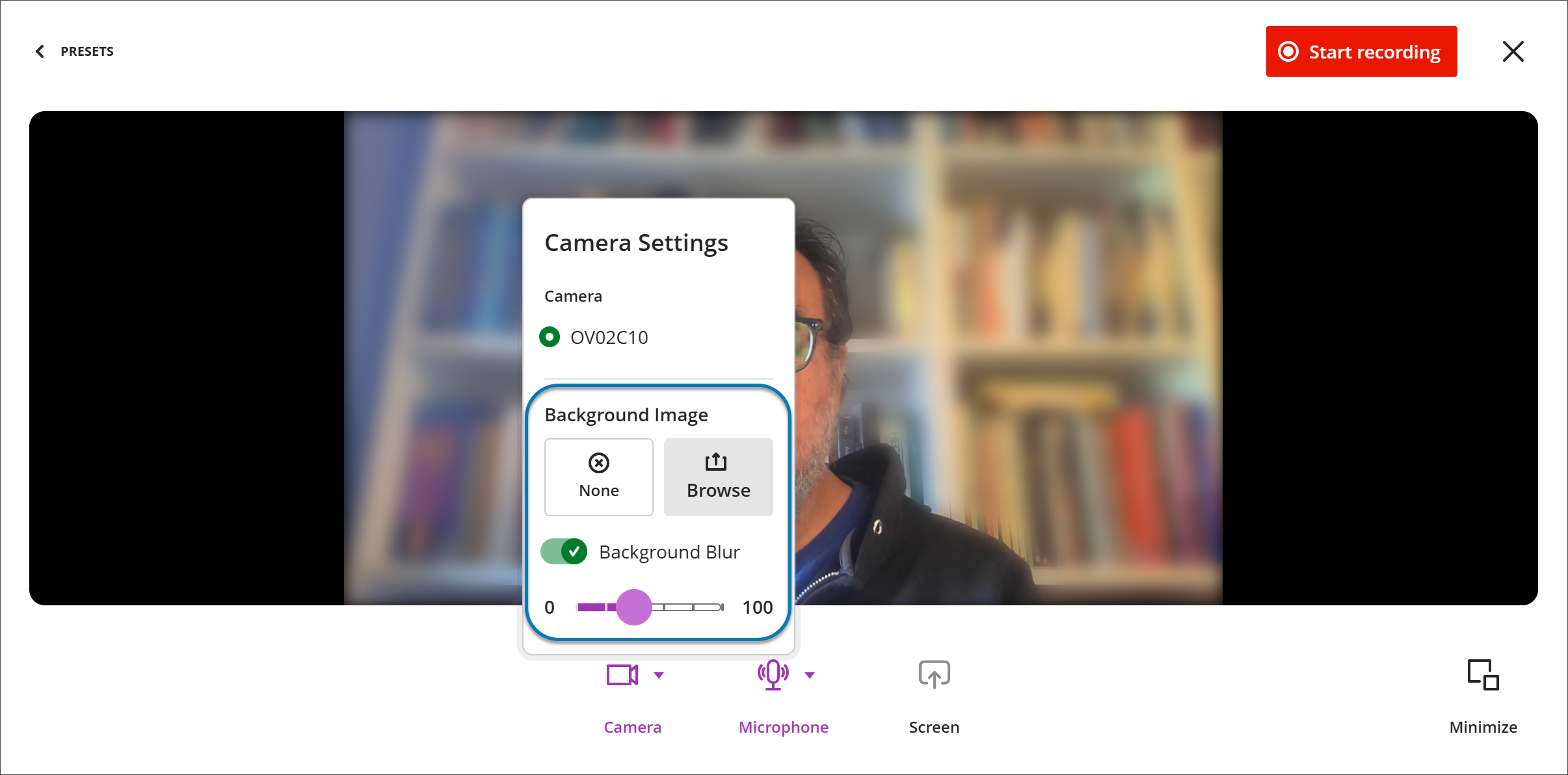
Video Studio remembers your most recent background image, so there's no need to re-upload it. It keeps one background image per user, and uploading a new image replaces the saved one. If an image can't be used, Video Studio shows a message so you can choose another and keep recording.
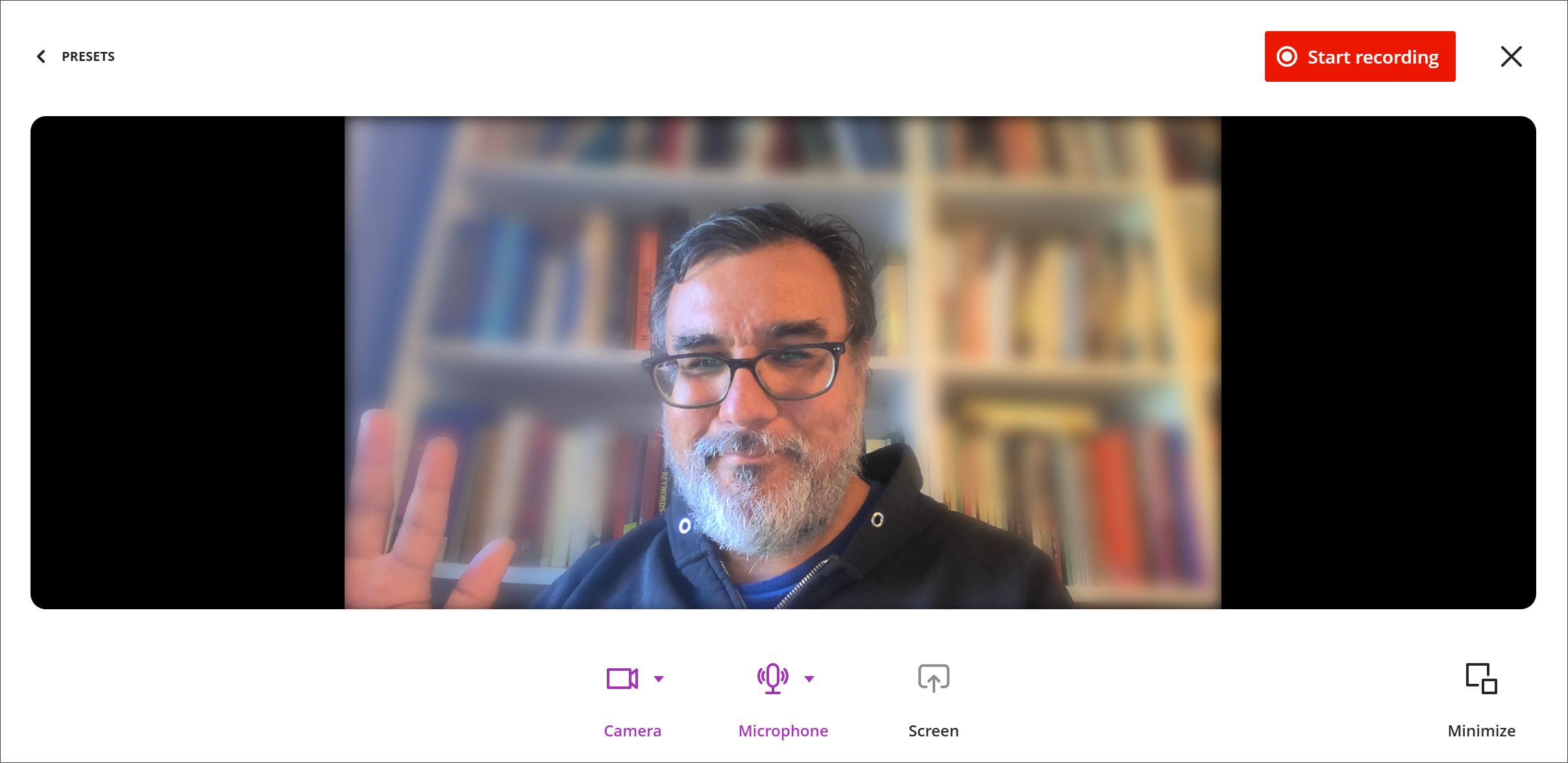
These settings are configured before recording starts. Blur applies to both new recordings and live capture, and anyone creating a recording in Video Studio can use these options.
Image 2: Once users have made their selection, they to begin recording with their customized background.
Administrators
Availability: Feature requires a Video Studio license.
Activation: None needed.
Configuration: None needed.
Video Studio - Resume Video Playback
Video Studio now remembers where users stop watching and resumes playback from that point when they return to the recording. Users no longer need to search through a video to find their place, making it easier to watch instructional and assignment videos across multiple sittings.
Resume playback works across sessions and devices, so a user can start a video on one device and pick up where they left off on another.
Instructors and Students
When a user stops watching a video and later reopens it, playback automatically resumes from the point where they left off.
Progress is saved across sessions and devices.
Administrators
Availability: Feature included in Video Studio placements in Blackboard LMS and premium Video Studio offering.
Activation: None needed.
Configuration: None needed.
Course Catalog: Use Mercado Pago to pay for courses
We added Mercado Pago as a payment service provider. This gives students the option to use Mercado Pago to purchase courses from Course Catalog. As we continue to add more payment service providers, students gain greater flexibility and choice when paying for courses.
Students
When students select Buy for a course, they can now access Mercado Pago as one of the payment options if it is implemented by their institution.
Administrators
Availability: Available to all Course Catalog courses.
Activation: None needed.
Configuration: Refer to the Payment Gateway v2 help topic for information on configuring the Mercado Pago payment service provider.