Three-legged OAuth
Blackboard LMS provides support for three-legged OAuth 2.0 authorization.
Three-legged OAuth (3LO)
Developers can create applications using REST APIs that act on a user's behalf in a more secure way. When authorized using 3LO, applications can act on behalf of a user and therefore are restricted to the parts of Blackboard LMS for which that user has permissions to access.
Students and instructors must allow integrated applications to access their personal information in Blackboard LMS.
Register a third-party integration
Blackboard LMS supports the integration of external applications built using Blackboard LMS REST APIs. Before you can use an integration with Blackboard LMS, an administrator must register it.
Before you begin to register the application, you must obtain an application ID. The developer may provide the ID directly to the administrator or bundle it with the support documentation for the application.
From Administrator Tools, under Integrations, select REST API Integrations.
On the REST API Integrations page, select Create Integration.
In Application ID, enter the application ID proved by the integration's developers.
Important
The integration's developers should provide the ID. They should never ask you to create an application registration in the Blackboard developer portal unless they're creating custom software, just for you. If a vendor of commercial, off-the-shelf software requests this of you, please have them contact us for assistance.
In Learn User, find the user the integration should act as. Typically, you should create one user per application, using a customized role with only the permissions the vendor indicates that the application requires.
Important
Blackboard recommends that you never select a user with the system role of “System Administrator” for REST API applications because there will be no limits on the application’s ability to access information. If a vendor requests that you use “System Administrator,” please have them contact us for assistance.
If the application needs to "act for" an end-user, set End User Access to Yes. Users will be prompted with the third party consent workflow the first time they access this app.
If you select Yes for End User Access, you can also choose to bypass the consent workflow. To do this set Authorized To Act As User to Yes. You should carefully consider the privacy, legal and other implications of this choice. See the section on Trusted Services below for more information.
If you set End User Access to No, the integration always has access to Blackboard LMS as if it were the Blackboard LMS user selected in Learn User. If the selected user has access to user personal data, the integrated application will have access too.
Select Submit to save your settings for the integration.
Trusted Services
A trusted service will communicate with Blackboard LMS in a very similar way that third-party developed applications communicate with Blackboard LMS. An application for the trusted service must be created in the developer portal, and the trusted service uses those credentials to interact with Blackboard LMS.
Trusted services can do the following:
Automatically have a Blackboard LMS site register itself as integrated with that trusted service and not let site admins remove that integration
Bypass rate limits and site quotas normally placed on application integrations
Utilize 3 Legged OAuth without having to present the Blackboard LMS end user with an allow/deny integration UI
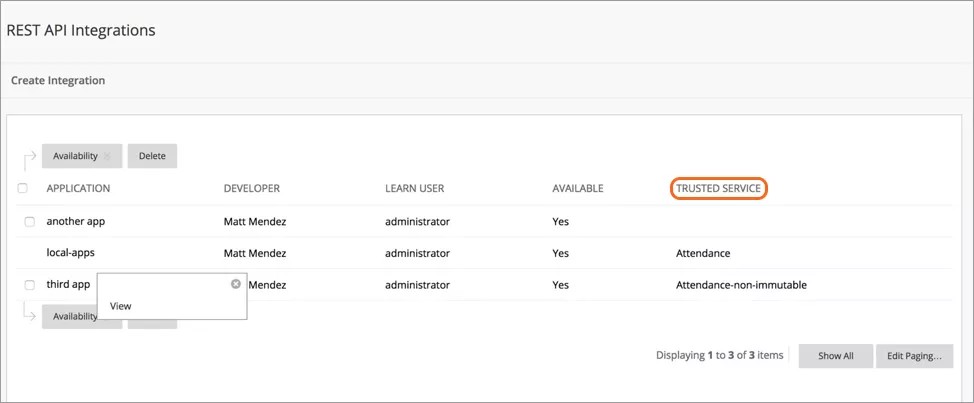
A third-party application that isn't a trusted service remains editable and selectable, while the trusted service application can’t be selected. The menu for actions on the trusted service also shows only the View button.
Do I need to allow end user access?
The integration application's vendor should be able to tell you if their application requires end user access. A typical example of when access is necessary is an application that creates activity in a course. For example, a discussion board application needs end user access to make postings as the logged in user. Otherwise, discussion board postings would all appear to be from one generic account.
An example of an application that would not require end user access is one that integrates with SIS to create/manage courses, users, or enrollments. In this scenario, the application should have only its own user, and that user should have a role granted only the permissions needed. The app doesn’t need to “act for” a specific user to achieve its functionality.
Authorize Access to Integrated Apps
Students and instructors must allow integrated applications to access their information in Blackboard LMS. When you access an application for the first time, you’re prompted to authorize access.
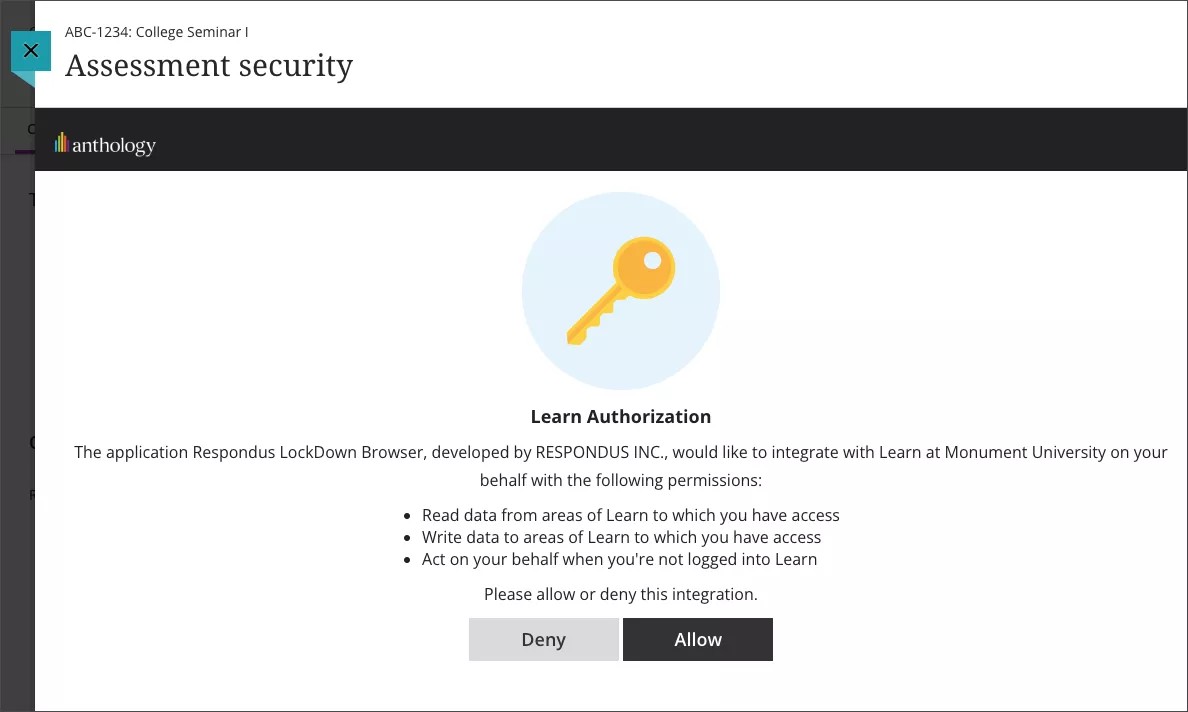
Allow access to integrated apps
When prompted on the Blackboard LMS Authorization screen to authorize access, select Allow. You receive a confirmation message.
Once authorized, the application appears in the Application Authorization menu.
From the navigation bar, select Tools, Application Authorization.
Review or revoke access to integrated apps
From the Manage Your Authorizations page, you can view all the applications you authorized and their corresponding permissions. You can also revoke access to apps at any time.
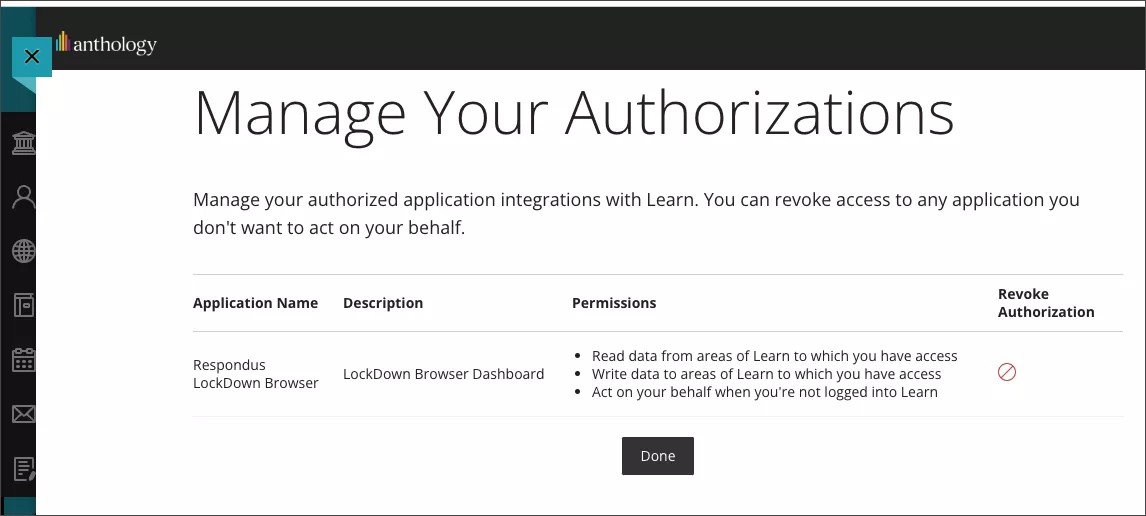
To revoke access, select Revoke with the no entry sign. Authorization is removed and the application can no longer access your personal information.
Important
If the integrated application copied data to its own servers, removing authorization only prevents the tool’s future access to your data. To remove all your historical data, you must contact the tool's vendor and request its removal.
Administrator notes
This authorization process only applies to REST API apps that use "3LO" to act on behalf of a Blackboard LMS user; this does not apply to REST API apps that have their own “user,” such as Ally. You can learn more about how this works in our developer documentation for 3LO.
An administrator must pre-install the REST API application before users can provide authorization.
If you remove authorization, the app is likely to stop working. To resume access, you must select another link to the app and allow authorization again.
Warning
Managing access to personal information is important. With the Application Authorization tool, users can view all applications they’ve granted access to and remove access to any as needed. Because this tool relates to basic privacy and security settings and disclosures, it can’t be turned off or disabled. To stop an app from having access to personal information for all users, an administrator must remove the application from the REST API Integration control panel.