Badge Library
Administrators can view all the badges created by their organization in the Badge Library. The Badge Library has seven columns of information:
Name
Created
Format
Status
Awarded
Relationships
Actions
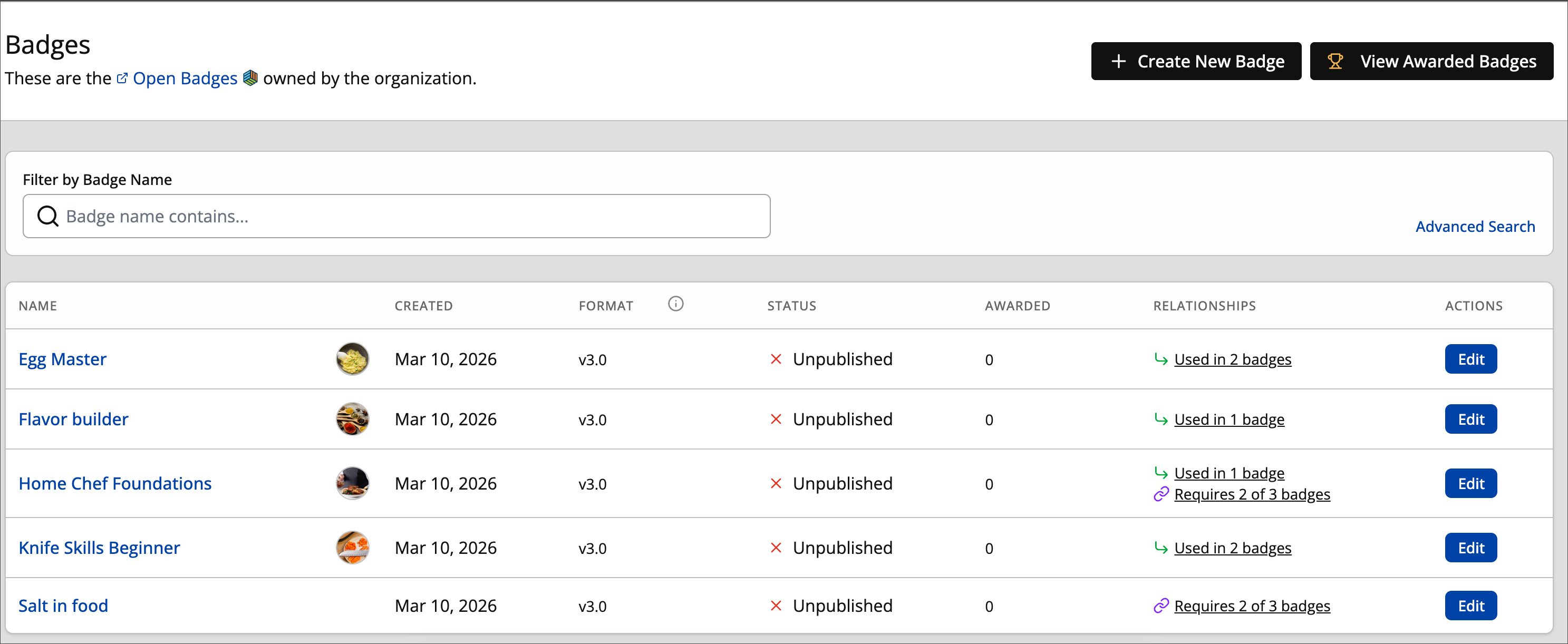
You can take several actions from this page:
Select + Create New Badge to create a new badge.
Select View Awarded Badges to access a list of awarded badges.
Enter a badge name in the Filter by Badge Name to filter the list by badge name, or select Advanced Search to access advanced search options.
Select the name of a badge to see the badge details.
From the badge details screen, you can select View Full Relationship Map to access a Tree View which displays complete badge hierarchy structures.
Select the link in the Relationships column to access a list of related badges one level above or below the selected badge.
From the Relationships view, you can select View Full Relationship Map to access a Tree View which displays complete badge hierarchy structures.
Select Edit in the Actions column to edit the selected badge.