Profile
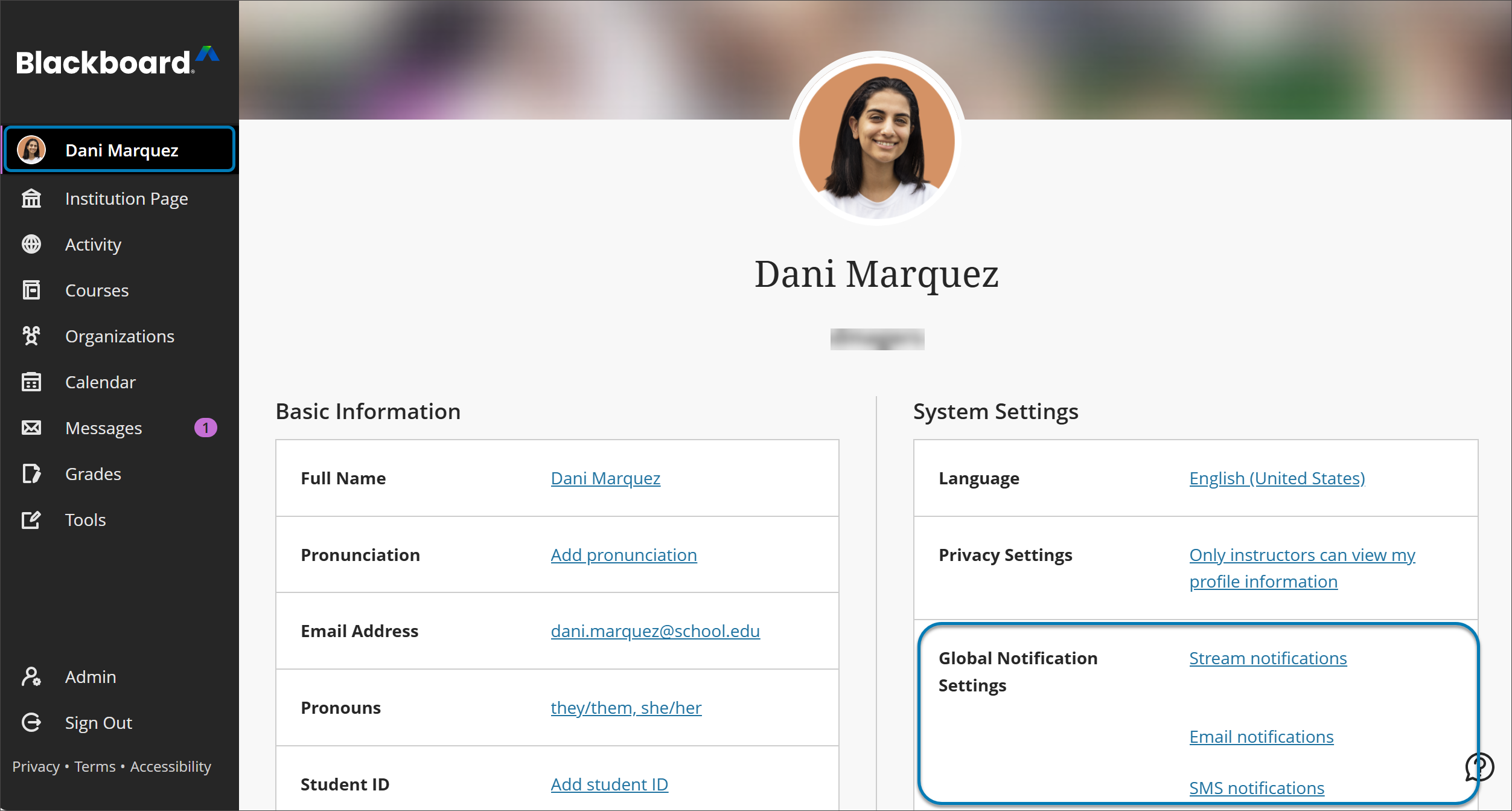
In the Ultra experience, all users have a profile page that appears in the base navigation.
Users select their names to access their personal information and settings.
Where do profile pictures appear?
In the Ultra experience, user profile pictures appear next to their activity throughout courses and on individual profile pages. Instructor profile pictures also appear on their course cards on the Courses page and in Messages. If users don't upload profile pictures, a generic silhouette appears in these areas.
In the Ultra Course View, instructor profile pictures appear on course content pages, rosters, and in discussions, conversations, and messages next to their activity. Student profile pictures appear in rosters, the gradebook, and next to their activity also.
In the Original Course View, user profile pictures appear in the roster, and in discussions, blogs, journals, wikis, and group activity. Instructor profile pictures also appear in the notification modules. When no profile picture exists, the generic silhouette is used.
Configure profiles
The profile tool is always on in the base navigation in the Ultra experience. You can't turn it off. However, you have some options about uploading profile pictures in the Admin Panel > Tools and Utilities > Avatars.
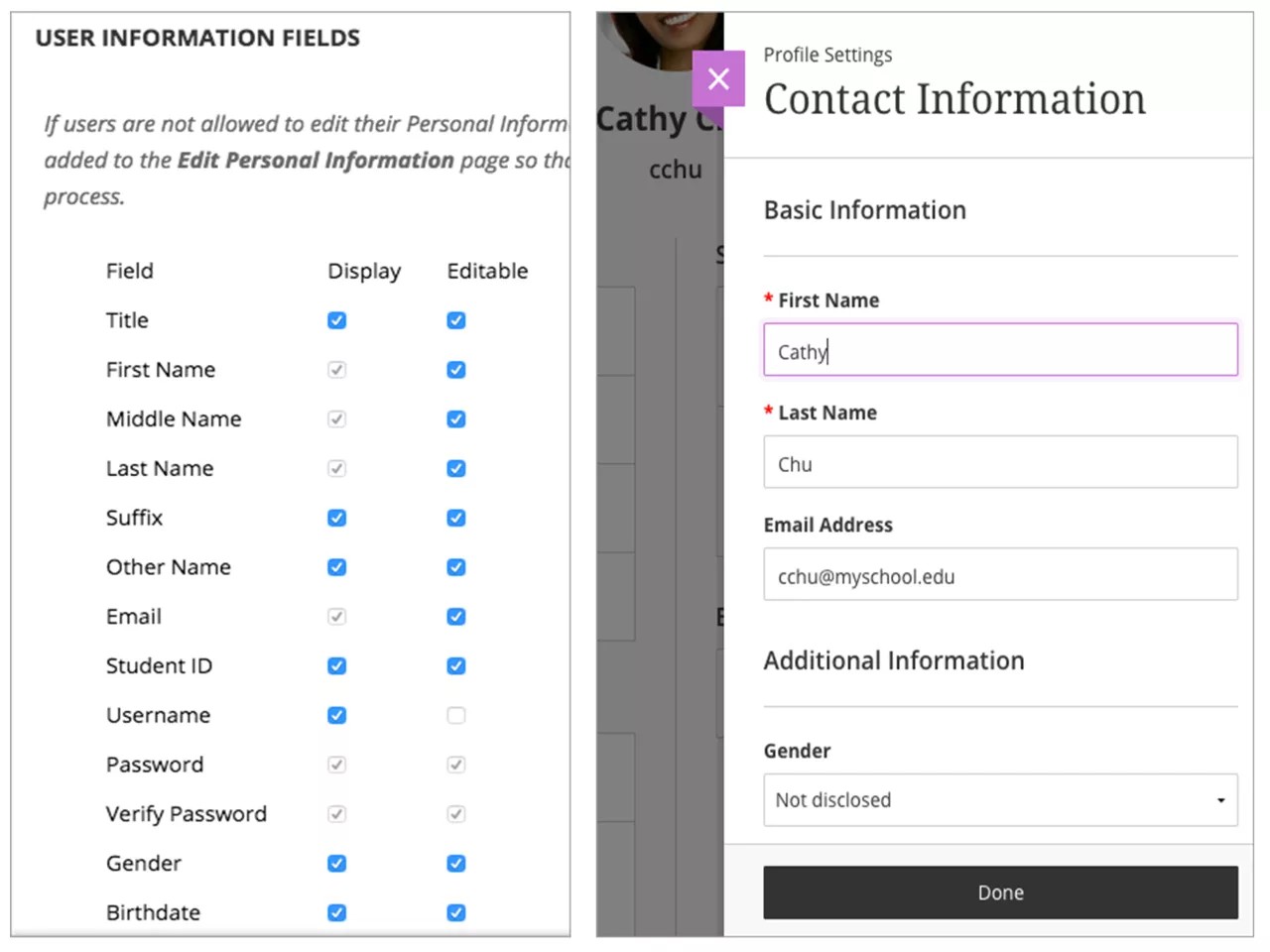
User profile pages are prepopulated with some information. Users can make some edits, determine who can view their full profiles.
Administrators can determine what appears in the Basic and Additional Information sections of the contact info. Select and clear check boxes in the Admin Panel > Users > Customize User Information.
What do your users see?
Learn more about the Instructor and Student Profile.
Watch a video about editing your profile
The following narrated video provides a visual and auditory representation of some of the information included on this page. For a detailed description of what is portrayed in the video, open the video on Vimeo, navigate to More actions, and select Open transcript.