Achievements in Ultra
Turn on achievements
Instructors use achievements to motivate and reward students in Ultra courses. As an administrator, you can turn on Achievements for Ultra courses, control when students can access the Achievements tab, and choose which roles can view and manage achievements.
On the Administrator Panel, in The Ultra experience is here! module, select Configure.
On the Ultra Experience Management page, go to the Available Features section.
Select Achievements in Ultra to expand it, and then set the Enable Achievements in Ultra toggle to On.
Select Save.
Control visibility of achievements for students
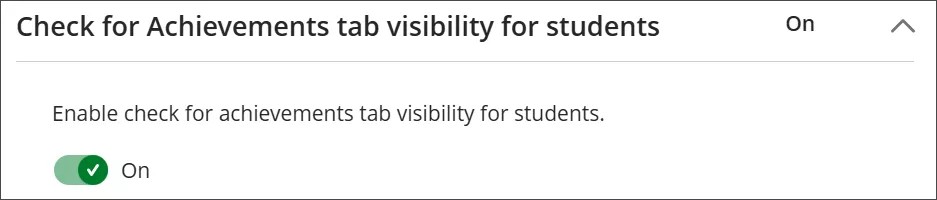
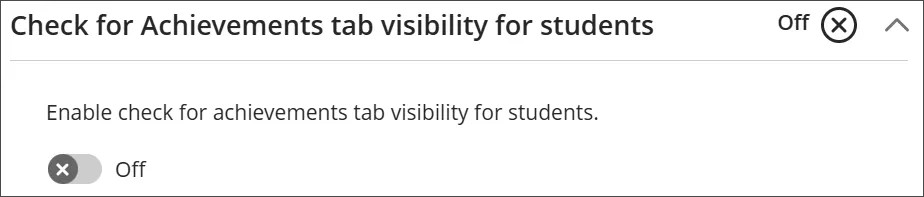
Use the Check for Achievements tab visibility for students setting to choose whether students always see the Achievements tab or see it only after an Achievement is published.
On the Administrator Panel, in The Ultra experience is here! module, select Configure.
On the Ultra Experience Management page, go to the Available Features section.
Select Check for Achievements tab visibility for students to expand it, and then set the toggle:
On: the tab is available to students only when there's at least one published achievement.
Off: the tab is available to students at all times, regardless of whether an achievement has been published.
Select Save.
Restrict management of achievements
You can restrict who can manage achievements. In the Administrator Panel, go to Course Role or System Role configurations.
The permissions include:
Add/Edit Original and Ultra Achievements
View Original and Ultra Achievements