学習モジュール
重要
Your institution's Blackboard Administrator has the option of displaying Learning Modules with or without the Table of Contents side panel feature. The final section of this page has information for users without the Table of Content feature.
学習モジュールにはコンテンツがまとまった形で収められています。学生はモジュール内のコンテンツ項目間をわずかなクリック操作で移動できます。学習モジュールによって、学習中の授業やコンセプトに常に集中できます。コースで教科書を使用する場合、教員はモジュールを使用して、教材の進み具合に合うようにコンテンツを分類することができます。
Tracking Your Progress
注記
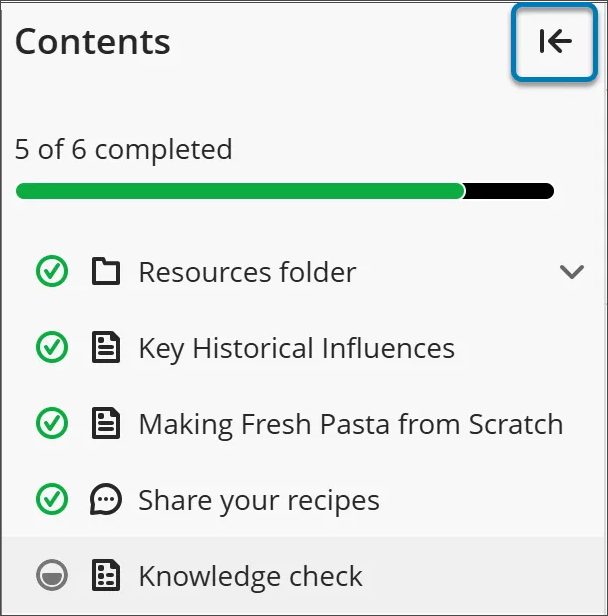
Read this information if your institution uses Learning Modules with the Table of Contents feature.
A Learning Module appears similar to a folder on the Course Content page. Select the title or arrow to open the Learning Module and view its contents.
Learning Modules can include:
Readings and files
Assessments (Assignments and Tests)
Group projects
Discussions and collaboration tools
You can view all visible content within the Learning Module, including due dates.
Forced sequence
If your instructor requires items in the Learning Module to be completed in a specific order, a message appears. Other conditions, such as access dates or prerequisites, may also apply.
If the Learning Module contains folders, you navigate through them the same way as other content. Your instructor may require that you complete content within a folder before moving on.
Assessments in Learning Modules
注記
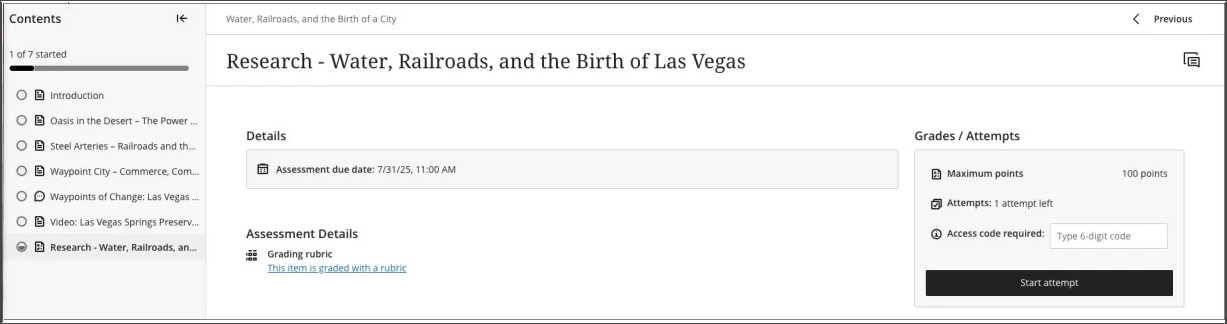
Read this information if your institution uses Learning Modules with the Table of Contents feature.
When you open an assessment from within a Learning Module, it appears in a full-page panel. This layout provides a consistent and focused experience, helping you stay engaged with the material.

Work in a Learning Module
A learning module appears similar to a folder on the Course Content page. Select the title or arrow to open the module and view content.
In addition to content items, files, and assessments, your instructor can add activities and tools that promote interactive learning and collaboration.

For example, you may see assignments or group projects in the module. You may also open collaboration tools such as discussions where you can brainstorm and share your ideas about the topics presented.
You can view all visible content within the module, including due dates. You can open the content in any order. If your instructor requires a content order, a message appears. Other conditions such as an access date are also included.
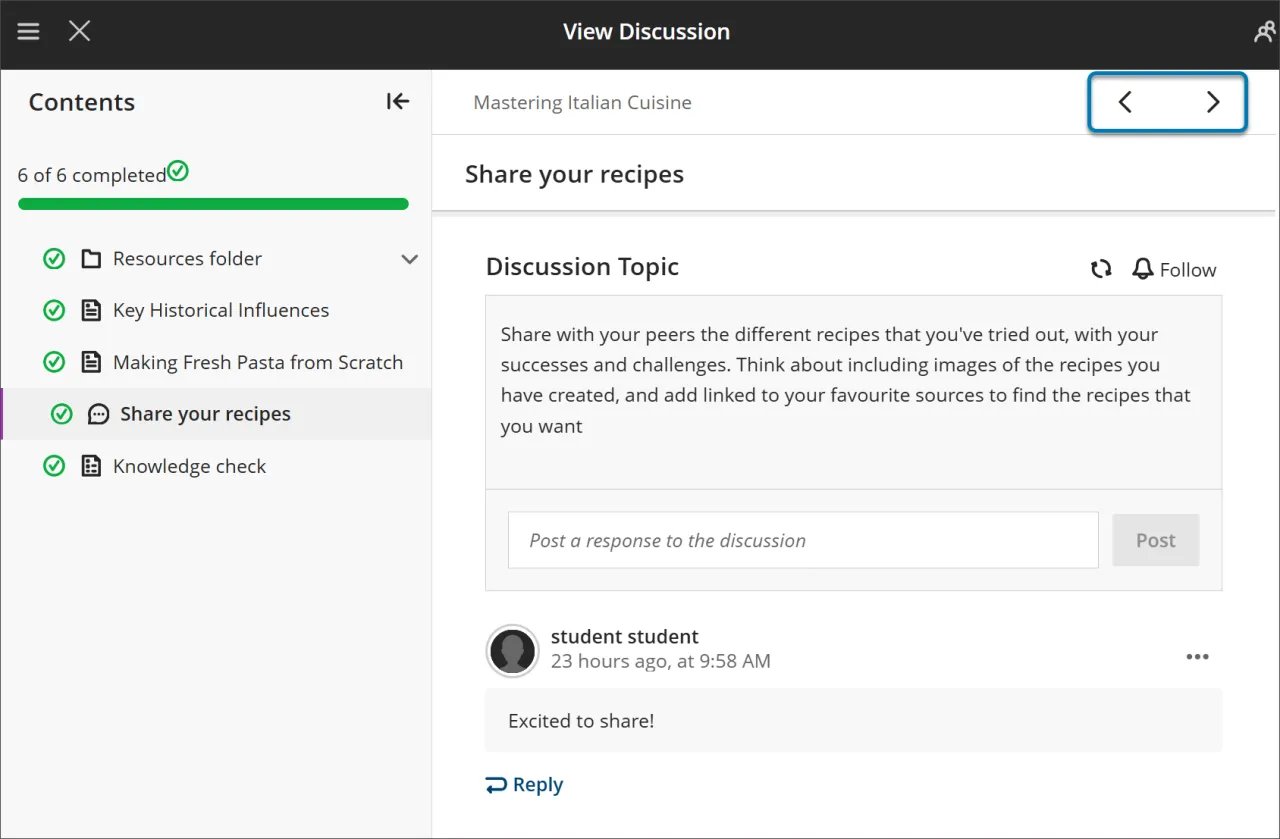
After you open a content item, navigate through the module with the arrows at the top of the browser window.
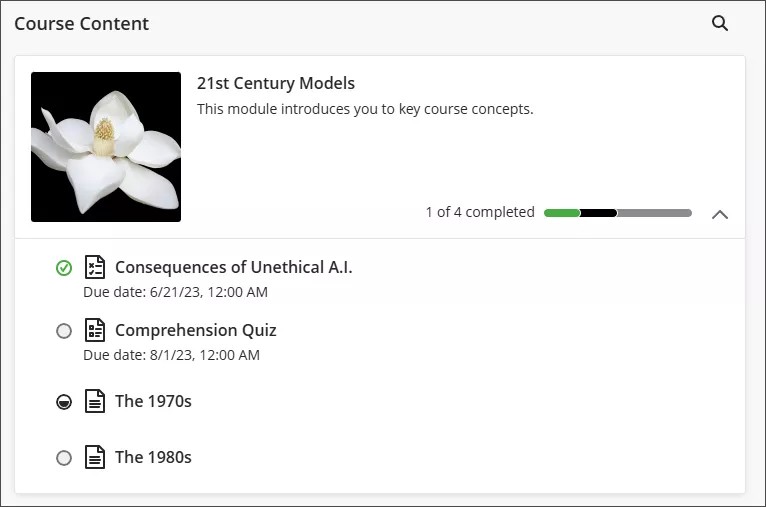
You can exit the module before completion. When you return, icons appear next to the module content if the order is enforced. The icons show which content is complete, in process, and not started, so you can pick up where you left off.
A green circle with a check mark means that content is complete
A partially filled black circle means the content is in process
An empty circle means that you haven't started the content
A lock icon means that you do not meet the conditions to access the content yet
If the module contains folders, you navigate through content in folders the same way as any other content in the module. Remember, your instructor may require that you access and complete content within the folder before you move on.