Módulos de aprendizagem
Note
Esta documentação foi traduzida utilizando tradução automática assistida por IA. As traduções são fornecidas "no estado em que se encontram", sem qualquer garantia quanto à sua precisão. A versão em inglês deste conteúdo é a fonte oficial e de referência.
Os módulos de aprendizagem são pacotes de coleções organizadas de conteúdo. Os módulos permitem aos alunos navegar de um item do conteúdo para outro sem distrações ou cliques a mais. Um módulo de aprendizagem mantém você focado na lição ou no conceito que está aprendendo. Se no seu curso for utilizado um livro didático, seu instrutor poderá utilizar os módulos para agrupar o conteúdo e sincronizar o ritmo dos materiais.
Um Módulo de Aprendizagem se parece com uma pasta na página de Conteúdo do curso. Clique no título ou use a seta para abrir o Módulo de Aprendizagem e ver o conteúdo.
Os módulos de aprendizagem podem incluir:
Leituras e arquivos
Avaliações (tarefas e provas)
Projetos em grupo
Ferramentas de discussão e colaboração
Você pode ler todo o conteúdo visível no Módulo de Aprendizagem, incluindo as datas de entrega.
Navegação por um módulo de aprendizagem
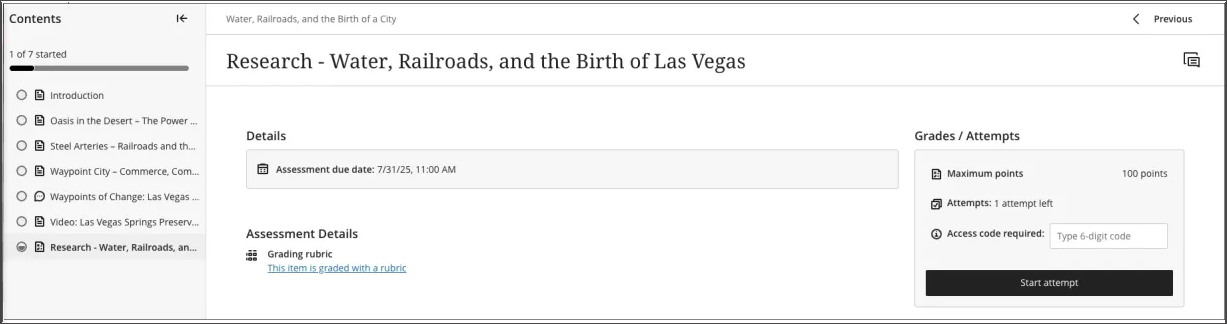
Quando você abre um Módulo de Aprendizagem, um índice retrátil é exibido no painel lateral da tela. Esse painel mostra todos os itens de conteúdo no Módulo de Aprendizagem e ajuda você a entender rapidamente o escopo e a organização do conteúdo.
Clique em qualquer item no painel do índice para abri-lo diretamente (a menos que seu instrutor tenha determinado uma sequência específica).
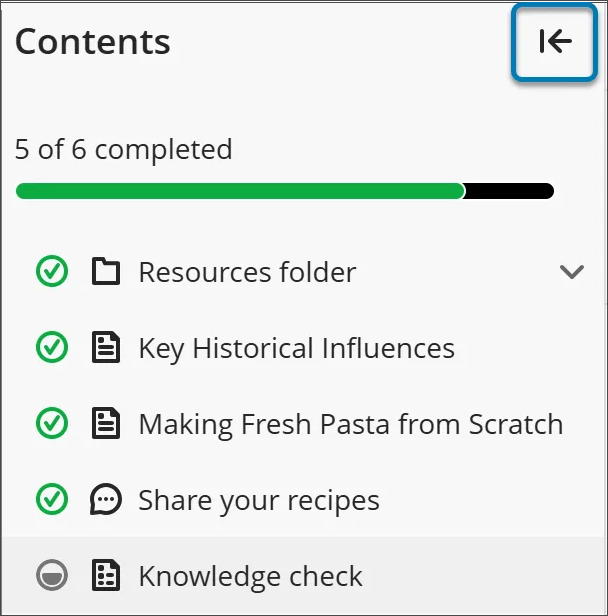
Se você quiser ocultar o índice, clique na seta no canto superior do índice.
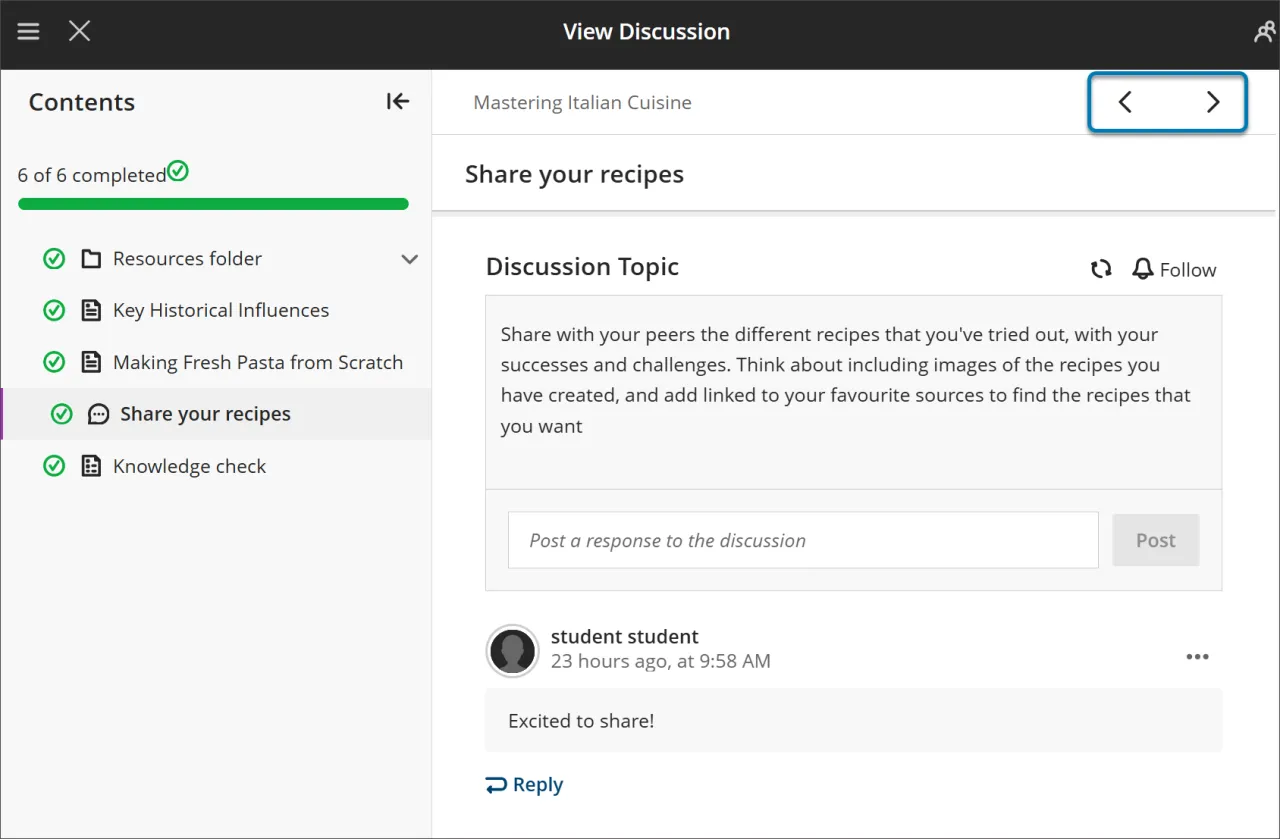
Use os botões Próximo e Anterior no canto superior direito para avançar pelo conteúdo em ordem. Se o seu instrutor tiver ativado a sequência forçada, você vai notar que o próximo item estará bloqueado.
Será preciso atender a determinadas condições antes que o botão Próximo e o próximo item no menu do índice fiquem disponíveis. Você ainda poderá revisitar qualquer item desbloqueado anteriormente.
Sequência forçada
Se seu instrutor exigir que os itens do Módulo de Aprendizagem sejam concluídos em uma ordem específica, uma mensagem será exibida. Outras condições, como datas de acesso ou pré-requisitos, também podem se aplicar.
Se o Módulo de Aprendizagem contiver pastas, você navegará por elas da mesma forma que o faz em outros conteúdos. Seu instrutor pode exigir que você compete o conteúdo em uma pasta antes de prosseguir.
Acompanhamento do seu progresso
Você pode sair de um Módulo de Aprendizagem antes de concluí-lo. Quando você voltar, ícones serão exibidos ao lado do conteúdo para mostrar seu progresso, para que você possa continuar de onde parou.

Há quatro tipos de ícones de progresso:
Um círculo verde com uma marca de seleção significa que o conteúdo está concluído.
Um círculo cinza parcialmente preenchido indica que o conteúdo está em andamento.
Um círculo vazio significa que você ainda não começou a ler o conteúdo.
Um ícone de cadeado significa que você ainda não atende às condições para acessar o conteúdo.
Avaliações em Módulos de Aprendizagem
Quando você abre a avaliação de em um Módulo de Aprendizagem, ela será exibida em um painel de página inteira. Esse layout proporciona uma experiência consistente e focada, que ajuda você a se manter envolvido com o material.