Reorder Outcomes Your Way, Plus Keyboard Accessibility Improvements
Put your outcomes in the order that makes sense for your institution, using whatever method works best for you. You might follow your program structure, put priority outcomes first, or match your accreditation reporting.
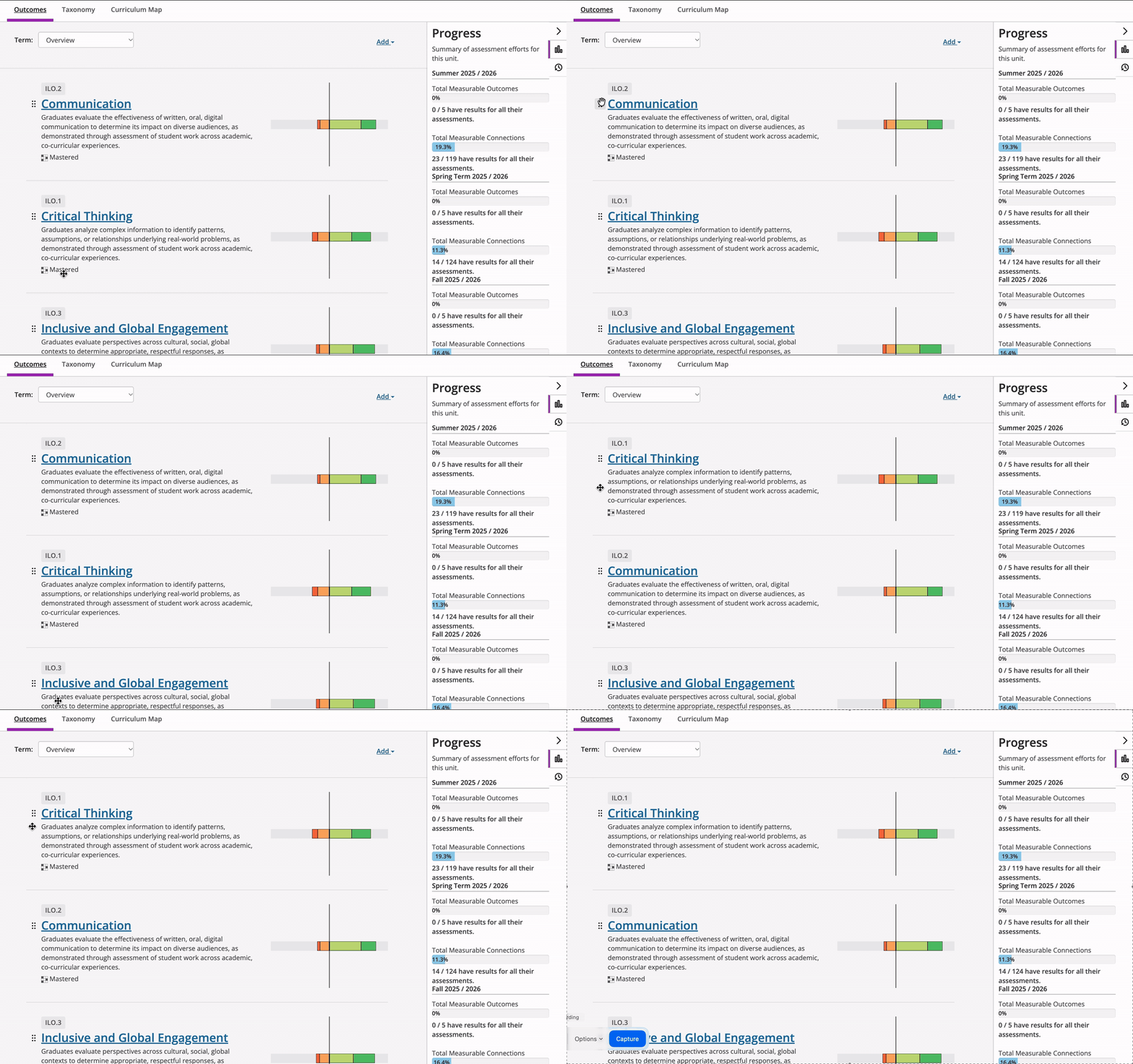
Did you know you can reorder outcomes without dragging?
Drag-and-drop needs a mouse and a steady hand, which can make it hard or impossible for keyboard and screen reader users. The handle next to each outcome gives you another way: select it and choose Move up, Move down, Move to top, or Move to bottom. Each move takes one deliberate step, so you know exactly where an outcome lands. Screen readers announce each option by name, and you can do all of it without a mouse.
Now the Add menu works the same way.
When you open Add to copy, create, or import learning outcomes, you can use the Up and Down arrow keys to move between options (they wrap around at either end), Home and End to jump to the first or last option, and Esc to close the menu and return to the Add button.
Additional keyboard accessibility improvements:
The page stays put. Arrow keys move through the menu and no longer scroll the page.
The menu closes when you move on. When you tab past the menu, it closes so it isn't left open on screen.
While the menu is open, the Add button keeps its focus highlight, so you always know which menu you are in.
Why it matters: One consistent keyboard pattern across the outcome list lets every user add and organize outcomes quickly and confidently. These updates also strengthen keyboard accessibility in line with WCAG 2.1.1.