Institutional Privacy Notice Link
Overview
Your institution can add a link to its own privacy notice inside Outcomes. Once configured, the link appears in the product footer for everyone signed in to Outcomes, using wording your institution chooses.
Institutions are responsible for telling their users how personal information is collected, used, shared, and retained. This setting gives you a direct, in-product way to point users to that information.
Add or update your privacy notice link
This configuration can only be completed individuals with the Site Admin role.
Go to Settings > General.
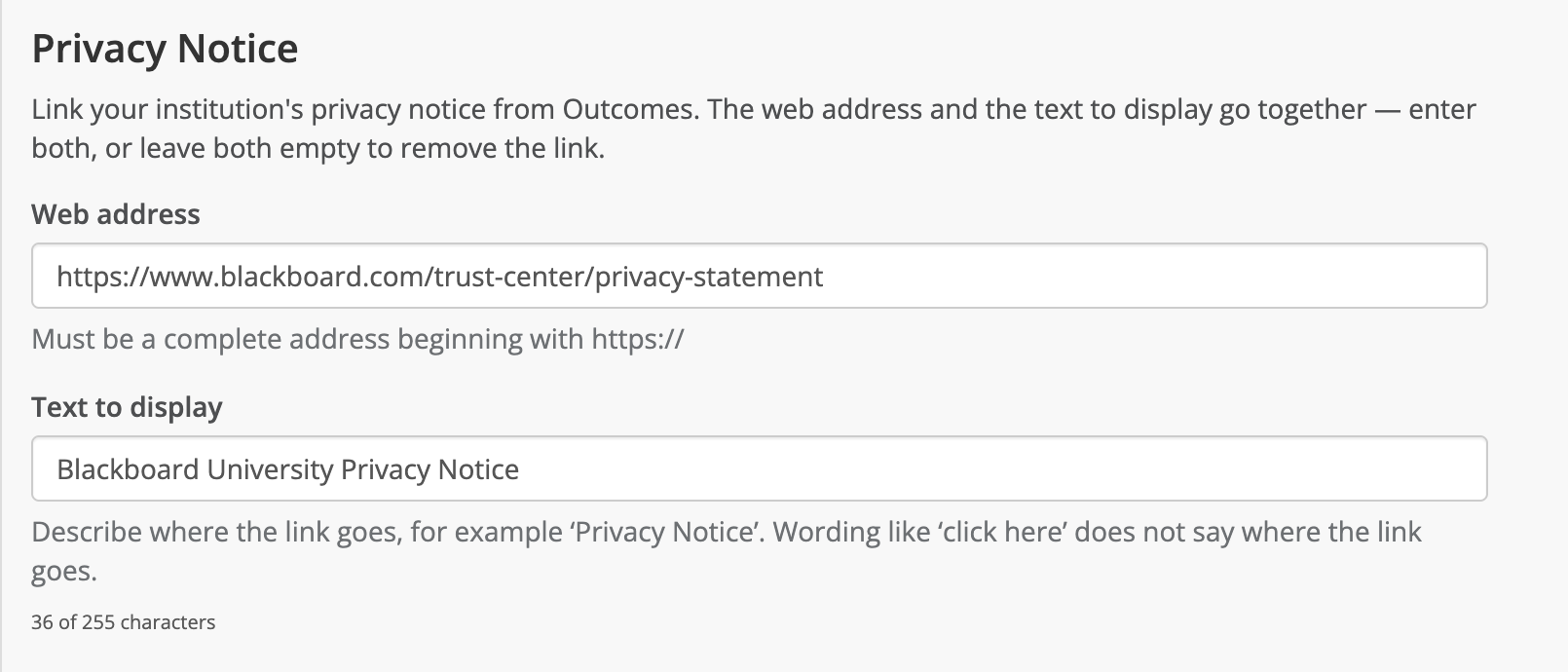
Find the Privacy Notice section.
In Web address, enter the full address of your institution’s privacy notice.
The address must start with https://. Addresses starting with http:// are rejected — if your notice is currently only served over an insecure connection, you’ll need to move it to https before you can enter it here.
In Text to display, enter the text users will see and select as the link.
Describe where the link goes. Avoid generic wording like “click here,” which doesn’t tell someone using a screen reader, or anyone else, what they’re about to open.
A character counter appears as you type. It’s guidance, not a hard limit: it starts nudging you toward shorter wording around 60 characters, but the field accepts up to 255.
Save your changes.
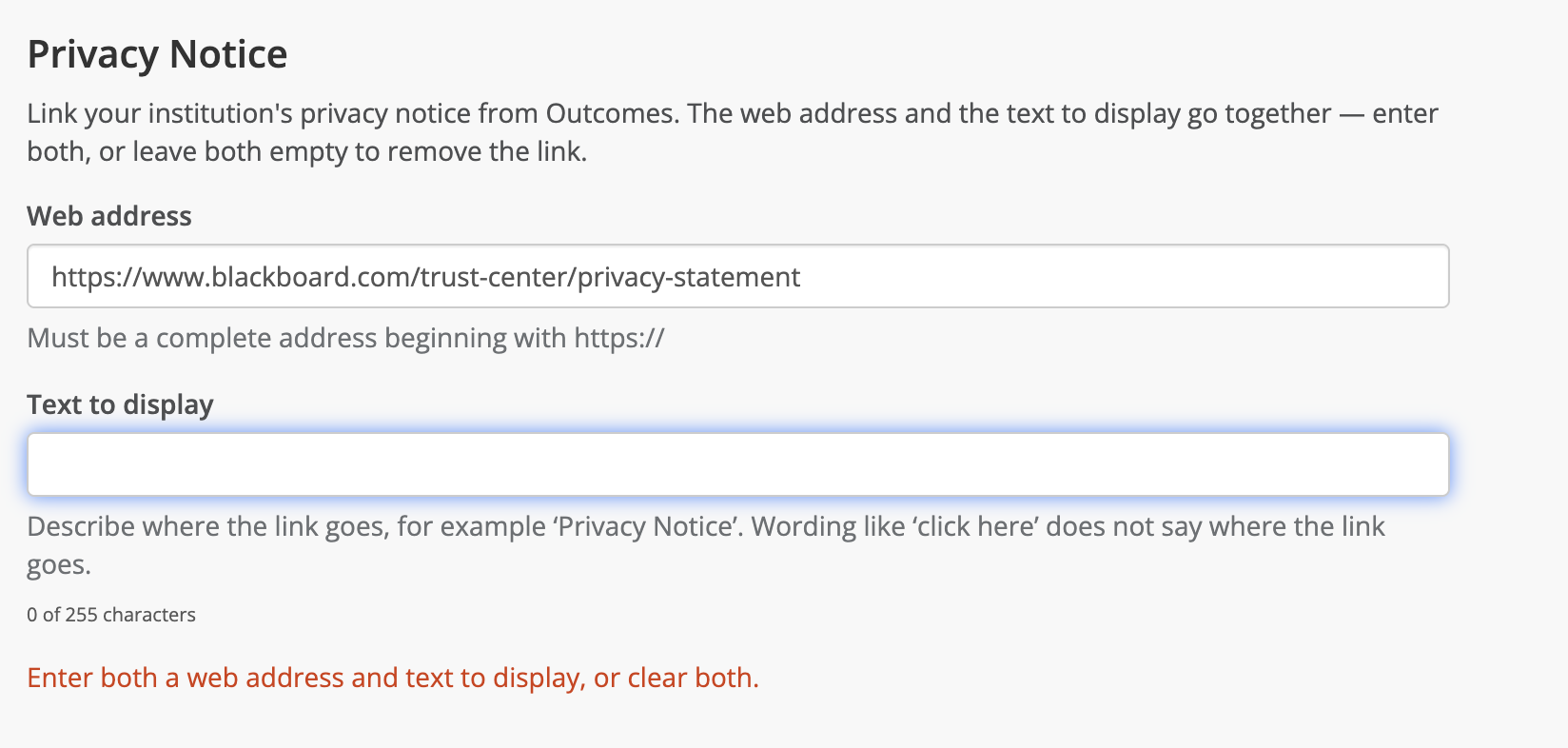
Both fields are required together. If you fill in only one and try to save, the change is rejected, preventing a half-configured link from ever reaching users.
Remove a configured privacy notice
Go to Settings > General > Privacy Notice.
Clear both the Web address and Text to display fields.
Save.
Clearing only one field is rejected, for the same reason a half-configured link is rejected when adding one.
What your users see
Once both fields are configured, the link appears in the product footer for everyone signed in to Outcomes, using the exact wording you entered.
Selecting the link opens your privacy notice in a new browser tab, so users don’t lose their place in Outcomes.
The link appears at every permission level, down to Viewer.
If nothing is configured, the footer looks exactly as it always has. No link, placeholder, or blank space appears in its place.

Verifying your change
Check the link from outside of Settings. Open Outcomes as a signed-in user and look for the link in the footer. The Privacy Notice fields you just saved live in the Settings application, but the resulting link is rendered in the footer.