Creating Assigned Connections
There are two types of connections: assigned and related. The process for creation is slightly different for each one.
Note
If you are assigning learning outcomes to a unit through an Academic Program, there is a modified connections process. Refer to Connections in Academic Programs for more information.
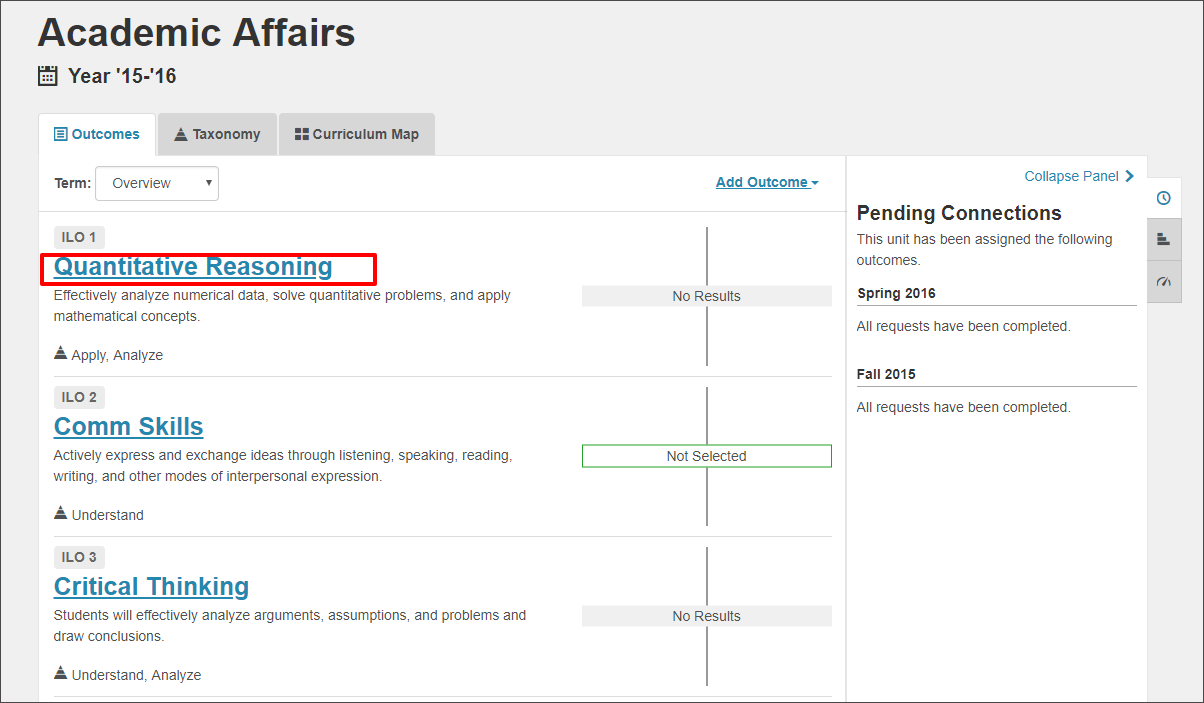
Navigate to the appropriate organizational unit or course, then select the outcome that you want to measure.
In this example, I am going to measure ILO 1 Quantitative Reasoning for Academic Affairs.
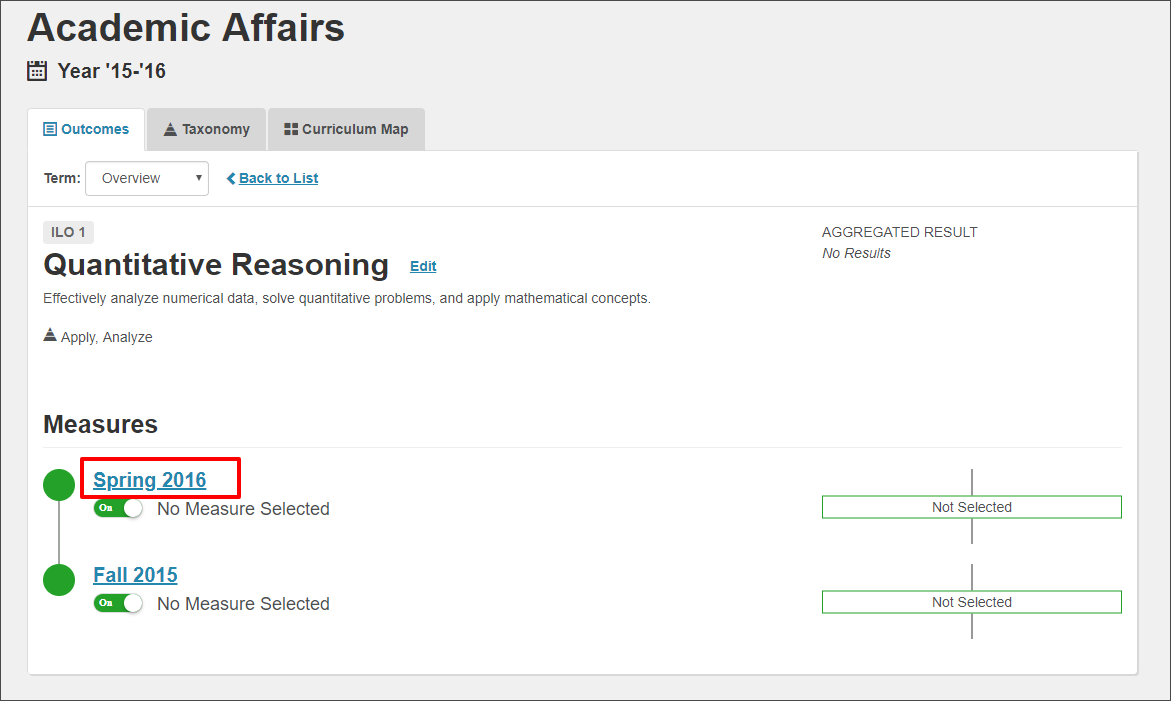
Select the appropriate term in which you want to conduct the measurement. You can also do this in the term dropdown menu.
In this example, I am measuring ILO 1 in the Spring 2016 term.
Select the Connection option.
Select Assign assessment to other unit(s).
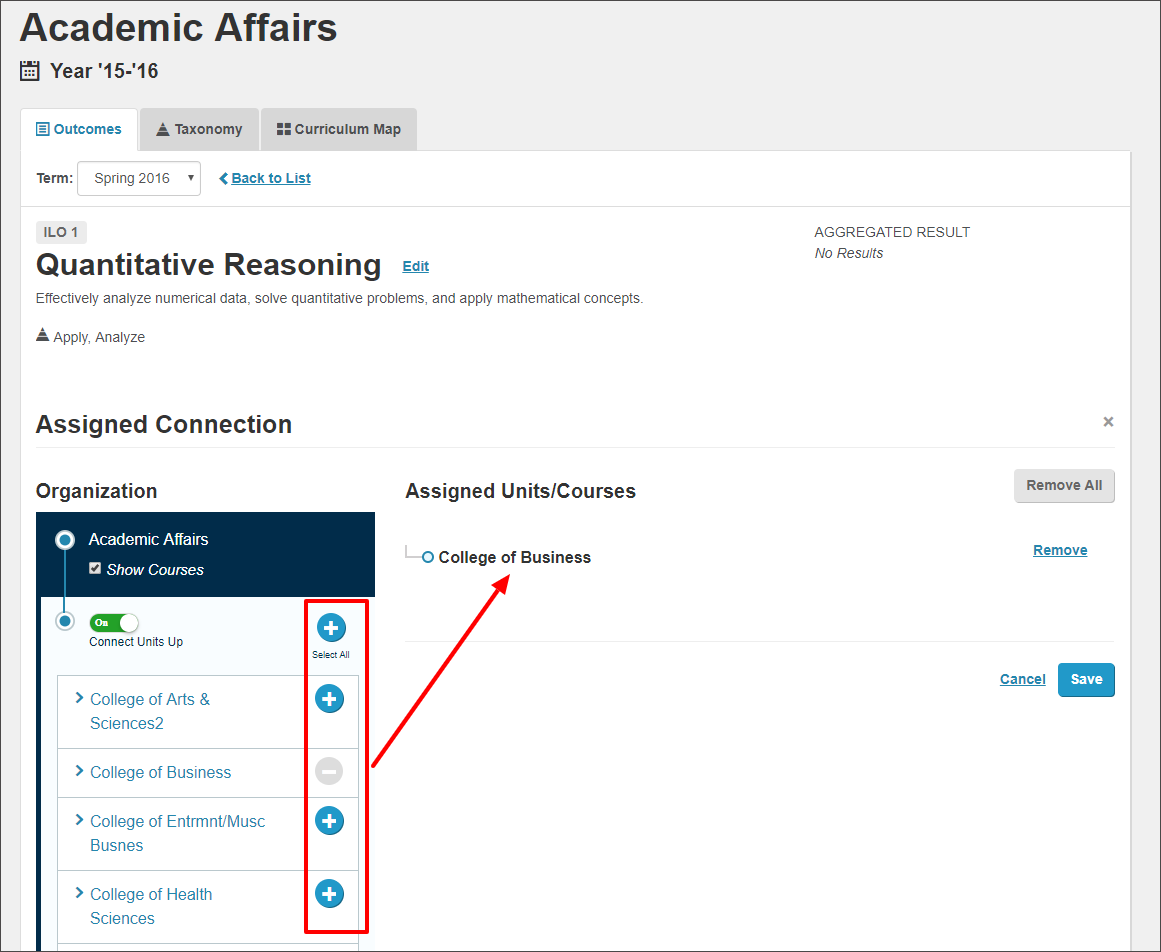
To assign this outcome to the appropriate organizational unit(s), select the plus sign next to the organizational unit(s) in the Connections window.
In this example, I created an assigned connection for ILO 1 from Academic Affairs to the College of Business.
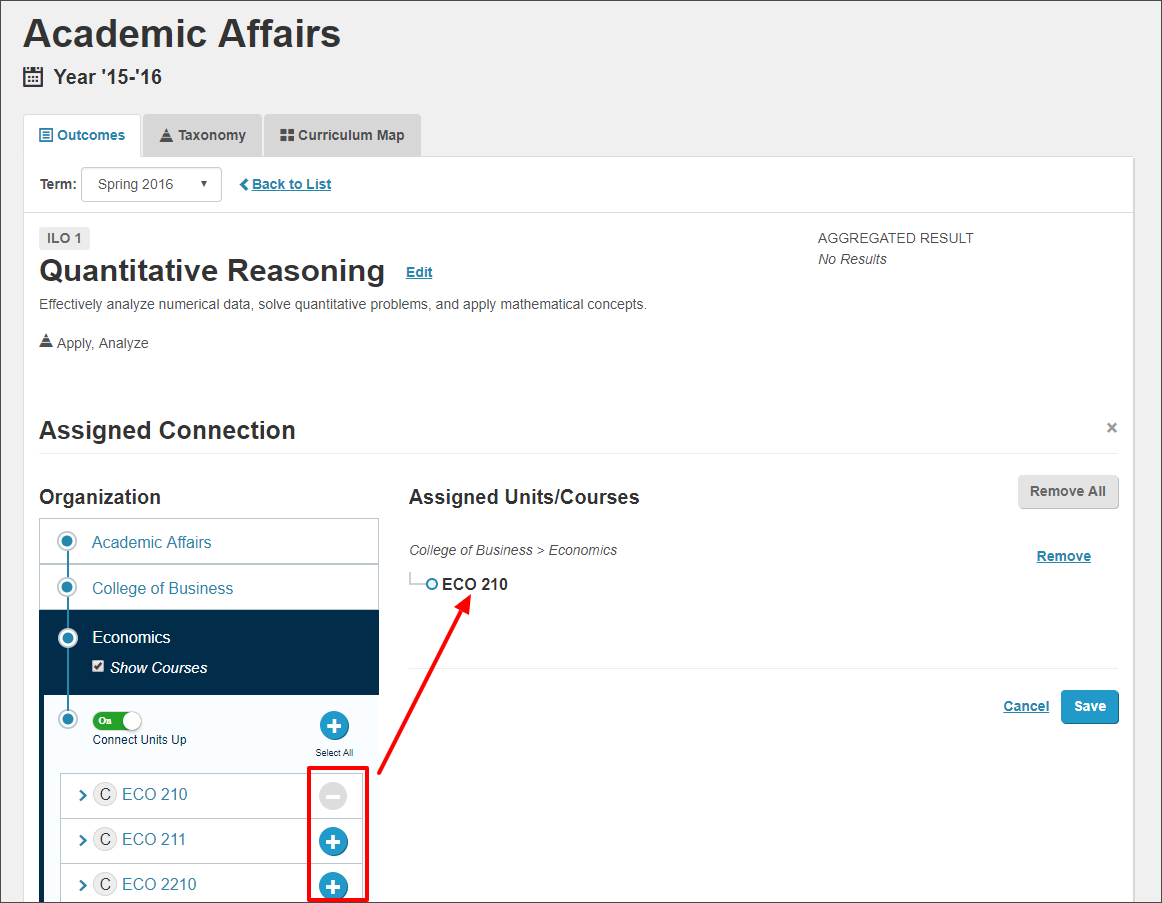
You can assign the outcome to any units or courses nested below the outcome's organizational unit. In the Connections Window, use the small arrow to the left of a unit's name to expand that unit and assign the outcome further down the organizational chart.
In this example, I assigned the outcome down through the College of Business, through Economics, to the course Economics 210.
Review your selected units and assignment chain.
Selected units appear in the Assigned Units/Courses list on the right of the Connections window. The assignment chain shows the path along which you have assigned the outcome.
After you assigned the outcome down to the proper level where you want to conduct the assessment, select Save to save the assignment chain.
Conduct the Assessment of an Assigned Outcome
Go to the organizational unit, course, or section that will be conducting the assessment.
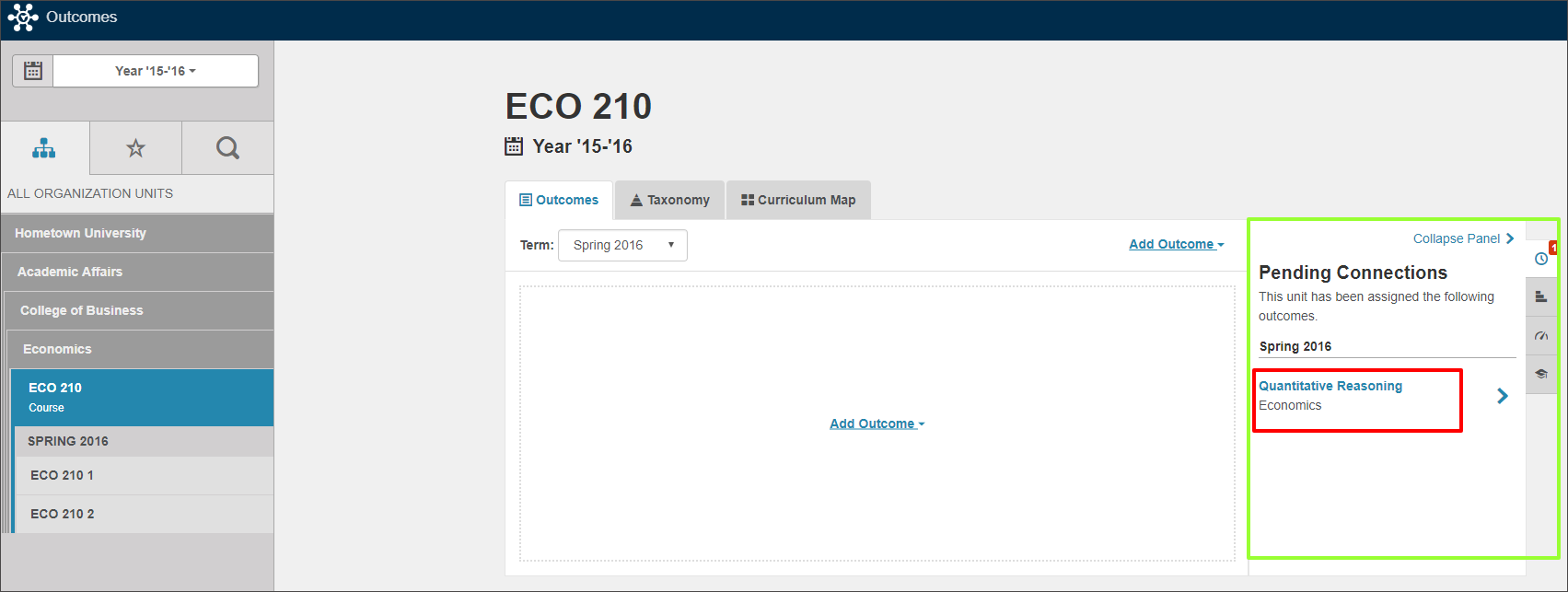
Select the learning outcome from the Pending Connections tab in the Context panel.
In this example, I have navigated to the course Economics 210 in the organizational chart. I have identified the learning outcome Quantitative Reasoning in Pending Connections tab on the right of the page. I will select the outcome.
Under How will assessment be performed?, select the Assessment option to move to the assessment template. For more information on this, refer to Adding an Assessment to an Outcome.