Assign and Remove Permissions
Permissions (outside of what Instructor assignments automates) are assigned to individuals from the Settings page.
Select Settings in the bottom-left corner of the homepage.
On the Settings page, select Permissions.
Type the individual’s username or email into the search field.
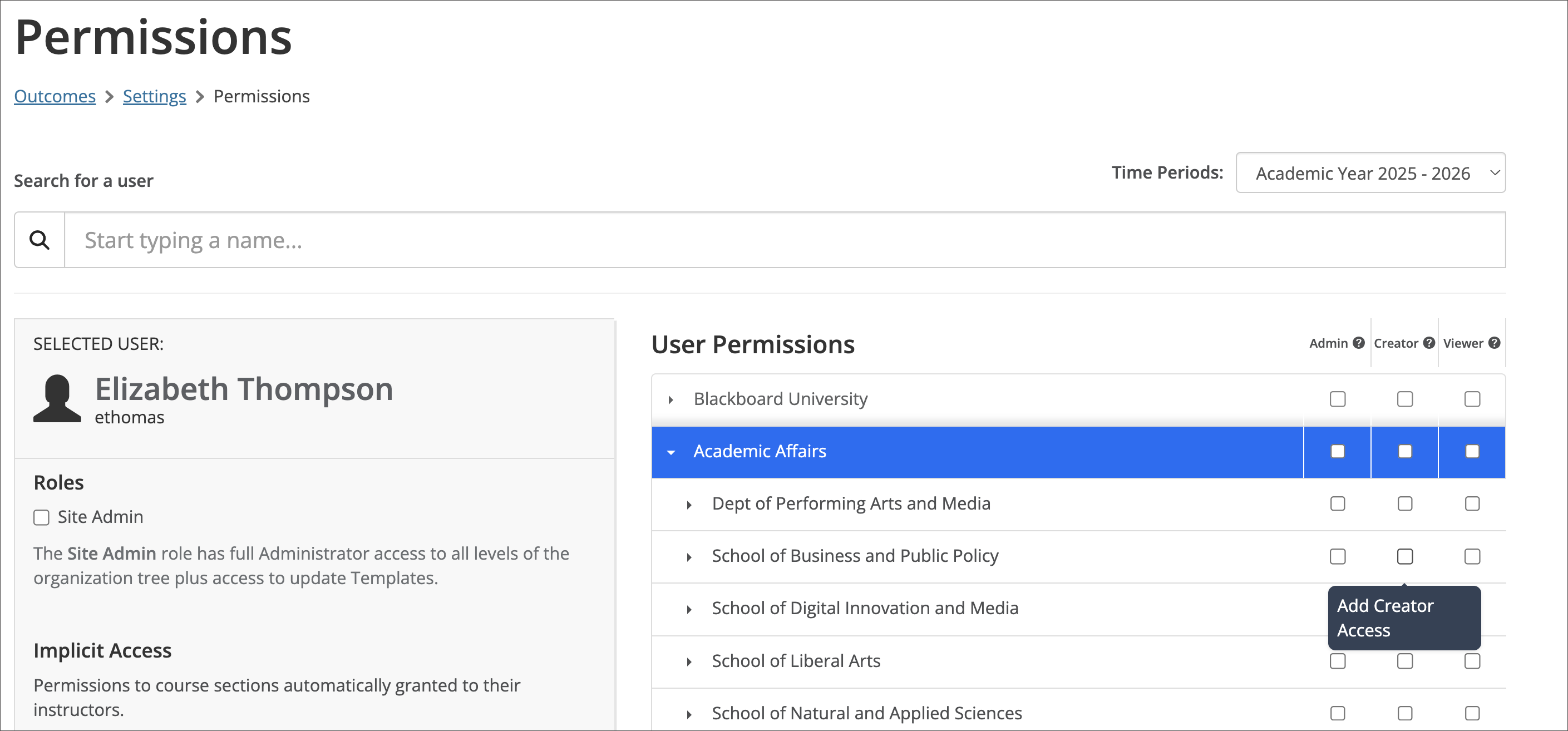
Select the correct user from the list of matching results that appears.
Assign the role. There are two ways to assign a role, depending on which role you are assigning.
Site Administrator: On the Selected User panel, select the Roles tab, then select the Site Administrator box. This role does not require selecting an institutional hierarchy unit. A Site Administrator automatically has access to every unit. The assignment takes effect immediately. There is no separate save or submit step.
Administrator, Creator, or Viewer: On the right side of the page, locate the institutional hierarchy unit you want to assign the person to, then select the box under the desired role (Administrator, Creator, or Viewer) in that unit's row. The selected box is highlighted to confirm the assignment. The assignment takes effect immediately; there is no separate save or submit step.
The Selected User panel also displays Explicit Access, a running list of every role and institutional hierarchy unit currently assigned to that person, so you can review their access at a glance.
Assigning multiple roles to one user
A single user can hold different roles in different institutional hierarchy units. For example, a Dean could be given Administrator access to their own college and Viewer access to another college, so they can act on their own unit while keeping visibility into another. Each assignment appears separately under Explicit Access.
Removing a role from a user
For Administrator, Creator, or Viewer: On the right side of the page, locate the institutional hierarchy unit the person is assigned to, then clear the box under the role you want to remove in that unit's row. The box is no longer highlighted, and the assignment is removed from Explicit Access.
For Site Administrator: On the Selected User panel, select the Roles tab, then clear the Site Administrator box.
To remove a person's access entirely, clear every role listed under Explicit Access. The removal takes effect immediately; there is no separate save or submit step.