June 2026 Release Notes (4000.17)
Release information
Tip
For maintenance release build numbers and bug fixes, visit Maintenance Releases.
For release status and delays, visit Blackboard Status.
Instructional Design
Add Folders and Learning Modules to the Learning Object Repository
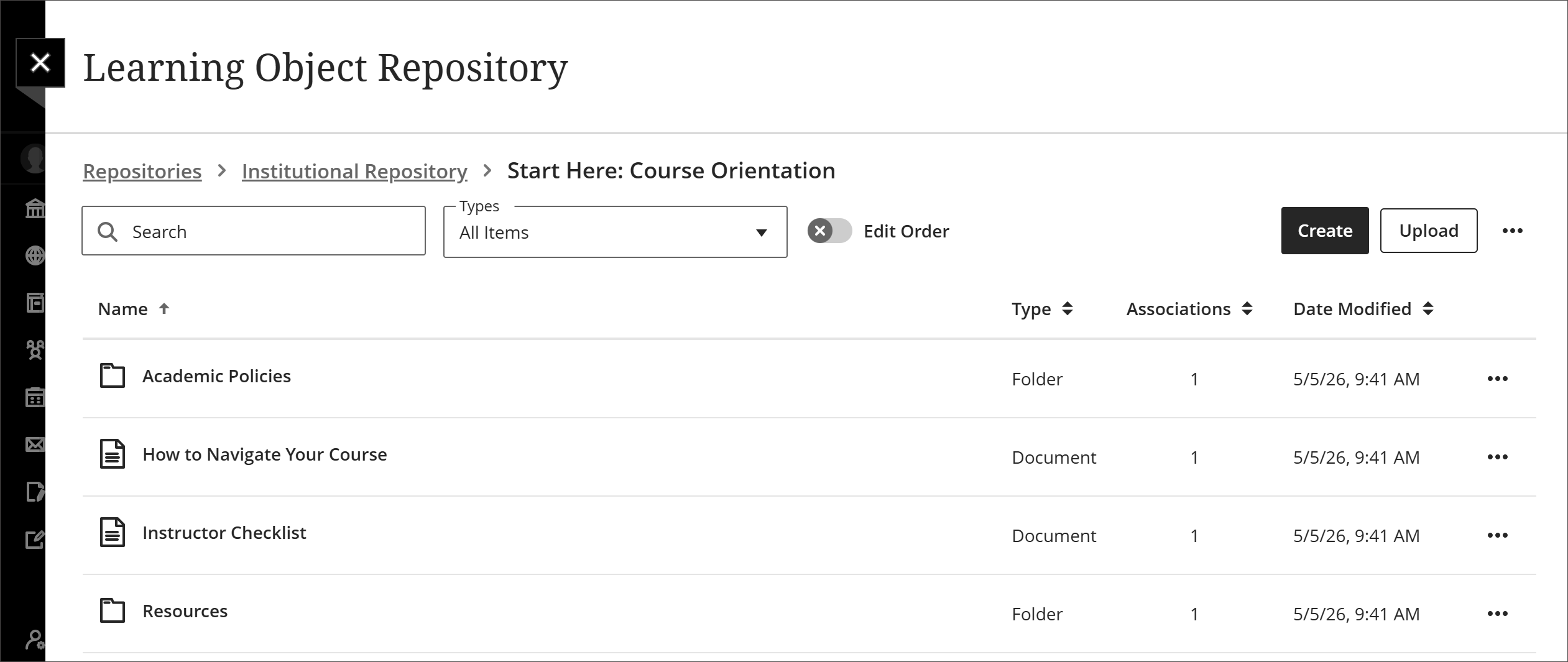
The Learning Object Repository (LOR) now supports Folders and Learning Modules. These objects give institutions a consistent way to distribute related content across courses and organizations. Administrators can move objects between Folders and Learning Modules in the LOR. When an administrator updates a Folder or Learning Module in the LOR, those changes sync automatically to all courses and organizations where the item is in use. Syncing applies to all associated objects, even while items are active, unless the course is marked complete or its end date has passed. Institutions can add, update, or remove content in real time, eliminating repetitive updates and reducing the chance of errors.
To protect content integrity, synced Folders and Learning Modules are read-only in courses. The following attributes are locked:
Title
Description
Thumbnail
Alternative text or decorative image designation
Student visibility
Image 1: The LOR management view lists a learning module in the available objects.
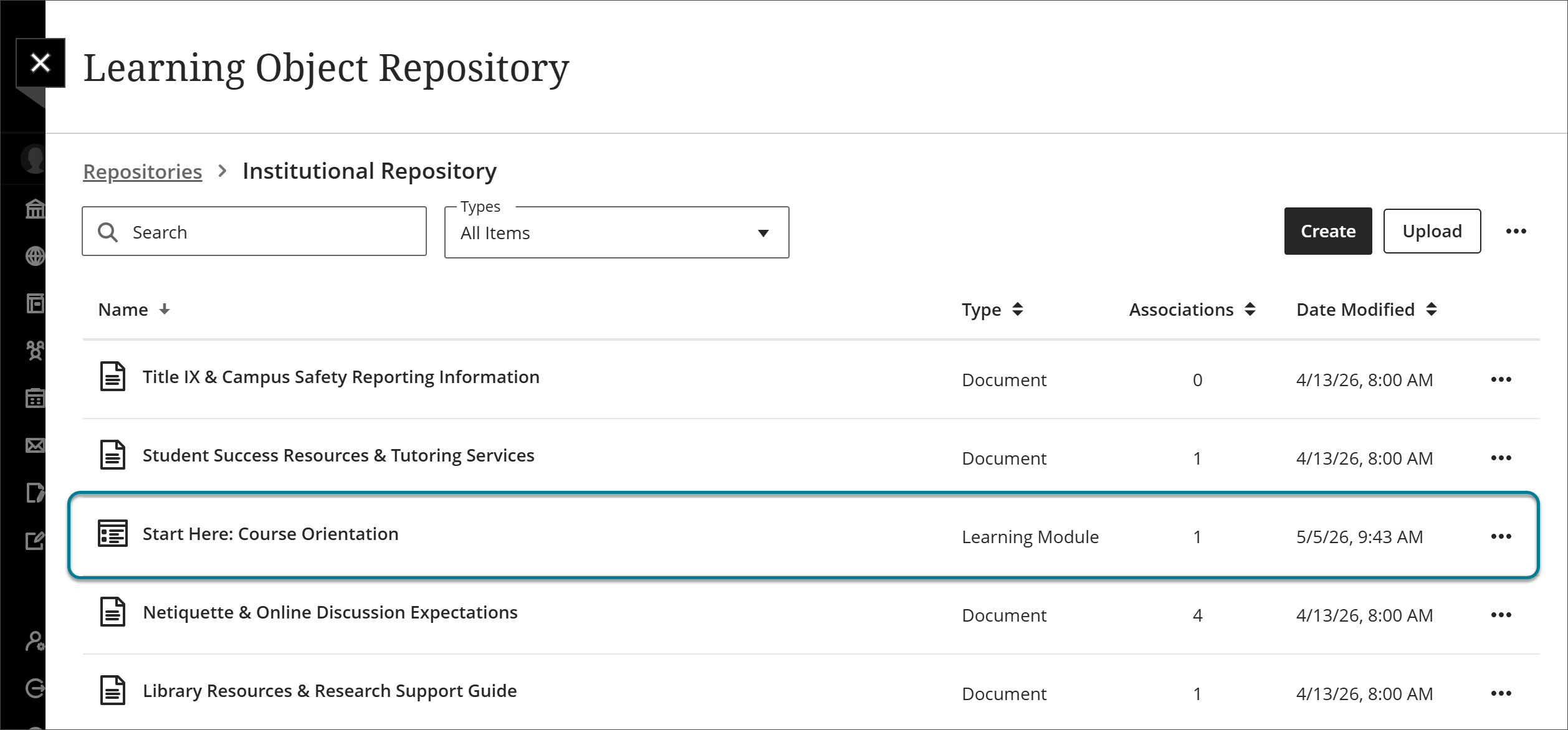
Image 2: The LOR management view lists the contents of a learning module, including documents and folders.
Administrators
Availability: Available to all Ultra courses.
Activation: None needed.
Configuration: None needed.
Choose what happens to course content when deleting an object from the Learning Object Repository
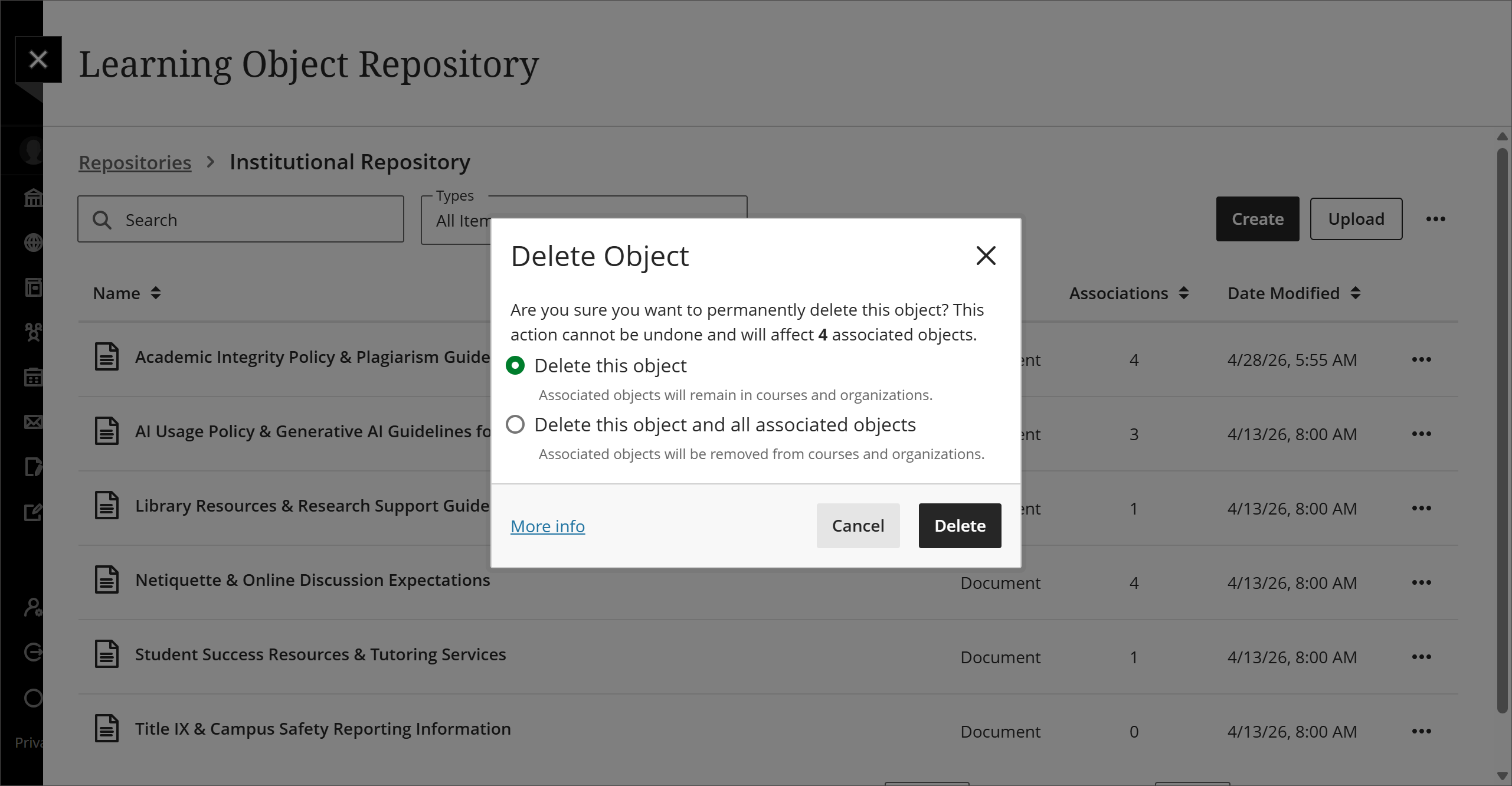
Administrators can now choose between two options when deleting an object from the Learning Object Repository (LOR): Delete this object and Delete this object and all associated objects. These options give administrators precise control over content removal, reducing manual effort and helping maintain course integrity across the system.
When an administrator chooses Delete this object, the object is deleted from the LOR but remains in all associated courses and organizations. The object loses its link to the LOR and becomes fully editable in the associated course or organization.
When an administrator chooses Delete this object and all associated objects, the object is deleted from the LOR and from all active course and organizations it is associated with. Objects are not deleted from courses that have been marked complete or whose end date has passed.
Image 1: Administrators can choose to either Delete this object or Delete this object and all associated objects.
Administrators
Availability: Available to all Ultra courses.
Activation: None needed.
Configuration: None needed.
Sort objects by type in the Learning Object Repository
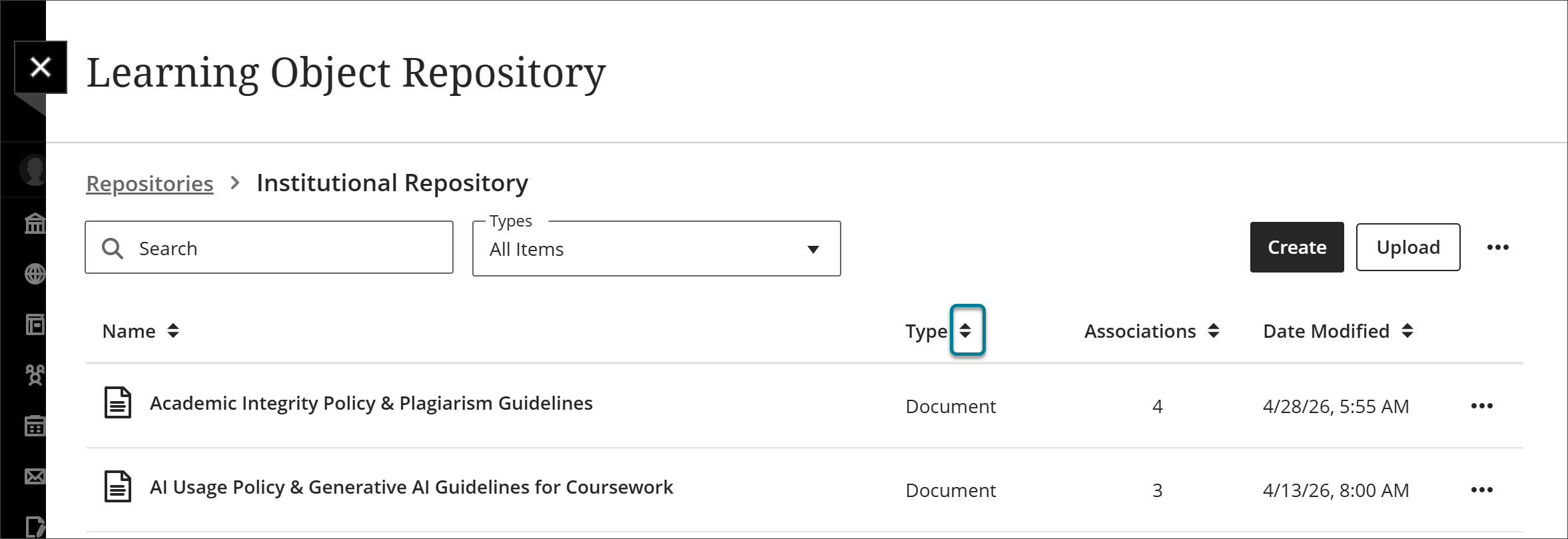
Administrators can now sort items in the Learning Object Repository (LOR) by type. As the volume and variety of content managed by institutions in the LOR grows, sorting by type helps administrators locate and manage objects more efficiently, saving time.
Image 1: In the LOR management view, the arrows next to the Type column sort items by type.
Administrators
Availability: Available to all Ultra courses.
Activation: None needed.
Configuration: None needed.
Assignments and Tests
Provide answer-level feedback for multiple choice and multiple answer questions
Instructors can now add feedback for each answer option in multiple choice and multiple answer questions. This helps students understand why each choice is correct or incorrect after an attempt is submitted.
Instructors
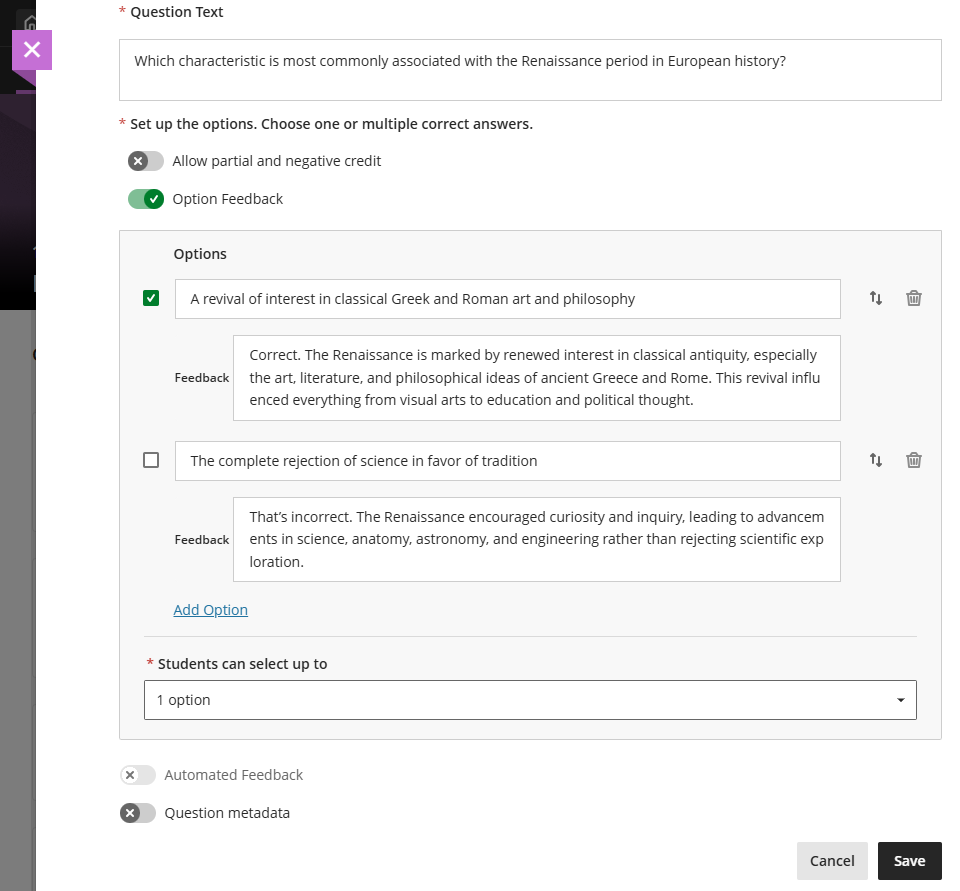
When creating or editing a multiple choice or multiple answer question, instructors can turn on Option Feedback, which prompts Feedback textboxes to appear beneath each answer option. Instructors can enter the answer options and feedback for any of the options.
Note
At this time, option-level feedback is displayed to students for all answer options. In a future release, students will only see option level feedback for the answers they select.
Image 1: Instructors can enter answer-level feedback.
Students
After submitting an attempt, students receive feedback for all answer options. This helps students understand their performance at a more detailed level and supports learning from incorrect choices.
To view answer-level feedback, select the caret to expand it.
Administrators
Availability: Available to all Ultra courses.
Activation: None needed.
Configuration: None needed.
Lock answer options in a fixed position for multiple choice and multiple answer questions
Instructors can now lock specific answer options in a fixed position so they remain in place when other options are randomized. This is useful for answer choices such as "None of the above" or "All of the above" that should always appear at the end of the list regardless of randomization settings.
Instructors
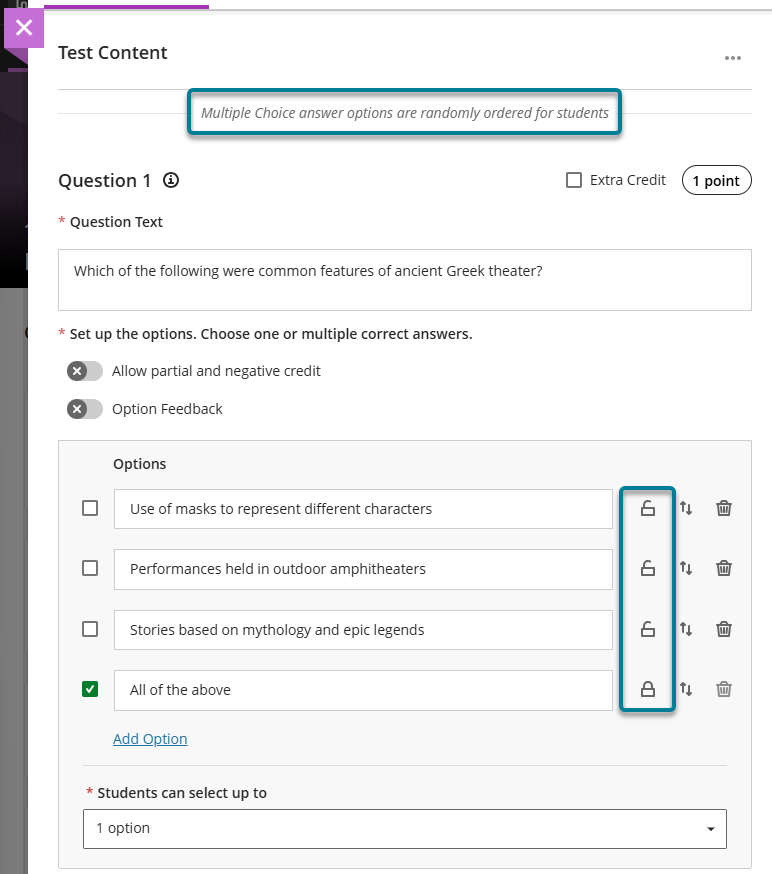
When creating or editing a multiple choice or multiple answer question, instructors can designate specific answer options as locked. To lock an option in place, select Randomize answers in the Assessment Settings, then select the lock icon next to the answer option. Locked options remain in their set position during randomization while all other options shuffle as expected.
Instructors can remove a lock any time while editing the question before students have submitted attempts. Once students have submitted attempts, locking and randomization settings are fixed and cannot be changed to ensure fairness.
Image 1: Instructors can select the lock icon next to the answer option to lock that option in place. To trigger the lock icons, select Randomize answers in the Assessment Settings.
Administrators
Availability: Available to all Ultra courses.
Activation: None needed.
Configuration: None needed.
Improved rubric usability when adding or adjusting grades
To improve rubric usability, we have removed the locking mechanism that previously prevented instructors from using the rubric if an override grade or automatic zero was present.
Instructors can now also adjust the rubric calculated grade for individual attempts. Grades entered in the rubric grade pill update the attempt grade immediately. To improve consistency with the Flexible Grading page, we updated the rubric score box label from “Submission” to “Rubric Score”. To improve clarity, we also removed the sentence “You can only override the final grade for assessments with multiple attempts. Individual submissions are scored with a rubric.” from underneath the rubric score box.
For discussions and journals, instructors can now edit the rubric grade pill directly to adjust the rubric calculated score.
Administrators
Availability: Available to all Ultra courses.
Activation: None needed.
Configuration: None needed.
Enhance stability and usability of commenting tools
We’ve made several improvements to the stability and usability of commenting tools in Bb Annotate. These fixes address issues with formatting, editing behavior, and overall interaction consistency to provide a more reliable grading and feedback experience.
Note
These fixes will be released on the following dates:
Asia Pacific: June 9, 2026
Europe, Africa, and the Middle East: June 11, 2026
North and South America: June 12, 2026
Instructors
The following issues have been resolved:
Comment formatting and appearance
Selected font size in the comment text box now persists correctly
Text color no longer resets to default after duplicating colored text
Cursor color in the comment text box updates correctly
Text highlighting no longer persists after reverting a comment
Links without “www” are now clickable in comments
Editing behavior and workflow
Comment edits no longer persist after selecting Cancel
The Save button is correctly labeled in the comment edit dialog
Anonymous comments no longer revert to public visibility
Navigation and interaction
Improved keyboard focus behavior during comment editing
Comments can now be deleted successfully from the Annotate thumbnail view
File handling and reliability
The download option now reliably downloads annotated documents
These updates improve consistency across commenting workflows and help instructors provide feedback more efficiently.
Administrator
Availability: Available for all Ultra courses.
Activation: None needed.
Configuration: None needed.
Learner Progression and Personalized Experiences
Track Announcement engagement by student
Instructors can now check which announcements a student has read or not read on the new Announcements tab of the Student Overview page. The Announcements tab complements existing announcement engagement data by adding a student-level view and helps instructors identify students who may have missed important course communications.
Instructors
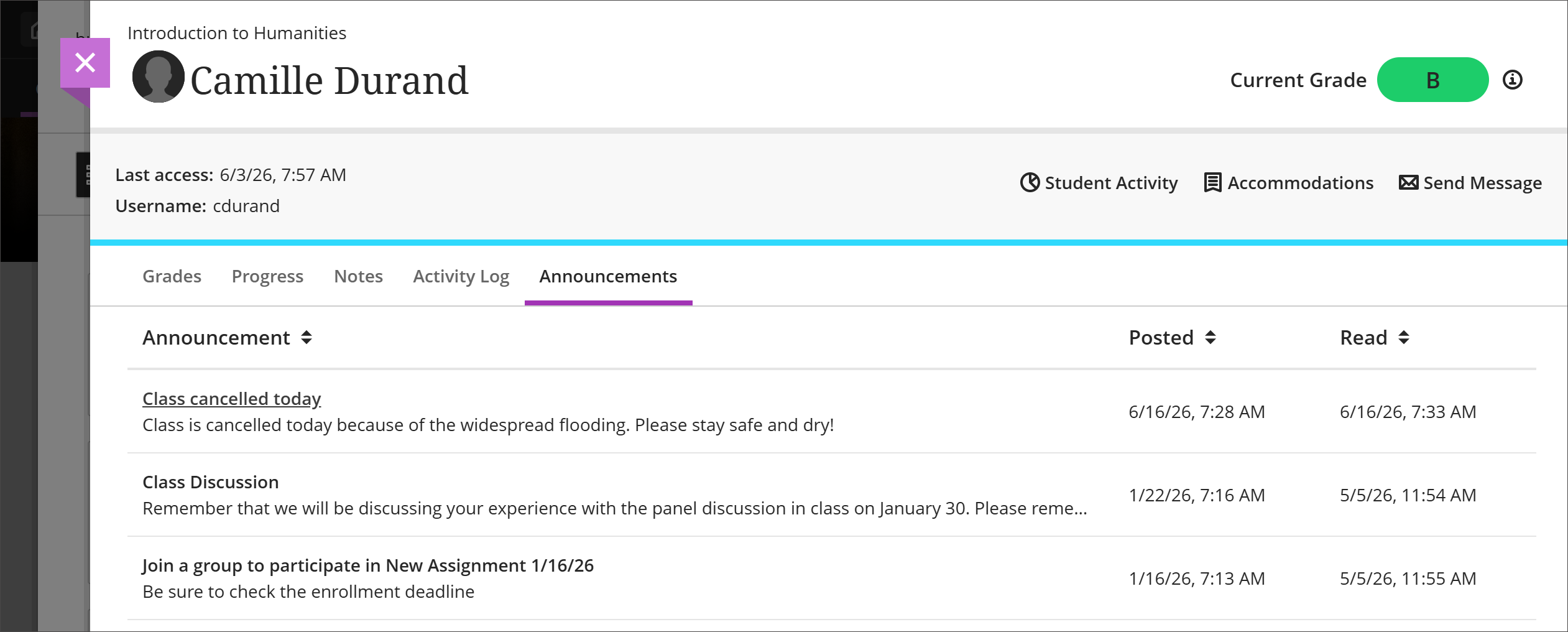
On the Student Overview page, instructors select the Announcements tab for a list of which announcements each student has and has not read.
Image 1: The Announcements tab on the Student Overview page shows when an Announcement was posted and when it was read.
Administrators
Availability: Available to all Ultra courses.
Activation: None needed.
Configuration: None needed.
Trigger Feedback Reminder automations when feedback is posted
The Feedback Reminder automation now more reliably notifies students when instructor feedback is available. Reminder automations trigger when feedback is posted, not only when grades are posted. Students receive notifications when the feedback that supports their learning is actually available.
Instructors
When an instructor creates a new Feedback Reminder automation, Blackboard LMS evaluates existing assignments in the course. It sends reminders for any feedback already posted but not yet checked by the student based on the parameters set by the instructor. This one-time evaluation applies only to feedback posted within the last 30 days. After that, the automation runs on its configured schedule and is triggered when feedback is posted. Reminders are sent once per feedback instance.
Administrators
Availability: Available to all Ultra courses.
Activation: None needed.
Configuration: None needed.
Integrations
Use API for managing course user accommodations
Blackboard now offers public REST API support for managing student accommodations in Ultra courses. Developers can retrieve, create, and update course user accommodations programmatically. This reduces manual effort and improves consistency when supporting students with special requirements.
Previously, accommodations—such as extended time on assessments or time limit exemptions—could only be configured through the Ultra course interface. Instructors and administrators had to manage accommodations manually on a course-by-course basis, even when accommodations were already defined in external systems.
Two new attributes—timeLimitExceptionType and dueDateException—are now part of the existing Course Membership API endpoints. Developers can also use the batch endpoint PUT /public/v1/utilities/batch to apply accommodations across multiple courses at once. This supports scalable, repeatable workflows and helps institutions align accommodation practices with institutional policies or third-party accessibility systems.
Using the updated API endpoints, developers can:
Retrieve existing student accommodations for Ultra courses
Create or update accommodations, including extended time or time limit exemptions
Apply accommodations programmatically across multiple courses
Administrators
Availability: Available for Ultra courses.
Activation: None required.
Configuration: New attributes are available through the public REST API. Each attribute is documented in the Swagger document to support implementation and testing.
Institutional Hierarchy support for Microsoft Education integration
Note
To allow for additional testing and better quality assurance, this feature will be released on 11 June 2026.
The Microsoft Education course-level integration now supports Blackboard's Institutional Hierarchy (IH) tool management. Administrators can control Microsoft Education availability at specific hierarchy nodes—such as campuses, colleges, or departments—directly from the Details & Actions location. This ensures the integration appears only where institutions intend it to be used, supporting licensing, structure, and phased rollout strategies.
This update builds on the previously released Institutional Hierarchy support for Ultra Extension Framework (UEF) course-level integrations, which introduced platform-level availability controls for UEF tools in the Details & Actions menu. Individual integrations must adopt this capability to respond correctly to being turned on or off in Institutional Hierarchy. The Microsoft Education integration now honors these settings.
When administrators disable the Microsoft Education integration for a hierarchy node, it no longer appears in the Details & Actions location for associated courses. When enabled, it becomes available automatically for those courses without additional course-level configuration.
This enhancement applies only to:
The Microsoft Education integration delivered as a UEF course-level tool
Course-context placement in the Details & Actions menu
This enhancement doesn't apply to:
Other UEF locations such as panels, modals, banners, or global tools
Other LTI placements such as Course Tools, Deep Link, or non-UEF integrations
Administrators
Availability: Available for all Ultra courses using the Microsoft Teams course integration.
Activation: Activation required. If the feature is not activated, the UEF placement will not appear.
Go to: Admin > LTI Tool Providers > Microsoft Teams for Learn Ultra > Manage Placements > Edit Microsoft Teams Ultra Extension placement, then select the checkbox Add as a Course Tool in Course Management.
Once this change is implemented, go to Tools (under the Tools and Utilities section of the Administrator Panel. to confirm a new toggle appears with the tool Microsoft Teams Integration Admin . Validate that Microsoft Teams Integration Admin is turned on to allow the UEF Microsoft integration to be managed through Institutional Hierarchy.
Configuration: Configure Microsoft Education availability using Institutional Hierarchy tool controls in Manage Tools. The integration responds automatically to enable or disable events based on the assigned hierarchy node.
Use LTI Link and Content Service Support
Third-party tool providers leveraging the Learning Tools Interoperability (LTI) standard can now use Link and Content services. This new extension to the LTI 1.3 standard creates opportunities for tool providers to enhance their solutions to keep Blackboard LMS content better synchronized to the information the tools have.
Blackboard LMS is supporting GET, PUT, and POST services from the standard. DELETE isn’t supported currently. The following are some examples of enhancements a tool might implement with these services:
When an instructor changes a due date in the tool, the tool updates Blackboard LMS’s due date automatically so the dates are synchronized.
When a tool changes the link for a piece of content, the tool provider updates the link in Blackboard LMS so the link doesn’t break.
A tool reviews which links belonging to the tool still exists in the Blackboard LMS course. This creates a better experience for instructors by preventing them from accidentally adding the same content multiple times.
If the tool provider has created a companion item for a piece of content, the tool adds this to the Blackboard LMS course automatically.
Blackboard is proud to be the very first learning management system to support this exciting new standard, enabling tools to improve their experiences for students and instructors.
Administrators
Availability: Available to all Ultra courses.
Activation: None needed. Any existing LTI 1.3 integration can leverage the new service. Administrators do not need to update tool configurations.
Configuration: Third-party tool providers should reference 1EdTech specifications for details on implementation. Note that 1EdTech limits access to new specification documentation until ratified. This document is limited to 1EdTech members presently but will become public in the future.
Grade Export: Configure OAuth 2.0 scope settings
Grade Export now includes an optional OAuth 2 scope field in the REST (Outgoing) Security Settings for OAuth 2.0. When configured, Grade Export includes the scope value in the OAuth 2.0 token request and as a header on outbound REST calls. Integrations that do not configure the field are unaffected. Institutions whose OAuth 2.0 implementations require a scope parameter can now connect and post grades successfully.
Administrators
Availability: Available to all Ultra and Original courses.
Activation: None needed.
Configuration: None needed.
Blackboard Admin
Restrict grading activity in completed Original courses
Grading activity in completed Original Course View courses is now read-only. Once a course is marked complete, instructors can no longer modify grades, apply overrides, or add grading feedback. This protects the integrity of finalized course records and supports institutional expectations for course closure and record retention.
Previously, instructors could update grades, overrides, group attempt grades, or feedback in some scenarios after a course was marked complete. This created inconsistent records and unexpected changes to finalized outcomes.
This change builds on earlier restrictions to student attempt activity in completed Original courses. It represents the next phase of an incremental effort to improve completed course enforcement. Additional restrictions may follow as this work continues.
Instructors
When an Original Course View course is marked complete, instructors can no longer:
Modify grades for individual or group attempts
Apply grade overrides
Add or update grading feedback of any kind
Instructors can still check grades and feedback in completed courses, but the system prevents any attempt to save grading changes. No action is needed—these restrictions apply automatically when a course is marked complete.
Administrators
Availability: Available to all Original Course View courses.
Activation: None needed.
Configuration: None needed.
Upgrade to Ultra
Preserve activity data for Groups Assignment submission through Bulk Copy and Convert
The Include Activity Data option in the Bulk Copy and Convert conversion process now supports submissions for Groups Assignments as well as individual Assignments. Grading information and feedback carry over after conversion. Bb Annotate annotations, such as inline comments and document markup, do not transfer to Ultra courses. This enhancement allows students to access their historical Groups Assignment submissions and instructor feedback in converted Ultra courses.
Administrators
Availability: Available to all Original courses
Activation: None needed.
Configuration: None needed.
Premium
Video Studio: Record Videos on Blackboard App
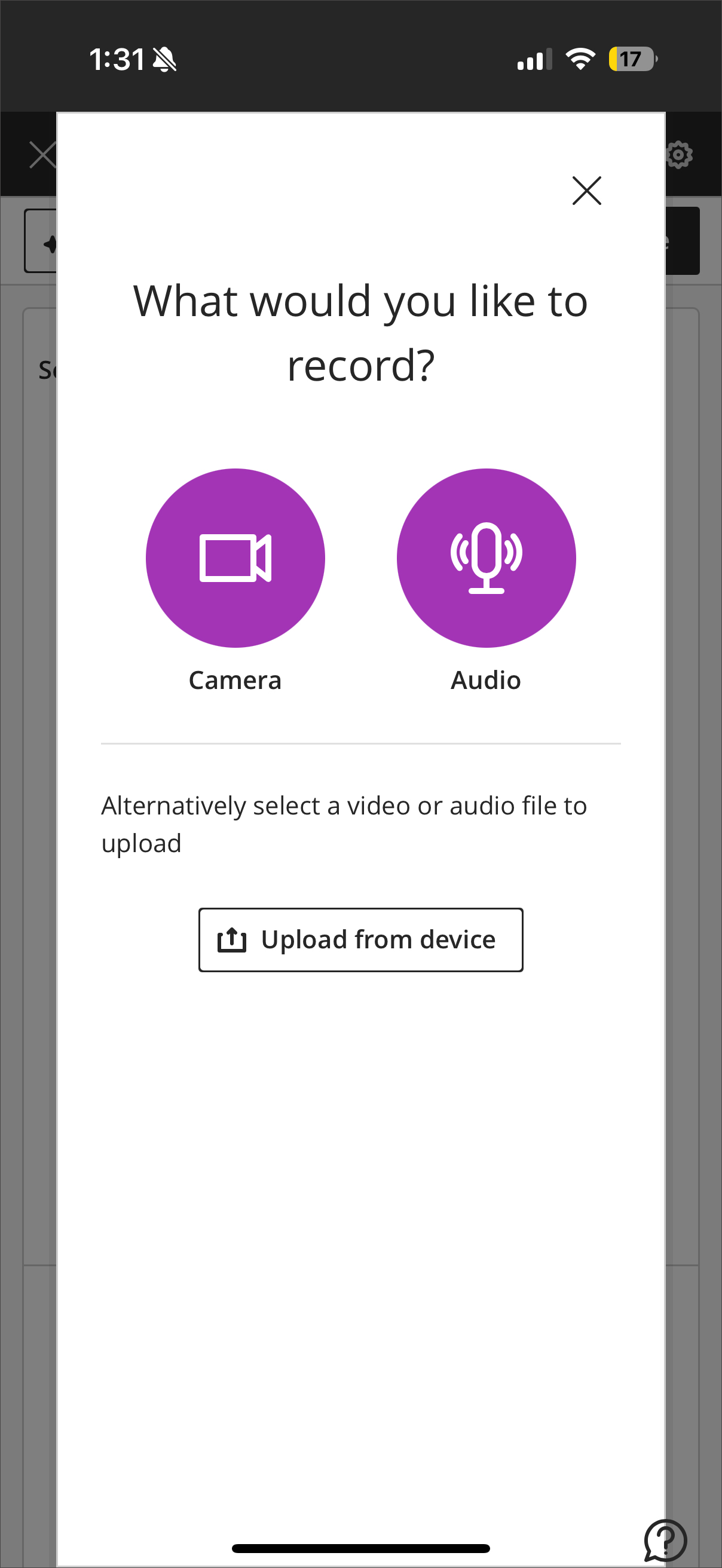
Instructors can now record Video Studio videos directly from the Blackboard App on their mobile devices. Using their device's camera and microphone, instructors can add video content to Course Content pages and Documents without switching to a desktop. This gives instructors greater flexibility to create course content on the go.
Previously, the Blackboard App supported watching Video Studio recordings on mobile, but not creating them.
Instructors
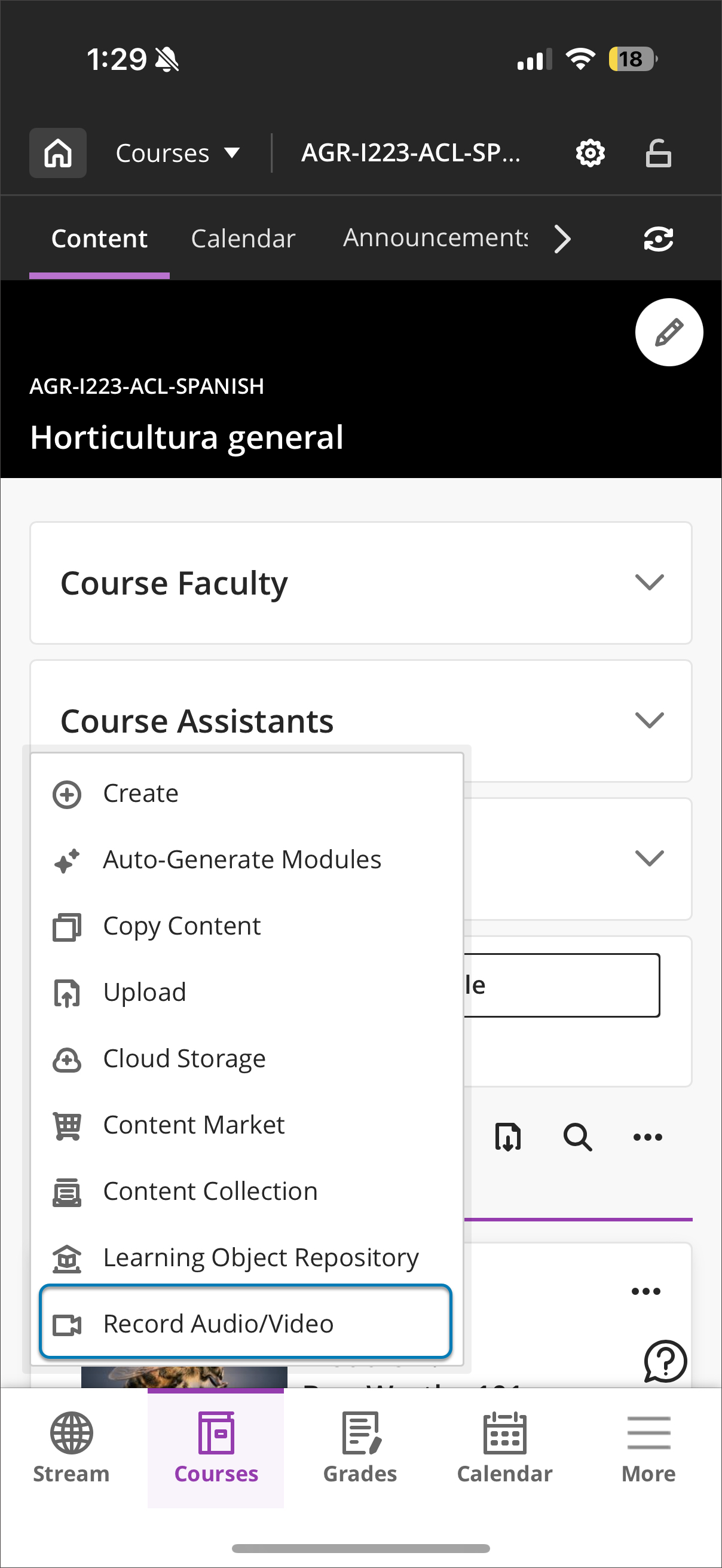
Instructors can record video and audio from the Blackboard App in two locations:
Course content page
Documents
Image 1: You can now record Video Studio recordings from Blackboard App on your mobile device.
Once recorded, the video saves to Video Studio and works like any other Video Studio recording. Instructors can find completed recordings from supported locations such as the course outline and Documents.
Note
Screen recording is not supported on mobile devices at this time.
Image 2. When choosing to record a Video Studio recording, you have the options to records from your camera or from your microphone by itself.
Administrators
Availability: Requires a Video Studio license.
Activation: None needed.
Configuration: None needed.
Course Catalog: Unenroll learners through managed enrollment workflow
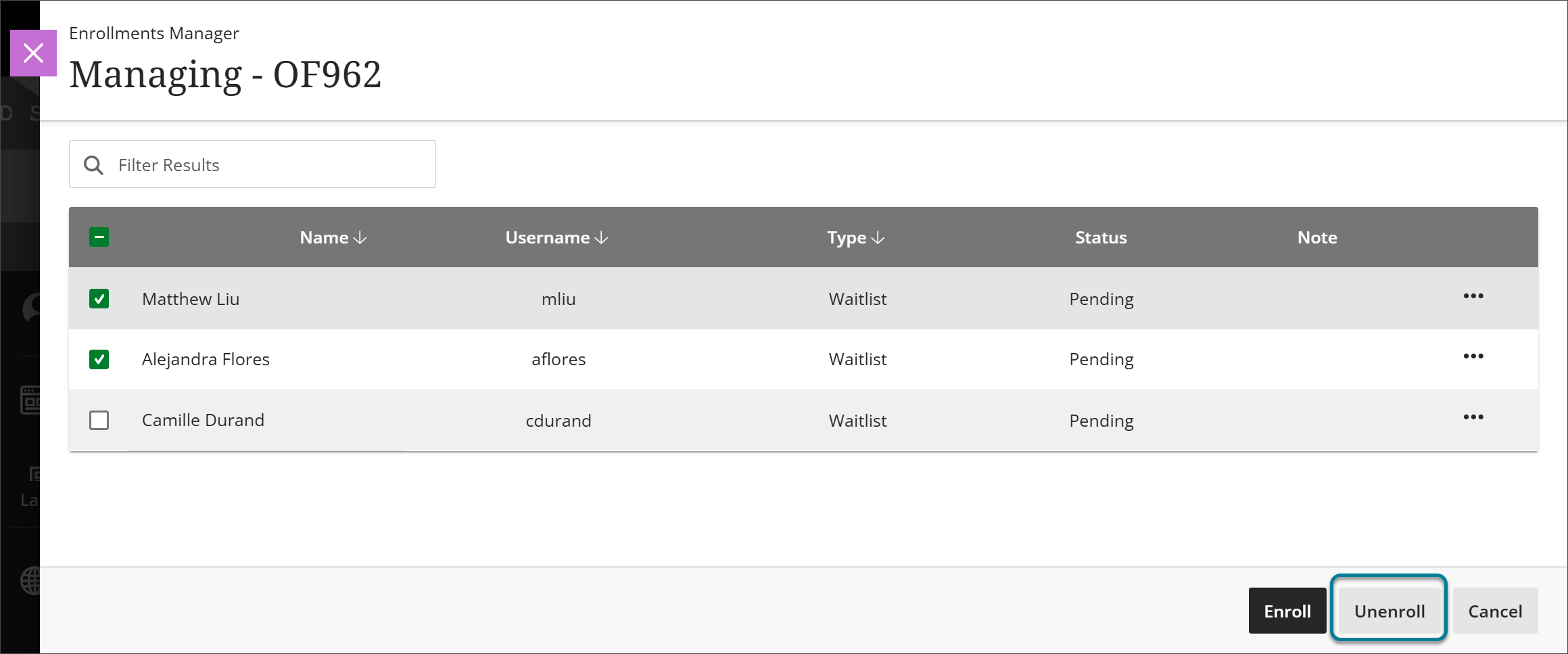
Managers can now unenroll learners from managed enrollment offerings directly on the Offering Management screen. This reduces the need for managers to leave the Course Catalog interface to manage enrollments, streamlining the enrollment management process.
Image 1: In the managing enrollment window, the manager can choose the Unenroll button.
Administrators
Availability: Available to all Course Catalog courses.
Activation: None needed.
Configuration: None needed.