Offering Management
Offering managers create and edit offerings of predefined courses. An offering is created for each instance the course is delivered. Each offering is designed to meet the specific learning objectives for its delivery format and situation.
The Offering Management screen
The Offering Management screen lists all the offerings currently in the catalog. This is where you add, update, and delete offerings.
Select Administration from the home screen.
Select Offering Management.
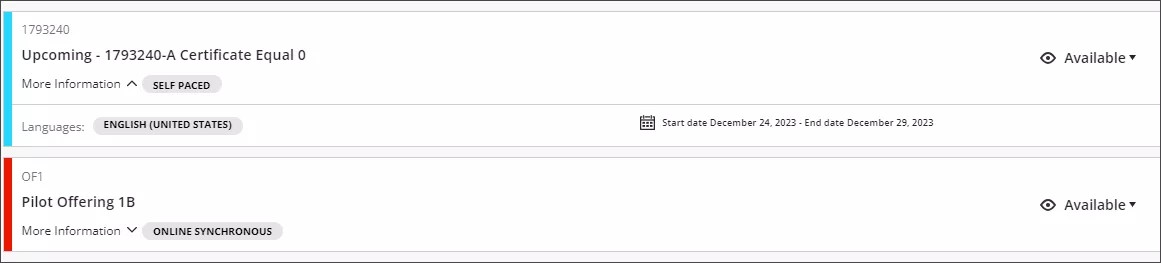
You will see a list of rows showing each offering in the catalog. Each catalog row contains the offering ID, the offering name, whether the offering is available, and the delivery method. Select More Information to display the available languages for the offering and the offering dates. The offerings are also color-coded:
Red—past offering
Blue—future offering
Green—active offering
Yellow—unavailable offering
Add an offering
You add offerings from this screen.
Select Add Offering.
Fill out all required fields.
Select Save & Close to save your offering.
Tip
More on adding an offering.
Search for an offering
Type in a keyword in to search for an offering. The search will examine all the fields that are available for each offering row. The results will narrow as you type.
Update an offering
You can update any offering characteristic except the offering ID.
Select the offering name. Alternately, select the three dot menu on the offering row and choose Edit.
Make the appropriate changes and select Save & Close.
Change the availability of an offering
To quickly change the availability of an offering, select the arrow next to the current availability in the offering row. Choose the updated availability from the menu.
Delete an offering
Deleting an offering removes it permanently from the course catalog.
Select the three dot menu on the course row.
Select Delete.
Select Delete in the confirmation dialog.
Manage enrollments
You can manage enrollments for waitlisted learners and those in managed enrollment courses from the offering row.
Select the three dot menu on the offering row.
Select Manage Enrollments.
To enroll learners, select the learners you want to enroll and select Enroll, then select Yes to send an email notification to learners who have been enrolled in the offering.
To unenroll learners, select the learners you want to unenroll and select Unenroll.
Duplicate an offering
You can duplicate offerings to save time. You can quickly create offerings that share most characteristics with the original and update only the details that need to be changed.
Select the three-dot menu of the offering row.
Select Duplicate Offering.
In the Expected Duplicate Offering ID field, enter the Offering ID for the new offering.
The new offering will appear at the beginning of the offering list. It will be unavailable by default. Edit it to make any necessary changes.
Batch edit offerings
You can update the availability of multiple offerings at the same time using the Batch Edit button.
Select the Batch Edit button.

Select the offerings that you want to update. You can search for offerings using the search box or filter offerings using the Filter menu.
Select Edit Availability.
Choose your desired availability from the Availability To Set menu then select Set Availability.