Bibliothèque d'objets d'apprentissage
Note
Cette documentation a été traduite à l'aide d'un outil de traduction automatique assisté par l'IA. Les traductions sont fournies « telles quelles », sans aucune garantie quant à leur exactitude. La version anglaise de ce contenu fait office de source officielle et fait autorité.
Utilisez la vue de gestion de la bibliothèque d'objets d'apprentissage pour organiser, modifier, déplacer et supprimer des objets de la bibliothèque. Vous pouvez également suivre l'endroit où chaque élément est utilisé dans les différents cours et dans les différentes organisations.
La bibliothèque d'objets d'apprentissage prend en charge les types d'objets suivants :
Documents
Modules d'apprentissage
Dossiers
Fichiers
Gestion des objets et types d'objets pris en charge
Sélectionnez Outils, puis choisissez bibliothèque d'objets d'apprentissage.
Cliquez sur le bouton avec les points de suspension (...) pour la bibliothèque d'objets d'apprentissage.
Une fois le menu ouvert, les options suivantes sont disponibles :
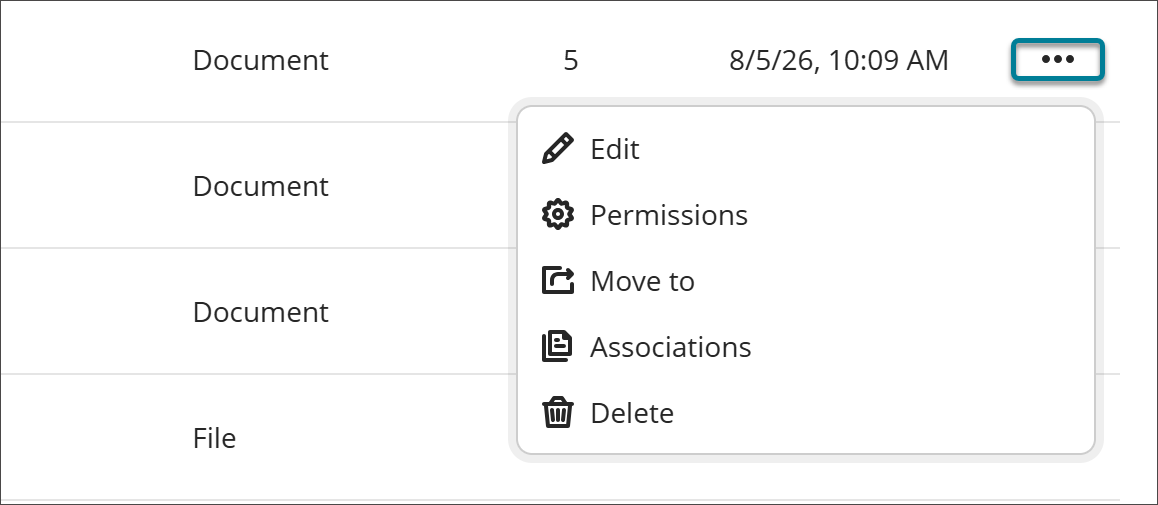
Modifier
Sélectionnez Modifier pour apporter des modifications à l'élément. Les modifications apportées aux objets dans la bibliothèque d'objets d'apprentissage s'appliquent à tous les objets associés dans les cours et les organisations.
Note
Les modifications ne sont pas appliquées si un cours est marqué comme terminé ou si sa date de fin est antérieure.
Permissions
You can control which attribute of an object instructors can edit after it's added to a course or organization. When an attribute is open for editing, users with editing privileges can update it directly in the course or organization, and the change persists through future syncs.
Select Permissions.
Turn on the toggle for any attribute you want to allow editing for.
Select Save.
If you turn off the permission to edit an attribute after the object already has associations, any changes that users have made to individual objects will be reverted to the version that is in the LOR.
Aller à
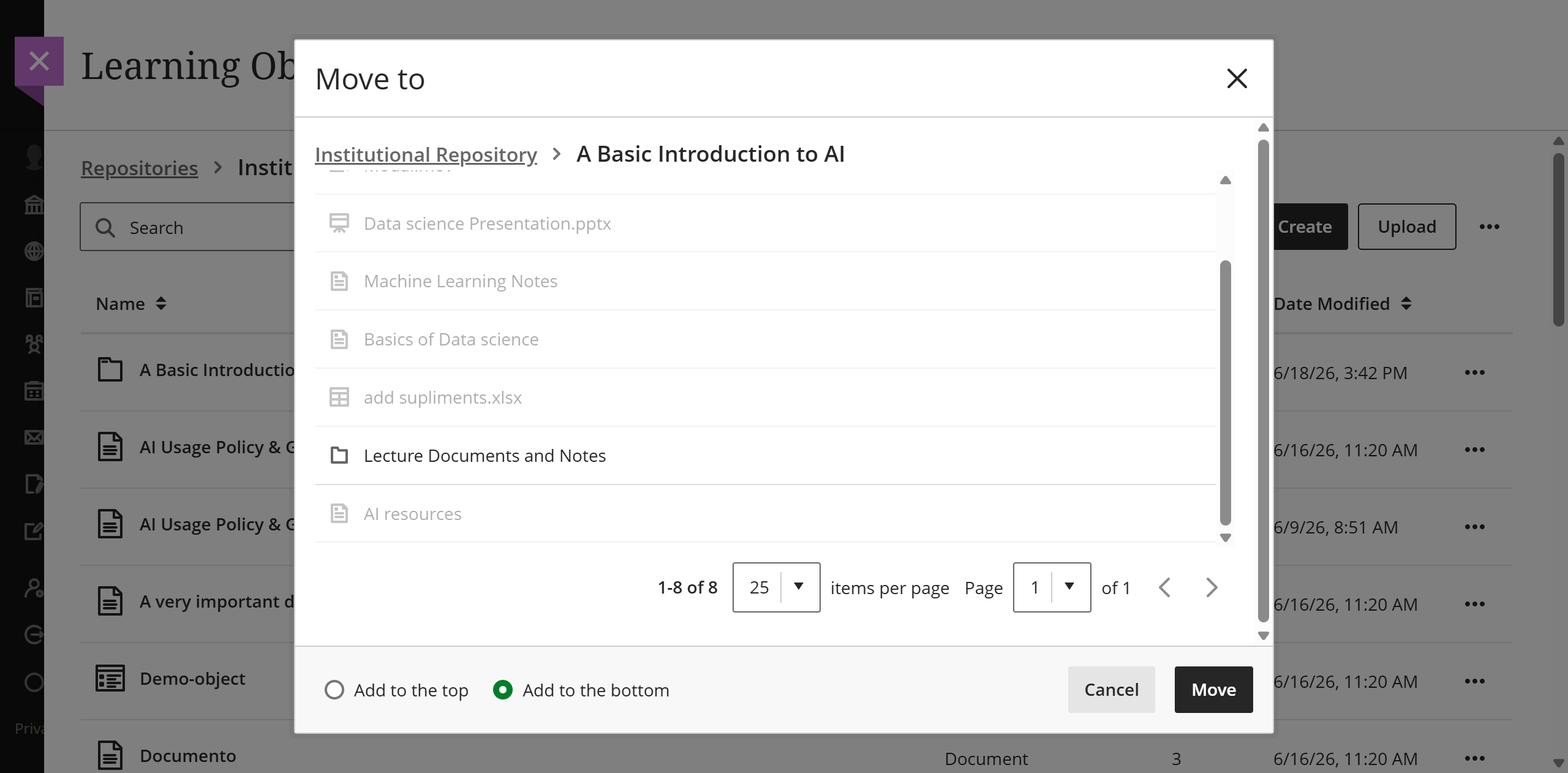
Vous pouvez déplacer des éléments d'un module de formation à un autre ou d'un dossier à un autre.
Sélectionnez Déplacer vers.
Accédez au module d'apprentissage ou au dossier dans lequel vous souhaitez placer l'élément.
Cochez la case correspondante pour placer l'objet en haut ou en bas du dossier ou du module d'apprentissage de destination.
Cliquez sur le bouton Déplacer.
Note
If moving a folder with nested items into another folder would violate the depth restrictions for courses and organizations, the folder can't be moved. In this case, a banner displays stating this is not possible in the LOR and the Move feature is disabled.
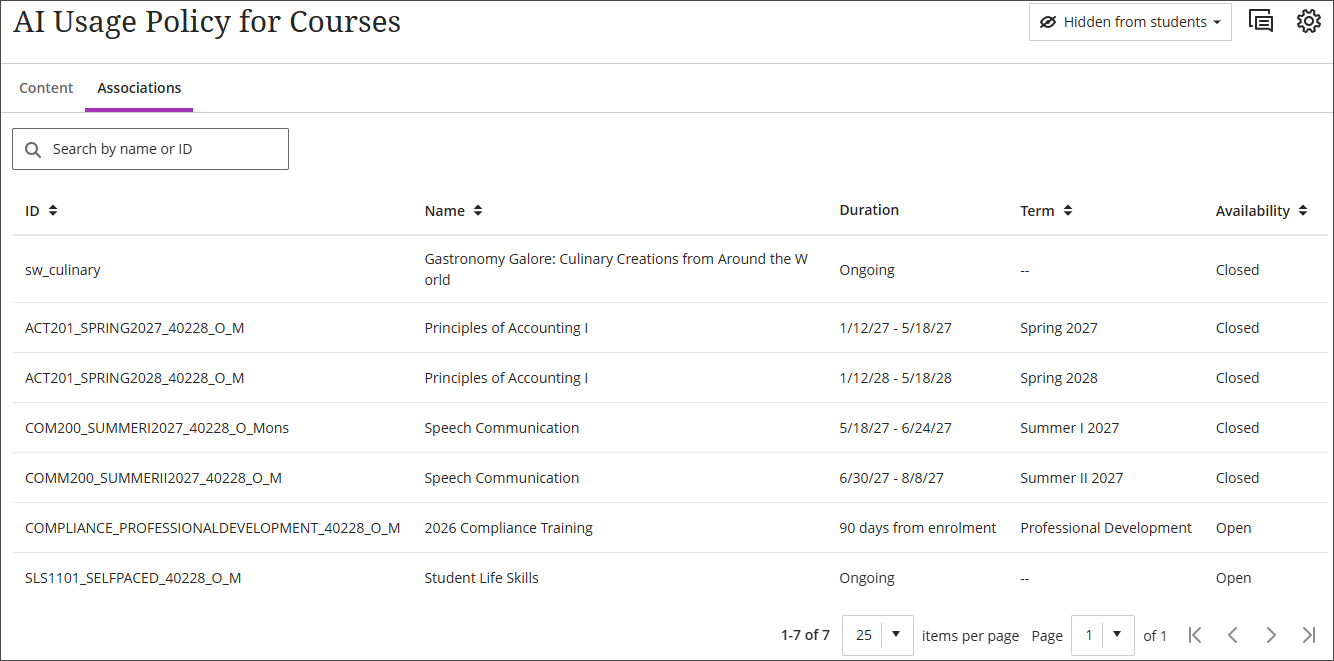
Associations
Vous pouvez accéder à la liste des associations d'un objet par le biais du menu Plus d'options. La page des associations comporte des options de tri et peut être recherchée par nom ou ID de cours ou d'association.
Supprimer
Lorsque vous sélectionnez Supprimer, deux options s'offrent à vous:
Supprimer cet objet: sélectionnez cette option pour supprimer l'objet de la bibliothèque d'objets d'apprentissage, mais il restera présent dans tous les cours et toutes les organisations associés. L'objet qui reste dans le cours ou l'organisation perd son lien avec la bibliothèque d'objets d'apprentissage et devient entièrement modifiable.
Supprimer cet objet et tous les objets associés: sélectionnez cette option pour supprimer l'objet de la bibliothèque d'objets d'apprentissage ainsi que de tous les cours et organisations auxquels il est associé. Les objets ne sont pas supprimés des cours qui ont été marqués comme terminés ou dont la date de fin est dépassée.
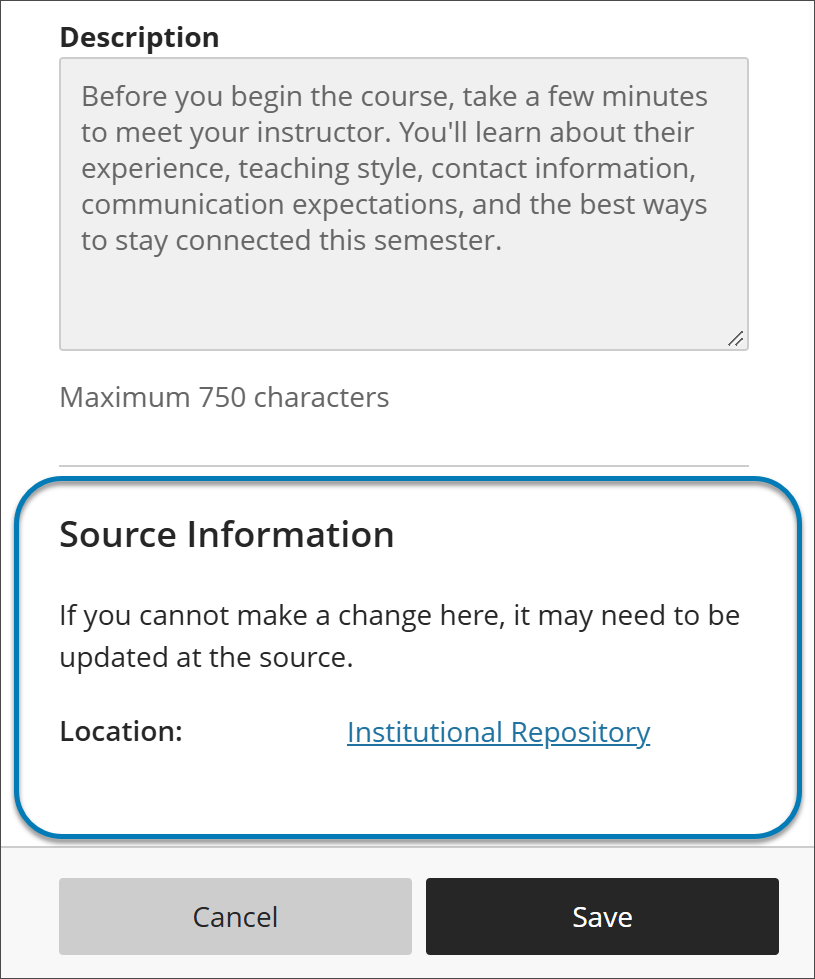
View object source information
When an LOR object is used in a course or organization, its settings panel includes a Source Information section at the bottom. Use it to identify where the object is stored in the institutional hierarchy without leaving the course or organization.
Source Information lists the object’s location as a selectable link. It also notes that if you can’t change something about the object where you are, the change may need to be made at the source in the LOR.
Rechercher des éléments
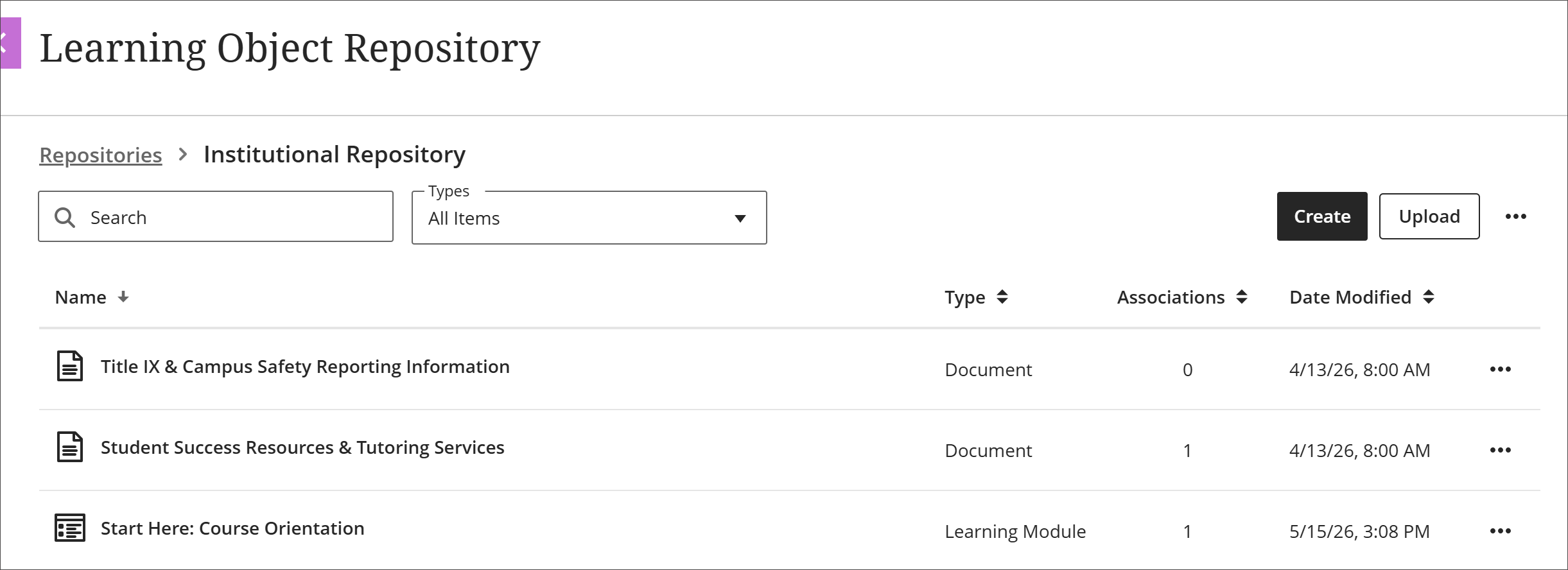
Dans la vue de gestion de la bibliothèque d'objets d'apprentissage, vous pouvez trier les objets par nom, type, nombre d'organisations ou date de modification. Vous pouvez également filtrer par type d'objet ou effectuer une recherche par nom.
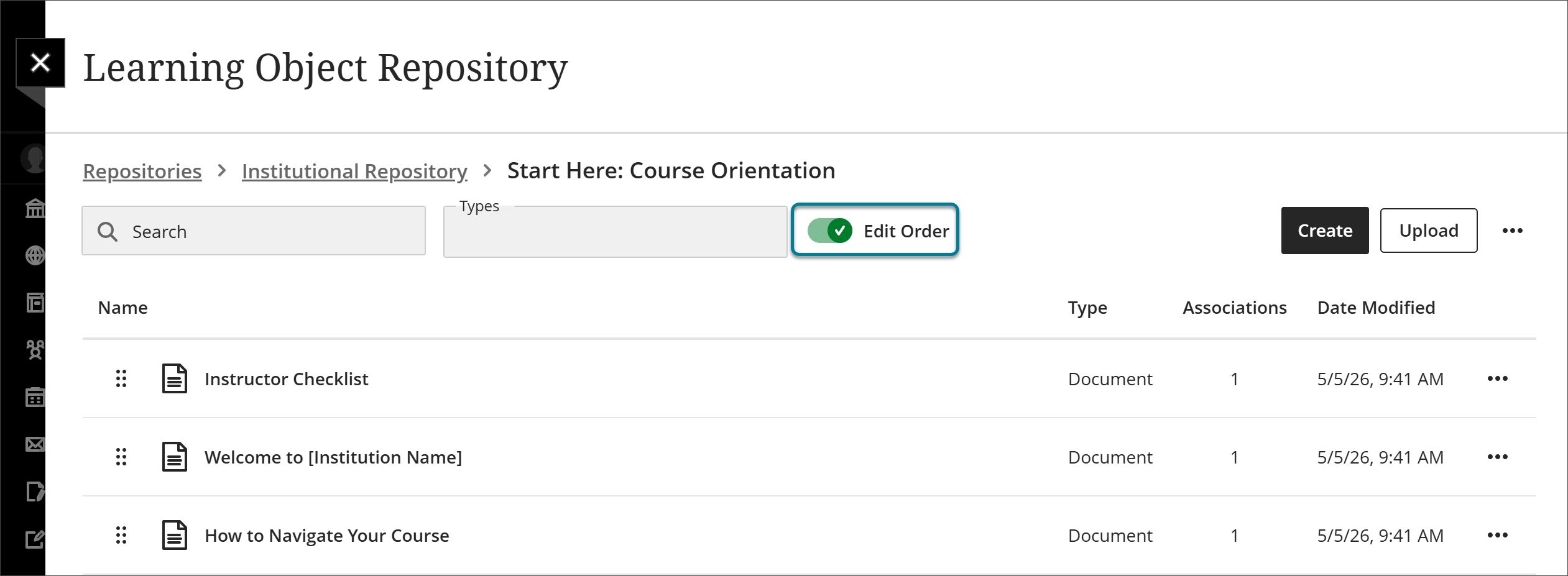
Modifier l'ordre des objets dans les modules d'apprentissage et les dossiers
Lorsque vous accédez à des objets dans la vue de gestion de la bibliothèque d’objet d’apprentissage, vous pouvez les trier, les rechercher et les filtrer pour personnaliser votre affichage. Cependant, lorsqu'un module de formation ou un dossier est ajouté à un cours ou à une organisation, vous souhaitez que les éléments qu'il contient soient classés dans un ordre précis.
Sélectionnez Outils, puis choisissez bibliothèque d'objets d'apprentissage.
Accédez au module de formation ou au dossier.
Activez le bouton à bascule Modifier l'ordre.
Organisez les objets dans l'ordre désiré.
Use the reorder button to drag and drop objects.
Select the reorder button to open a menu with options to Move to top of page, Move up, Move down, or Move to bottom of page.
Désactivez le bouton Modifier l'ordre.
Les objets sont maintenant verrouillés dans l'ordre que vous avez défini. Lorsque le module d'apprentissage ou le dossier est intégré à un cours ou à une organisation, les éléments s'affichent dans cet ordre. Cela vaut quelle que soit la manière dont vous les triez, les recherchez ou les filtrez dans la vue de gestion.