Blackboard Ally
Ally is an accessibility tool that integrates with your Learning Management System (LMS). It automatically scans course content for accessibility issues, provides accessibility scores and instructor feedback, and generates alternative formats so students can choose the format that works best for them. Administrators can track accessibility progress across the institution with the Ally institutional report.
View the latest release notes or visit the Blackboard Ally help site.
Set up Ally in Blackboard LMS
We do the set up for you. If you don't have Ally installed, contact your Blackboard representative or submit an Ally support case.
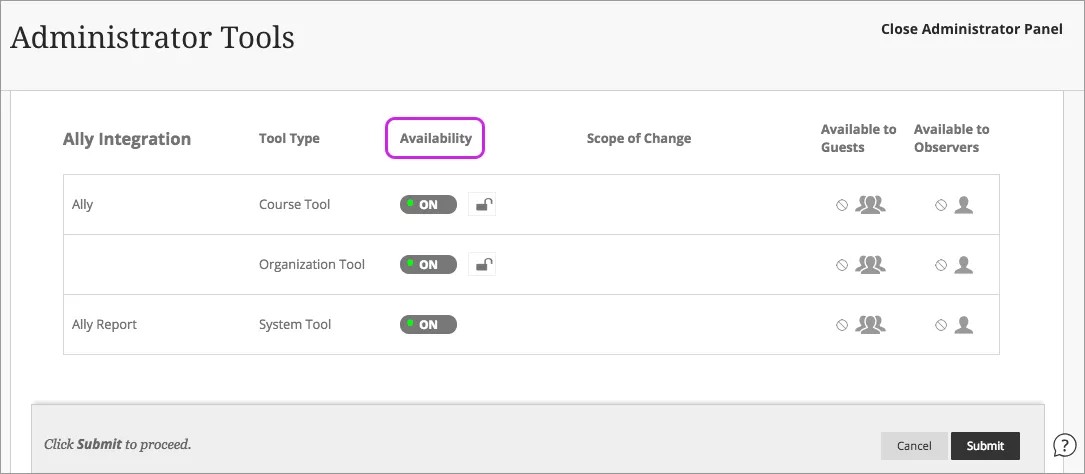
After the Ally integration is established, you can control availability in the Tools area of the administrator panel.
Access Ally configuration in Blackboard LMS
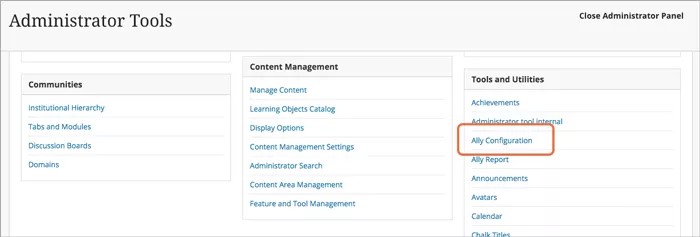
From Ally Configuration you can turn Ally on or off in all your courses and create custom help settings.
Go to the Administrator panel to find Ally Configuration.
Ally institutional report
Ally provides administrators with an institution-wide course content accessibility report that allows for deep insight and understanding into how the institution is performing and evolving from a course content accessibility point of view. This report helps track progress and can help highlight problem areas and identify initiatives that can further help improve accessibility at the institution.
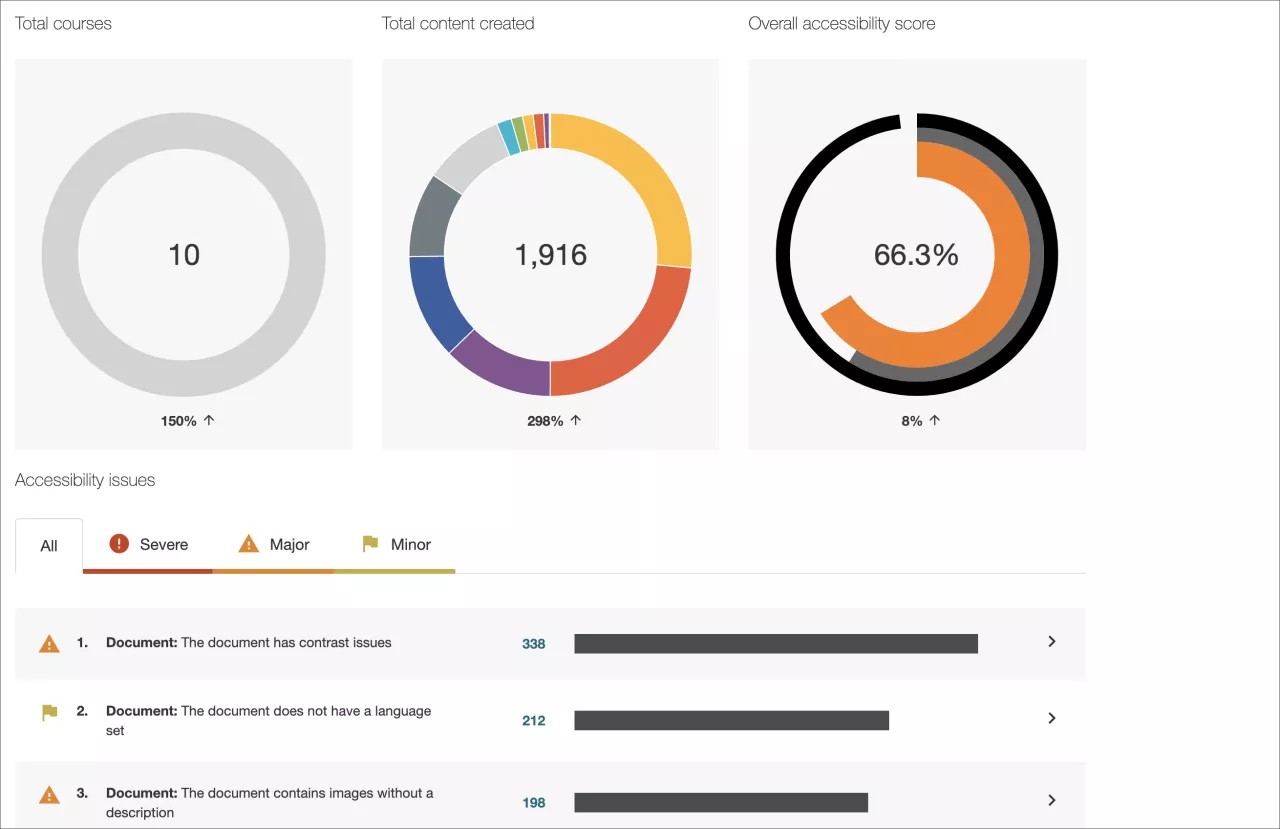
You can find the institution report on the administrator panel: Under Tools and Utilities, select Ally Report.
Accessibility scores
Ally provides scores to measure the accessibility of content. Accessibility scores are determined by the severity of issues in each digital file.
Once instructors locate the accessibility score for a piece of content, they can begin to explore accessibility issues and improve the content to raise the score. Accessible content is important for all audiences, and Ally gives your institution the tools to understand common issues and improve content.
Improve accessibility scores
Ally provides you detailed feedback and support to help you become an accessibility pro. Learn about accessibility issues, why they matter, and how to fix them. Green is the goal!
Go to the institutional report in the Administrator Panel. From the Accessibility issues table, find a specific content item in a course with an accessibility issue. Select the content item's accessibility score indicator to open the feedback panel.
Note
This feature is disabled by default. Submit an Ally support case to have it turned on. This feature is only available when accessing the institutional report from the LMS and not when using the direct access URL.
Alternative formats
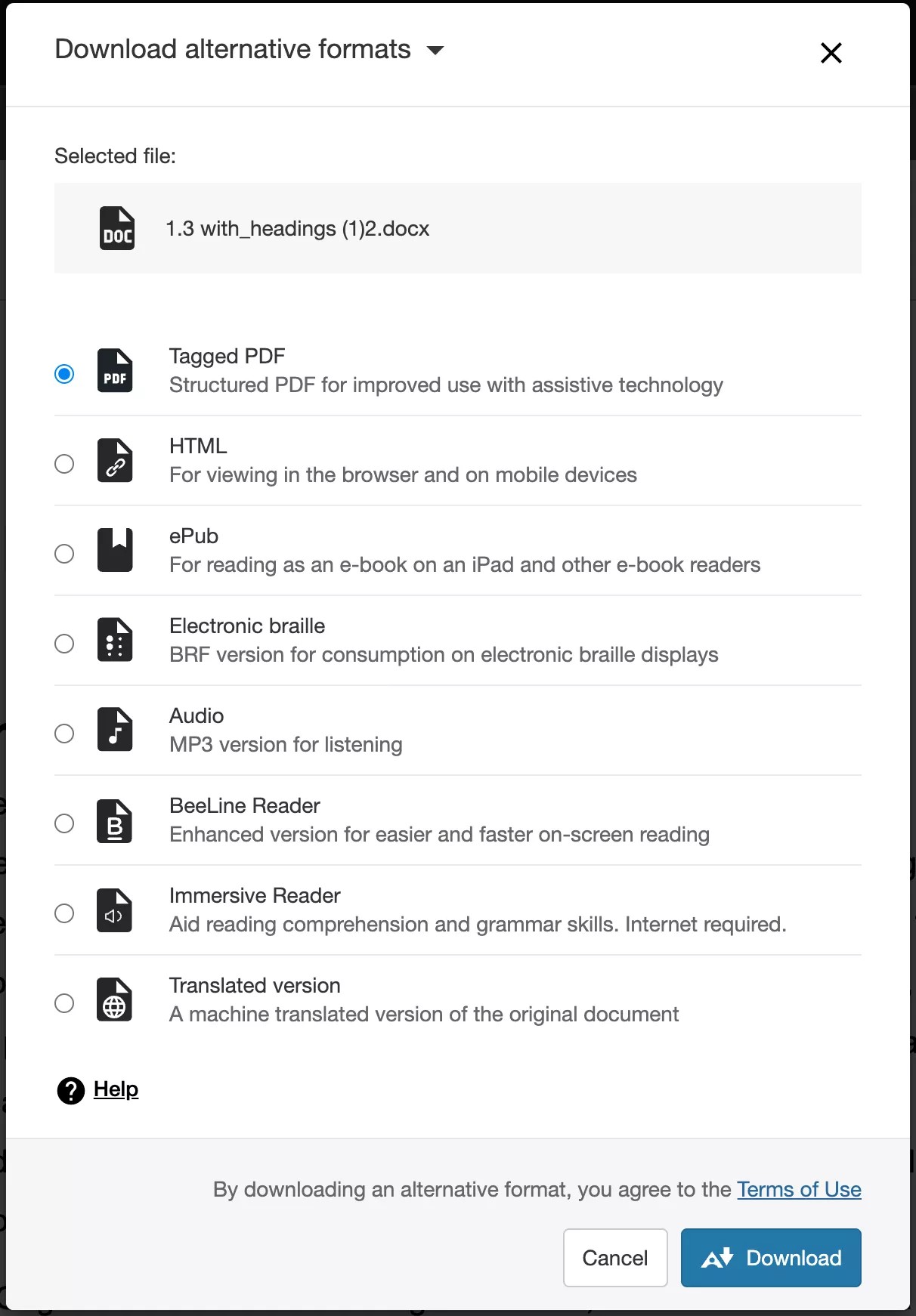
Ally creates alternative formats of course files based on the original. These formats are made available with the original file so students can find everything in one convenient location.
You don’t need to do anything. The alternative formats are created for you. If you want, you can disable alternative formats for any individual content item for whatever reason.
Go to a course and open the menu beside a file. Select Alternative formats to see the different formats available and to disable them.
Admin Blackboard LMS FAQs
Can you score content in Blackboard LMS's Content Collection before the content is applied to a course?
Ally scores only the content used in a course. Unused content may skew the Institution Report and is not included.
Tip
You can upload content to a hidden folder in a course, if instructors want to make accessibility updates before making it available.
Does Ally scan all content in the content collection?
Ally currently only scans items that are attached in the course itself. This means that the reporting will only include items that can be accessed by the student. It does not include unused content.
Ultra Accessibility Checker (Powered by Ally)
The Ultra Accessibility Checker (Powered by Ally) is a built-in feature of Blackboard LMS Ultra. The Ultra Accessibility Checker scans content in the rich content editor of Ultra Documents. The feature identifies and improves accessibility issues in Ultra Documents by leveraging the power of Ally’s WYSIWYG (What You See is What You Get) checking and feedback functionality.
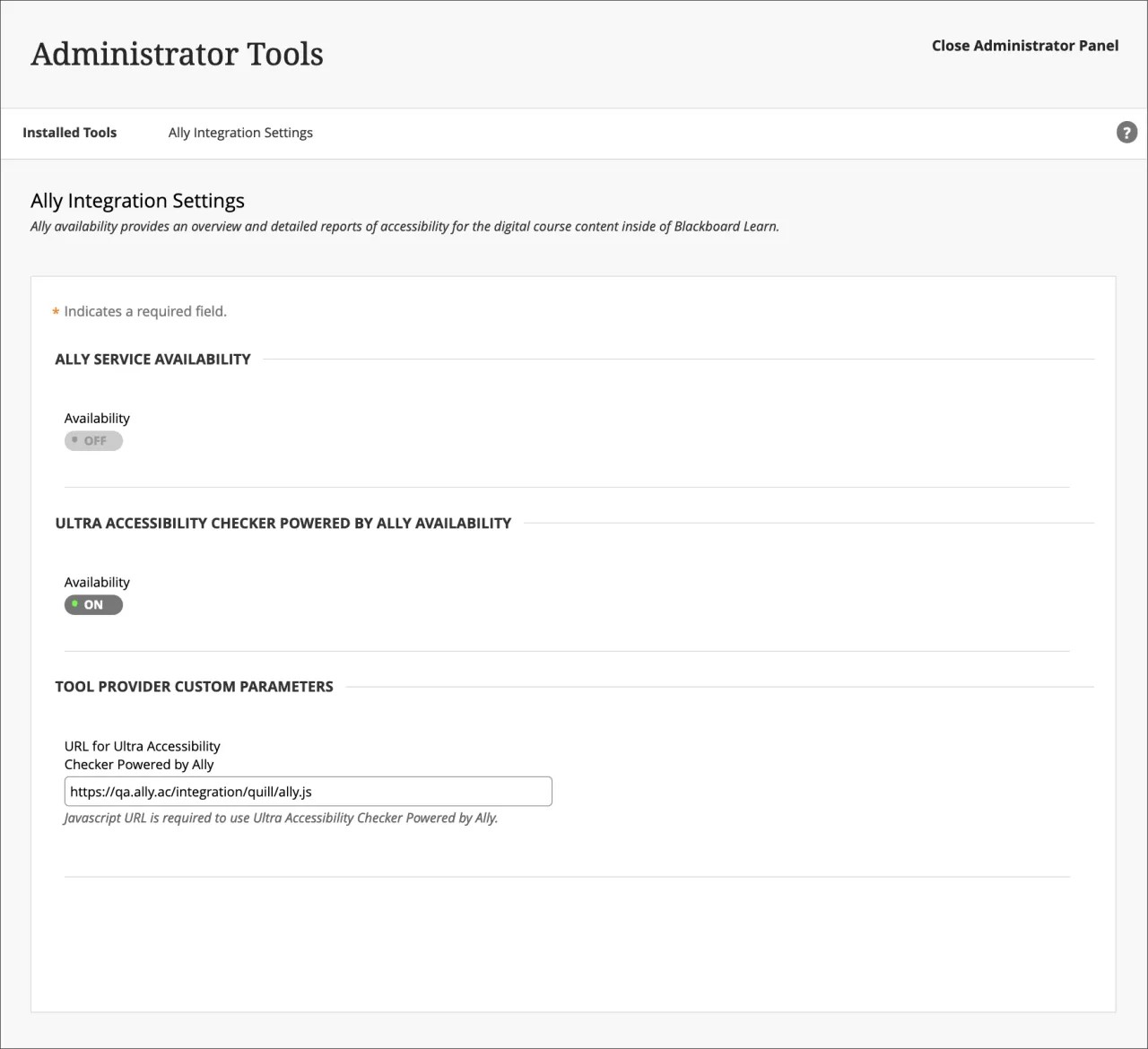
If your institution does not have an Ally license. The Ultra Accessibility Checker Powered by Ally will be on by default. Ally WYSIWYG content is focused within the rich content editor of Ultra Documents only and does not represent a full Ally license.
If your institution has an active Ally license. The Ultra Accessibility Checker Powered by Ally is a new configuration and is off by default. You don't need to turn this setting on. If you turn on this setting, your Ally Service Availability will turn off. To avoid issues, we recommend not turning on Ultra Accessibility Checker Powered by Ally as it is not required for your active Ally license to work.