학습 객체 저장소
Note
본 문서는 AI 지원 기계 번역을 사용하여 번역되었습니다. 번역본은 '있는 그대로' 제공되며 정확성에 대해 어떠한 보증도 하지 않습니다. 본 콘텐츠의 영문 버전이 공식적이고 권위 있는 원본입니다.
학습 객체 저장소(LOR) 관리 보기를 사용하여 저장소 객체를 정리, 편집, 이동 및 삭제할 수 있습니다. 각 개체가 코스와 조직 전반에서 어디에 사용되는지 추적할 수도 있습니다.
LOR은 다음 오브젝트 유형을 지원합니다:
문서
학습 모듈
폴더
파일
개체 및 지원되는 개체 유형 관리
도구를 선택한 다음 학습 객체 저장소를 선택합니다.
LOR에 대한 줄임표(...) 버튼을 선택하세요.
메뉴를 열면 다음과 같은 옵션을 사용할 수 있습니다:
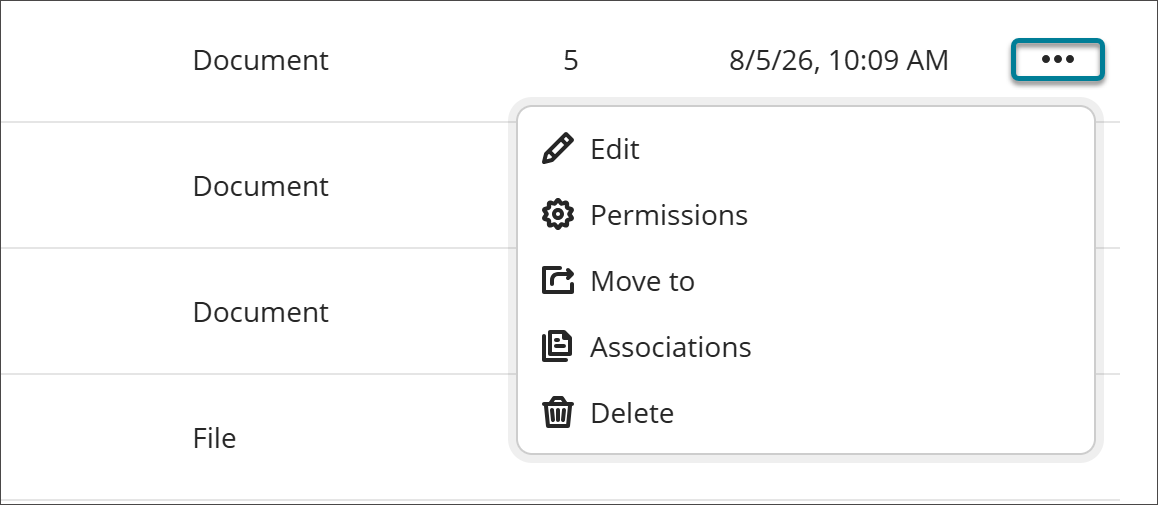
편집
객체를 변경하려면 편집을 선택하세요. LOR에서 객체를 편집하면 코스 및 조직 내의 모든 연결된 객체에 해당 편집 내용이 적용됩니다.
참고
코스가 완료된 것으로 표시되거나 종료 날짜가 과거인 경우 변경 사항이 적용되지 않습니다.
Permissions
You can control which attribute of an object instructors can edit after it's added to a course or organization. When an attribute is open for editing, users with editing privileges can update it directly in the course or organization, and the change persists through future syncs.
Select Permissions.
Turn on the toggle for any attribute you want to allow editing for.
Select Save.
If you turn off the permission to edit an attribute after the object already has associations, any changes that users have made to individual objects will be reverted to the version that is in the LOR.
이동하기
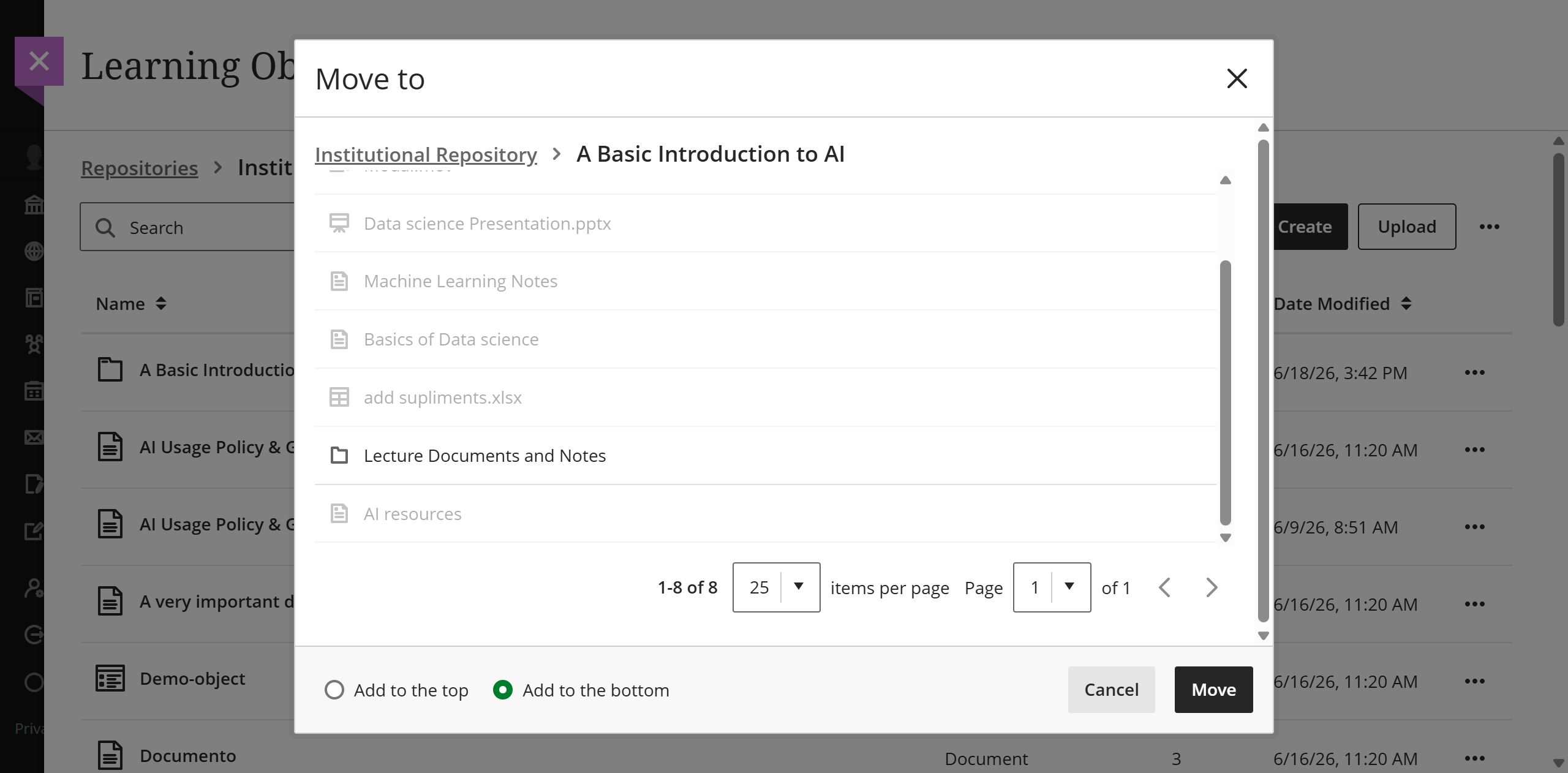
학습 모듈과 폴더 간에 개체를 이동할 수 있습니다.
이동을 선택하세요.
개체를 배치할 학습 모듈이나 폴더로 이동합니다.
대상 학습 모듈이나 폴더의 맨 위 또는 맨 아래에 개체를 배치하려면 해당 라디오 버튼을 선택하세요.
이동 버튼을 선택하세요.
참고
If moving a folder with nested items into another folder would violate the depth restrictions for courses and organizations, the folder can't be moved. In this case, a banner displays stating this is not possible in the LOR and the Move feature is disabled.
연결
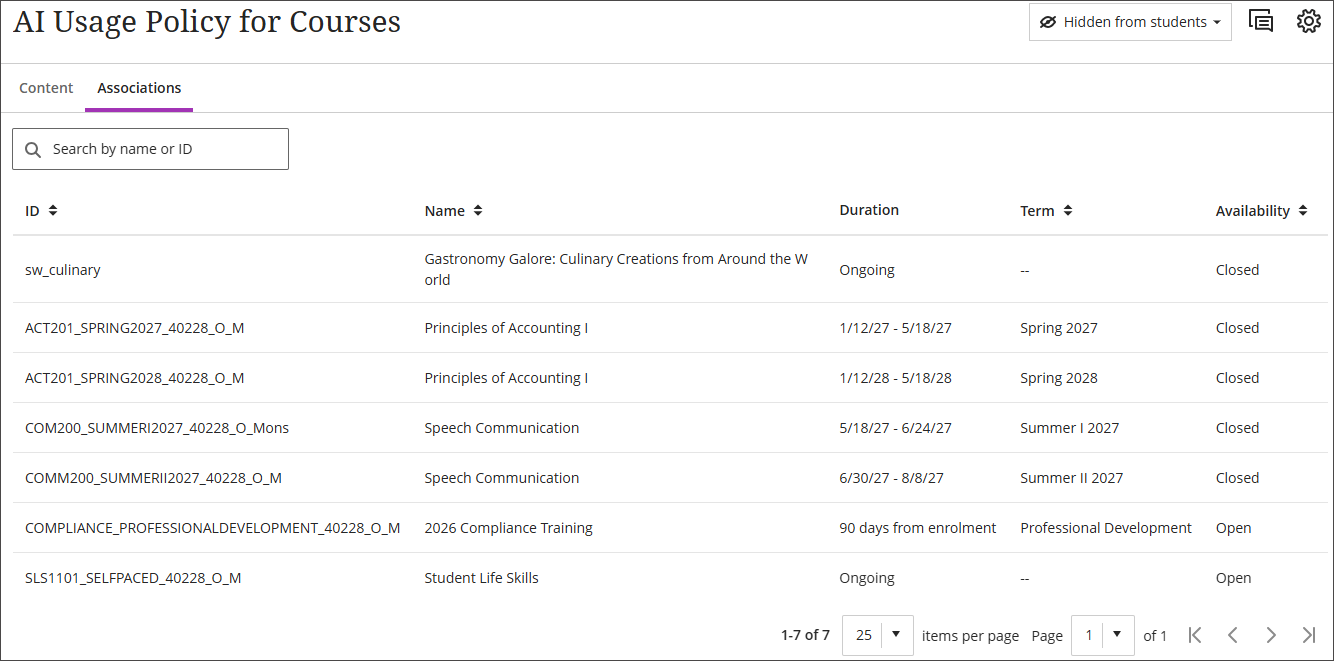
연관 관계를 선택하면 개체의 연관 관계 목록에 액세스할 수 있습니다. 코스 또는 조직 이름이나 ID로 연관 관계를 검색할 수 있습니다. 목록은 ID, 이름, 학기 또는 사용 가능 여부별로 정렬할 수 있습니다.
삭제하기
삭제를 선택하면 두 가지 옵션이 있습니다.
이 개체 삭제: 이 옵션을 선택하면 LOR에서 해당 개체를 삭제하지만, 관련된 모든 강좌 및 조직에는 그대로 유지됩니다. 코스나 조직에 남아 있는 개체는 LOR에 대한 연결이 해제되고 완전히 편집 가능해집니다.
이 개체 및 관련 개체 모두 삭제: 이 옵션을 선택하면 LOR에서 해당 개체를 삭제하고, 이 개체가 연결된 모든 활성화된 강좌 및 조직에서도 삭제됩니다. 완료로 표시되었거나 종료일이 지난 강좌에서는 개체가 삭제되지 않습니다.
View object source information
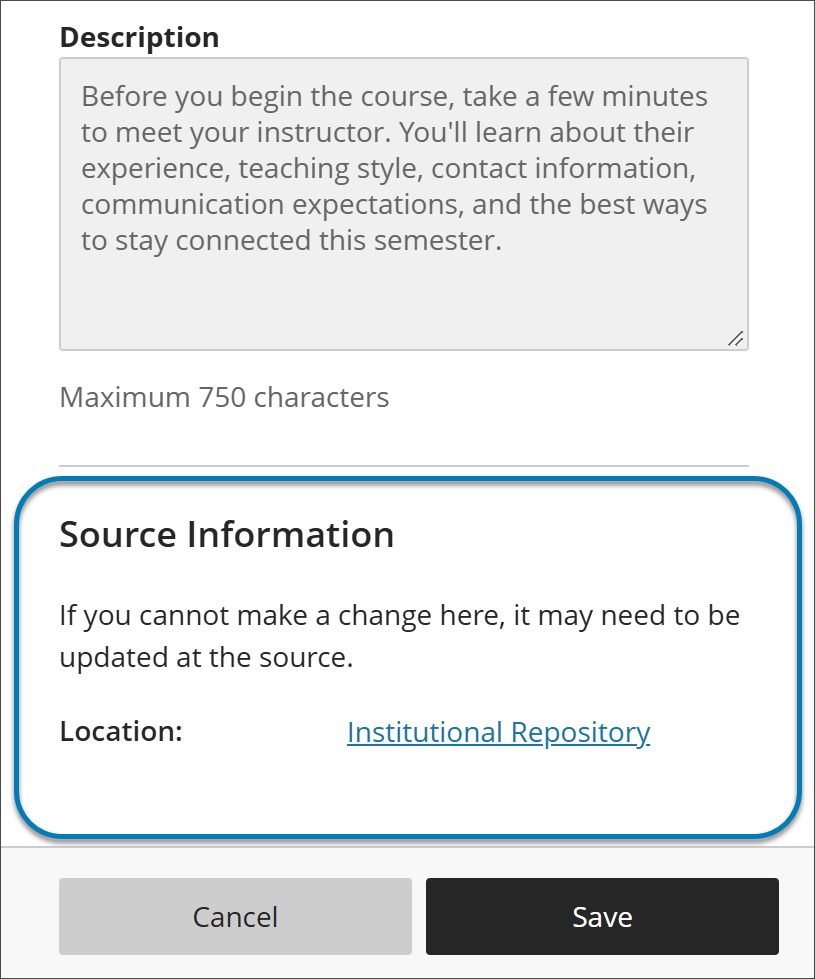
When an LOR object is used in a course or organization, its settings panel includes a Source Information section at the bottom. Use it to identify where the object is stored in the institutional hierarchy without leaving the course or organization.
Source Information lists the object’s location as a selectable link. It also notes that if you can’t change something about the object where you are, the change may need to be made at the source in the LOR.
개체 찾기
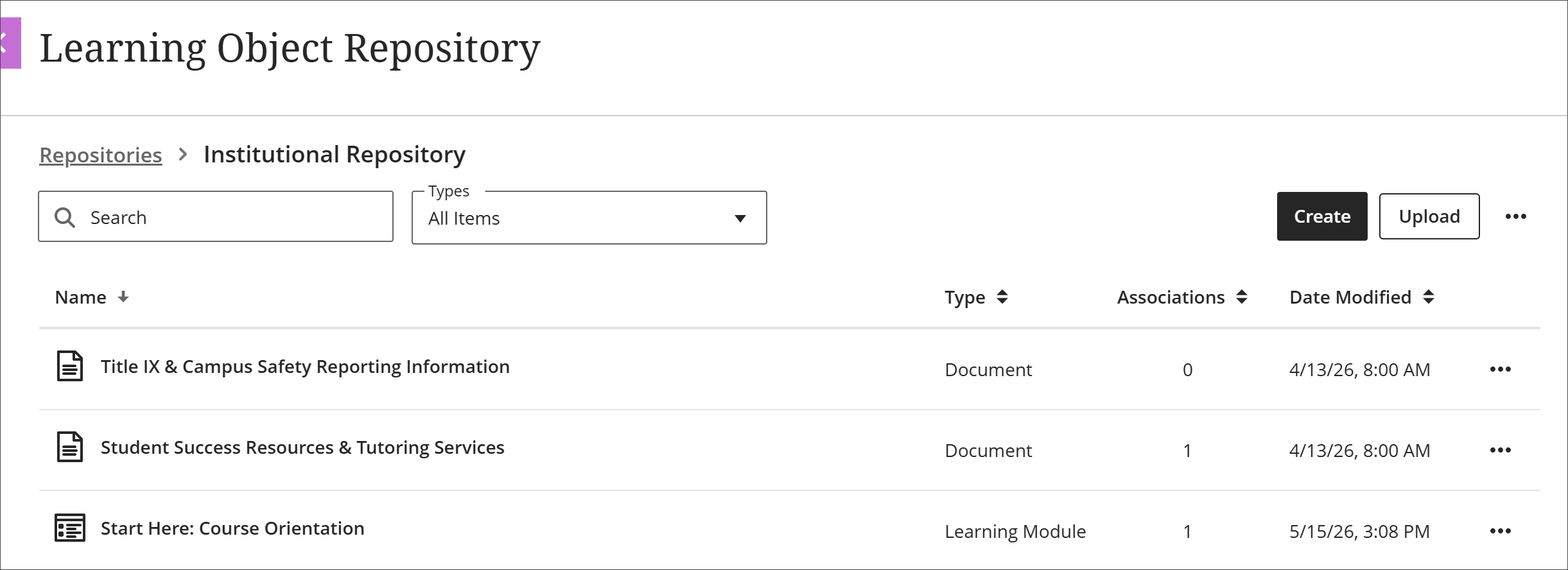
LOR 관리 보기에서 개체를 이름, 유형, 연관 관계 수 또는 수정 날짜별로 정렬할 수 있습니다. 또한 개체 유형별로 필터링하거나 이름으로 검색할 수 있습니다.
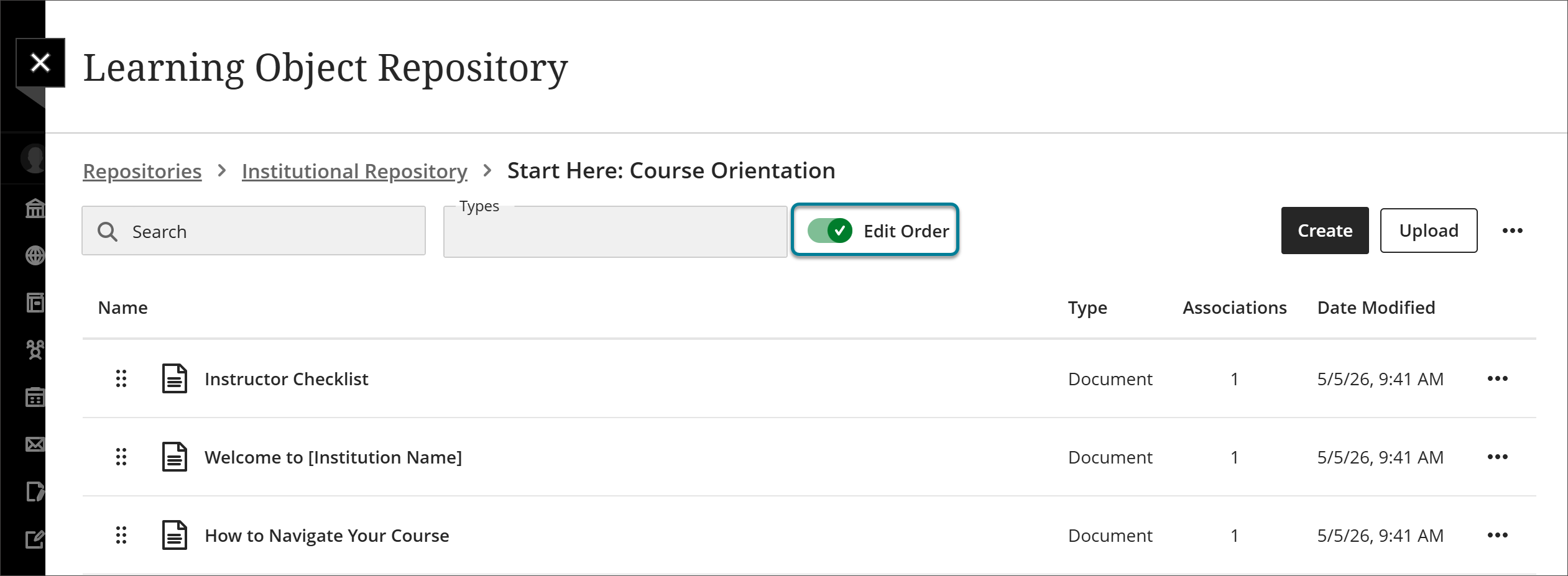
학습 모듈 및 폴더에서 개체 순서 편집
LOR 관리 화면에서 개체에 액세스할 때 정렬, 검색 및 필터링을 통해 화면을 사용자 지정할 수 있습니다. 하지만 학습 모듈이나 폴더를 코스나 조직에 삽입할 때는 그 안의 항목들이 특정 순서대로 정렬되기를 원할 것입니다.
도구를 선택한 다음 학습 객체 저장소를 선택합니다.
학습 모듈 또는 폴더로 이동하세요.
순서 편집 토글을 켜세요.
원하는 순서대로 개체를 배열하세요.
Use the reorder button to drag and drop objects.
Select the reorder button to open a menu with options to Move to top of page, Move up, Move down, or Move to bottom of page.
순서 편집 토글을 끄세요.
이제 개체가 설정한 순서대로 잠겼습니다. 학습 모듈이나 폴더가 코스나 조직에 삽입되면 항목들이 그 순서대로 표시됩니다. 관리 화면에서 데이터를 어떻게 정렬, 검색 또는 필터링하든 관계없이 이는 사실입니다.