코스 관리
Note
본 문서는 AI 지원 기계 번역을 사용하여 번역되었습니다. 번역본은 '있는 그대로' 제공되며 정확성에 대해 어떠한 보증도 하지 않습니다. 본 콘텐츠의 영문 버전이 공식적이고 권위 있는 원본입니다.
강의를 생성할 때 강의 이름 Blackboard LMS 과 강의 ID라는 두 가지 강의 속성만 필요합니다. 그러나 코스 사용 가능성 및 코스 완성도와 같은 코스의 중요한 측면을 제어하는 몇 가지 다른 코스 속성이 있습니다.
코스 속성을 편집하고 코스를 생성할 때 포함되지 않은 설정을 추가할 수 있습니다.
또한 강좌를 병합할 수도 있습니다. 이렇게 병합된 강좌들은 더 큰 강좌 세트 내에서 하위 강좌가 되며, 강좌 목록에서 마스터 강좌 아래에 표시됩니다. 하위 강좌는 ‘사용 불가’로 표시되며, 이 상태를 유지해야 하지만, 마스터 강좌에서 관리할 수 있습니다. 활성 강좌(학생이 과제를 제출한 강좌)는 절대로 병합 강좌 관계의 하위 강좌로 설정해서는 안 됩니다.
주의
여기에 자세히 설명된 기능은 사용자가 인터페이스에서 액세스할 수 있는 기능과 다를 수 있습니다. Ultra 코스 보기와 Original 코스 보기는 서로 다른 기능을 지원하며, 코스 보기 및 사용자 역할에 따라 사용 가능성 및 완료 옵션이 다르게 표시될 수 있습니다.
코스 속성 보기 또는 편집
참고
하위 코스는 메뉴의 옵션이 제한되어 있으며 연결된 마스터 코스에서 관리해야 합니다.
관리자 패널의 강좌 섹션에서 강좌를 선택합니다.
코스를 검색합니다.
강좌 페이지에서 강좌의 메뉴를 열고 편집을 선택하세요.
코스 속성을 편집합니다. 코스 ID는 변경할 수 없습니다.
제출을 선택합니다.
코스 사용 가능 여부 및 완료 상태 변경
코스에는 두 가지 별도의 액세스 관련 상태가 있습니다:
가용성 (사용 가능 / 사용 불가능)
완료 (완료 / 미완료)
이러한 상태는 독립적이며 개별적으로 또는 일괄적으로 관리할 수 있습니다.
하나 이상의 코스에 대한 사용 가능성 변경하기
코스 검색 결과에서 Blackboard LMS는 이용할 수 없는 코스를 흰색 X가 있는 빨간 원으로 표시합니다.
사용 가능 여부를 변경하려면:
코스의 메뉴를 열고 사용 가능하게 설정 또는 사용 불가능하게 설정을 선택합니다.
여러 코스를 선택하고 검색 결과의 상단 또는 하단에 있는 사용 가능 메뉴를 사용합니다.
교수자, 관리자 및 이 역할이 있는 사용자를 교수자(P)처럼 취급하거나 코스/조직 > 사용할 수 없는 코스에 접근 권한이 있는 기타 사용자는 사용할 수 없는 코스에 입장할 수 있습니다. 이를 통해 학생에게 접근 권한이 부여되기 전에 코스를 설정할 수 있습니다.
등록 가능한 코스가 있는 학생은 코스 페이지에 사용할 수 없는 코스가 나열된 것을 찾을 수 있지만 열 수는 없습니다.
코스를 완료 또는 미완료로 표시
완료 상태는 Ultra 코스 보기 코스에서만 사용할 수 있습니다.
할 수가 있는 일이 하기와 같습니다:
개별 코스를 완료 또는 완료되지 않음으로 표시합니다.
관리자 패널의 코스 페이지에서 여러 코스의 완료 상태를 한 번에 업데이트합니다.
구성된 경우 SIS 통합을 통해 완료 상태를 관리합니다.
관리자 패널에서 완료 상태를 업데이트하려면:
강좌를 선택하세요.
하나 이상의 코스를 검색합니다.
각 코스 옆의 확인란을 선택합니다.
완료 메뉴 드롭다운을 사용하여 완료로 표시 또는 완료로 표시 해제를 선택하세요.
선택한 코스가 완료되었거나 완료되지 않은 것으로 설정됩니다.
완료한 코스는 읽기 전용입니다. 학생과 교수자는 콘텐츠에 접근할 수는 있지만 과제를 제출하거나 코스 활동에 참여할 수는 없습니다.
경고
완료는 주로 Ultra 코스 보기용입니다. Original 코스 보기 코스의 경우 코스를 완료로 표시하면 알림이 비활성화되고 향후 업데이트가 되지 않을 수 있습니다.
교수자의 코스 접근 제어
할당된 역할 권한에 따라 교수자는 코스 내의 코스 설정에서 자신이 가르치는 코스에 대한 접근을 관리할 수 있습니다.
교수자용 옵션에는 다음이 포함됩니다:
코스 상태
열기. 학생은 코스 기간 내에 코스 콘텐츠에 접근할 수 있습니다.
종료됨 - 코스 기간을 재정의합니다. 코스는 코스 목록에 계속 표시되지만 학생은 콘텐츠에 접근할 수 없습니다. 코스에 정의된 코스 기간이 있는 경우 종료됨 을 선택하면 코스 기간을 재정의할 수 있습니다. 관리자 등가물: 사용할 수 없음.
코스 완료 표시: 이 옵션이 켜져 있으면 학생 또는 교수자는 변경할 수 없습니다. 완료 상태는 코스의 학기와 연결되지 않습니다.
코스 활성화 또는 비활성화(레코드 상태)
Blackboard LMS 주로 SIS 통합에 사용되는 별도의 기록 상태를 지원합니다:
활성화됨
비활성화됨
코스가 비활성화된 경우:
어떤 사용자도 입력할 수 없습니다.
이 과정은 대부분의 과정 목록에 표시되지 않습니다.
관리자만 찾을 수 있습니다.
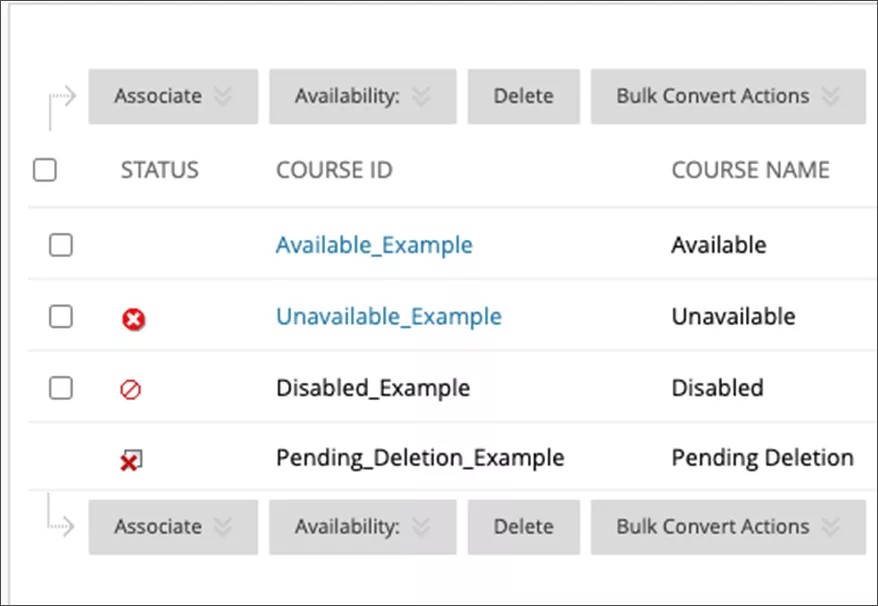
두 가지 방법으로 강좌를 활성화하거나 비활성화할 수 있습니다:
Disabled status is commonly used to indicate courses that were canceled or never began.
You can enable or disable a course in two ways:
SIS 통합을 사용하여 row_status 값을 업데이트합니다. 자세한 내용은 스냅샷 플랫 파일 과정 예시를 방문하세요.
수동 변경이 필요한 경우 데이터 상태 관리 도구를 사용합니다. 데이터 소스 키 개요를 방문하세요.
충돌을 피하기 위해 가능한 한 SIS가 진실의 출처로 유지되어야 합니다.
데이터 보존 정책으로 인해 코스를 대량으로 삭제할 준비를 하는 경우 다음을 권장합니다.
코스를 비활성화됨으로 설정합니다.
삭제하기 전에 코스가 더 이상 필요하지 않은지 확인할 시간을 갖습니다.
Original 코스 보기에서 코스 구조 활성화 또는 비활성화하기
참고
코스 구조는 Original 코스 보기에서만 사용할 수 있습니다.
코스 구조에는 교수자가 원본 코스 보기 구성을 시작하는 데 도움이 되는 원본 코스 보기 코스 메뉴 링크, 지침 및 콘텐츠 예제와 같은 사전 정의된 코스 자료가 포함되어 있습니다. 관리자는 이 기능의 가능성을 제어합니다.
관리자 패널의 강좌 섹션에서 강좌 설정을(를) 선택합니다.
강좌 설정 페이지에서 강좌 메뉴 및 구조를 선택합니다.
강좌 메뉴 및 구조 페이지에서 강좌 구조 활성화 확인란을 선택합니다. 비활성화하려면 확인란 선택을 해제합니다.
제출을 선택합니다.
Original 코스 보기에서 빠른 설정 가이드를 활성화하거나 비활성화합니다.
참고
빠른 설정 가이드는 Original 코스 보기에서만 사용할 수 있습니다.
빠른 설정 가이드는 강사가 코스 구조와 같은 코스 요소를 선택하는 데 도움이 됩니다. 또한 코스 이름과 설명을 편집하고, 코스 구축에 대해 더 자세히 알아볼 수 있도록 도와주는 주제 및 비디오 튜토리얼에 액세스할 수 있습니다.
교수자가 코스를 입력할 때 빠른 설정 가이드가 표시되는지 여부를 선택할 수 있습니다. 모양을 비활성화하도록 선택한 경우 교수자는 원래 코스 보기에서 제어판, 사용자 지정, 빠른 설정 가이드를 선택하여 접근할 수 있습니다.
관리자 패널의 강좌 섹션에서 강좌 설정을(를) 선택합니다.
코스 설정 페이지에서 빠른 설정 가이드를 선택합니다.
빠른 설정 가이드 페이지에서 이 기능을 비활성화하려면 강좌에 진입할 때 빠른 설정 가이드를 표시하지 않음 확인란을 선택합니다. 이 기능을 활성화하려면 확인란의 선택을 해제하십시오.
제출을 선택합니다.
코스 삭제
코스를 삭제하면 Blackboard LMS 자동으로 최종적이고 완전한 패키지 보관을 생성합니다. 보관 패키지는 콘텐츠 컬렉션의 코스 autoArchive 폴더에 다음 파일 이름 패턴으로 저장됩니다: Course_ID_Course_PKID_Course_Title_currentTime_in_milliseconds_bb_permanent.zip.
중요
코스 삭제에 의해 자동으로 생성된 아카이브는 30일 동안 사용할 수 있습니다. 이는 실수로 삭제된 강의에서 데이터를 복구하는 데 도움이 될 수 있습니다.
코스를 삭제하려면:
관리자 패널의 강좌 섹션에서 강좌를 선택합니다.
하나 이상의 코스를 검색합니다.
삭제할 각 코스 옆의 확인란을 선택합니다.
삭제를 선택하십시오.
확인을 선택하십시오.
Original 코스 보기에서 코스 자료 일괄 삭제
코스 자료의 일괄 삭제는 Original Course View에서만 사용할 수 있습니다. 이 옵션을 사용하면 관리자 또는 교수자는 등록 또는 성적을 삭제하는 동안 콘텐츠를 유지하는 등 다른 자료는 유지하면서 선택한 자료를 제거할 수 있습니다.
대량 삭제한 자료는 복구할 수 없습니다.
"사용자"를 일괄 삭제하도록 선택하면 학생 역할을 가진 모든 학생이 코스에서 제거됩니다. 조교, 채점자 및 코스 생성자의 역할은 제거되지 않습니다.
작은 정보
먼저 코스를 보관하여 대량 삭제하기 전에 정확한 상태로 복원할 수 있습니다.
코스 자료를 일괄 삭제하려면:
제어판에서 패키지 및 유틸리티를 선택한 다음 일괄 삭제를 선택합니다.
삭제할 콘텐츠 자료 선택 섹션에서, 삭제하려는 코스의 콘텐츠 영역에 해당하는 확인란을 선택하십시오.
삭제할 기타 자료 선택 섹션에서, 삭제하려는 코스의 다른 영역에 있는 콘텐츠의 확인란을 선택하십시오. 예를 들어, 연락처를 선택하면 직원 정보와 관련된 모든 데이터가 삭제됩니다.
확인 섹션에서 일괄 삭제를 확인하려면 상자에 "Delete"를 입력하세요.
제출을 선택합니다.
수행하면 선택한 코스 자료가 삭제됩니다.