AI 디자인 어시스턴트 및 Unsplash 구성
Note
본 문서는 AI 지원 기계 번역을 사용하여 번역되었습니다. 번역본은 '있는 그대로' 제공되며 정확성에 대해 어떠한 보증도 하지 않습니다. 본 콘텐츠의 영문 버전이 공식적이고 권위 있는 원본입니다.
AI 디자인 어시스턴트 및 Unsplash 구성
AI 디자인 도우미는 교수자가 새로운 과정을 만들고 설계하는 데 도움을 줍니다. 강사가 영감을 받고 강의 개발을 더 효율적으로 할 수 있도록 하는 것입니다. Anthology는 이 기능을 제공하기 위해 Microsoft와 파트너십을 맺었습니다.
AI 설계 어시스턴트는 Ultra에서 다음과 같은 생성형 AI 지원 기능을 제공합니다.
Unsplash 기반 Ultra에서 로열티 프리 이미지 서비스를 위한 키워드 생성 – 효율성 향상을 위해 Unsplash 검색에 키워드를 제안합니다.
학습 모듈 생성 – 강사 지원을 위한 코스 구조 제안.
학습 모듈 이미지 생성 – 각 학습 모듈에 대한 이미지를 만들어 제안합니다.
시험 문제 및 문제 은행 생성 - 시험에 다양한 질문을 제안하거나 Learn 문서를 통해 문제 은행을 구축해 교수자에게 영감을 제공합니다.
과제 생성 – 고차원적 사고를 장려하는 과제 생성을 지원합니다.
루브릭 생성 – 지정된 평가의 구조 및 기준을 담은 채점 루브릭을 제안함으로써 교수자의 효율성을 높이고 학생들에게 채점의 투명성을 제공합니다.
AI 대화 생성 - 소크라테스식 질문 연습이나 역할극 시나리오에서 학생과 AI 페르소나 간의 대화를 만듭니다.
문서 이미지 생성 – 문서에 사용할 이미지를 생성해 학생들에게 시각적으로 매력적인 문서를 제공합니다.
문서 레이아웃 제안 - 이미지, 지식 검사 및 제목을 포함해 문서의 매력적인 레이아웃을 만듭니다.
중요
Azure OpenAI 서비스의 기능은 제한 사항 및 가용성에 따라 달라질 수 있으며 변경될 수 있습니다. 관련 릴리스 노트에서 자세한 내용을 확인하십시오.
AI 설계 어시스턴트 및 Unsplash 기능 활성화
관리자 패널로 이동합니다. 통합 섹션의 빌딩 블록 범주에서 설치된 도구를 선택하세요. AI 설계 어시스턴트 및 Unsplash를 선택하세요. AI 구성 페이지의 모든 옵션에 이제 액세스할 수 있습니다.
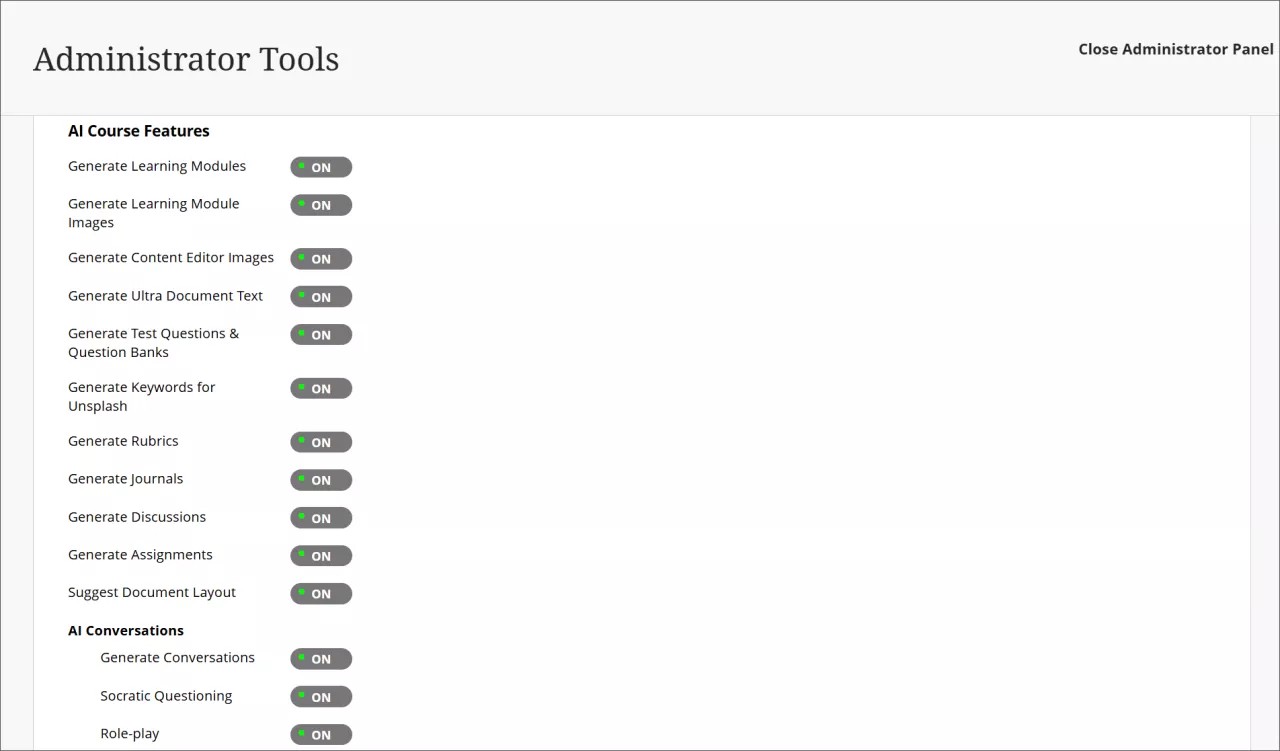
AI 설계 보조기능의 모든 기능을 제어할 수 있습니다. 언제든지 기능을 전체적으로, 부분적으로 혹은 전혀 선택할 수 없습니다.
Unsplash는 AI 디자인 어시스턴트 페이지에서도 접근할 수 있는 독립적인 기능입니다. Unsplash를 활성화하면 교수는 Unsplash 스톡 사진 갤러리에 접근하여 학습 모듈 및 코스 배너에 사용할 이미지를 선택할 수 있습니다.
권한을 활성화해야 합니다. AI 설계 어시스턴트 사용 권한을 적절한 코스 역할(예: 강사)에 할당합니다. "코스 및 조직 역할" 항목에서 권한 할당 및 관리 방법에 대해 자세히 알아보십시오.
AVA – AI Virtual Assistant Configuration
AVA – AI Virtual Assistant helps instructors and students by providing intelligent, AI-powered features within Blackboard LMS. Blackboardhas partnered with Microsoft and AWS to provide this functionality.
Visit our Blackboard AVA – AI Virtual Assistant page to learn more about AVA's AI-facilitated functionalities, key facts, and Trustworthy AI principles.
AVA provides the following generative AI-facilitated functionalities in Blackboard LMS:
AI Playground – AVA AI Playground provides a dedicated, institutionally managed space within Blackboard LMS, allowing instructors and students to experiment and innovate with teaching and learning.
Responses to Student Messages – AVA scans the course from the student's perspective to provide automated, relevant replies to common student questions sent to instructors.
Generate Attempt Feedback Summaries from Rubrics – Generates high-quality overall feedback for student submissions evaluated using a rubric, based on rubric criteria, performance levels, and any criterion-level feedback.
Revise Submission Feedback – Rewrites instructor-authored comments into more polished, student-friendly language to help instructors deliver clearer, more impactful feedback.
중요
These functionalities are subject to the limitations and availability of the Azure OpenAI Service and AWS Bedrock and subject to change. Please check the relevant release notes for details.
Availability and licensing
AVA features are included in your Blackboard LMSlicense until 30 June 2026. After that date, a specific AVA license will be required to continue using these features.
AVA and Existing AI Design Assistant Settings
AVA settings are managed within the same building block as the AI Design Assistant (AI Design Assistant and Unsplash). Turning on or off AVA features does not affect AI Design Assistant settings, and vice versa. Each feature can be controlled independently.
Turn on AVA features
To access AVA settings, go to the Administrator Panel. In the Integrations section, under the Building Blocks category, select Installed Tools. Find and select the AI Design Assistant and Unsplash building block, then select Settings. The AVA configuration options are located under the AVA section of this page.
You can control the availability of each AVA feature individually. You can select all, some, or none of the features to turn on at any time.
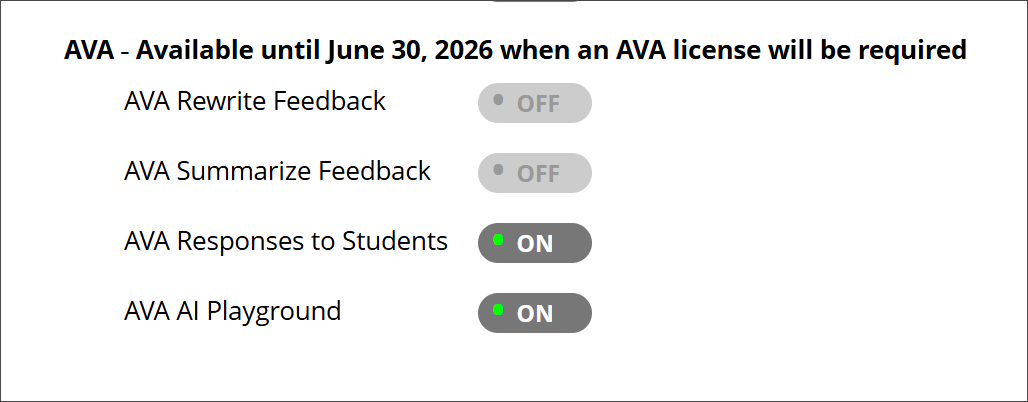
AI Playground
In the building block settings under AI Design Assistant and Unsplash, the option AVA AI Playground is available under the AVA heading. The default state is off.
Once AI Playground is enabled at system level, it is accessible through the Tools option in the Base Navigation menu for all Blackboard users.
Responses to Student Messages
To turn on this feature, navigate to the AVA section within the AI Design Assistant and Unsplash settings and select AVA Responses to Students. The default state is off.
Administrators can:
Turn the feature on globally for the entire institution, or
Enable it at the course level through Course Settings. Instructors can also turn it on or off with Course Settings.
When enabled at the administrator level, the feature is available to instructors but remains off by default. Instructors can turn on AVA autoreplies in their individual Course Settings at any time. For more information about the functionality, navigate to the Messages topic for instructors.
Generate Attempt Feedback Summaries from Rubrics
In the building block settings under AI Design Assistant and Unsplash, the option AI Summarization is available. The default state is off.
When this feature is turned on, the privilege must be assigned to course roles. The required privilege is:
Generate AI Feedback Changes in Course/Organization Control Panel
Assign this privilege to the appropriate course roles, such as Instructor, to allow access.
For more information about the functionality, navigate to the Grade Assignments with Flexible Grading topic for instructors.
Revise Submission Feedback
In the building block settings under AI Design Assistant and Unsplash, the option AI Summarization is available. The default state is off. The default state is off.
When this feature is turned on, the privilege must be assigned to course roles. The required privilege is:
Generate AI Feedback Changes in Course/Organization Control Panel
Assign this privilege to the appropriate course roles, such as Instructor, to allow access.
For more information about the functionality, navigate to the Grade Assignments with Flexible Grading topic for instructors.