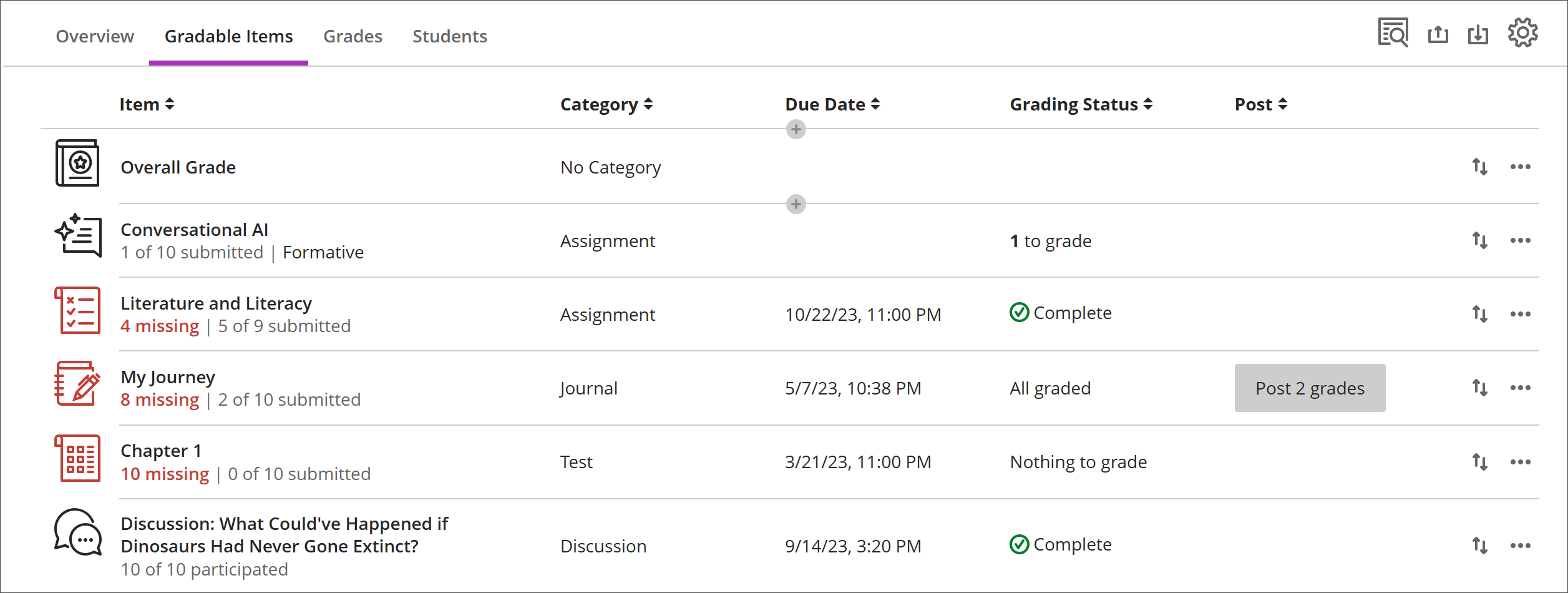
Gradable Items Tab in Gradebook
The Gradable Items view displays all gradable items in your course. You can view due dates, grading status, and item categories. You can also post grades and adjust the overall grade calculation for the course.
Items with missing submissions past the due date display in red.
Use the move button to drag and drop items in a new order.
Select an item’s name to go to its Submissions or Grades & Participation page.
Select X to grade to go directly to the assessment’s Submissions page and start grading.
Custom, text-based columns
To create a custom, text-based column, select (+) add, then select Add Text Item. For each column, you can enter a column name and description, and you can control student visibility for the column. For each row, you can enter up to 32 characters.
Navigate the Gradable Items tab in the Gradebook
The Gradable Items tab uses a table-based layout to enhance usability for keyboards and screen readers.
Navigate Gradable Items by keyboard
Use the Tab key to go to the Gradebook.
Use the arrow keys to go to the Gradable Items tab.
Select Tab until you enter the Gradable Items table.
Use the arrow keys to navigate the table.
The Tab key will take you out of the table and to the Blackboard Help button. Shift + Tab returns you to the Settings button.
Navigate Gradable Items with screen readers
Screen reader users can navigate to the Gradable Items tab using the keyboard instructions. You can also use the specialized keyboard combination for your screen reader to go directly to the table.
JAWS: Use Insert + Ctrl + T
NVDA: Use T, then Ctrl + down arrow key to enter the table
VoiceOver: Use Ctrl + Option + right arrow key to choose the table option
Once in the table, screen readers can use table navigation (Ctrl + Alt + arrow keys) to navigate the table.
If you want to add content, use the down arrow to go the More Options (...) button at the end of the row. The next down arrow will be the Add Content button.
JAWS users can move left or right in any row by using table navigation keys.
To move up and down between assignment rows, navigate to the item column first.