March 2026 Release Notes (4000.10)
Release Information
Tip
For maintenance release build numbers and bug fixes, visit Maintenance Releases.
For release status and delays, visit Blackboard Status.
Instructional Design
Generate Knowledge Checks with AI
We expanded AI‑assisted authoring to support generating multiple choice Knowledge Checks within Documents. This enhancement allows instructors to create just‑in‑time formative assessments using AI‑generated questions based on the content of their Document and any selected course materials.
Instructors
When inserting a Knowledge Check, instructors are now presented with two options: Enter my question or Auto generate question. Selecting Auto-generate question opens the Auto-Generate Question panel, which adapts the existing Question panel used in tests and question banks.
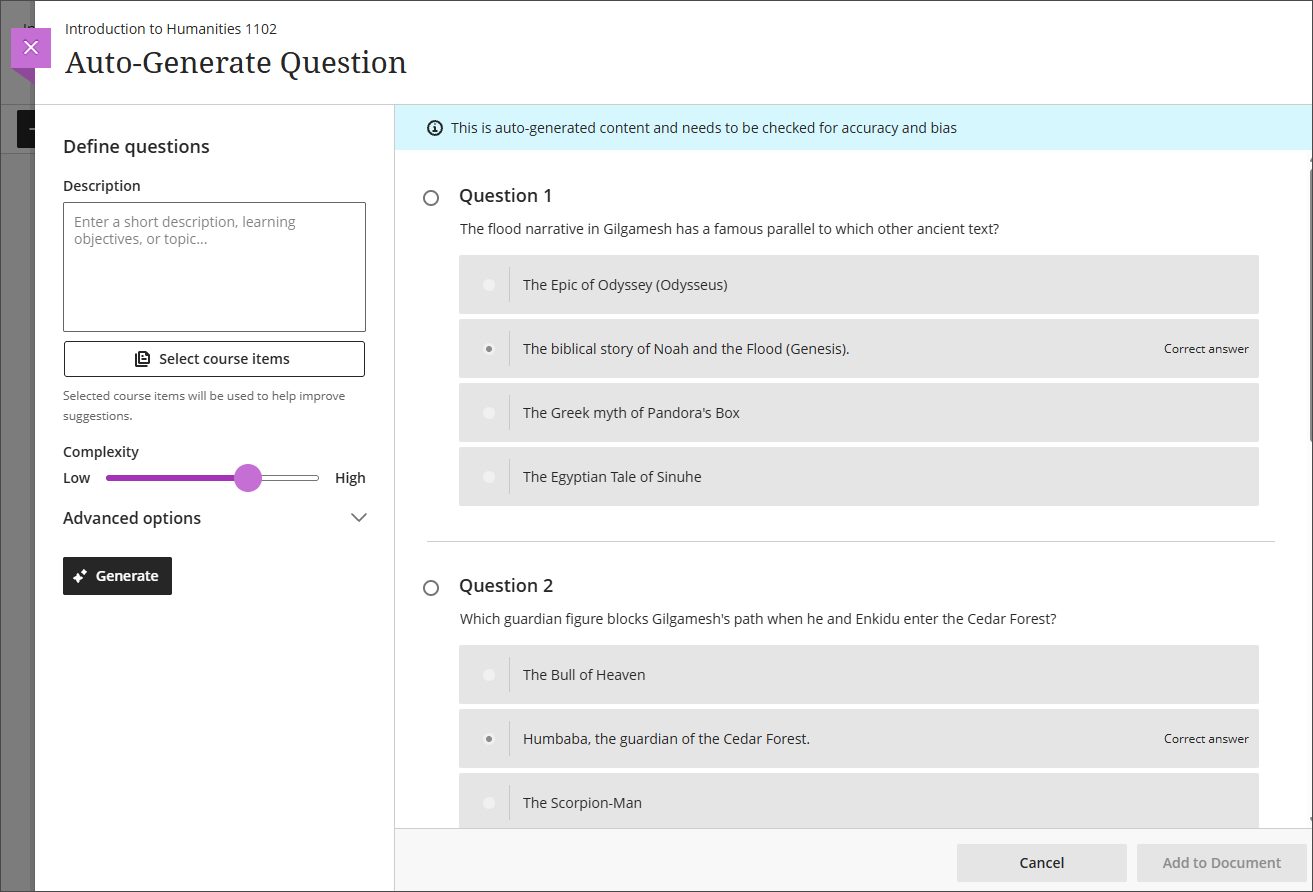
When using the Auto generate question option, instructors can define generation inputs with the following fields:
A description text field
A selector to choose course items to inform generation
A complexity level slider with a range from Low to High
Advanced options including an output language selector
An informational banner that states: “This is auto-generated content and needs to be checked for accuracy and bias.”
The system generates four multiple choice questions at a time. Each generated question displays with a radio button so that the instructor can select one question to add to the Document. The instructor can then modify the question, answer options, and feedback after insertion. If the instructor opens the Knowledge Check option but does not add a question, the placeholder block remains empty and behaves as other empty content blocks do.
All questions are generated using only text content from the Document. Consideration of additional media or files will be handled as part of a future release.
Image 1: Instructors can select Enter my question or Auto-generate question when creating a knowledge check.
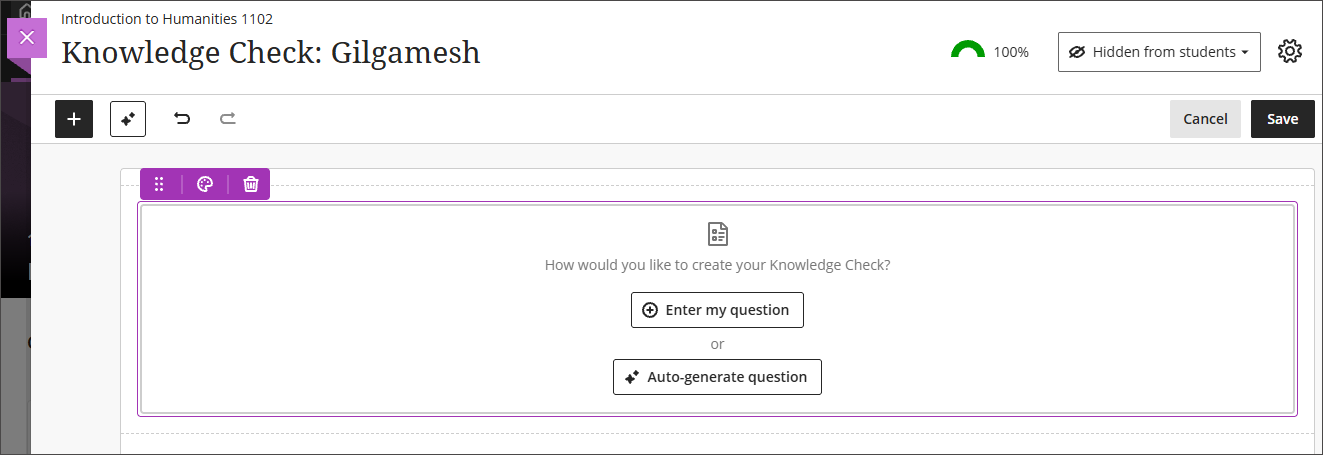
Image 2: After the system generates questions, the instructor selects which question to add to the Document. After adding a question, instructors can edit the question, question options, and question settings.
Administrators
Availability: Available to all Ultra courses.
Activation: Admins must turn on the new toggle AI Design Assistant and Unsplash to be able to switch Generate Knowledge Checks on.
Configuration: None needed.
Communication and Collaboration
Enhanced threading experience in Course Messages
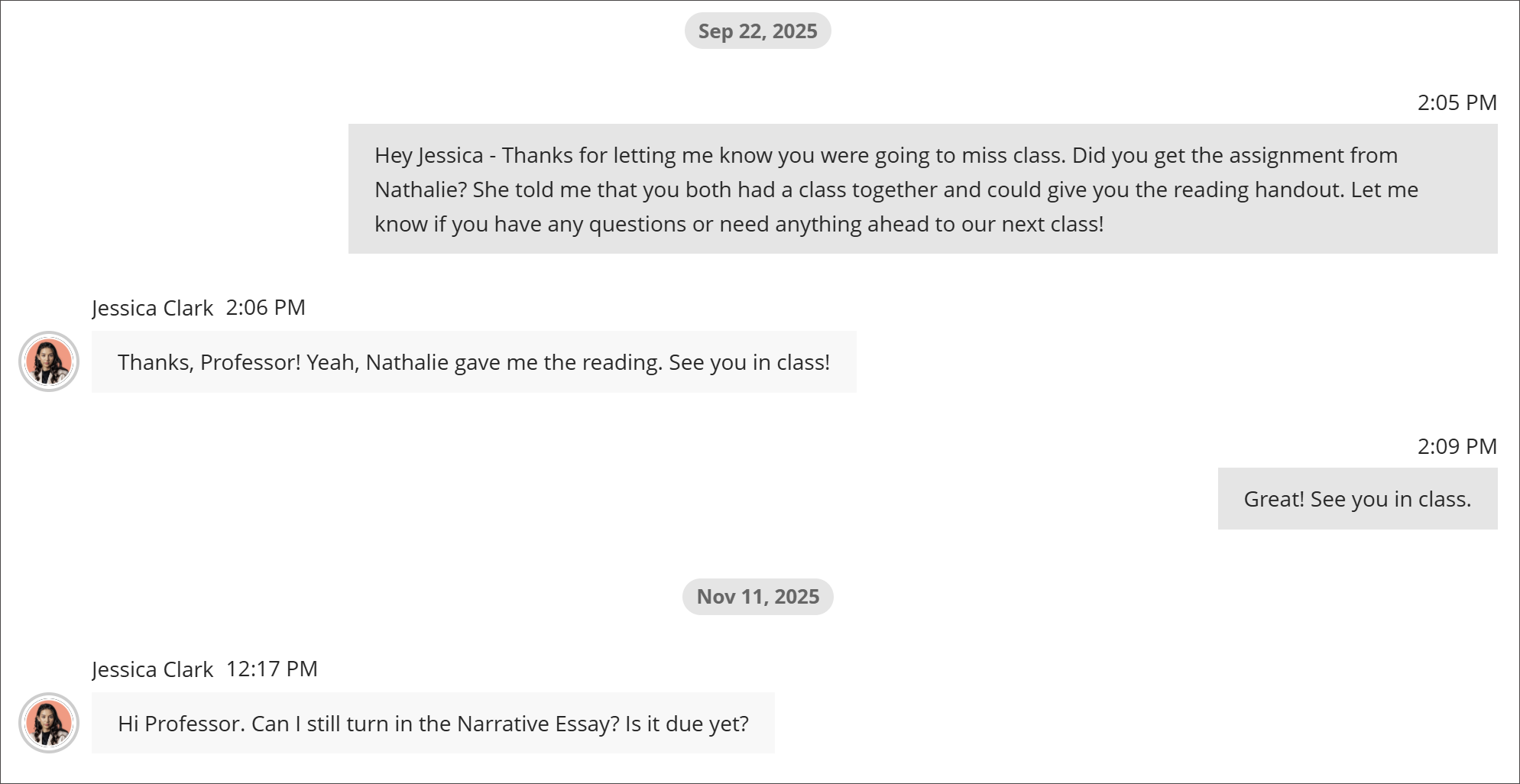
When users send new messages, the system now attributes the message to an existing conversation. If no conversation exists, the system creates one. Any future messages between those users return to that same conversation. This update brings dispersed messages together and improves communication in courses.
The option to block replies is removed because it conflicts with the simplified threading experience.
Additionally, the rich text editor (RTE) and Send button now stay onscreen on smaller devices to improve usability.
Instructors and students
Users create and send messages as before. If messages already exist between users, the system attributes new messages to those conversations.
In conversations that include all course members, all instructors, or all students, adding and removing members remains on one thread.
In group conversations, changes to group membership can start a new conversation.
When users add new members to a previous one‑on‑one conversation, the system starts a new, separate conversation.
Deleting a message doesn’t delete the entire conversation.
When instructors send a reminder from Gradebook, the system attributes the message to an existing conversation. Anonymous grading reminders go to email.
Image 1: The Messages feature now attributes a new message to an existing conversation between participants.
Administrators
Availability: Available for all Ultra Courses.
Activation: None needed.
Configuration: None needed.
Add a second participation requirement and due date in Discussions
Instructors can now add a second due date with participation requirements for Discussions. This update builds on recent enhancements for discussion participation requirements and gives instructors clearer ways to set expectations for discussion activity. Students get transparent guidance for discussion expectations and progress indicators for their participation.
Instructors
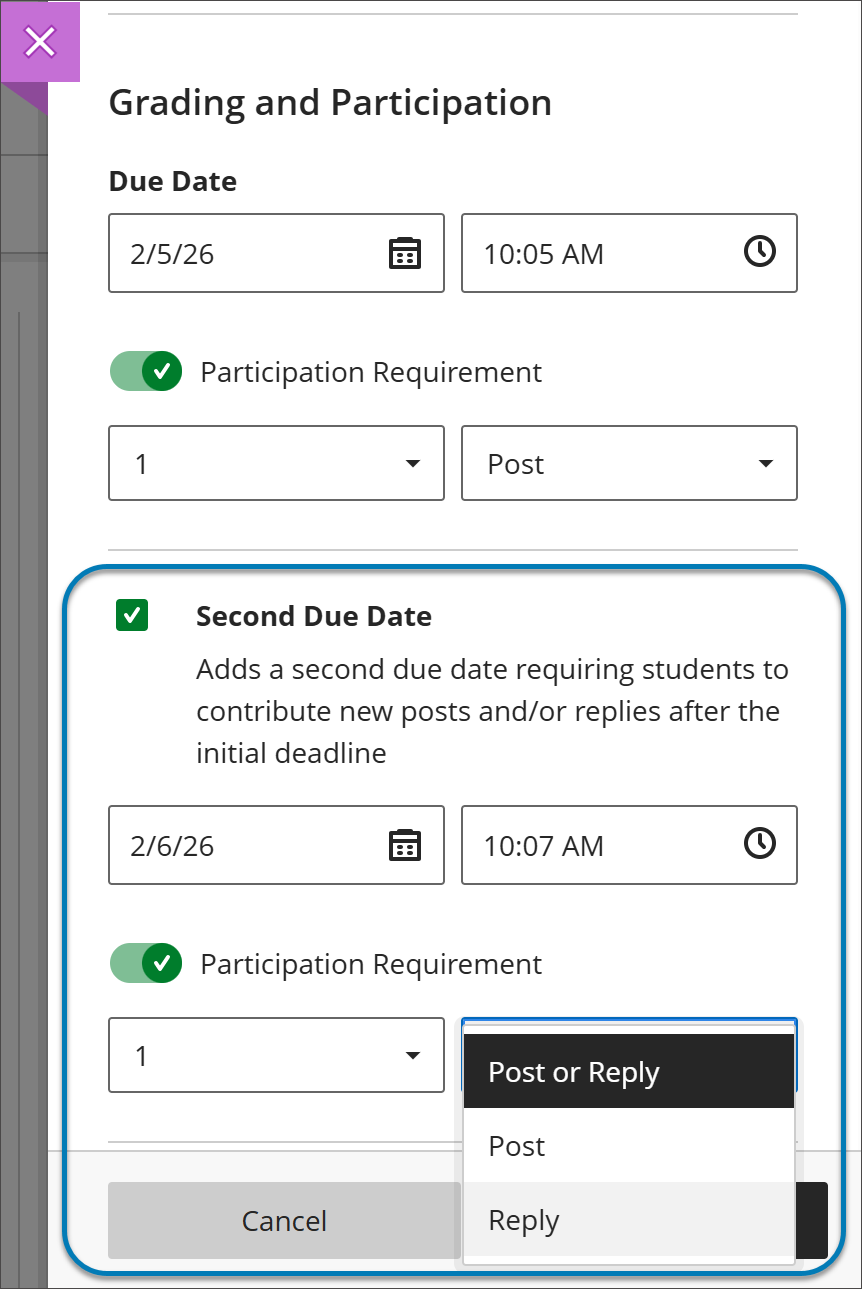
Instructors can set how many posts and replies that students must complete across two due dates.
The option Grade discussion must be selected to add a due dates and participation requirements. Enter a time and date under Due Date and specify participation requirements. Selecting Second Due Date adds another due date with its own requirements.
Instructors can disallow student posts or replies after the final due date by selecting Stop discussion activity after last due date.
Image 1: Instructors can now add a second due date for Discussions. They can also specify the number and type of posts or replies that a student is required to make.
 |
Students
When students open a discussion, they find two clear participation requirements with separate due dates. As they post and reply, progress indicators update in real time.
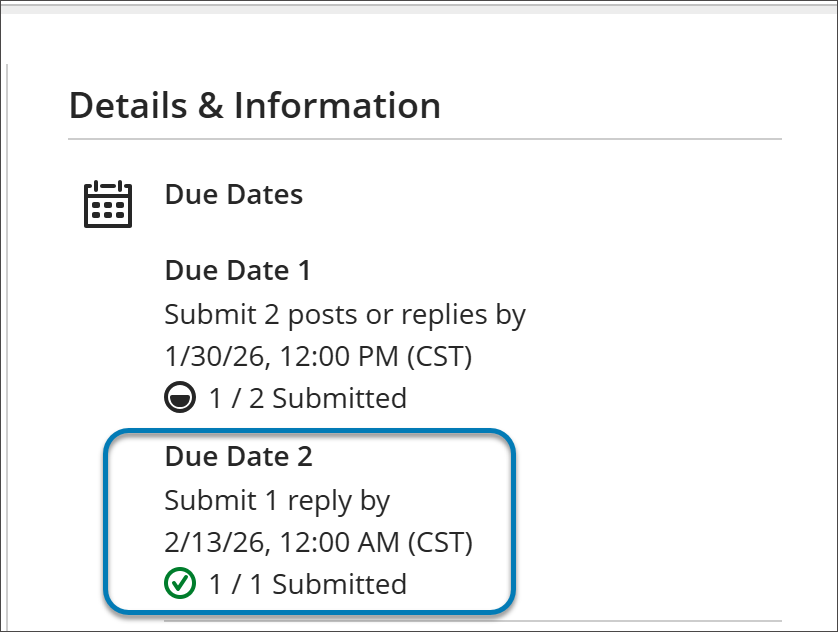
Students can complete requirements in any order, but contributions after a due date won’t count toward that requirement. Once all requirements are met, the discussion is marked complete and Progress Tracking updates.
Image 2: In a Discussion, a student can find due dates in the Details & Information section in the discussion assignment.
 |
Administrators
Availability: Available for all Ultra Courses.
Activation: None needed.
Configuration: None needed.
Require confirmation for updated email addresses – Removal of Feature Flag
In release 3900.125, we added a verification step when users update their email address in Blackboard. This was released behind a feature flag for administrators to switch on if they chose to use it.
This functionality is now permanently active to improve security and ensure reliable communications. The feature flag will also be removed from the administrator panel.
Administrators
Availability: Available for all users.
Activation: None needed.
Configuration: None needed.
Assignments & Tests
Question Title field relocated
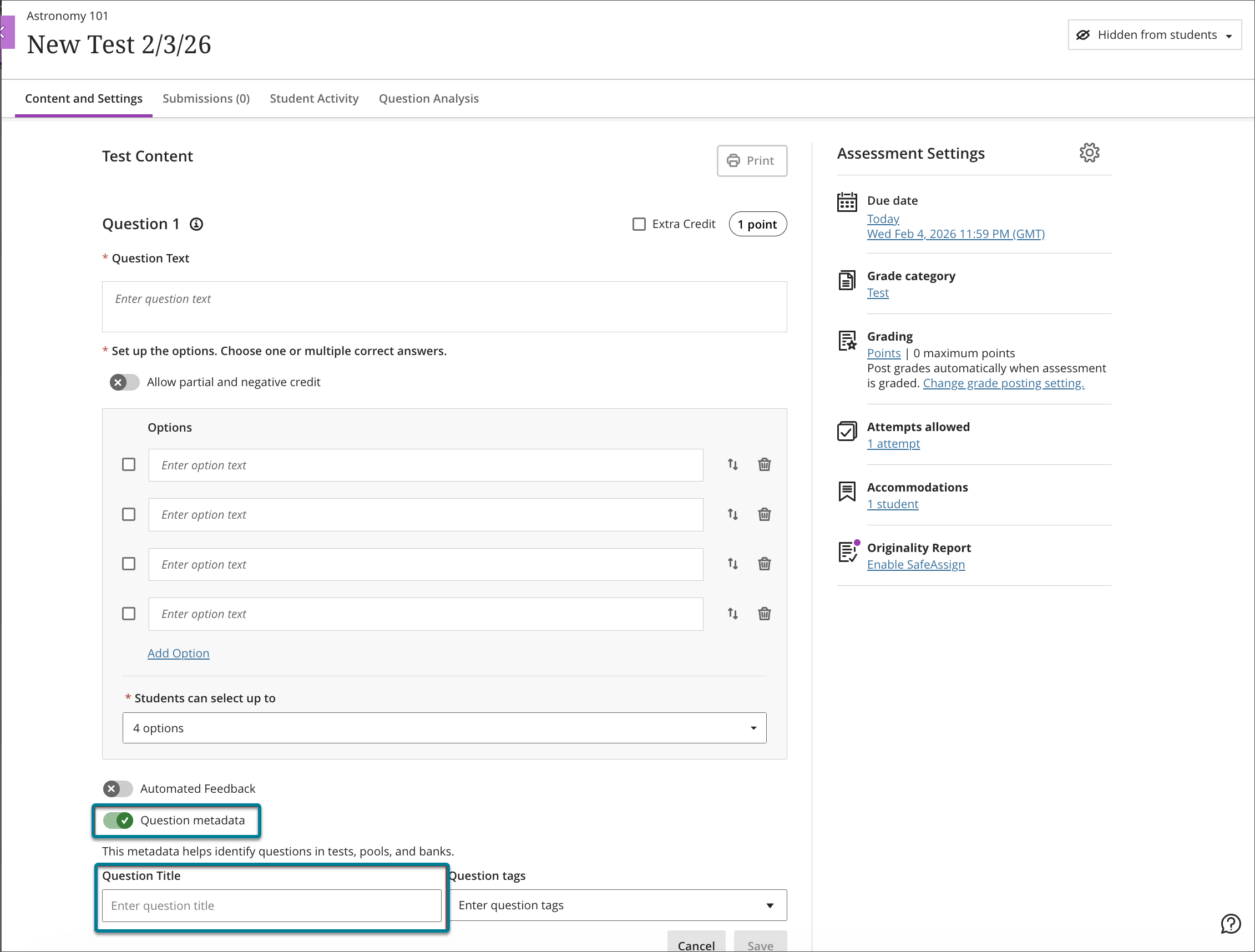
To reduce confusion identified through user feedback, we moved the Question Title field from the beginning of the question authoring workflow to the bottom, underneath the Question metadata field. Moving this field ensures that titles remain an optional metadata element and reduces cognitive load during question creation.
Image 1: Before this enhancement, the Question Title field was at the top of the question authoring workflow.
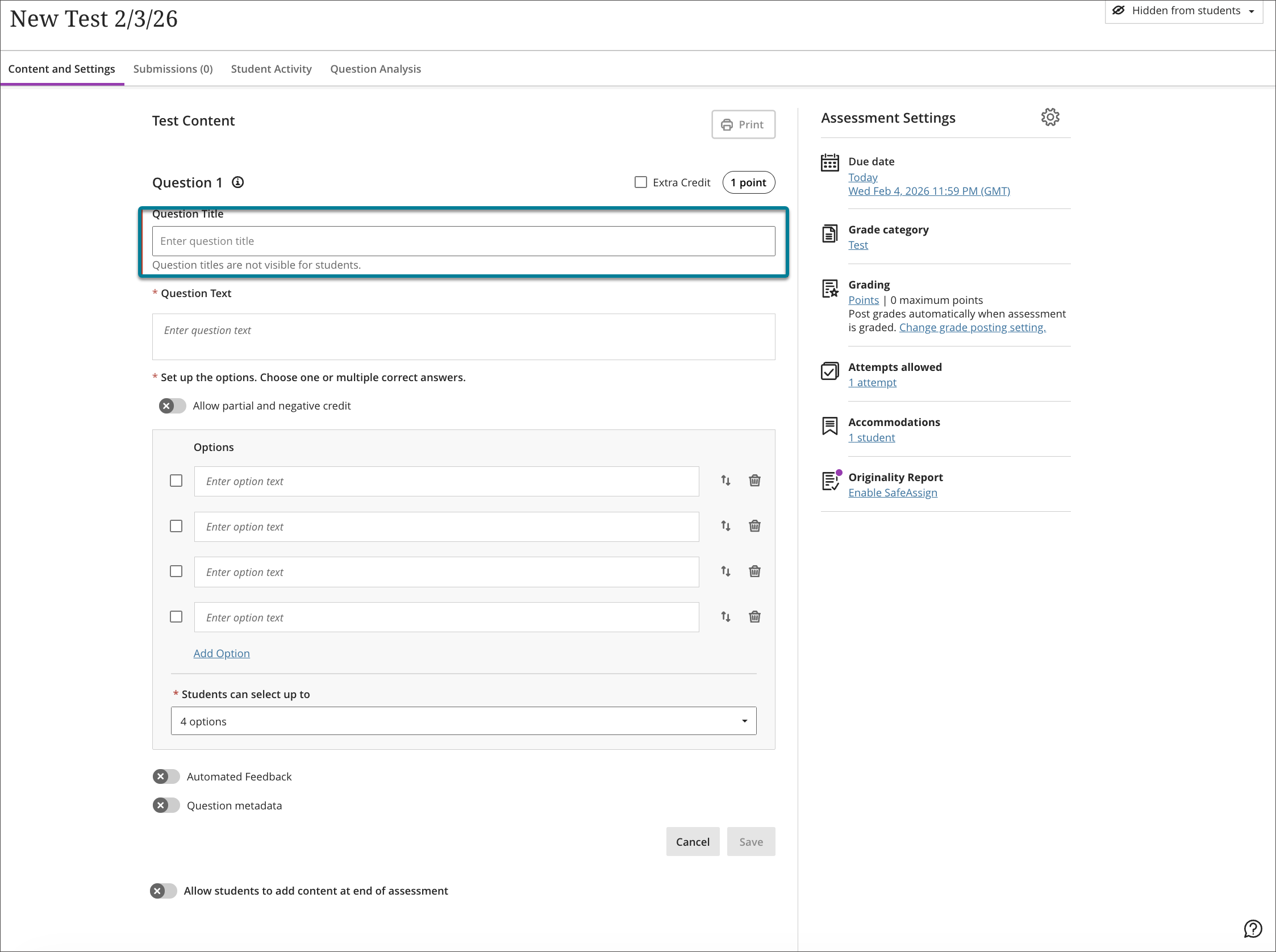
Image 2: Now, the Question Title field is at the bottom of the question authoring workflow, underneath the Question Metadata field.
Administrators
Availability: Available to all Ultra courses.
Activation: None needed.
Configuration: None needed.
Partial credit limits removed for Multiple Choice and Multiple Answer
We updated the partial credit system for Multiple Choice and Multiple Answer questions to allow instructors to assign credit values without the requirement that all designated values sum to 100%. This change supports more flexible grading strategies and enables instructors to represent varying levels of conceptual understanding without adjusting values to meet a fixed total.
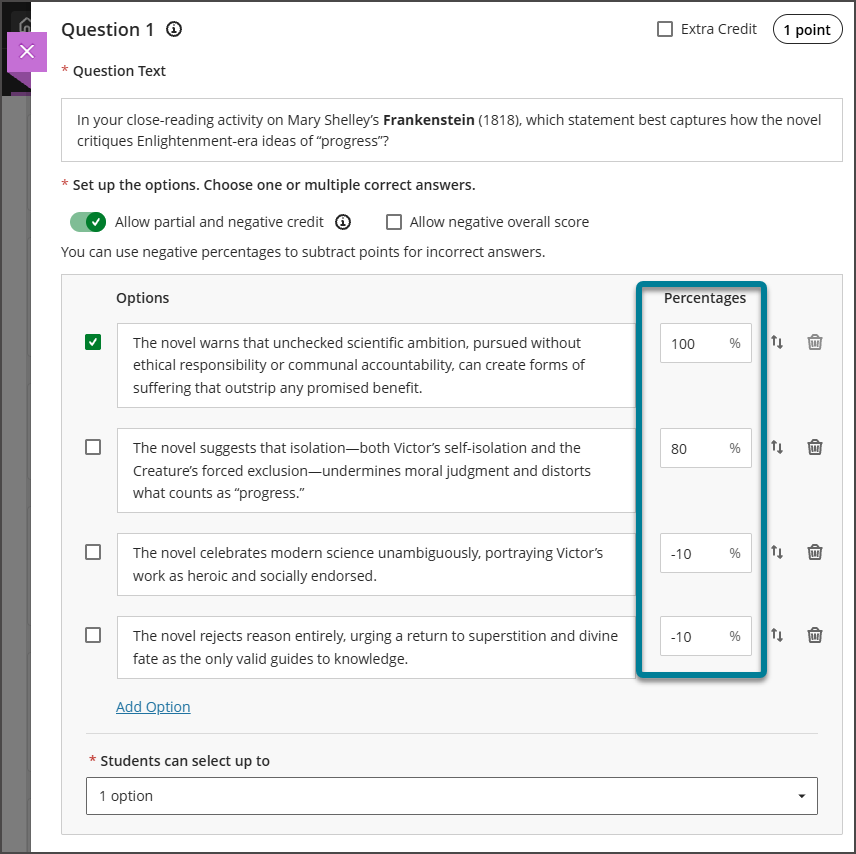
The system now allows instructors to enter any partial credit value for each option within a range of –100% to +100%. Instructors may now also enter positive credit values for options that are not marked as the correct answer The total partial credit value for correct answers should be at least 100%, and it may exceed 100%. Negative marking continues to operate when enabled. Instructors can adjust credit values during regrading as well.
Image 1: Instructors can apply positive partial credit across answer options, even if the total partial credit value for correct answers exceeds 100%.
Administrators
Availability: Available to all Ultra courses.
Activation: None needed.
Configuration: None needed.
Gradebook
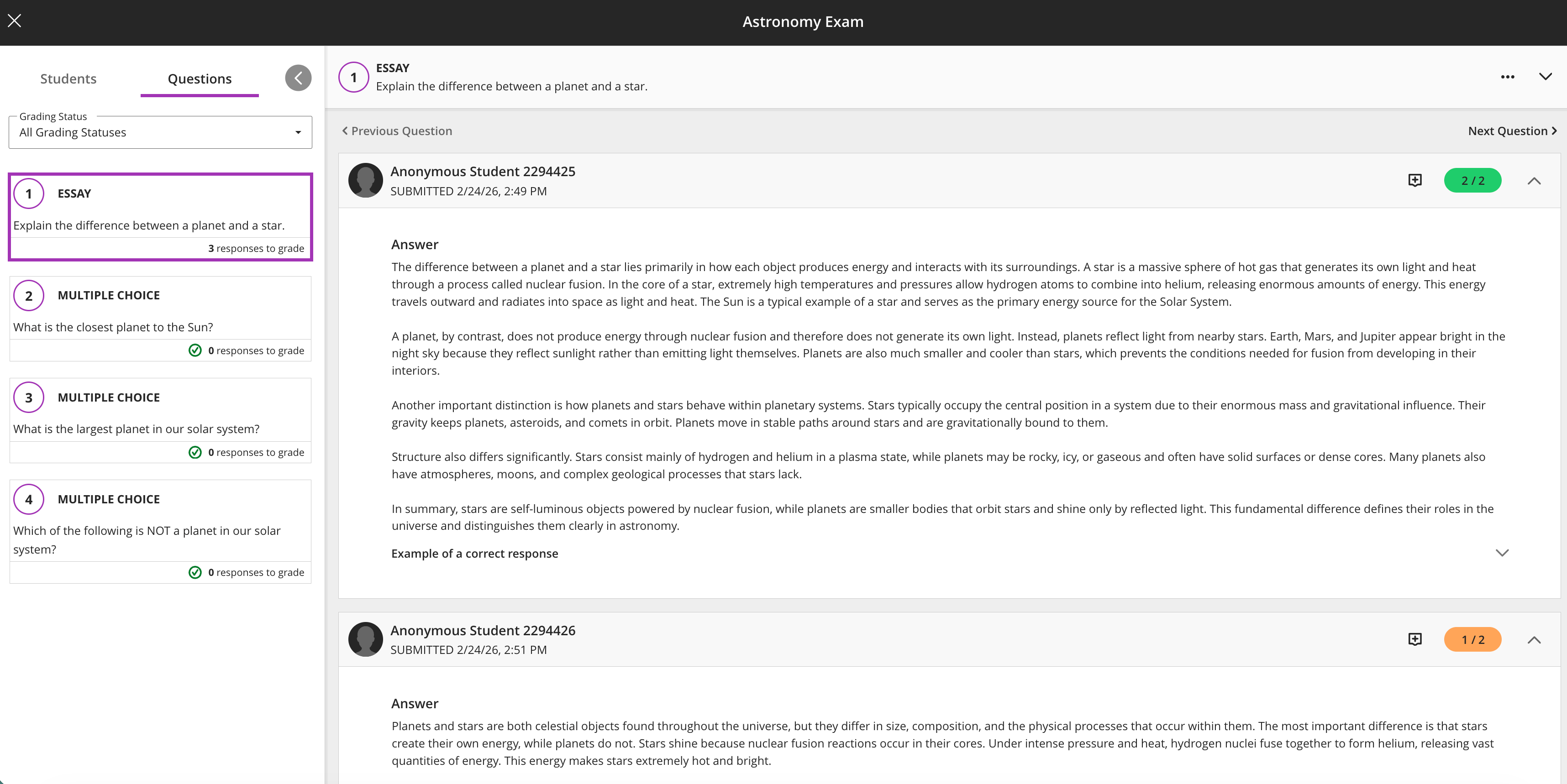
Anonymous grading by question
We extended support for anonymous grading of tests in Flexible Grading. Instructors can now grade anonymous by question in addition to grading anonymously by student.
When grading anonymous test submissions in Question View, the interface replaces the student name, avatar, and ID with an anonymous identifier and a blank avatar. All functionality available when grading non‑anonymous submissions by question is also available when grading anonymously. When anonymous grading is enabled, related APIs no longer return identifying information.
Image 1: Instructors can grade anonymously by question.
Administrators
Availability: Available to all Ultra courses.
Activation: None needed.
Configuration: None needed.
Increased file size limit to 25 MB for assignments and tests
We increased the maximum supported SafeAssign file size from 10 MB to 25 MB. This enhancement supports modern academic workflows in which students frequently submit large documents. The increased file size applies to assignments and tests. Direct Submit will be included in a later release.
Administrators
Availability: Available to all Ultra courses.
Activation: None needed.
Configuration: None needed.
Metadata analysis layer in Originality Report
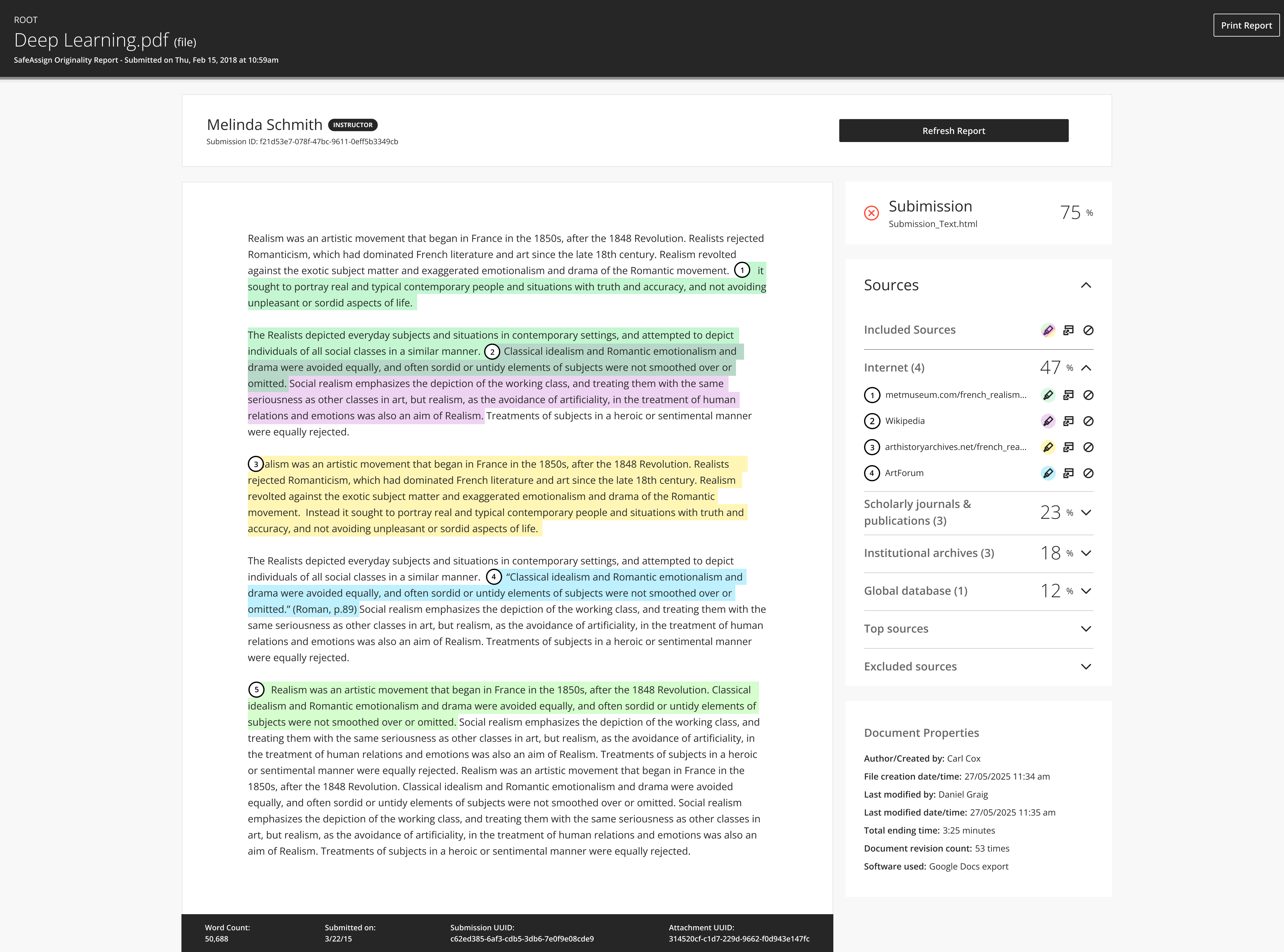
SafeAssign now includes a new metadata analysis layer within the Originality Report. In addition to traditional text matching, instructors can access contextual insights in the new Document Properties section in the report summary.
The Document Properties section lists metadata such as:
Author/Created by
File creation date/time
Last modified by
Last modified date/time
Total ending time
Document revision count
Software used
These metadata signals complement existing detection methods, providing richer context and supporting more informed academic integrity reviews. Metadata insights respect anonymized grading settings and will only display identifying information when anonymization is not enabled. When specific metadata is unavailable, it will not be shown.
Image 1: The Document Properties section of the report summary lists metadata.
Administrators
Availability: Available to all Ultra courses.
Activation: None needed.
Configuration: None needed.
Mastery & Learning Pathways
Support Subject creation
We added support for importing Subjects and maintaining Subject relationships through SIS integrations. Institutions can now manage Subject data directly from their Student Information System rather than through manual setup in Blackboard. This integration reduces administrative effort, improves data accuracy, and supports consistent curricular structures across reporting and solutions such as Outcomes and Evaluate.
The integration supports importing Subjects using flat file ingestion, API methods, or LIS-based models, depending on institutional requirements.
Administrators
Availability: Available to all Ultra courses.
Activation: None needed.
Configuration: None needed.
Performance Results Scale and Key Assessment
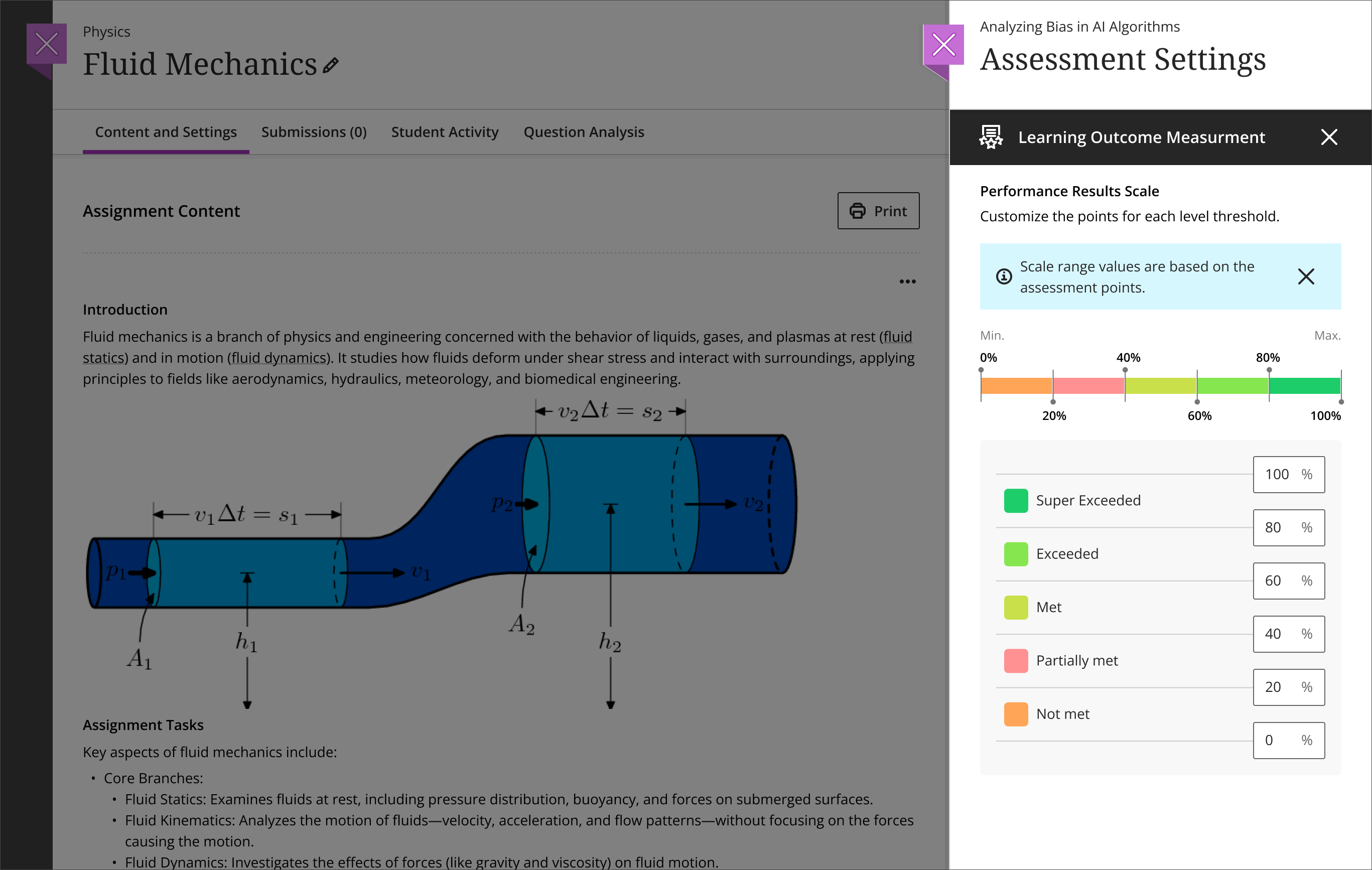
Institutions can begin using the Performance Results Scale and Key Assessment Indicator, providing a shared framework to interpret, aggregate, and visualize learning outcome performance consistently across assessments. These capabilities establish critical institutional foundations that support Outcomes for Blackboard and enable meaningful, longitudinal measurement of student learning.
Institutions can:
Identify assignments as Key Assessments used for measuring learning outcomes, skills, or competencies for the course
Define a consistent, institution-wide scale and default thresholds for interpreting outcome performance
Set custom thresholds on assignments to aggregate and compare assessment results across courses, programs, and terms
Allow institutions to sync scales from Blackboard, ensuring consistency, integrity, and alignment in assessment measures and configuration with Outcomes
Image 1: Institutions can use the Performance Results Scale and Key Assessment Indicator.
Outcomes for Blackboard will be available March 2026, with additional announcements and enablement resources coming soon. Institutions are encouraged to prepare now by reviewing the Outcomes for Blackboard: Institutional Readiness Guide and Getting Started with Outcomes for Blackboard resources. The release of Outcomes for Blackboard is not aligned with Blackboard's March 4000.10 release.
Administrators
Availability: Outcomes for Blackboard LMS is available only for North America at this time.
Activation: Blackboard Outcomes must be provisioned for the institution. This feature requires Learning Outcome Measurement Settings to be enabled. Contact your account team for further support.
Configuration: Administrators can configure Performance Results Scale in Administrator Tools > Courses > Terms. After Blackboard Outcomes is configured for the institution, instructors can select to show or hide the Outcomes tab for students. The Mastery outcomes tab for students setting is located in Mastery Gradebook - Visibility Settings.
Premium
Video Studio: Generate Recording Thumbnail Automatically
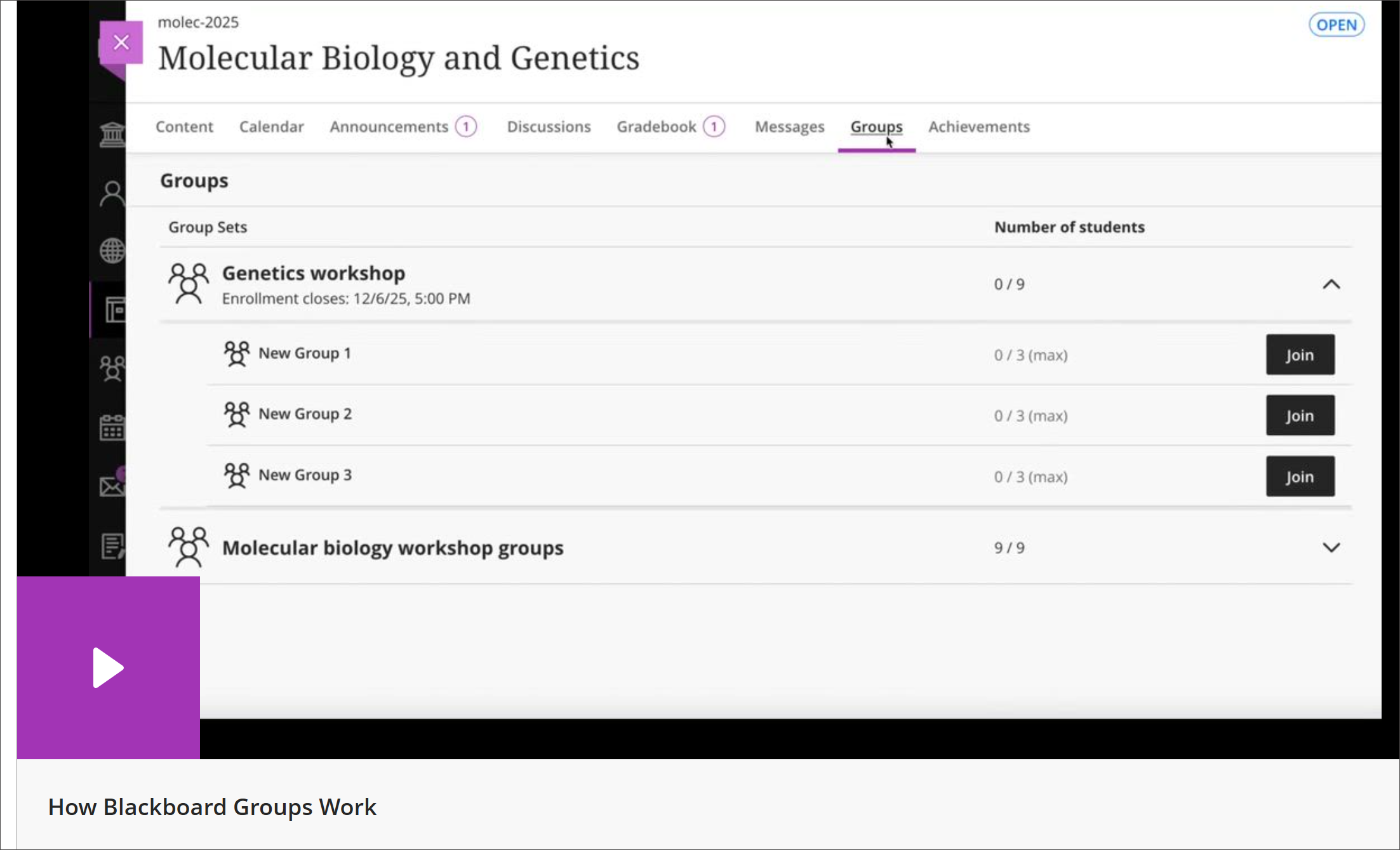
Video Studio now generates a thumbnail image automatically for newly recorded videos. Viewers get a clear visual preview before playback, and creators can present recordings more clearly and professionally.
Instructors and students
When users create a recording, the system captures a thumbnail image from the video ten seconds into the recording (and zero seconds for a recording under ten seconds). The thumbnail appears wherever the recording appears, so users can quickly recognize and identify video content before opening it.
This update improves visibility and recognition of video content, creates a more polished experience for students, and reduces effort for instructors because thumbnails generate automatically.
Image 1: Video Studio automatically generates a thumbnail for a recording.
Administrators
Availability: Feature included in Video Studio placements in Blackboard Core and premium Video Studio offering.
Activation: None needed.
Configuration: None needed.
Video Studio: Enhance timer to show maximum recording time
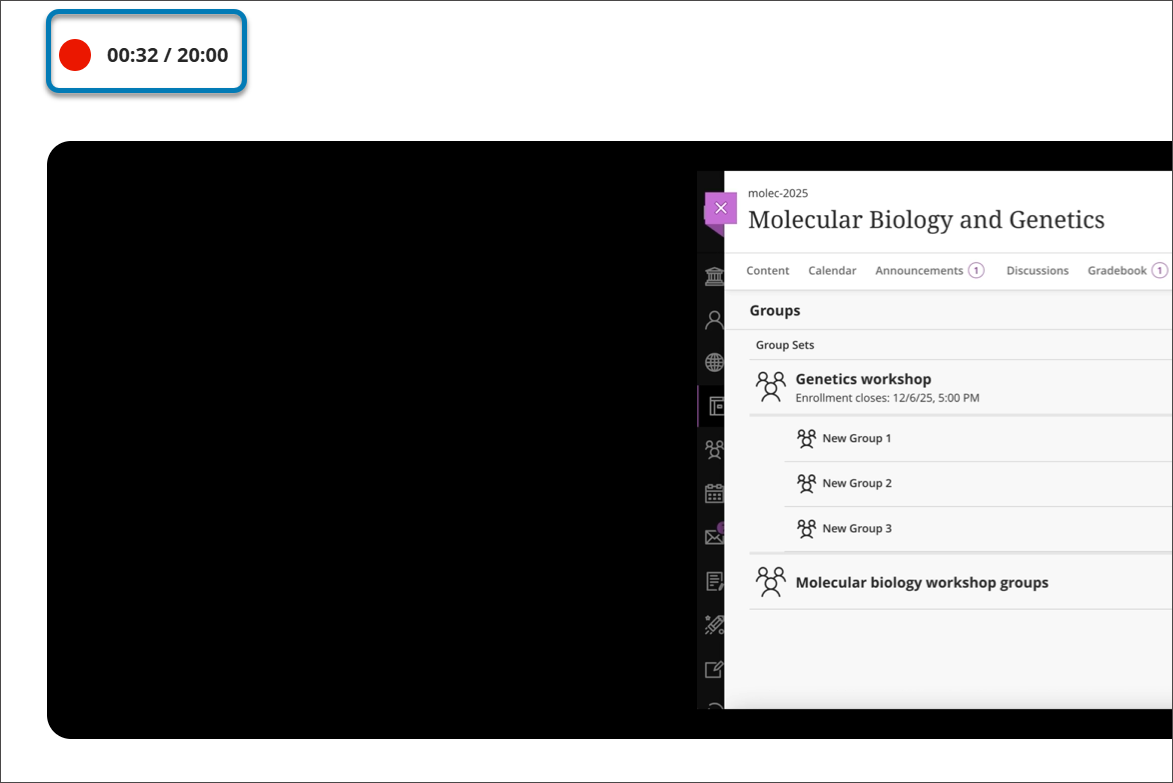
Video Studio now displays the maximum recording time in the recording timer in both full and minimized views, giving users a clearer sense of time remaining to reduce the risk of unexpected cut‑offs. This improvement removes uncertainty around time management so users can stay focused on creating their content.
Instructors and students
The functionality of creating a Video Studio recording remains the same. This enhancement applies to both the full recording view and the minimized recording view, ensuring consistent visibility regardless of screen layout.
Image 1: The recording timer now shows maximum recording time during a Video Studio recording.
Administrators
Availability: Feature included in Video Studio placements in Blackboard Core and premium Video Studio offering.
Activation: None needed.
Configuration: None needed.
Course Catalog: Batch edit the availability of offerings
Managers can now batch edit offering availability on the Offering Management screen instead of updating each offering individually. This feature saves time by allowing managers to act on multiple offerings at once.
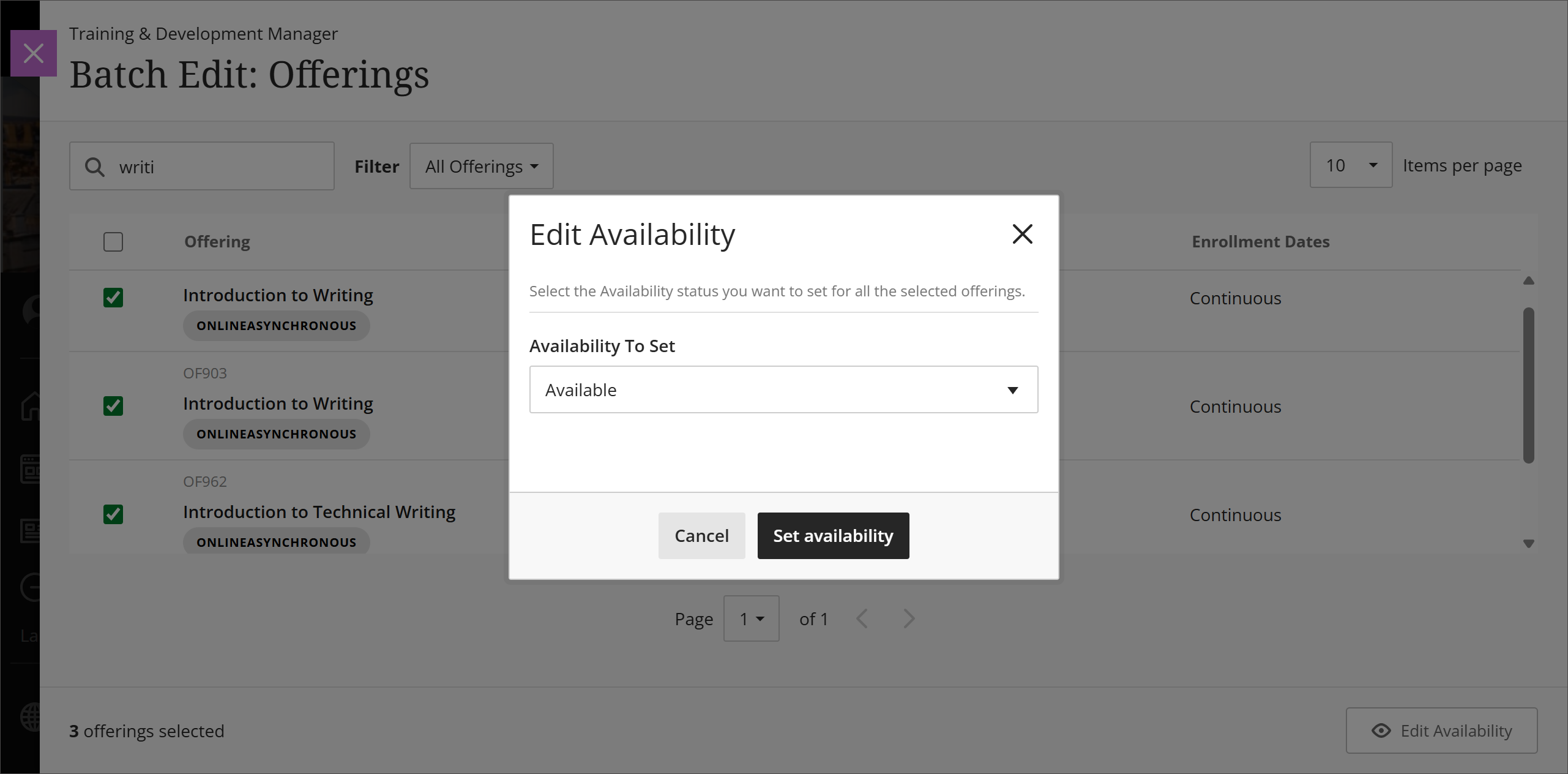
Managers select the Batch Edit button on the Offering Management screen, choose the offerings they want to update, then select the Edit Availability button. They pick their desired availability option and select Set Availability.
Image 1: The Batch Edit button now appears on the Offering Management screen.

Image 2: Managers choose the availability from the menu and select Set Availability.
Administrators
Availability: Available to all Course Catalog courses.
Activation: None needed.
Configuration: None needed.