Create an Offering
Once a course has been created, you can create new offerings for the course. An offering must be created for each time the course is delivered—learners enroll in individual offerings, not in the parent course. When you create an offering, you must set things like the modality in which the offering is delivered, the offering dates, availability, and visibility. You can also perform optional actions such as associating instructors, assigning certificates or progress, setting up a waitlist, and associating a cost with the offering.
Before creating an offering in Course Catalog
Make sure that the following actions have been completed before you start to create your offering:
The course manager has created the parent course for the offering and associated any necessary templates with it.
The course manager has associated the appropriate instructor profiles with the parent course.
The certificate manager has uploaded any certificates that you will associate with the offering.
You have created any images you want to use for offering tiles.
Create an offering
Creating an offering is a multi-step process. You must complete the basic steps before you can add achievements or progress to your offering. To begin, from the Course Catalog homepage, select Administration then select Offering Management.
Add Offering
Select Add Offering. Fill out the information for the offering you want to create. Fields marked with an asterisk are required.
Select Select Course and choose the parent course for the offering in the Courses List panel. When the course has been chosen, its plus sign will turn into a green checkmark. Select Save. You must perform this step before you can do anything else on the page.
If necessary, type a unique ID. (This may be autogenerated depending on how Course Catalog settings have been configured).
Choose the Language the offering information will be displayed in.
Type the offering Name.
Enter a short Summary of the offering, which will show on the offering tile in the catalog view.
Enter a full Offering Description, which will show on the panel when you select the offering in the catalog.
Choose relevant Tags and Requirements from the appropriate menus.
Enter the maximum number of learners who can enroll in the course in the Max Enrollments box.
Choose the Visibility of the offering from the menu. The visibility determines whether the offering is visible to everyone or is restricted to specific groups of learners. If the visibility is set to "Restricted," choose the Roles Allowed For Enrollment from the menu that appears. Learners with the roles you choose from this menu will be able to see the offering in the catalog.
Offering Media Settings
Offering media settings allow you to add visual elements to offering tiles. These elements make offerings easier for learners to identify. You can add an image that will show up on an offering tile; otherwise, the default catalog image is displayed. You can also add a video URL to enable a video playback icon on the image when the offering is clicked in the catalog.
Select Change media settings if you want to add an image or video playback icon to your offering tile.
Drag a file to the drop zone at the top of the panel or select Upload to navigate to the file to add an image.
Note
The image must be at least 310 pixels wide, 126 pixels tall, and no more than 2 MB. It must be a JPG, PNG, or GIF file.
Select the Enable Video toggle if you want to add video playback to your offering tile, then add the URL for the video you want to use.
Note
You must use the “Sharable” URL provided for the video.
Select Save.
Language Configurations
General information about the offering can be configured in multiple languages.
Select the purple plus sign.
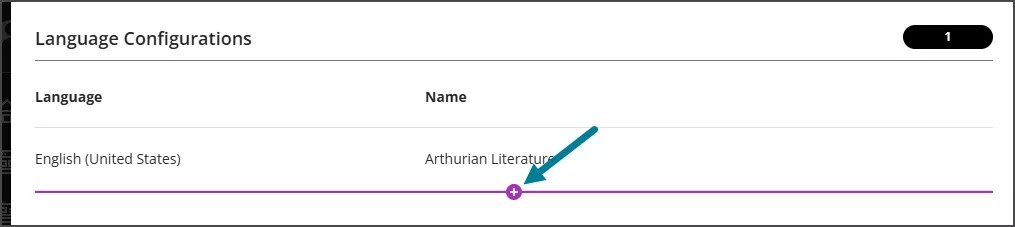
Choose the new Language at the top of the screen.
Type the Name, Summary, and Offering Description in the new language.
Offering Information
Optionally, if Institutional Hierarchy has been enabled, select Find Node. Select the desired institutional hierarchy node for the offering and select Submit. Only users who are associated with the same node will be able to see the offering.
Choose the Course Language in which the offering will be delivered.
Choose the Course Template being used for the offering.
Turn off the Copy Template Discussions toggle if you do not want the discussions from the course template to be copied. This toggle is on by default and template discussions will be copied unless you turn it off.
Note
This toggle does not appear if you select the "Blank Course Ultra View" template because that template is blank and has no discussions to copy.
Select the Modality in which the offering is being delivered.
Choose Categories and Assigned Instructors from the appropriate menus.
Select the Cost toggle if there is a cost for the offering, then type the cost.
Enter a Finance code to indicate where the funds from the offering should be distributed.
Note
The Finance Code feature is only functional for WPM payments.
Offering Dates
On the right side of the screen, you can configure Offering Dates, Recurrences, and Enrollment Dates, depending on the modality you choose. Fill out the options as appropriate.
Managed enrollment
Turn on the Managed enrollment toggle to allow learners to enroll in the course but not grant them access until an instructor or administrator manually approves them. When learners enroll in a managed access course, a manager or administrator must enroll the user from the Manage enrollments option on the Offering Management screen before they have access to the course.
Enter the email addresses of instructors or administrators to notify when someone enrolls in the managed enrollment offering, separated by commas, in the Email Notification List box. You will configure those emails on the Notifications Settings screen.
Note
Do not select Managed enrollment if there is a cost for the offering. This setting is only valid for free offerings.
Unenroll
Turn on the Allow Unenroll toggle to allow students to unenroll from an offering. They will be able to unenroll from the learner dashboard.
The Type of unenrollment will be set to Remove. This means that the learner is no longer enrolled in the offering and their space becomes available for others to register in the offering.
Type the email addresses of instructors or administrators to notify when a learner unenrolls from the offering, separated by commas, in the Unenrollment Email Notification List box. You will configure those emails on the Notifications Settings screen.
Unenroll is not available for paid offerings.
Allow Access Codes
Turn on the Allow Access Codes toggle to require learners to input an access code created by an administrator to be able to enroll in the offering. This option allows administrators to restrict enrollment in the course to those learners with a code. It is only available for free courses.
Allow Waitlist
Turn on the Allow Waitlist toggle to add a waitlist to the offering. After the max enrollment for the offering has been reached, learners will no longer see an Enroll button on the catalog panel; instead, they will see an Add to Waitlist button. Learners will use this button to add themselves to a waitlist, and managers will be able to enroll them in the offering from the waitlist. Managers enroll learners from the waitlist using the Manage Enrollments option on the Offering Management screen.
Enter the email addresses of instructors or administrators to notify when a learner adds themselves to a waitlist, separated by commas, in the Waitlist Email Notification List box. You will configure those emails on the Notifications Settings screen.
Subscriptions
Turn on the Subscriptions toggle to identify the offering as a subscription offering if you have set up Course Catalog for a subscription model. Choose the role to be assigned to subscription learners from the Assign institution roles menu. Remember if you are setting an offering to be a subscription offering, you must set the Modality to Subscription Membership and enter the subscription cost in the Cost box.
Catalog Dates
Select the Availability of the course. If you make the course available, add an optional date range during which it will be available in the catalog. If you do not add a date range, the course will remain available until the availability is manually changed.
If you want to assign a certificate, a badge, or progress to your offering, select Next. If you are finished adding information, select Save & Close.