Create a Course
A course is a single collection of content and activities designed to be offered in one of three modalities: face-to-face, online, or hybrid. A course can be versioned for
various time frames
various delivery styles, such as self-paced or facilitated
offerings at various locations
Courses can be saved with a template for each version available. There may be multiple templates associated with each course. For example, a course may be offered in 4-, 8-, or 12-week durations. A template for each delivery option can be associated with the course when it is created.
Before creating a course in Course Catalog
Make sure that the following actions have been completed before you create a course in Course Catalog.
A TDM admin has created any relevant categories in Course Catalog.
The instructor manager has added any relevant instructor profiles to Course Catalog.
You have created any images you want to use for course tiles.
Once these tasks have been completed, you can confidently begin building your course.
Create a course
From the Course Catalog homepage, select Administration, then select Course Management.
Add Course
Select Add Course. Fill out the information for the course you want to create. Fields marked with an asterisk are required.
If necessary, type a unique ID. (This may be autogenerated depending on how Course Catalog settings have been configured).
Choose the Language in which the course is offered from the menu.
Type the course Name.
Type a short Summary of the course, which will show in the catalog view, and a Description, which will show on the peek panel when the course is selected in the catalog.
Choose Categories and Prerequisites from the menu.
Associate Instructors by selecting instructors from the menu.
Associate Course Templates by selecting Course template search.
You can search using Course ID, Course Name, Data Source Key, or Term.
You can filter the search results by Date Created.
Select each course you want to add and select Submit to add those courses to the list.
You can choose multiple templates to be associated with each course for different delivery options (for example, for 4-, 8-, or 12-week durations). The courses you choose will be saved in the Associate Course Templates box in a comma-separated list of IDs.
Set the Availability of the course from the menu and, optionally, set a range of dates during which the course will be available in the catalog. If you make the course available and do not set a date range, it will remain available until its availability is manually changed.
Course media settings
Course media settings allow you to add visual elements to course tiles. These elements make courses easier for learners to identify. You can add an image that will show up on a course tile; otherwise, the default catalog image is displayed. You can also add a video URL to enable a video playback icon on the image when the course is clicked in the catalog.
Select Change media settings if you want to add an image or video playback icon to your course tile.
Drag a file to the drop zone at the top of the panel or select Upload to navigate to the file to add an image.
Note
The image must be at least 310 pixels wide, 126 pixels tall, and no more than 2 MB. It must be a JPG, PNG, or GIF file.
Select the Enable Video toggle if you want to add video playback to your course tile, then add the URL for the video you want to use.
Note
You must use the “Sharable” URL provided for the video.
Select Save.
Language Configurations
General information about the course can be configured in multiple languages.
Select the purple plus sign.
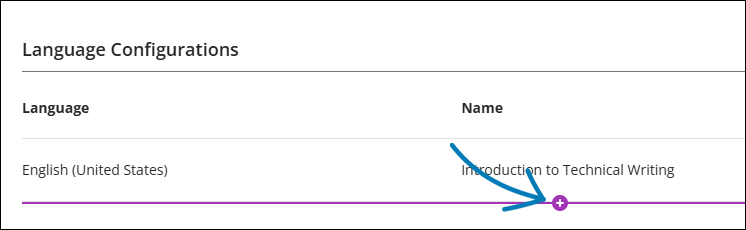
Choose a new Language.
Type the Name, Summary, and Description in the new language.
Once you have filled out all the fields for your course, select Create Offering if you want to create an offering for your course. Otherwise, select Save.