Enroll in a Course
You can enroll in courses through Course Catalog if you have created an account and signed in. To sign in, select Sign In from the navigation menu on any Course Catalog screen. If you are not signed in and try to enroll in a course, the system will redirect you to sign in or sign up, then take you back to the enrollment screen you were on.
Enroll
If the course a free course and enrollment is open, the Enroll button appears.
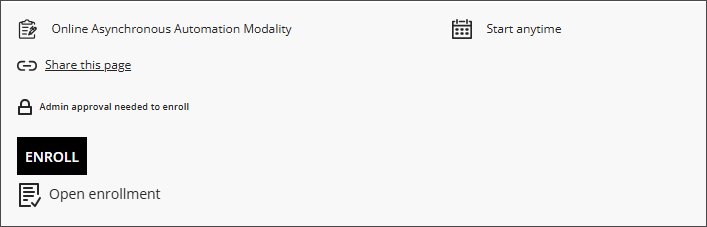
Select the Enroll button to enroll in the course. A pop-up window appears.
If there are no restrictions on enrollment, the window states that the course is free. Select Continue to complete enrollment in the course.
If an access code is required for the course, you can enter the access code and select Validate to validate the code. Then select Continue to complete enrollment in the course.
If the course requires admin approval for enrollment, the window states that admin approval is required. Select Continue to submit your enrollment for admin approval.
Add to Waitlist
If the course is full and the waitlist functionality has been turned on, the Add to Waitlist button appears.
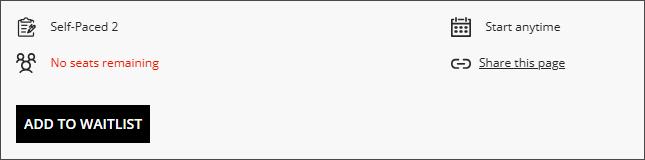
Select the Add to Waitlist button to add yourself to a waitlist for the course. A pop-up window appears where you can include a message to the admin then select the Continue button to add yourself to the waitlist. An administrator can enroll you in the course from the waitlist if space becomes available, and you will be notified by email.
Buy
If the course is a paid course and enrollment is open, the Buy button appears.
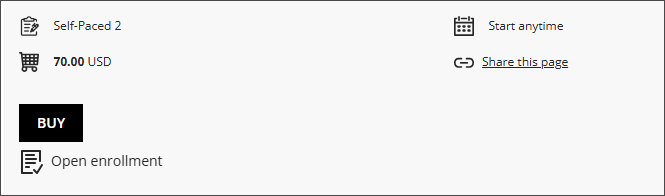
Select the Buy button.
A window will appear that states the cost to enroll in the course and asks if you want to continue to provide payment. Select Continue.
Select the payment provider you want to use from the list on the Payment Gateway panel that appears.
If you have a payment code, enter it in the box that says "Enter Payment Code" and select Validate.
Select Purchase. The payment service provider interface will open in a new tab.
Note
If a new tab does not open, a popup blocker may be preventing the web application from opening a new page. Please look for an alert in your browser address bar and follow the instructions to allow pop-up windows from this website.
Follow the steps to pay for your course through the payment service provider. When you have finished, you will see a message to close the window to continue the transaction process.
Enrollment Closed or No Availability
If the Enrollment Closed or No Availability buttons appear in the course details panel, you cannot enroll in the course.
After you have completed enrollment
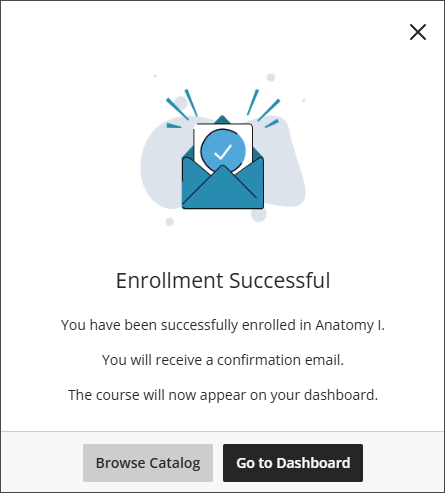
Once you have completed your enrollment action, another window will appear that offers you the option to go to your dashboard or continue browsing the catalog.