Payment Settings
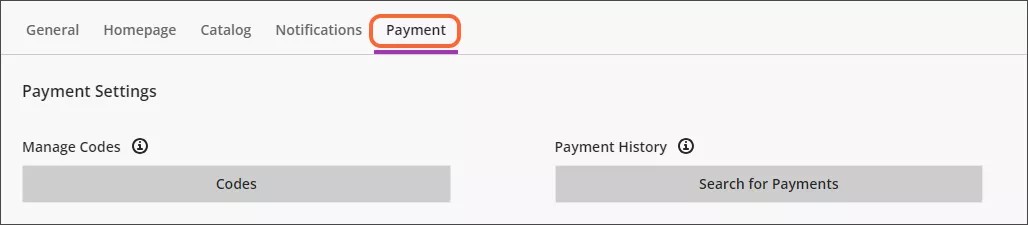
The Payment Setting screen allows you to set up payment codes and access codes and to search the payment history to find specific transactions.
The Payment Settings screen
Select Administration from the home screen.
Select Settings.
Select Payment.
Create payment codes
Payment codes are used to discount paid offerings. Payment codes can be designed to apply as a percentage of the total cost of an offering or as a specific amount.
Navigate to the Payment Settings screen.
Select Codes.
Select Add Payment Code.
Select a Language from the menu.
Type a Name for the Payment Code and an optional Description.
Select Create.
Repeat steps 4-6 for any additional languages you want to add.
Type the Code.
Turn on the Enable Payment Code toggle to enable the payment code.
Choose either Percentage or Amount, then type the appropriate value in the box.
Type a Max Usage Count if you want to limit the number of times the code can be used.
Enter usernames, separated by commas, if you want to limit the code's use to specific Users.
Click the User Search box to search for users.
You can search using Username, Student ID, or Email.
You can filter your search results by Date Created.
Select each user you want to add to the list and select Submit to add those users to the list.
Enter Course IDs, separated by commas, if you want to limit the code's use to specific Course IDs.
Select Course Search to search for courses.
You can search using Course ID, Course Name, Data Source Key, or Term.
You can filter your search results by Date Created.
Select each course you want to add and select Submit to add those courses to the list.
Choose a Start Date and End Date if you want to limit the date range when the code can be used.
Select Save to create your code.
Create access codes
Access codes are used to restrict registration to free offerings so that learners cannot enroll in the offering unless they have an access code.
Navigate to the Payment Settings screen.
Select Codes.
Select Add Access Code.
Select a Language from the menu.
Type a Name for the Payment Code and an optional Description.
Select Create.
Repeat steps 4-6 for any additional languages you want to add.
Type the Code.
Turn on the Enable Access Code toggle to enable the payment code.
Type a Max Usage Count if you want to limit the number of times the code can be used.
Enter usernames, separated by commas, if you want to limit the code's use to specific Users.
Select User Search to search for users.
You can search using Username, Student ID, or Email.
You can filter your search results by Date Created.
Select each user you want to add and select Submit to add those users to the list.
Enter Course IDs, separated by commas, if you want to limit the code's use to specific Course IDs.
Select Course Search to search for courses.
You can search using Course ID, Course Name, Data Source Key, or Term.
You can filter your search results by Date Created.
Select each course you want to add and select Submit to add those courses to the list.
Choose a Start Date and End Date if you want to limit the date range when the code can be used.
Select Save to create your code.
Edit a code
Navigate to the Manage Codes screen.
Select the three dot menu on the code row.
Choose Edit.
Make the appropriate changes to the code characteristics and select Save.
Delete a code
Navigate to the Manage Codes screen.
Select the three dot menu on the code row.
Choose Delete.
Search for payments
Administrators can search through the payment history for specific payments using the Transaction ID provided by the merchant or the username of the learner who made the transaction.
Search by Transaction ID
Navigate to the Payment Settings screen.
Select Search for Payments.
Select Search By Transaction ID.
Type the Transaction ID.
Select Search.
Search by username
Navigate to the Payment Settings screen.
Select Search for Payments.
Select Search by Username.
Type the Username of the person who made the transaction.
Select Search.
Search result actions
You can do several things with the search results that are returned when you search by Username.
Order search results by column by clicking on the arrow next to the column name.
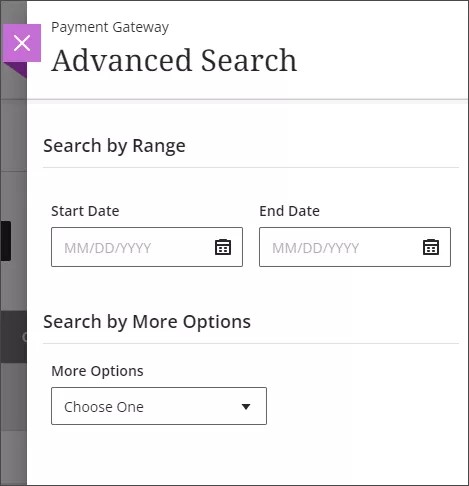
Filter the search results by date by selecting Advanced Search.
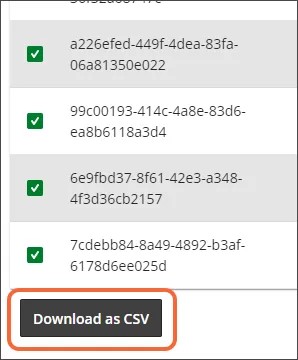
Download the payment search results as a CSV file by selecting the payment results you want to download, then selecting Download as CSV.
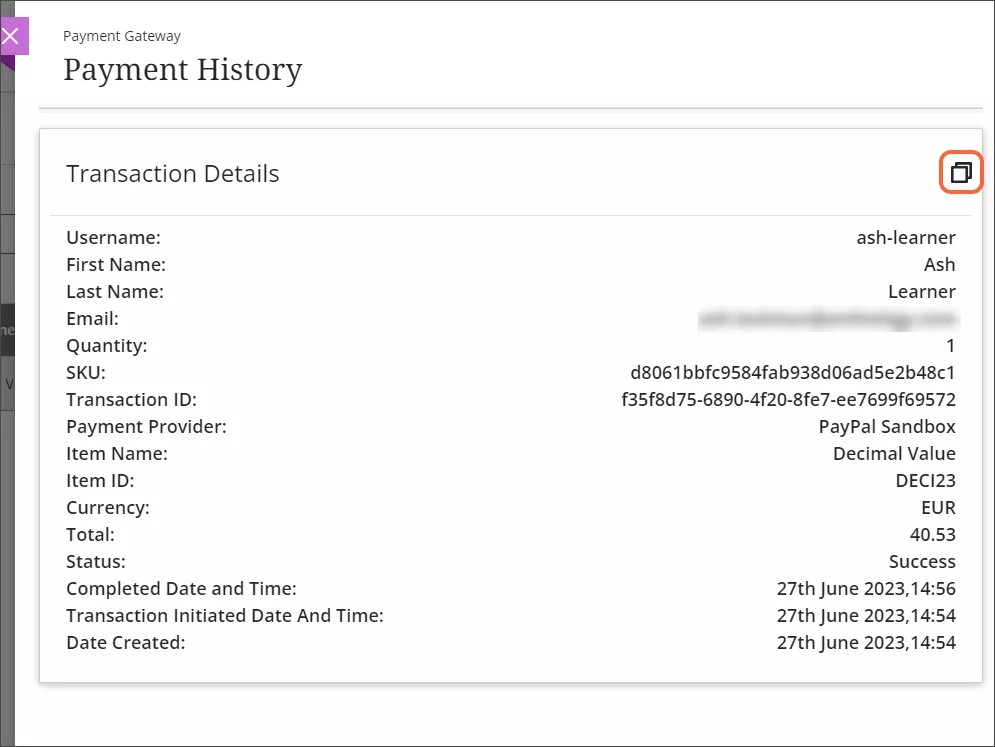
Copy and paste the data from an individual transaction by selecting the ellipsis icon on a payment row and choosing More Details, then selecting the copy icon.