Add a Certificate Template
To make a certificate available to add to offerings, the PDF template must be uploaded to Course Catalog.
Upload a certificate template
Select Administration from the home screen.
Select Certificate Management.
Select Add Certificate Template.
Select Manage Certificate Templates.
Select the Language for your certificate.
Choose the appropriate Date Format from the menu.
Type a Name for the certificate.
Drag the PDF file to the drop zone or select Upload to navigate to your PDF file.
Note
Your file must be a PDF file and must be no more than 5 MB. Do not use an encrypted PDF.
A preview of your certificate PDF appears in a collapsible section. Select the double arrows to open a window with a full size preview.
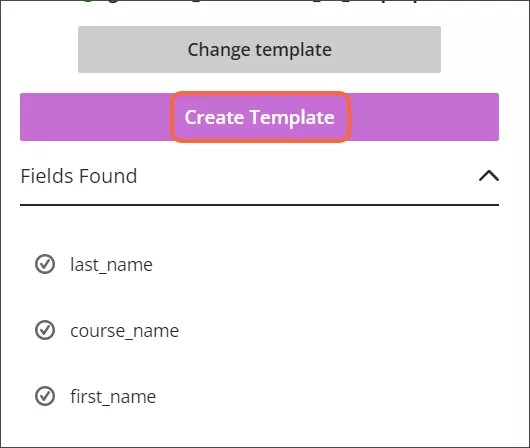
At the bottom of the panel is a list of the fields located by the system on the PDF certificate. Verify that all the correct fields were identified; if they were not, update your template and try uploading again.
Select Create Template after all your fields have been identified.
Repeat steps 5-11 for each language in which you want to add the certificate.
Select Save.
Add template data
Add the appropriate Tags from the menu.
Input the number of days the certificate will be valid.
Choose the Status from the menu.
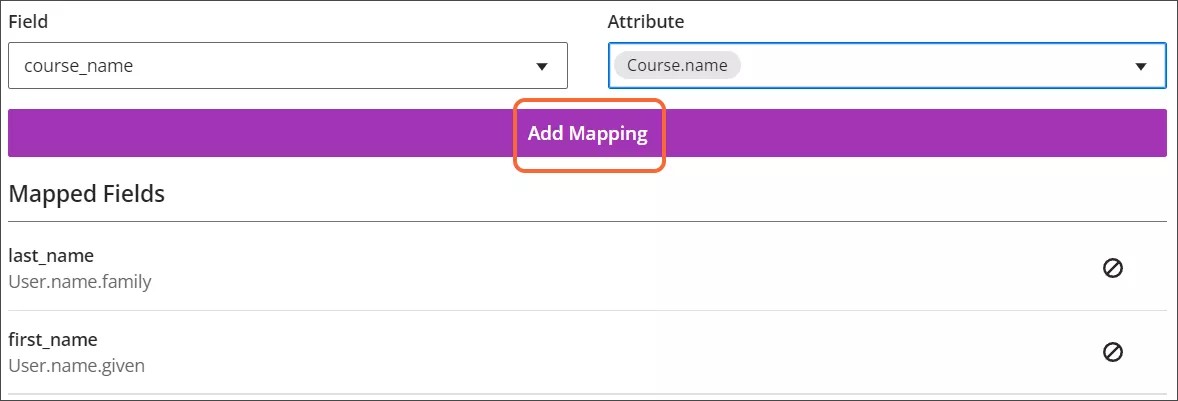
Map the fields found in the certificate to the attributes you want to display for those fields.
For example, you may map the "last_name" field to the "User.name.family" attribute.
Select Add Mapping.
Select Save when all the certificate fields have been mapped.