Add a Badge to an Offering
You can add a badge to your offering if the integration with Anthology Milestone has been enabled. You define the criteria learners must meet to earn the badge. They can see the badges they have earned on their dashboard.
From the Offering Management screen, select the offering you want to add the badge to.
Select Assign Achievement.
Select the Badges tab on the Assignment panel.
To create a new badge, select Create Badge. To refresh the list of available badges once you have created new badges, select Refresh.
Select the name of the badge you want to assign.
Turn on the Assign Badge for this course toggle.
Create the rule that will determine whether the badge is awarded. Badges will only be granted when learners have met the criteria you set up here.
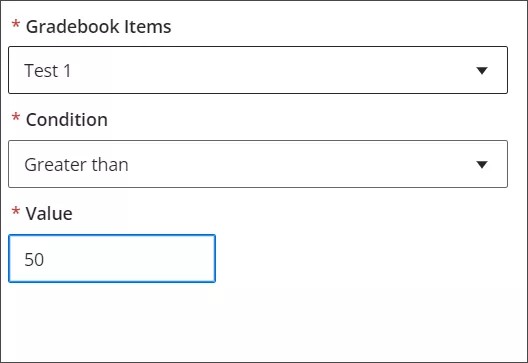
Choose the gradebook item that the rule is based on from the menu. You will see the number of possible points for the gradebook item or 100% following its name, depending on how the gradebook item has been configured in Blackboard LMS (for example, Test 1 (50) or Test 2 (100%)).
Choose the condition that must be met from the menu (for example, “greater than” or “less than”).
Enter the value—either the number of points or the precent score—to serve as the threshold for the condition (for example, 50).
Select Save.
Assign as many badges as desired to the course, then close the Assignment panel.
Select Save & Close to save your offering.
Important
If you add a badge or change the requirements for a badge after an offering has started, learners who have already met the new requirements will not be granted a badge. The badges are not granted retroactively. To generate badges for those learners, you must manually regrade the item the badge rule is based on.