Homepage Settings
You can configure the Course Catalog homepage with an introduction, a footer, and additional pages. You can also add a section for featured items and for catalog categories to be displayed in a carousel.
Select Administration from the home screen.
Select Settings.
Select the Homepage tab.
Enable Homepage
You need to enable the homepage in order for it to appear. If you do not enable the homepage, the Course Catalog link will go directly to the catalog page. To enable the homepage, select the Enable Section toggle.
Introduction
An introduction section can be presented on the catalog homepage to introduce the catalog and its use.
Select Introduction Settings.
Select the Enable Introduction toggle to enable the Introduction section on the homepage.
Select the Language you want the Introduction to appear in.
Type an optional Header that will appear at the top of your introduction.
Write your Introduction Text in the text box and format it using the formatting tools.
Select Create.
To create the introduction in a second language, repeat steps 3-6.
Select Save to save your text.
Insert a Video from YouTube
You can embed a video from YouTube into the Introduction section on the homepage.
Find the video on YouTube that you want to embed on your homepage.
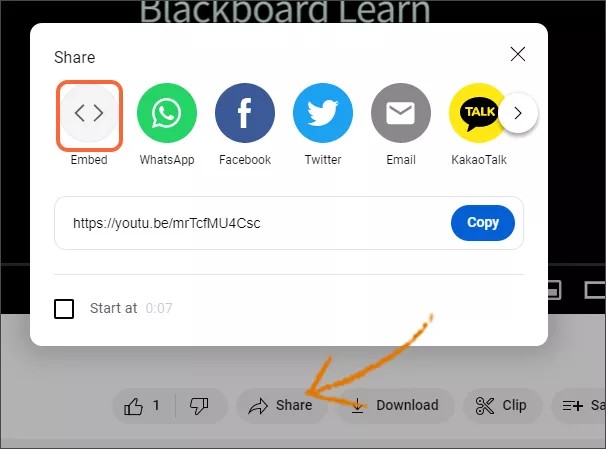
Select Share below the video, then select Embed.
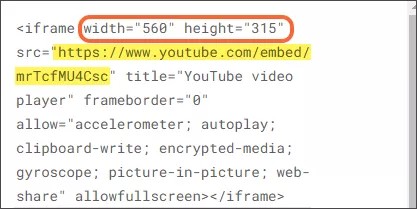
Copy the URL that is found in the embed code and make note of the width and height of the video.
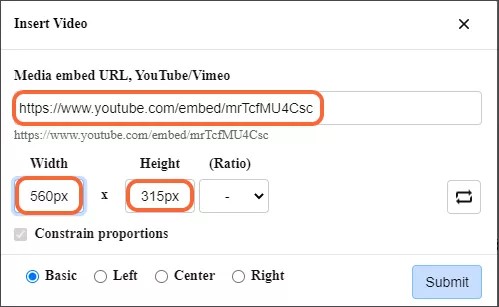
Select the video icon on the toolbar in the Introduction settings of the homepage.

Enter the URL, width, and height that you collected from the embed data of the YouTube video.
Select Submit.
Additional Pages
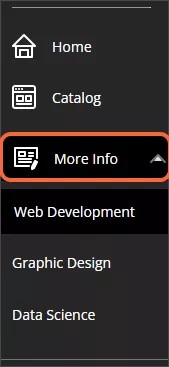
You can create an additional information page, with subpages, that will be displayed underneath the catalog link on the navigation pane.
Main Page Settings
Select the Main Page Settings button.
Select the toggle next to Enable Main Page.
Select the Language you want to create the page in.
Type a Name for the page that will appear on the navigation menu.
Write the page Content and select Create.
Repeat steps 3-5 for each language you want the page to appear in.
Select Save.
Subpages Settings
Select the Subpages Settings button.
Select the toggle next to Enable Subpage.
Type a unique ID for the subpage.
Select the Language you want to create the page in.
Type a Name for the page that will appear on the navigation menu.
Write the page Content and select Create.
Repeat steps 3-6 for each subpage you want to create.
Select Save.
Featured Items
You can highlight specific items in a carousel on the homepage. To do this, you will designate those items as Featured.
Select Featured Item Settings.
Select the toggle next to Enable Featured.
Select the items (offerings, courses, and programs) you want to showcase.
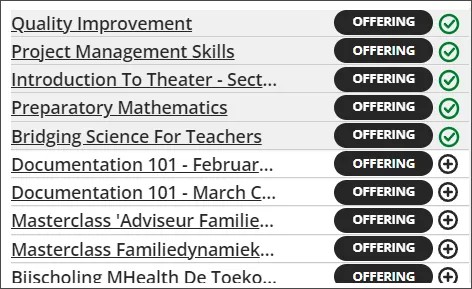
A green checkmark indicates items that have been chosen; those that have not are indicated by a black plus sign. You can have as many as 30 featured items.
Select an already selected item again to deselect it.
Select the toggle next to View Selected to show only the selected items in the list.
Select the Save button to save your choices.
Categories
You can choose to have some or all of your categories appear on a carousel on your homepage. To enable the carousel, select the Categories Settings button and select the toggle next to Enable Categories. Select Save.