Add Progress to an Offering
You can use the progress tool to show students how much progress they have made toward completing your course. You define which grade items will count toward total progress, how much weight each item will have in the calculation, and the minimum score required for each item to count as complete.
From the Offering Management screen, select the offering you want to add progress to.
Select Assign Progress.
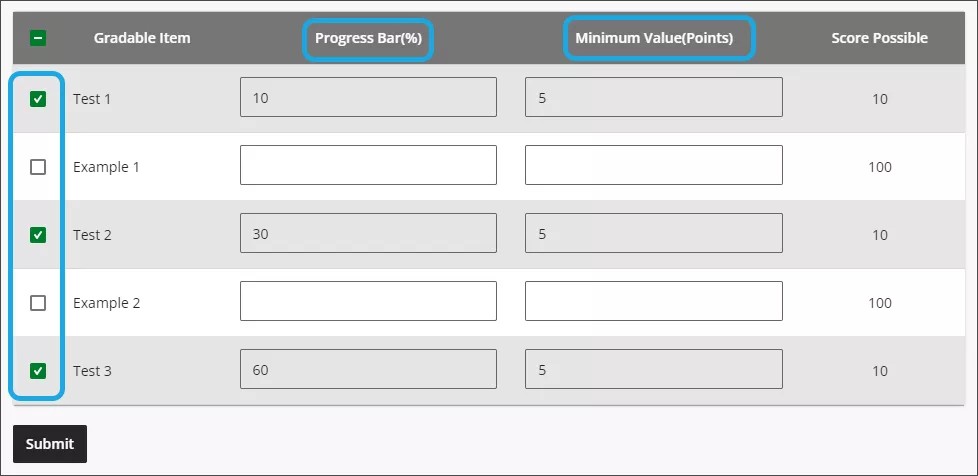
Select each Gradable Item that you want to count toward course progress.
In the Progress Bar (%) column, type the percentage of the total progress that you want that gradable item to account for (the number in this column must total 100).
In the Minimum Value (Points) column, type the minimum number of points the learner must earn to achieve the percent progress for that item (this number can't be more than the listed Score Possible).
For example:
Progress in the course below is determined by Tests 1, 2, and 3. Test 1 accounts for 10%, Test 2 for 30%, and Test 3 for the remaining 60%. In order to obtain the percent progress tied to each test, the learner must earn at least 5 points on that test. So, when the learner earns 5 points on Test 1, they will see 10% progress; when they also earn 5 points on Test 2, they will see 40% progress; and they will finally see 100% progress when they also score at least 5 points on Test 3.
Select Submit.
Close the panel.
Select Save & Close to save your offering.