Matematik Düzenleyicisi
Note
Bu belge, yapay zeka destekli makine çevirisi kullanılarak çevrilmiştir. Çeviriler, doğruluğu konusunda herhangi bir garanti olmaksızın “olduğu gibi” sunulmaktadır. Bu içeriğin İngilizce sürümü resmi ve geçerli kaynaktır.
Matematik düzenleyicisini kullanarak testlere, ödevlere, tartışmalara ve günlüklere matematik denklemleri ve formülleri ekleyebilirsiniz. Matematik düzenleyicisinin bir seçenek olarak sunulduğu herhangi bir zengin metin düzenleyicisine LaTeX formüllerini de yazabilirsiniz. Matematik düzenleyicisi, akıllı telefonlar ve tabletler de dâhil olmak üzere her tarayıcıda ve işletim sisteminde çalışır. Etkinleştirildiğinde, MathJax, İçerik Düzenleyicisi'ne girilen LaTeX kodunu Blackboard'un desteklenen alanlarında işler. MathJax etkinleştirilmezse, Wiris formülleri işleyecektir.
The math editor and typing LaTeX code are two different ways to add math formulas in the rich text editor. The math editor is a visual, point-and-click tool that lets you build a formula without writing any code. When activated, MathJax renders LaTeX code that you type as plain text into the rich text editor across supported areas of Blackboard LMS. Both methods render using MathJax, so you can choose whichever fits your workflow, such as pasting LaTeX code copied directly from an exam bank, textbook, or other source material. If MathJax is not activated, Wiris will render formulas.
Matematik formülleri, metne göre daha büyük dosya boyutlarına sahip olan PNG görüntü biçiminde oluşturulur. Matematik formüllerinin görüntülenmesi birkaç saniye sürebilir.
İnternet bağlantı hızları ve içerik boyutu yüklenme süresini etkiler. Bazı öğrenciler, çok sayıda formül görüntüsü içeren içeriklere erişmekte zorluk çekebilir.
Formül görüntüsü boyutunu ve yüklenme süresini azaltacak bazı öneriler şunlardır:
Her formülü matematik düzenleyicisi veya LaTeX ile ayrı ayrı oluşturun.
Matematik düzenleyicisinin veya LaTeX kodunun içine soru açıklamaları veya ilave metinler eklemekten kaçının. Bunun yerine; soruları, yönergeleri veya metne dayalı açıklamaları yazmak için zengin metin düzenleyicisini kullanıp matematik düzenleyicisini veya LaTeX'i yalnızca matematik formüllerini oluşturmak için kullanın.
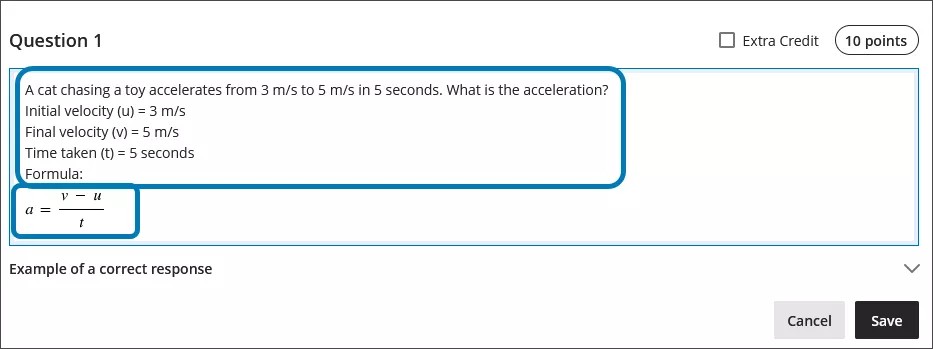
Örneğin, eğitmenin testte hızlanma ile ilgili bir matematik problemi yazdığını düşünelim. İçerik dosyasının boyutunu küçültmek için eğitmen, sorunun açıklamasını ve değişken değerlerini doğrudan zengin metin düzenleyicisine düz metin şeklinde yazar. Eğitmen, bunun ardından matematik düzenleyicisini kullanarak hızlanma formülünü yazar.
Matematik düzenleyicisini kullanma
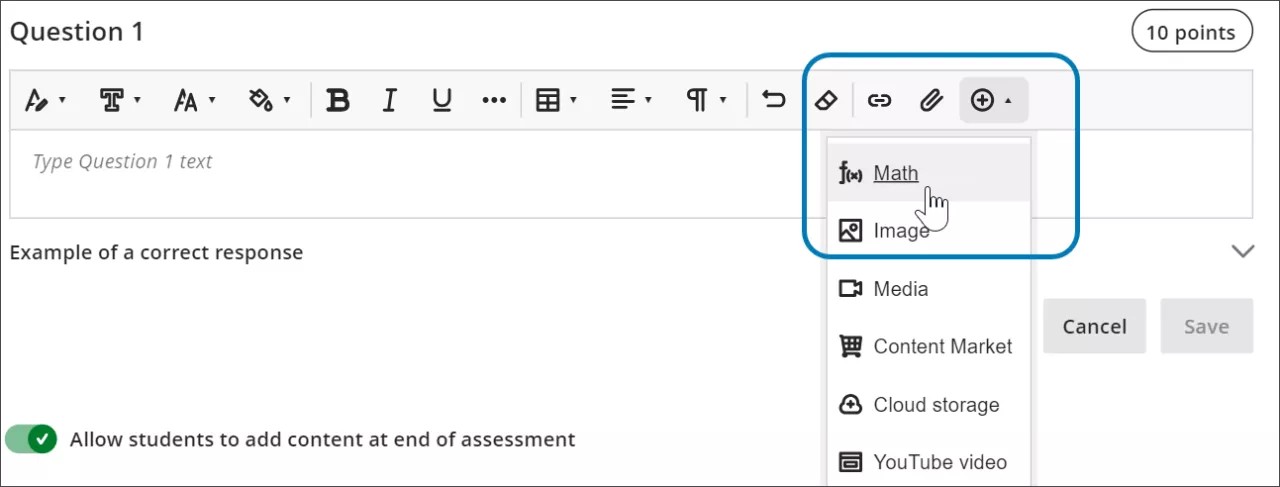
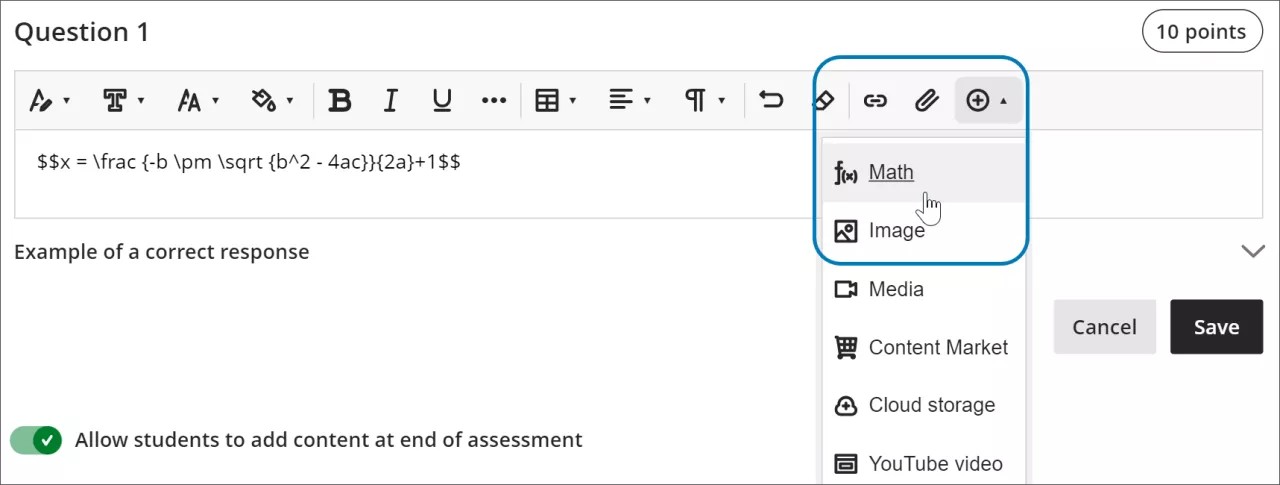
Access the math editor by selecting the + icon in the rich text editor. Select Math in the menu.
You can access many features in the math editor by selecting different tabs at the top.
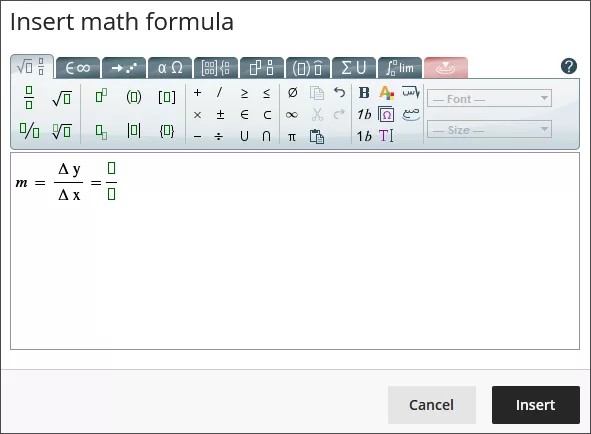
Use your keyboard to enter numbers, letters, and symbols. Select the appropriate icon in the math editor to create complex formulas, such as creating a square root.
If you are using an option that changes the level of the text for your formula, such as subscript or a fraction, use the arrow keys on your keyboard to return to the default level. We recommend using the keyboard to navigate within a formula.
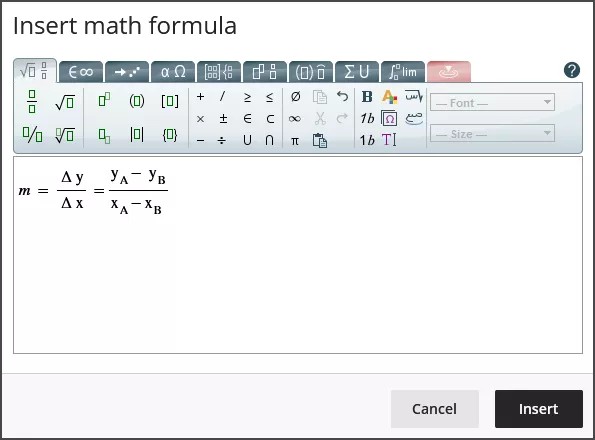
Some of the options for the building formulas in the math editor include:
Temel işlemler: toplama, çıkarma, çarpma, bölme, karekökler, üsler, kesirler
Yunan alfabesi: alfa, beta, gama ve diğerleri
Matris hesabı
İntegraller, türevler ve limitler
Trigonometrik fonksiyonlar: sinüs (sin), kosinüs (cos), tanjant (tan)
Yazı tipi stilleri ve boyutları
WIRIS web sitesi, matematik düzenleyicisinin tüm işlevleri hakkında ayrıntılı bilgiler verir.
Zengin metin düzenleyicisinde LaTeX'i kullanma
LaTeX, düz metinle yazılmış bir formülün görüntüsünü kodlama kurallarına dayanarak oluşturmak için kullanılabilecek bir yazılımdır. Learn'ün zengin metin düzenleyicisi LaTeX kodlamasını işleyebilir.
Enter a LaTeX formula by writing the specific code within delimiters in the rich text editor. MathJax supports the following delimiter options, depending on how you want the formula to display:
$$...$$or\[...\]for display equations, which appear centered on their own line, separated from the surrounding text. Display equations work well for complex expressions such as integrals, sums, and products.\(...\)for inline equations, which appear within a line of text alongside other content.
Using the delimiters that match your original source material makes it faster to copy LaTeX code from textbooks, exam banks, or other STEM materials into Blackboard LMS without needing to reformat the code.
Select Save to review how the formula displays as an image. You can go back into the rich text editor to edit the formula until it displays correctly. Some activities, such as tests and assignments, don’t allow students to save in the rich text editor and preview the rendered LaTeX formula. Students will have to check their submission afterwards to make sure that their formula rendered correctly.
Yazı tipini kalınlaştırma veya yazı tipi boyutunu değiştirme gibi formüllerin görünümünü etkileyen değişiklikler, zengin metin düzenleyicisi kullanılarak yapılamaz. Formülün yazı tipi stillerini veya boyutlarını değiştirmek için, önce zengin metin düzenleyicisinde formülün herhangi bir noktasını seçip sonra da matematik düzenleyicisini seçebilirsiniz. Matematik düzenleyicisinde yapılan tüm değişiklikler, kaydettiğiniz zaman uygulanır ve LaTeX koduna eklenir.
select anywhere within the formula in the rich text editor.
select the math editor
All changes made in the math editor are applied when you save and added to the LaTeX code.
Example of a formula formatted in LaTeX
Not
This example uses $$ delimiters for a display equation. You can also use \[...\] for a display equation or \(...\) for an inline equation instead, depending on how you want the formula to appear in your content.
İkinci dereceden denklem formülü, LaTeX'te biçimlendirilebilir.
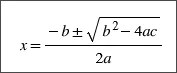
Enter $$ in the rich text editor.
$$
Next, enter the LaTeX code for the formula:
$$x = \frac {-b \pm \sqrt {b^2 - 4ac}}{2a}
Close your formula by entering $$ at the end.
$$x = \frac {-b \pm \sqrt {b^2 - 4ac}}{2a}$$
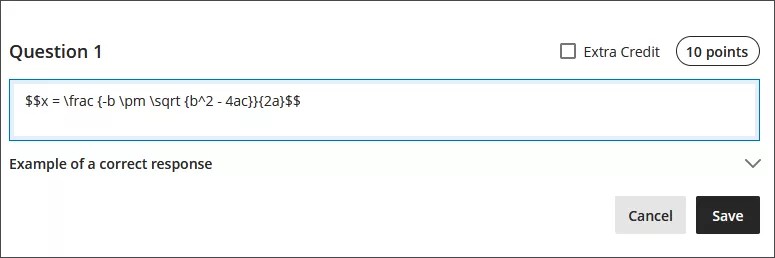
Select Save in the rich text editor. The math formula renders as a PNG image. Rendering the image may take a few seconds, depending on your internet connection and content size.
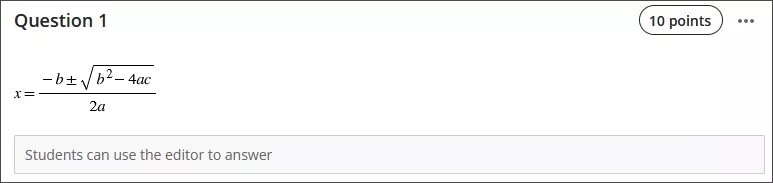
Select Edit in the rich text editor to go back to your LaTeX code.
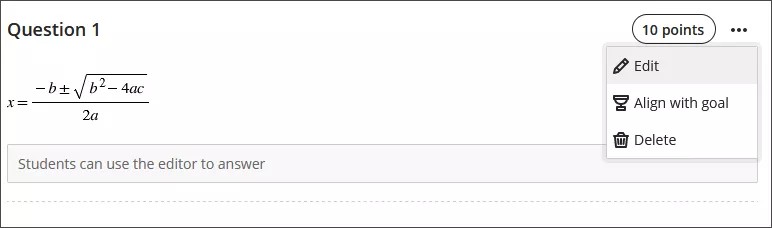
Edit your formula to overwrite your LaTeX code as plain text inside the rich text editor. For example, add a +1 to the end of the quadratic formula.
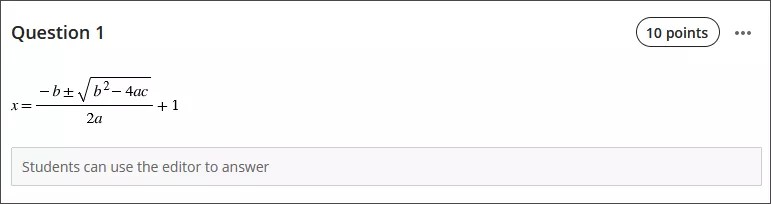
$$x = \frac {-b \pm \sqrt {b^2 - 4ac}}{2a}+1$$
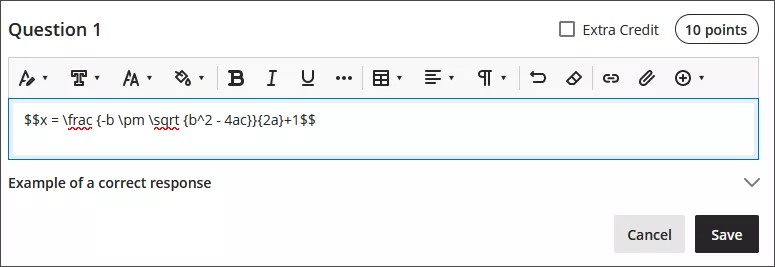
Select Save to render the formula as a new image.
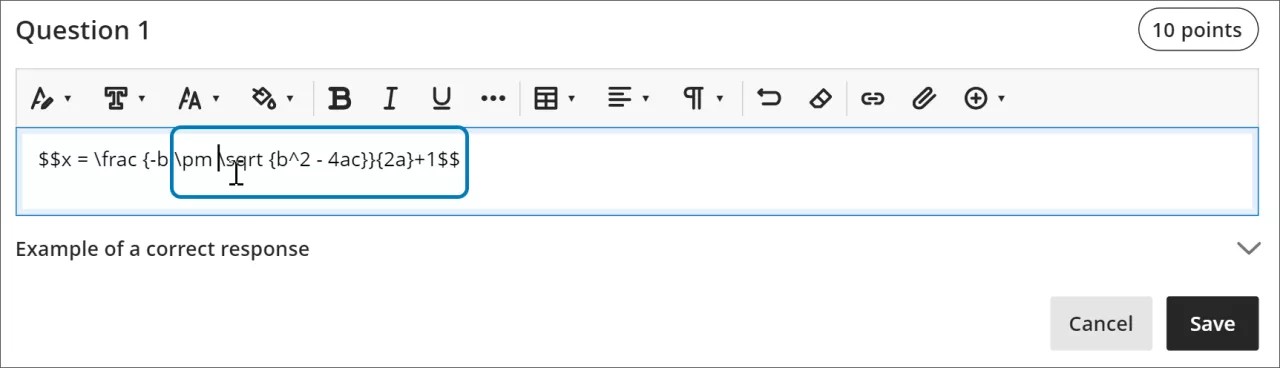
You can make further adjustments to the style of the formula. In the rich text editor, select anything inside the LaTeX code.
Open the math editor.
Apply the styles you want to the formula. For example, you can bold part of the formula and change the font size.
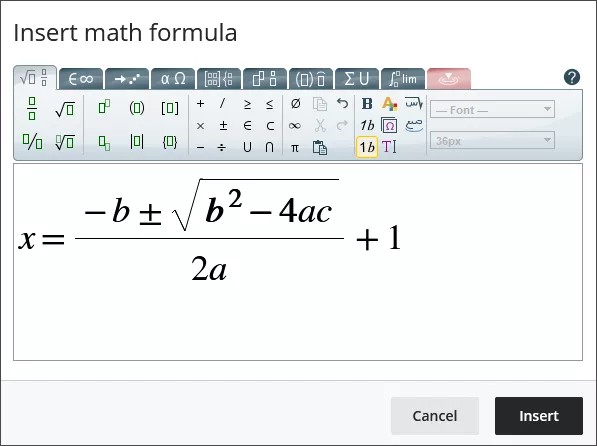
Select Save in the math editor. The LaTeX code for the quadratic formula with your style adjustments is now:
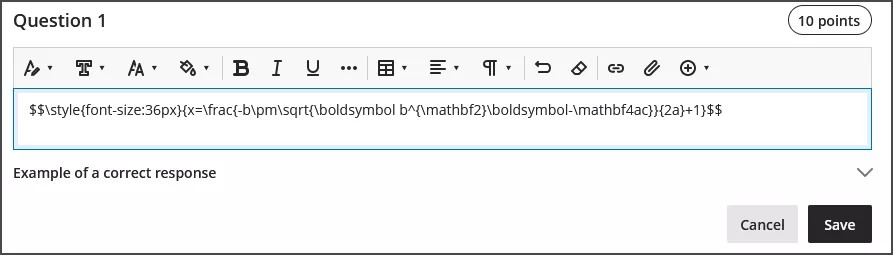
$$\style{font-size:36px}{x=\frac{-b\pm\sqrt{\boldsymbol b^{\mathbf2}\boldsymbol-\mathbf4ac}}{2a}+1}$$
Select Save in the rich text editor to render your adjusted formula as an image.
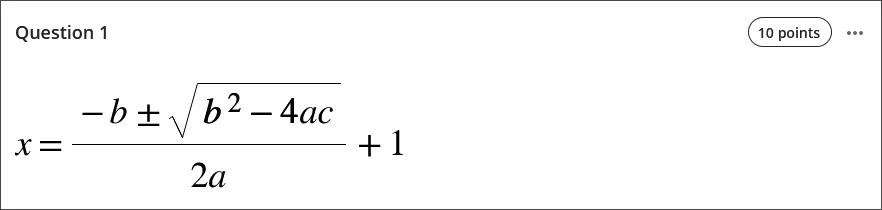
Erişilebilirlik özellikleri
Matematik formülü görüntüleri yüksek kalitededir. Bu sayede, kullanıcılar görüntüyü yakınlaştırsalar da netlik bozulmaz. Öğrencilerinize yardımcı olmak için yazı tipi boyutunu da değiştirebilirsiniz. Daha büyük yazı tipi boyutları, öğrencilerinizin küçük sayılar ve simgeler içeren bir formülün ayrıntılarını görmesine yardımcı olabilir.
Siz onları oluşturduğunuz sırada ve görüntü şeklinde oluşturulmalarının ardından, ekran okuyucular tarafından formüllere erişilebilir.
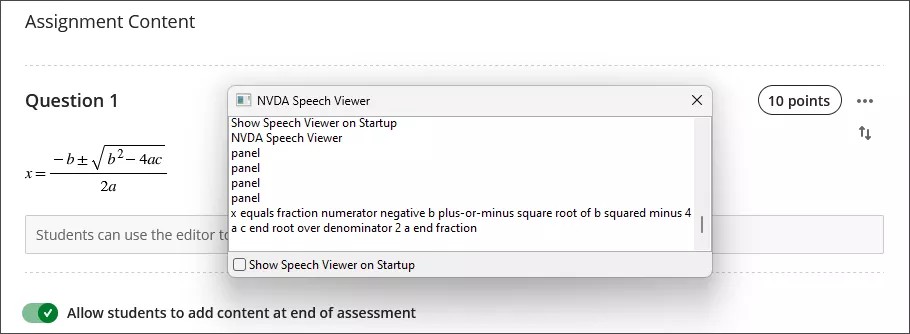
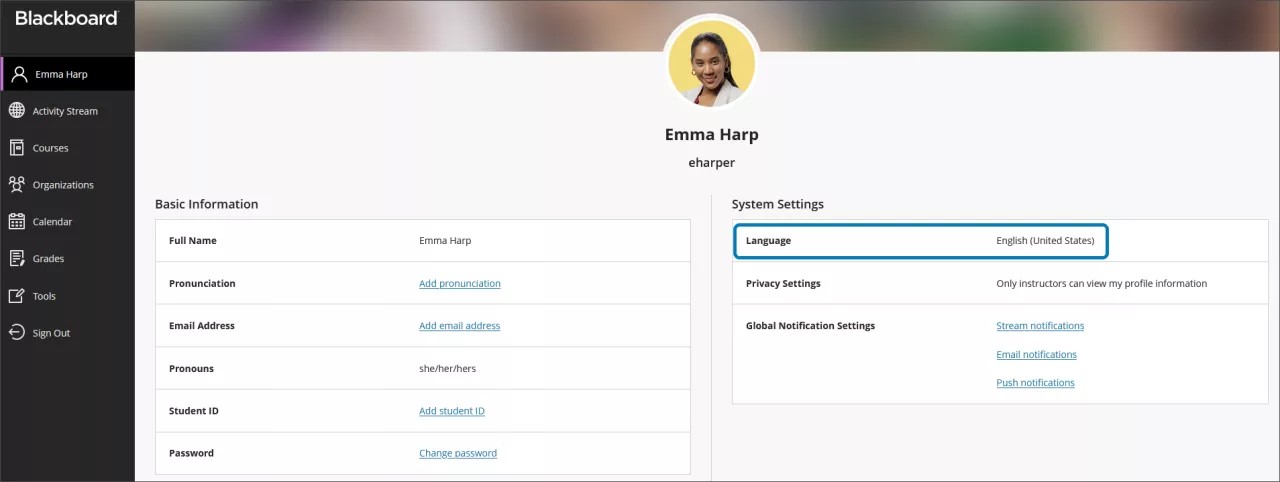
Matematik formülleri için alternatif metin, Learn profilinizdeki dil ayarınıza göre otomatik olarak oluşturulur. Ekran okuyucular dil, hız ve ses dâhil olmak üzere yerel cihaz ayarlarınızı izler. Ekran okuyucunuz ve alternatif metninizle daha iyi bir deneyim yaşamak için Learn'deki dil ayarınızın yerel cihazınızdaki ayarlarla eşleştiğine emin olun.
Not
Bir dil matematik düzenleyicisi veya zengin metin tarafından desteklenmiyorsa formüller İngilizce olarak okunur.